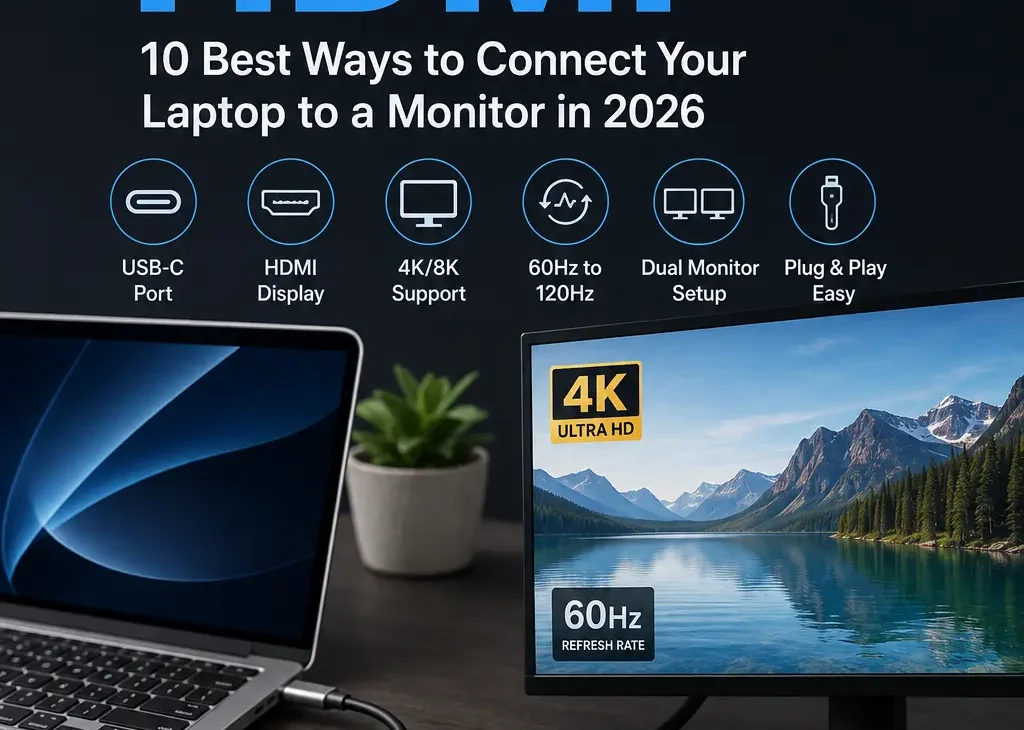
Connecting a laptop to an external monitor is one of the easiest ways to get more screen space for work, gaming, editing, and entertainment. A USB C to HDMI connection can make this setup simple when your laptop has USB-C but your monitor or TV uses HDMI.
USB-C ports are now common on modern laptops, MacBooks, tablets, and other devices. However, not every USB-C port supports video output. Understanding compatibility is therefore important before buying a cable or adapter.
In this guide, we’ll explain how USB-C to HDMI connections work, what you need to check before buying one, how to connect your devices, and how to troubleshoot common display problems.
What Is USB C to HDMI?
A USB C to HDMI connection allows a compatible USB-C device to send video and audio to an HDMI display.
For example, you can connect a laptop with a compatible USB-C port to:
- A monitor
- A television
- A projector
- An external display
- A home theater receiver
The USB-C side connects to your computer, while the HDMI side connects to the display.
However, simply having a USB-C port doesn’t guarantee that video output will work. The USB-C port must support a compatible display-output technology, such as DisplayPort Alt Mode.
How Does USB C to HDMI Work?
USB-C can carry different types of data depending on the device and port.
When a compatible USB-C port supports video output, an adapter or compatible cable can convert the video signal into an HDMI-compatible signal for your display.
The exact capabilities depend on the laptop, USB-C port, adapter, cable, HDMI version, and monitor.
This means two laptops with identical-looking USB-C ports may have completely different display capabilities.
Does Every USB-C Port Support HDMI?
No.
This is one of the most important things to understand before purchasing a USB C to HDMI cable.
Some USB-C ports support charging and data only.
Others support video output as well.
Look for specifications mentioning:
- DisplayPort Alt Mode
- Video output
- Thunderbolt
- USB4
- External display support
If your laptop’s USB-C port doesn’t support video output, an ordinary USB-C to HDMI cable won’t magically add that capability.
USB C to HDMI Cable vs Adapter
There are two common ways to connect a USB-C device to an HDMI display.
USB-C to HDMI Cable
A direct cable has a USB-C connector on one end and an HDMI connector on the other.
This is convenient when you only need to connect one USB-C device to one HDMI display.
It also reduces the number of separate components on your desk.
USB-C to HDMI Adapter
An adapter provides an HDMI port that you can connect to using a standard HDMI cable.
This can be useful if you already own an HDMI cable or want more flexibility.
Some adapters also include additional ports such as USB-A, USB-C charging, Ethernet, or SD card slots.
What Resolution Can USB C to HDMI Support?
Resolution support depends on the complete setup.
A compatible USB C to HDMI solution may support Full HD, 1440p, 4K, or even higher resolutions depending on the hardware.
For 4K displays, refresh rate is also important.
For example, a setup may support:
- 4K at 30Hz
- 4K at 60Hz
- 4K at higher refresh rates
The laptop’s graphics hardware, USB-C output, adapter, HDMI version, and monitor all need to support the desired resolution and refresh rate.
How to Connect USB C to HDMI
Connecting a compatible laptop to an HDMI monitor is usually straightforward.
Step 1: Check Your USB-C Port
First, make sure the USB-C port on your laptop supports video output.
Check the laptop’s specifications or look for DisplayPort, Thunderbolt, or external-display support.
Step 2: Connect the USB-C Side
Plug the USB-C connector into the compatible port on your laptop.
Make sure the connector is fully inserted.
Step 3: Connect HDMI
Connect the HDMI end to the HDMI input on your monitor, TV, or projector.
If you’re using an adapter, connect a standard HDMI cable between the adapter and the display.
Step 4: Select the Correct HDMI Input
Use the monitor or TV controls to select the HDMI input where your laptop is connected.
The display should detect the computer automatically.
Step 5: Configure Display Settings
On Windows, open the display settings to choose whether you want to duplicate, extend, or use the external screen as your primary display.
On macOS, open System Settings > Displays to configure the connected monitor.
USB C to HDMI for MacBook
MacBooks are commonly used with external monitors, but compatibility depends on the specific model and port.
A compatible USB C to HDMI adapter or cable can connect a MacBook to an HDMI monitor or television.
Before purchasing one, check the MacBook’s supported external-display specifications.
This is especially important if you want to run a high-resolution monitor or use a higher refresh rate.
For a basic 1080p display, compatibility is generally straightforward. More demanding setups require closer attention to the supported resolution and refresh rate.
USB C to HDMI for Windows Laptops
Many modern Windows laptops include USB-C ports capable of external video output.
However, USB-C functionality varies between manufacturers and models.
Some ports support charging and data but don’t provide display output.
Others can support external displays through DisplayPort Alt Mode, Thunderbolt, or USB4.
Always check your laptop’s specifications before buying a USB C to HDMI solution.
Can USB C to HDMI Carry Audio?
Yes, a compatible connection can carry both video and audio through HDMI.
If your monitor or TV has built-in speakers, the computer may allow you to select the display as the audio output device.
If video works but there is no sound, check the computer’s audio-output settings and make sure the HDMI display is selected.
USB C to HDMI for 4K Monitors
If you’re buying a USB C to HDMI cable specifically for a 4K monitor, don’t look only at the resolution printed on the packaging.
Check the supported refresh rate as well.
A cable or adapter may support 4K resolution but only at a lower refresh rate.
For office work, 4K at 60Hz is a common target because it provides sharp text and smooth everyday use.
For gaming or high-refresh displays, you’ll need to verify that the entire connection supports the desired refresh rate.
USB C to HDMI for Gaming
A USB-C to HDMI setup can also be useful for gaming, especially when connecting a laptop to a larger monitor or TV.
However, gamers should pay attention to:
- Resolution
- Refresh rate
- HDMI version
- Graphics hardware
- Adaptive sync support
- HDR support
- Input latency
A basic adapter may be perfectly fine for office work but unsuitable for a high-refresh gaming monitor.
If you’re targeting 120Hz, 144Hz, or higher, verify the complete hardware chain before purchasing.
USB C to HDMI for Dual Monitors
A single USB C to HDMI connection normally connects one external HDMI display.
If you want to use two monitors, the situation becomes more complicated because the laptop needs to support multiple external displays.
For example, a laptop may have multiple USB-C ports, but that doesn’t automatically mean every port can drive a separate monitor.
Before purchasing an adapter or hub, check:
- Number of supported external displays
- Maximum resolution
- Maximum refresh rate
- Thunderbolt or USB4 support
- DisplayPort Alt Mode
- Operating-system limitations
A compatible docking station can be a better option when you need multiple displays and additional USB ports.
USB C to HDMI for a MacBook
MacBook users should pay particular attention to the maximum number of external displays supported by their specific model.
Different MacBook models can have different external-monitor limitations.
If you’re using a MacBook with two HDMI monitors, a USB-C dock or multiple compatible adapters may be required depending on the model.
Don’t assume that connecting two USB-C-to-HDMI adapters will automatically produce two independent displays.
Common USB C to HDMI Problems
Sometimes the display doesn’t appear even though everything seems correctly connected.
Here are some common causes.
No Signal
If your monitor says No Signal, first check that the HDMI cable is connected properly.
Then confirm that the monitor is set to the correct HDMI input.
Try disconnecting and reconnecting the adapter.
If possible, test the setup with another HDMI cable or display.
USB-C Port Doesn’t Support Video
This is one of the most common compatibility problems.
Your laptop may have USB-C for charging and data but no video output capability.
In this situation, a standard USB C to HDMI cable won’t work.
Check your laptop’s specifications to confirm that the USB-C port supports external displays.
Display Flickering
Flickering can be caused by:
- Poor-quality cables
- Unsupported refresh rates
- Loose connections
- Adapter compatibility problems
- Outdated graphics drivers
- Power-related issues
Try lowering the refresh rate temporarily and testing another cable or adapter.
Low Resolution
If your monitor supports 4K but the computer only offers a lower resolution, check the specifications of every component in the connection.
The laptop, adapter, cable, HDMI port, and monitor all need to support the desired resolution.
No Audio
If the image appears but there’s no sound, check the computer’s audio-output settings.
Select the HDMI-connected display as the output device if it supports audio.
https://www.hdmi.org/
How to Choose the Right USB C to HDMI Adapter
When buying a USB C to HDMI adapter, don’t choose based only on price.
Check the specifications carefully.
Resolution Support
Choose an adapter that supports the resolution you actually plan to use.
For a 4K monitor, look for explicit 4K support at the refresh rate you need.
Refresh Rate
If you’re using a gaming monitor, check whether the adapter supports 60Hz, 120Hz, 144Hz, or higher.
Compatibility
Make sure the adapter supports your operating system and laptop.
Build Quality
A well-built adapter with reliable connectors can be more dependable for long-term use.
Additional Ports
If you need USB devices, Ethernet, SD cards, or charging, a USB-C hub may offer better value than a simple HDMI adapter.
USB C to HDMI: 10 Things to Check Before Buying
If you’re planning to buy a USB C to HDMI cable or adapter, checking a few specifications beforehand can save you from compatibility problems.
1. Check Video Output Support
Make sure the USB-C port supports DisplayPort Alt Mode, Thunderbolt, or another compatible video-output standard.
2. Check Maximum Resolution
Confirm whether the adapter supports the resolution of your monitor.
For example, a 4K monitor needs a connection capable of handling 4K output.
3. Check Refresh Rate
Resolution isn’t the only specification that matters.
If you use a 120Hz or 144Hz monitor, make sure the adapter supports the required refresh rate at your chosen resolution.
4. Check HDMI Version
Different HDMI versions offer different capabilities.
If you need advanced features such as higher refresh rates, HDR, or higher resolutions, check the HDMI specifications carefully.
5. Consider Cable Length
Longer cables can be convenient, but unnecessarily long cables may create additional signal-quality concerns.
Choose a length that comfortably reaches your monitor without leaving excessive cable around your desk.
6. Consider Your Laptop
Check your laptop’s specifications before purchasing.
Two laptops can have identical USB-C connectors while offering completely different capabilities.
7. Consider Your Monitor
Check which HDMI input your monitor provides and what resolutions and refresh rates it supports.
8. Check Audio Support
If you want audio to travel through HDMI, confirm that the adapter supports HDMI audio output.
9. Think About Future Upgrades
If you’re planning to upgrade your monitor soon, buying an adapter with stronger specifications may provide better long-term value.
10. Don’t Choose Only by Price
The cheapest option isn’t always the best option.
A reliable adapter with proper specifications can be a better investment than repeatedly replacing incompatible or unreliable accessories.
USB C to HDMI vs Other Display Connections
USB-C isn’t the only way to connect a modern laptop to an external display.
USB C to HDMI
This is useful when your laptop has USB-C video output and your monitor has HDMI input.
DisplayPort
DisplayPort is commonly found on computer monitors and can provide strong support for high-resolution and high-refresh-rate displays.
HDMI to HDMI
If your laptop already has an HDMI port, a standard HDMI connection is often the simplest solution.
USB-C to DisplayPort
This can be useful when your monitor has a DisplayPort input and you want to take advantage of its capabilities.
The best option depends on the ports and specifications of your devices.
Pros and Cons
Pros
- Simple connection
- Supports video and audio
- Useful for laptops with USB-C
- Works with many HDMI displays
- Easy to use
- Suitable for work and entertainment
- Available as cables and adapters
Cons
- Not every USB-C port supports video
- Maximum resolution varies
- Refresh-rate support varies
- Cheap adapters may be unreliable
- Multi-monitor setups can require additional hardware
Frequently Asked Questions
Does USB-C to HDMI work with every laptop?
No. The laptop’s USB-C port must support compatible video output.
Can USB-C to HDMI support 4K?
Yes, compatible hardware can support 4K, but the maximum refresh rate depends on the laptop, adapter, HDMI connection, and monitor.
Does USB-C to HDMI carry sound?
Yes. A compatible HDMI connection can carry both video and audio.
Why does my monitor say No Signal?
Check the USB-C port’s video capability, HDMI input, cable connections, adapter compatibility, and display settings.
Can I use USB-C to HDMI for two monitors?
It depends on the laptop and its external-display capabilities. Some systems require a compatible dock or additional display hardware.
Is a USB-C to HDMI adapter better than a cable?
Neither is universally better. A direct cable is convenient, while an adapter provides flexibility if you already have an HDMI cable.
Final Verdict
A USB C to HDMI connection is a convenient way to connect a compatible laptop, MacBook, tablet, or other device to an HDMI monitor or TV.
The most important thing is compatibility. Before buying, verify that your USB-C port supports video output and that the adapter or cable supports your required resolution and refresh rate.
For basic office work, a standard solution may be enough. For 4K, high-refresh gaming, HDR, or multi-monitor setups, you should pay much closer attention to the specifications.