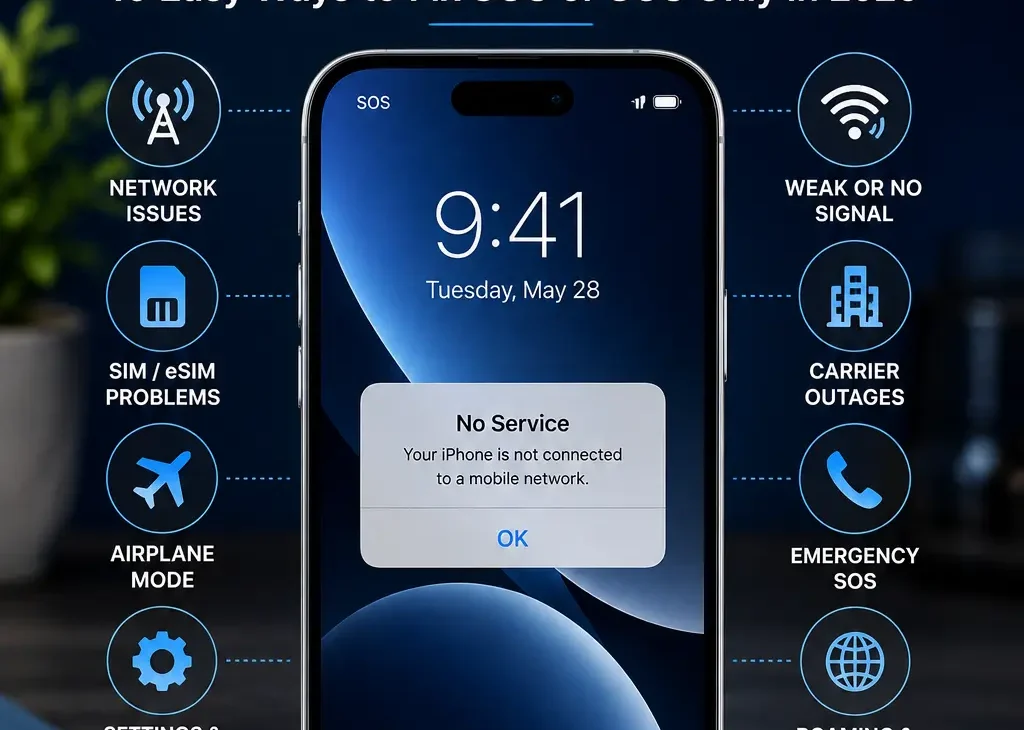
Seeing SOS on iPhone can be confusing, especially when your phone suddenly stops showing its normal cellular signal.
The good news is that SOS doesn’t necessarily mean your iPhone is broken. In most cases, it means the device isn’t connected to your regular mobile network.
Your iPhone may still be able to make emergency calls, but normal calls, texts, and mobile data may not work until the cellular connection is restored.
This problem can happen because of weak coverage, a carrier outage, SIM or eSIM problems, incorrect settings, or temporary network issues.
In this guide, we’ll explain what SOS on iPhone means, why it appears, and the easiest ways to get your normal cellular service back.
What Does SOS on iPhone Mean?
When you see SOS or SOS Only in the status bar, your iPhone isn’t connected to your normal cellular network.
However, the phone may still be able to connect to another available network for emergency services.
That’s why the SOS indicator is important.
It doesn’t necessarily indicate a hardware failure.
Instead, it usually means your iPhone currently doesn’t have normal cellular service.
Your exact experience can depend on your carrier, location, iPhone model, SIM or eSIM configuration, and network availability.
Why Does My iPhone Say SOS?
There are several reasons why SOS on iPhone can appear.
Common causes include:
- Weak cellular coverage
- Temporary carrier outage
- SIM card problems
- eSIM activation issues
- Airplane Mode being enabled
- Network settings problems
- Account or billing issues
- iOS software problems
- Carrier settings problems
- Traveling outside your carrier’s coverage area
Sometimes the problem fixes itself after a few minutes.
If it continues, you can work through the troubleshooting steps below.
SOS vs SOS Only on iPhone
You may see slightly different messages depending on your iPhone and network.
SOS or SOS Only generally indicates that your iPhone doesn’t have a normal cellular connection.
The important difference is that the phone may still be able to make emergency calls through an available network.
It doesn’t mean that your regular cellular service is working normally.
If the message remains for an extended period, checking your network connection and carrier service should be your first step.
Check Your Cellular Signal
Before changing any settings, check your surroundings.
If you’re inside a basement, elevator, parking structure, or remote area, your iPhone may simply be struggling to reach a cellular tower.
Try moving somewhere with better reception.
You can also check whether other people using the same carrier are experiencing the same problem.
If several nearby customers have lost service at the same time, the issue may be a carrier outage rather than your iPhone.
https://support.apple.com/
Turn Airplane Mode On and Off
One of the quickest ways to refresh the cellular connection is to toggle Airplane Mode.
Open Control Center and turn Airplane Mode on.
Wait around 10–15 seconds.
Then turn it off again.
Your iPhone will attempt to reconnect to the cellular network.
This simple step can sometimes resolve temporary connection problems without requiring a restart.
Restart Your iPhone
A normal restart can also fix temporary cellular glitches.
Turn your iPhone off completely, wait a few seconds, and then turn it back on.
After restarting, give the device a little time to reconnect to the network.
If SOS on iPhone disappears and your normal signal returns, the problem was likely temporary.
Check Your SIM or eSIM
If SOS on iPhone continues to appear, your SIM or eSIM could be the problem.
If you’re using a physical SIM, turn off your iPhone and check that the SIM is properly inserted.
A loose or damaged SIM can prevent your phone from connecting to the carrier network.
For an eSIM, check whether your cellular plan is still active under Settings > Cellular.
If your cellular plan is missing or shows an activation problem, you may need to contact your carrier.
Check Your Cellular Settings
Open:
Settings > Cellular
Make sure your cellular line is turned on.
If you use multiple SIMs, check that the correct line is enabled.
You can also check whether your preferred line is selected for calls and mobile data.
Incorrect cellular settings can sometimes cause connection problems.
Check for a Carrier Outage
Sometimes the iPhone isn’t the problem at all.
Your carrier may be experiencing a temporary outage or maintenance issue.
Check your carrier’s official website or support channels for outage information.
If other people using the same carrier in your area are also seeing SOS, waiting for the carrier to restore service may be the only solution.
Update Your Carrier Settings
Carriers occasionally release updated network settings that improve compatibility and connectivity.
Connect your iPhone to Wi-Fi and open:
Settings > General > About
Wait a few seconds.
If a carrier settings update is available, your iPhone may display a prompt to install it.
Installing the latest carrier settings can sometimes resolve cellular connection problems.
Update iOS
An outdated version of iOS can occasionally cause connectivity or compatibility issues.
Go to:
Settings > General > Software Update
If an update is available, install it when you’re connected to Wi-Fi and have sufficient battery power.
Keeping iOS updated can also provide important security improvements and bug fixes.
Reset Network Settings
If the previous methods don’t work, resetting network settings can be useful.
Go to:
Settings > General > Transfer or Reset iPhone > Reset > Reset Network Settings
Keep in mind that this removes saved Wi-Fi networks and passwords along with other network-related settings.
Your personal photos, apps, and other files won’t be deleted.
After the reset, reconnect to Wi-Fi and check whether your cellular signal has returned.
Check Your Carrier Account
Your account could also be responsible for the problem.
Check whether your mobile plan is active and whether there are any billing or account issues.
If you recently changed plans, transferred your number, replaced your SIM, or switched carriers, the account may need additional activation.
Contact your carrier if everything looks normal on the iPhone but SOS on iPhone remains.
Try Your iPhone in Another Location
If you’re currently in an area with poor reception, travel a short distance and check the signal again.
Large buildings, underground areas, mountains, remote locations, and crowded events can all affect cellular connectivity.
If your normal signal returns after changing locations, the problem is probably related to local coverage rather than your iPhone.
When SOS on iPhone Could Indicate a Bigger Problem
Most cases of SOS on iPhone are related to network or carrier issues, but persistent problems can sometimes point to a device or account problem.
If your iPhone continues showing SOS in places where other phones using the same carrier have normal service, further troubleshooting may be necessary.
Check for Physical Damage
If your iPhone was recently dropped, exposed to water, or physically damaged, its cellular hardware could potentially be affected.
Problems with internal antennas or other components can interfere with cellular connectivity.
If the issue started immediately after physical damage, contacting Apple Support or an authorized service provider may be appropriate.
Check Whether Your IMEI Is Blocked
If you’ve recently purchased a used iPhone, check that the device hasn’t been reported lost or stolen and blocked by a carrier.
A blocked device may have problems connecting to cellular networks even when the hardware is working correctly.
Contact the relevant carrier if you suspect an account or device-blocking issue.
Emergency SOS Is Different
It’s important not to confuse the SOS indicator in the status bar with Emergency SOS.
The SOS indicator means your iPhone doesn’t currently have normal cellular service.
Emergency SOS is an iPhone safety feature that allows you to quickly contact emergency services.
Depending on your iPhone model, location, and available connectivity, emergency communication features may also work through satellite connectivity when cellular and Wi-Fi aren’t available.
How to Use Emergency SOS on iPhone
On many recent iPhone models, you can activate Emergency SOS by pressing and holding the side button together with one of the volume buttons.
Your iPhone will display the Emergency SOS interface and provide options for contacting emergency services.
The exact behavior can vary by region and iPhone model.
If you don’t want accidental emergency calls, you can review the Emergency SOS settings under:
Settings > Emergency SOS
SOS on iPhone While Traveling
Traveling internationally can sometimes cause an iPhone to display SOS.
Your regular carrier may not have roaming service available in the country you’re visiting.
Check whether international roaming is enabled on your mobile plan.
You should also make sure your iPhone supports the local network bands and that your carrier has a roaming agreement in the country you’re visiting.
Using a local SIM or eSIM can be another option for travelers.
SOS After Switching Carriers
If SOS on iPhone appears immediately after changing carriers, the new cellular line may not have been activated correctly.
Check:
Settings > Cellular
Make sure the new line appears and is turned on.
If you’re using an eSIM, follow your carrier’s activation instructions carefully.
If the number transfer is still processing, the carrier may need additional time to complete the activation.
SOS After Installing an iOS Update
Sometimes users notice cellular problems after updating iOS.
If this happens, first restart the iPhone and check for a carrier settings update.
If the issue continues, check whether your carrier has acknowledged a compatibility problem.
Avoid repeatedly resetting the device unless necessary.
When Should You Contact Your Carrier?
Contact your carrier if:
- SOS remains for several hours
- Other customers have normal service
- Your SIM or eSIM appears inactive
- You recently changed carriers
- Your account was recently modified
- Your number was recently transferred
- Your plan appears suspended
- Network settings resets didn’t help
Your carrier can check whether your account, SIM, number, or local network connection has an issue.
When Should You Contact Apple?
Contact Apple or an authorized service provider if the carrier confirms that your account and network are working correctly but your iPhone still cannot connect.
This is particularly important if the issue started after physical damage or if the phone consistently fails to detect cellular networks in multiple locations.
10 Easy Ways to Fix SOS on iPhone
If you’re still seeing SOS on iPhone, try these solutions in order.
1. Move to an Open Area
Move outside or to a location with stronger cellular reception.
2. Toggle Airplane Mode
Turn Airplane Mode on for about 10–15 seconds and then turn it off.
3. Restart Your iPhone
A restart can refresh the cellular connection and resolve temporary network problems.
4. Check Your SIM or eSIM
Make sure your physical SIM is properly installed or that your eSIM line is active.
5. Check Cellular Settings
Go to Settings > Cellular and make sure your cellular line is enabled.
6. Check for Carrier Updates
Open Settings > General > About and wait briefly for a possible carrier settings update.
7. Update iOS
Go to Settings > General > Software Update and install any available update.
8. Reset Network Settings
Go to Settings > General > Transfer or Reset iPhone > Reset > Reset Network Settings.
Remember that saved Wi-Fi passwords will be removed.
9. Check With Your Carrier
Ask your carrier whether there is an outage, account problem, SIM issue, or activation problem.
10. Contact Apple
If the carrier confirms everything is working correctly, Apple can help determine whether the iPhone itself has a hardware or software problem.
Frequently Asked Questions
Why does my iPhone say SOS?
It usually means your iPhone isn’t connected to your normal cellular network. You may still be able to make emergency calls through an available network.
How do I get my iPhone out of SOS mode?
Try Airplane Mode, restarting the phone, checking your SIM or eSIM, updating carrier settings, and checking your cellular plan.
Does SOS mean my iPhone is broken?
No. SOS on iPhone is usually caused by a temporary network, carrier, SIM, or coverage problem.
Can I make calls when my iPhone says SOS?
Normal calls may not work, but emergency calling may still be available depending on your location and available networks.
Why does my iPhone say SOS after changing SIM cards?
The new SIM may not be activated correctly, may not be compatible, or the carrier may still be processing the service.
Why does my iPhone say SOS after an iOS update?
A temporary software or carrier-settings issue can sometimes affect connectivity. Restarting the device and checking for carrier updates can help.
Does resetting network settings delete everything?
No. It doesn’t delete your photos, apps, or personal files. However, saved Wi-Fi networks and passwords and other network settings are removed.
Final Verdict
Seeing SOS on iPhone can look serious, but it usually means your device has temporarily lost its normal cellular connection.
Start with the simplest solutions: move to an area with better reception, toggle Airplane Mode, and restart your iPhone.
If that doesn’t work, check your SIM or eSIM, cellular settings, carrier updates, and account status.
For persistent problems, your carrier should be contacted first because the issue may be related to network coverage or account activation.
If your carrier confirms that everything is working normally and the iPhone still shows SOS everywhere, Apple Support can help determine whether the device needs further service.