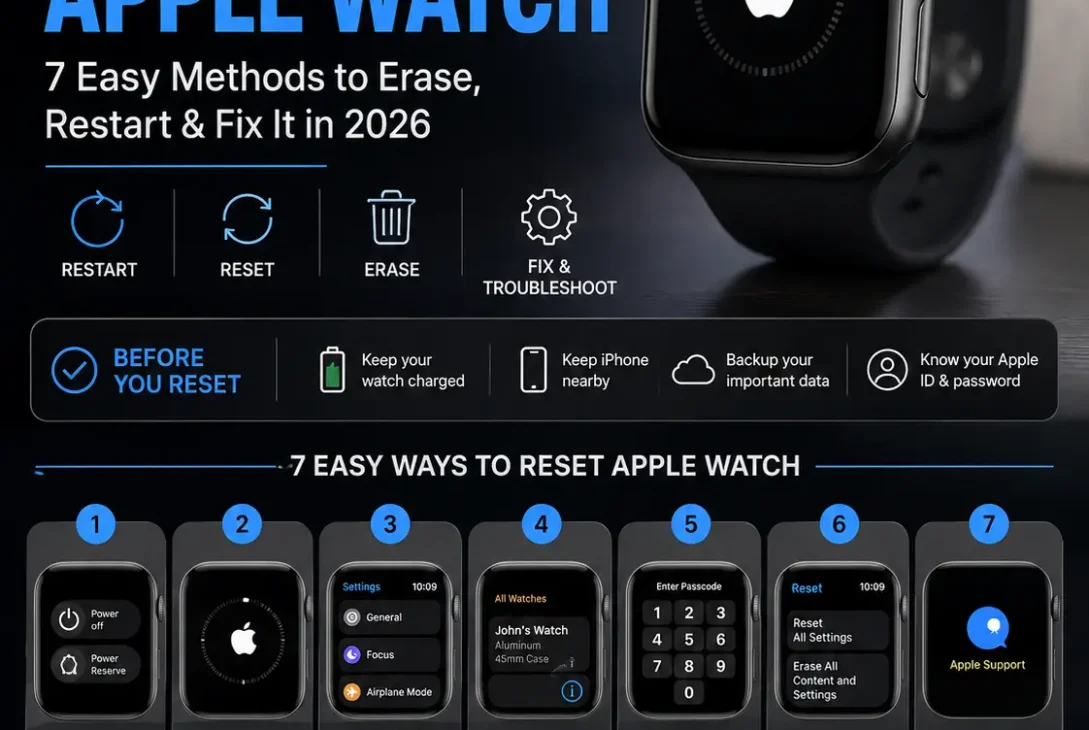
Knowing how to reset Apple Watch can be useful when the device becomes unresponsive, you’re preparing to sell it, or you simply want to start fresh.
A reset can mean different things depending on what you’re trying to accomplish. Sometimes you only need to restart the watch, while other situations require completely erasing its content and settings.
Before resetting your Apple Watch, it’s important to understand the difference between a restart, a settings reset, and a complete factory reset.
This guide explains how to reset Apple Watch using different methods and what you should do before and after the process.
What Does Resetting an Apple Watch Do?
Resetting an Apple Watch can remove settings, apps, personal information, and other stored data depending on the method you choose.
A simple restart doesn’t erase anything.
A factory reset, on the other hand, returns the watch to a setup state and removes the information stored on the device.
If you’re planning to give the watch to another person, a complete erase and proper unpairing process is usually more appropriate than simply restarting it.
Restart vs Reset vs Erase
Before learning how to reset Apple Watch, it’s important to understand these three terms.
Restart
Restarting simply turns the Apple Watch off and back on.
It doesn’t remove your data.
This is useful when the watch is slow, temporarily frozen, or behaving strangely.
Force Restart
A force restart is useful when the watch isn’t responding normally.
It forces the device to reboot without deleting your personal information.
Factory Reset
A factory reset erases the watch and returns it to its initial setup state.
This is the method you generally want when you’re selling, giving away, or permanently removing the watch from your personal use.
What to Do Before Resetting Apple Watch
Before you perform a complete reset, take a few precautions.
Keep Your Apple Watch Charged
Make sure the watch has enough battery before starting the process.
If possible, place it on its charger during the reset.
Keep Your iPhone Nearby
If you’re resetting the watch through your iPhone, keep both devices close together.
Make sure Bluetooth and Wi-Fi are enabled when necessary.
Back Up Important Data
If you plan to use the watch again, make sure your iPhone has a recent backup.
Apple Watch data is generally backed up automatically to the paired iPhone, but you should still make sure your iPhone itself has a current backup before erasing the watch.
Know Your Apple Account Password
If you’re preparing the watch for someone else, you may need your Apple Account credentials to properly remove Activation Lock.
This is especially important when selling or giving away an Apple Watch.
How to Reset Apple Watch From the Watch
One of the simplest methods is to erase the watch directly from its Settings app.
Step 1: Open Settings
Press the Digital Crown to open your apps.
Find and open Settings.
Step 2: Open General
Scroll down and tap General.
Step 3: Select Transfer or Reset
Scroll toward the bottom and select Transfer or Reset.
Step 4: Erase All Content and Settings
Choose the option to erase all content and settings.
You may be asked to enter your Apple Watch passcode.
Step 5: Confirm the Reset
Follow the instructions displayed on the screen.
The watch will erase its stored content and eventually return to the setup screen.
This method is useful when the Apple Watch is working normally and you can access its settings.
How to Reset Apple Watch Using Your iPhone
You can also erase an Apple Watch through the paired iPhone.
This is often the better option when you’re preparing the watch for someone else because the unpairing process can also remove Activation Lock.
Open the Watch app on your iPhone.
Tap All Watches near the top of the screen.
Select the information button next to the Apple Watch you want to remove.
Choose Unpair Apple Watch and follow the instructions.
You may need to enter your Apple Account password.
The iPhone will then begin the unpairing process and erase the watch.
https://support.apple.com
How to Reset Apple Watch When It Is Frozen
If your Apple Watch is frozen or the screen isn’t responding, you may need to force restart it before attempting a complete reset.
A force restart does not erase your personal data.
Step 1: Press the Side Button and Digital Crown
Press and hold the side button and Digital Crown at the same time.
Step 2: Keep Holding the Buttons
Continue holding both buttons until the Apple logo appears.
This may take around 10 seconds.
Step 3: Release the Buttons
Once the Apple logo appears, release both buttons and allow the watch to restart.
After it boots, check whether the original problem has been resolved.
If the watch works normally again, you don’t need to perform a factory reset.
How to Reset Apple Watch Without a Passcode
If you’ve forgotten your Apple Watch passcode, you can erase the watch directly from the device.
Place the Apple Watch on its charger and keep it there during the process.
Step 1: Turn Off the Apple Watch
Press and hold the side button until the power options appear.
Then follow the on-screen instructions to turn the watch off.
Step 2: Access the Erase Option
Press and hold the appropriate control until the erase option appears.
The exact screen can vary depending on the Apple Watch model and watchOS version.
Step 3: Choose Erase All Content and Settings
Follow the instructions on the screen to erase the watch.
You may need to confirm the action before the process begins.
Once completed, the Apple Watch will return to its setup state.
How to Reset Apple Watch for a New Owner
If you’re selling or giving your Apple Watch to someone else, simply erasing the device isn’t always enough.
You should properly unpair it from your iPhone.
This is important because Activation Lock can prevent another person from activating a device that remains linked to your Apple Account.
Open the Watch app on your iPhone and select your Apple Watch.
Tap the information button next to it and choose Unpair Apple Watch.
Follow the instructions and enter your Apple Account password when requested.
Once the unpairing process is complete, the watch can be prepared for its new owner.
Does Resetting Apple Watch Delete Everything?
A factory reset removes the content and settings stored on the Apple Watch.
This can include:
- Apps
- Settings
- Messages stored on the device
- Apple Pay information
- Personal preferences
- Downloaded content
- Other locally stored information
A normal restart, however, doesn’t delete your data.
That’s why it’s important to choose the correct method before you begin.
What Happens After an Apple Watch Reset?
After a successful factory reset, the watch displays the setup experience.
You’ll need to pair it with an iPhone if you want to use it again.
If you’re keeping the watch, you can follow the setup instructions and restore available information from a backup when offered.
If you’re selling the watch, leave it at the setup screen so the new owner can configure it with their own iPhone and Apple Account.
What If Apple Watch Won’t Reset?
If the reset process doesn’t work, try a few basic steps.
First, make sure the watch has sufficient battery power and place it on its charger.
If the watch is frozen, perform a force restart.
If you’re using an iPhone to unpair the watch, keep both devices close together and make sure Bluetooth is enabled.
You should also make sure your iPhone and Apple Watch are running compatible software.
If the problem continues after trying these steps, Apple Support or an authorized service provider may be able to diagnose the issue.
How to Reset Apple Watch and Keep Your Data
If you’re resetting your Apple Watch because of a software problem but plan to keep using it, don’t immediately erase everything.
First, make sure your paired iPhone has a recent backup.
When you unpair an Apple Watch through the Watch app, the iPhone generally creates a backup of the watch data before the watch is erased.
Afterward, you can pair the watch again and restore the available backup during setup.
Check Your iPhone Backup
Before learning how to reset Apple Watch for troubleshooting, make sure your iPhone itself is backed up.
You can use iCloud or a computer backup.
This gives you an additional layer of protection if something goes wrong during the process.
How to Reset Apple Watch Network Settings
In some situations, you don’t need to erase the entire watch.
If you’re experiencing connectivity problems, check the available reset options under:
Settings > General > Transfer or Reset
Depending on your watchOS version, available reset options may vary.
A settings reset can be preferable to a complete erase when you’re trying to troubleshoot a specific configuration problem.
Reset Apple Watch Before Selling It
If you’re selling your Apple Watch, there are a few important steps to follow.
1. Back Up Your Data
Make sure your iPhone has a recent backup.
2. Unpair the Watch
Use the Watch app on your iPhone and select Unpair Apple Watch.
3. Remove Activation Lock
During the unpairing process, enter your Apple Account password when requested.
This helps remove Activation Lock from the device.
4. Remove Your Cellular Plan
If your Apple Watch has cellular service, you may need to choose whether to remove the cellular plan during unpairing.
If you’re moving the plan to another watch, follow your carrier’s instructions.
5. Confirm the Setup Screen
After the process is complete, the watch should display the setup screen.
At this point, it is ready for the next owner.
Resetting Apple Watch With Cellular Service
Cellular Apple Watch models require a little extra attention.
When you erase or unpair the watch, you may be asked whether you want to keep or remove the cellular plan.
If you’re keeping the watch and plan to pair it again, your choice may differ from what you’d select when selling the device.
If you’re giving the watch to someone else, the cellular plan generally shouldn’t remain associated with your account.
Check with your carrier if you’re unsure about transferring or canceling the plan.
Does Resetting Apple Watch Remove Activation Lock?
Simply erasing an Apple Watch doesn’t necessarily mean Activation Lock has been removed.
If you’re giving the watch to another person, properly unpair it from your iPhone and complete the Apple Account verification steps.
This is one reason unpairing through the Watch app is generally preferable when preparing an Apple Watch for a new owner.
How Long Does an Apple Watch Reset Take?
The reset process can take several minutes.
The exact time depends on the Apple Watch model, software version, connection, and amount of data being erased.
Don’t interrupt the process unnecessarily.
If the watch appears stuck for an unusually long time, make sure it has sufficient power and consider restarting it only when appropriate.
Common Mistakes to Avoid
When learning how to reset Apple Watch, avoid these common mistakes:
Forgetting Your Apple Account Password
You may need it to remove Activation Lock during the unpairing process.
Resetting Without a Backup
If you want to keep your information, make sure you have a recent backup first.
Forgetting the Cellular Plan
Cellular models require additional consideration when they’re being sold or transferred.
Giving Away a Watch Still Linked to Your Account
Always complete the unpairing process before handing the watch to someone else.
Using a Factory Reset for Every Problem
A complete erase isn’t always necessary.
If the watch is simply frozen or experiencing a temporary software problem, a normal restart or force restart may be enough.
7 Easy Ways to Reset Apple Watch
If you’re still unsure how to reset Apple Watch, the best method depends on what’s wrong with the device.
1. Restart Apple Watch
Use a normal restart when the watch is slow or temporarily behaving strangely.
This keeps your personal data intact.
2. Force Restart
If the screen is frozen and normal controls don’t work, press and hold the Digital Crown and side button until the Apple logo appears.
3. Erase From Settings
If the watch works normally, open:
Settings → General → Transfer or Reset → Erase All Content and Settings
Follow the on-screen instructions to complete the erase.
4. Unpair Using iPhone
Open the Watch app on your iPhone, select your watch, tap the information button, and choose Unpair Apple Watch.
This is generally the preferred method when preparing the watch for another person.
5. Erase a Watch With a Forgotten Passcode
If you can’t remember the passcode, you can erase the watch using the reset/erase process available from the device.
Afterward, you’ll need to set it up again.
6. Reset Settings for Troubleshooting
If you only need to resolve a configuration issue, check the available reset options instead of immediately choosing a complete erase.
7. Contact Apple Support
If the Apple Watch won’t restart, erase, or pair after trying the appropriate methods, professional support may be necessary.
Frequently Asked Questions
Will resetting Apple Watch delete my photos and data?
A factory reset erases content and settings stored on the watch. If you want to keep your information, make sure your paired iPhone has a recent backup before erasing it.
How do I reset Apple Watch without an iPhone?
You can erase a compatible Apple Watch directly from its Settings app. If you’ve forgotten the passcode, use the device’s erase procedure.
How do I reset Apple Watch if it is frozen?
Try a force restart by pressing and holding the Digital Crown and side button until the Apple logo appears.
Should I reset or restart my Apple Watch?
Restart the watch first when you’re dealing with a minor software problem. A complete reset should generally be reserved for more serious troubleshooting or when you’re preparing the device for a new owner.
Does resetting Apple Watch remove Activation Lock?
Erasing the device alone isn’t the same as properly removing Activation Lock. When selling or giving away the watch, unpair it from the paired iPhone and complete the Apple Account verification steps.
Can I restore my Apple Watch after resetting it?
If a suitable backup is available, you can pair the watch with your iPhone again and follow the setup process to restore available data.
Final Verdict
Learning how to reset Apple Watch is straightforward once you know which type of reset you actually need.
For a minor problem, start with a normal restart or force restart. If the watch needs a clean setup, you can erase it from Settings or unpair it through your iPhone.
If you’re selling or giving away the device, unpairing it through the Watch app is particularly important because it helps remove the watch from your Apple Account and deal with Activation Lock correctly.
Before performing a complete erase, always make sure you have a recent backup if you want to keep your information.