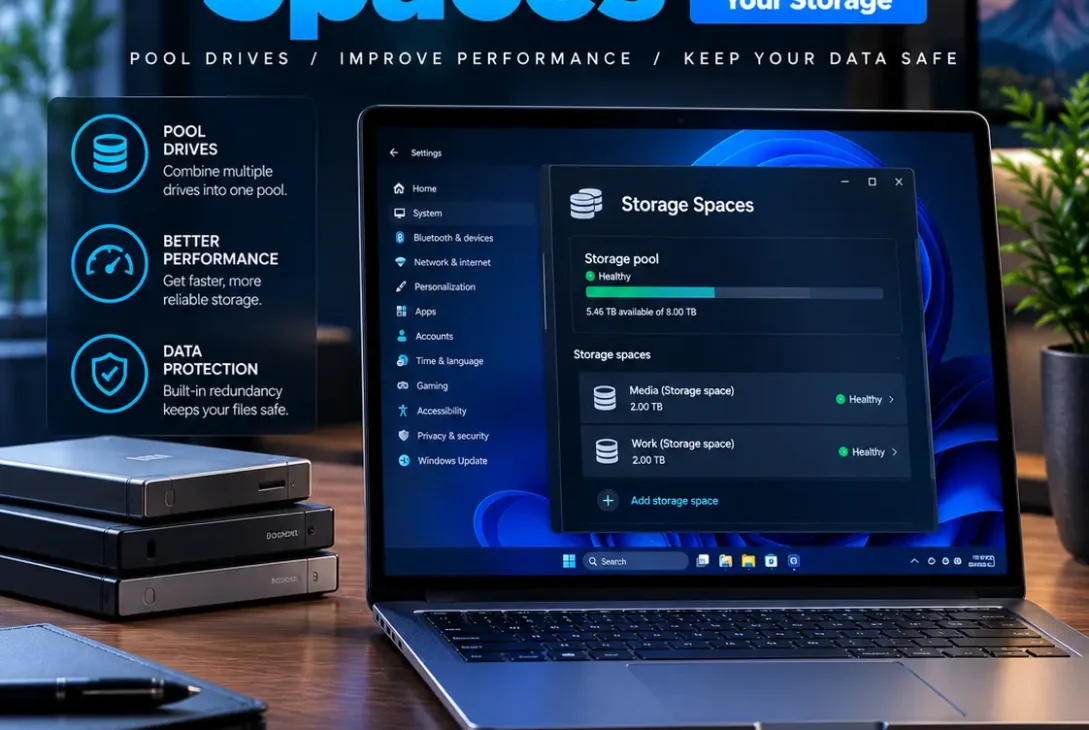
Windows Storage Spaces is a built-in Windows feature that lets you combine multiple physical drives into a storage pool and create virtual drives for storing files. It can help expand storage capacity and protect data against certain drive failures, depending on the resiliency option you choose.
Unlike ordinary disk management tools, Windows Storage Spaces lets you organize several drives as a single storage system. It can be useful for people who store large photo libraries, videos, backups, and other files across multiple disks.
However, choosing the wrong configuration can reduce usable capacity or leave your files without protection. This guide explains how Windows Storage Spaces works, how to create a storage pool, which resiliency option to choose, and how to troubleshoot common problems safely.
Table of Contents
- What Is Windows Storage Spaces?
- How Does Storage Spaces Work?
- Simple vs. Mirror vs. Parity
- Requirements Before Creating a Storage Pool
- How to Create Storage Spaces in Windows 11
- How to Add or Remove a Drive
- How to Fix Common Storage Spaces Problems
- Storage Spaces vs. RAID
- Best Practices for Protecting Your Data
- Frequently Asked Questions
- Final Verdict
- SEO Details
What Is Windows Storage Spaces?
Windows Storage Spaces is a storage-management feature available in Windows 10 and Windows 11. It allows you to group multiple physical drives into a shared storage pool and use that pool to create virtual drives, known as storage spaces.
For example, suppose your computer has two additional 2TB drives. You can combine them into a pool and create a virtual drive using the available capacity. The amount of usable space depends on the configuration you select and whether you choose to keep additional copies of your data for resiliency.
The feature can be useful for:
- Storing large collections of photos and videos
- Expanding storage without replacing every existing drive
- Creating a shared storage location for files
- Keeping copies of data across multiple drives
- Managing several eligible drives through Windows
It is important to understand that Windows Storage Spaces does not automatically protect your files simply because you have combined drives. Your selected layout determines whether the storage space can tolerate a drive failure.
How Does Storage Spaces Work?
The system has three main parts: physical drives, a storage pool, and a virtual drive.
Physical drives: These are the actual hard drives or SSDs connected to your computer.
Storage pool: Windows groups eligible physical drives into a shared pool of storage capacity.
Storage space: You create a virtual drive from that pool. Windows presents it as a drive you can format, assign a drive letter to, and use for files.
This arrangement makes it possible to expand the pool by adding eligible drives later. Depending on your configuration, you may also be able to choose a layout that keeps additional copies of your data.
Windows Storage Spaces is not the same as expanding your C: drive. A storage space is a separate virtual storage arrangement, and it does not automatically increase the capacity of your Windows system partition.
Simple vs. Mirror vs. Parity
Choosing the right resiliency layout is one of the most important decisions when configuring Windows Storage Spaces. Each option balances usable capacity, performance, and protection differently.
1. Simple Spaces
A simple space distributes data across drives without keeping redundant copies.
Its main advantage is storage efficiency and potential performance. However, it does not protect your files against a physical drive failure.
Use this layout only when the data is temporary or you have another reliable copy. Examples include scratch files, replaceable media, or intermediate files that can be recreated.
2. Two-Way Mirror
A two-way mirror stores two copies of your data across the storage pool. It can tolerate the failure of one drive, provided the pool is configured correctly and remains healthy.
The trade-off is reduced usable capacity because storage is used to maintain the extra copy. Microsoft lists two-way mirroring as a layout that requires at least two drives.
This option can suit general file storage when resilience matters more than maximizing capacity.
3. Three-Way Mirror
A three-way mirror keeps three copies of data. It can tolerate up to two drive failures under the supported configuration.
It requires more drives and significantly more raw capacity to provide the additional redundancy. Microsoft specifies a minimum of five drives for a three-way mirror in its standard setup guidance.
This option is more suitable when data availability is important and the hardware budget supports it.
4. Parity and Dual Parity
Parity layouts use parity information to provide fault tolerance with a different balance between capacity and redundancy.
Microsoft’s guidance describes parity spaces as suitable for archival data and streaming media. A standard parity space requires at least three drives to protect against one drive failure, while dual parity requires at least seven drives to protect against two drive failures.
Parity can offer more usable capacity than mirroring, but performance characteristics differ by workload. Check the requirements for your particular Windows version and storage setup before selecting a layout.
Requirements Before Creating a Storage Pool
Before setting up Windows Storage Spaces, prepare your hardware and decide which data you want to store.
Microsoft states that a typical setup requires at least two additional eligible drives beyond the drive containing Windows. These can include internal or external hard drives and SSDs, but a drive must be recognized by Windows as eligible for pooling. See the official Microsoft Storage Spaces guide.
Check the following first:
- Drive availability: Make sure the drives you want to pool are not needed for another purpose.
- Capacity: Compare drive sizes and estimate usable space for your chosen layout.
- Connection type: SATA and supported SAS drives are commonly suitable. Some USB enclosures may prevent drives from appearing as eligible.
- Backups: Copy important files elsewhere before changing your storage configuration.
- Drive health: Avoid adding a drive that is already showing signs of failure.
Important: Creating a pool may require preparing or reformatting selected disks. Never select a drive containing files you need to keep unless you have confirmed the process and made a separate backup.
How to Create Storage Spaces in Windows 11
Follow these steps to create a storage pool and virtual drive.
- Connect the additional drives to your computer.
- Open Windows Search and type Storage Spaces.
- Select Manage Storage Spaces.
- Choose the option to add a new storage pool.
- Select the eligible physical drives you want to include.
- Give the pool a name and create it.
- Choose the option to create a new storage space.
- Enter a name and select the desired resiliency layout.
- Specify the maximum size, then create the storage space.
- Assign a drive letter, choose a file system, and format the new volume when prompted.
The available options can vary by Windows version and existing storage configuration. Follow the on-screen instructions carefully and verify the selected disks before confirming changes.
Once setup is complete, the new volume should appear in File Explorer. You can then store files on it much like a conventional drive.
If you are unfamiliar with storage pools, review Microsoft’s official instructions before making changes. The documentation explains how to select drives, create a space, choose resiliency, and format the resulting volume.
How to Add or Remove a Drive
One advantage of Windows Storage Spaces is that you may be able to expand a pool as your storage needs grow.
Adding a Drive
- Connect an eligible additional drive.
- Open Manage Storage Spaces.
- Find the relevant storage pool.
- Select the option to add drives.
- Choose the new physical disk and confirm the operation.
- If available, use the option to optimize drive usage so existing data is distributed appropriately.
Adding a drive does not always mean the existing data will immediately spread across every disk. Review the pool’s status and optimization options after making changes.
Removing a Drive
Do not simply unplug a drive that belongs to a pool. First open the storage management interface and check whether Windows supports removing it.
For supported pools, select the physical drive and choose Prepare for removal. Windows moves data from the selected drive to other drives in the pool, which can take a considerable amount of time. Wait until the drive is marked ready before removing it.
The process may fail if there is insufficient free capacity to move the data. You may need to add another drive before trying again.
How to Fix Common Storage Spaces Problems
Storage Spaces Does Not Detect a Drive
First, check whether Windows can see the physical disk in Disk Management or Device Manager.
Some USB enclosures and hubs cause drives to appear as removable or hide the individual disks. In these cases, the hardware may not be eligible for pooling even though it works in File Explorer. Try a direct connection or a compatible enclosure if appropriate.
The Storage Pool Shows a Warning
Open the storage management interface and inspect the health and status of the pool and its physical drives. Check for a disconnected drive, a hardware warning, or an operation that has not finished.
Avoid deleting the pool or formatting disks as a first response. If the pool contains important files, make a recovery plan before performing changes that could affect data access.
The New Drive Does Not Appear in File Explorer
Check whether the storage space was created successfully and whether it has a formatted volume and assigned drive letter. Disk Management can help you inspect disks and volumes, but do not initialize or format a disk containing data you need to recover.
Storage Spaces Is Running Slowly
Performance depends on the drives, connection type, resiliency layout, workload, and overall health of the pool. Check for failing drives, background optimization, and connection problems.
A parity layout may behave differently from a mirrored layout, particularly for workloads involving frequent writes. Choose a configuration based on your actual use rather than capacity alone.
When Windows Storage Spaces reports an error, note the exact message before changing settings. That information can help you distinguish a connection issue from a pool-health problem or a disk that is no longer eligible.
Storage Spaces vs. RAID
Both technologies can combine multiple drives and provide different levels of performance or fault tolerance, but they are not identical.
Windows Storage Spaces is managed through Windows and creates storage pools and virtual drives. Traditional RAID may be implemented by a hardware controller, motherboard firmware, or software.
| Feature | Storage Spaces | Traditional RAID |
|---|---|---|
| Management | Windows storage tools | Depends on the RAID implementation |
| Drive pooling | Supported | Supported by many RAID levels |
| Redundancy | Depends on the chosen layout | Depends on the RAID level |
| Expansion | Supported in eligible configurations | Varies by controller and setup |
| Hardware dependency | Depends on compatible Windows storage hardware | May depend on a specific controller |
Neither option replaces a backup. A mirrored or parity-based arrangement can help with certain drive failures, but it cannot protect against every risk, including accidental deletion, malware, theft, or damage affecting the whole computer.
Best Practices for Protecting Your Data
To get reliable results from Windows Storage Spaces, follow these practical recommendations:
- Maintain separate backups. Keep important files on another device or in a trusted backup service.
- Monitor drive health. Investigate warnings rather than ignoring them.
- Choose resiliency carefully. Do not use a simple layout for the only copy of important files.
- Keep enough free capacity. A pool needs available space for some maintenance and recovery operations.
- Avoid unsafe disconnections. Prepare a drive for removal before physically disconnecting it.
- Use compatible hardware. Check drive and enclosure compatibility before purchasing additional storage.
- Document your setup. Record which disks belong to the pool and which resiliency option you selected.
For everyday users, the most important principle is simple: redundancy and backup serve different purposes. A resilient pool can help keep data available after certain hardware failures, while an independent backup provides another recovery option.
Frequently Asked Questions
What is Windows Storage Spaces used for?
Windows Storage Spaces combines eligible physical drives into a storage pool and creates virtual drives. Depending on the layout, it can help expand capacity or provide protection against certain drive failures.
How many drives do I need?
A typical setup needs at least two additional eligible drives beyond the Windows installation drive. Some layouts require more: Microsoft’s standard guidance specifies at least five drives for three-way mirroring and seven for dual parity.
Does Storage Spaces protect my files automatically?
No. Protection depends on the layout you choose. A simple space does not provide drive-failure protection, while mirror and parity layouts offer different levels of resiliency.
Can I add more drives later?
Yes, compatible drives can be added to supported pools. You may also need to optimize drive usage afterward to distribute existing data across the available disks.
Can I remove a drive without losing data?
You may be able to remove a drive safely by using the Prepare for removal process. The pool must have enough available capacity to move the data, and you should wait until Windows confirms the drive is ready.
Why is my USB drive not eligible?
Some USB enclosures and hubs expose drives in a way that makes them ineligible for pooling. The drive may still work normally for ordinary file storage. Check the connection and hardware compatibility before attempting other changes.
Is Storage Spaces the same as a backup?
No. It can provide redundancy against certain drive failures, but it does not replace an independent backup stored separately from the pool.
Is Windows Storage Spaces available in Windows 11?
Yes. Windows 11 includes Storage Spaces. The exact options available depend on the system, eligible drives, and existing storage configuration.
Final Verdict
Windows Storage Spaces is useful for people who want to combine multiple drives, expand storage, or improve resilience against certain hardware failures without relying entirely on a traditional RAID controller.
The right setup depends on your priorities. Simple spaces maximize usable capacity but provide no drive-failure protection. Mirroring keeps extra copies of data, while parity offers another balance between capacity and redundancy.
Before creating or modifying a pool, check drive eligibility, back up important files, and understand how much usable capacity your selected layout will provide. If you manage the system carefully and keep independent backups, Windows Storage Spaces can be a practical way to organize storage on a Windows PC.