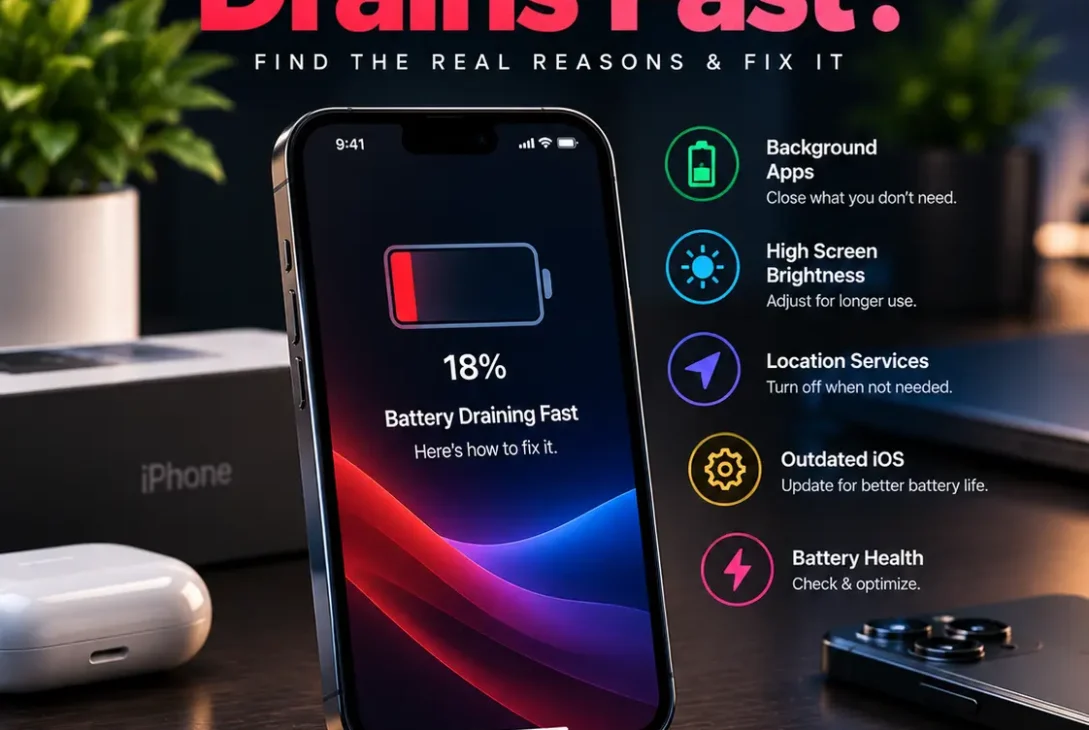
If your iPhone battery drains fast, you may notice the percentage dropping while you browse, stream videos, use social media, or even leave your phone idle. The cause is not always a worn-out battery. High screen brightness, background activity, weak cellular coverage, recent iOS updates, and power-hungry apps can all increase battery use.
Before buying a replacement battery, check which apps and system activities are consuming power. Apple’s battery tools show daily usage, background activity, and battery-health information, making it easier to identify the real cause. If your iPhone battery drains fast unexpectedly, start with the checks below instead of immediately replacing the battery.
This guide explains practical fixes you can try safely, starting with the simplest settings.
Table of Contents
- Why Is My iPhone Battery Draining So Fast?
- Check Battery Usage and Battery Health
- Reduce Screen Brightness and Auto-Lock Time
- Find Apps Using Too Much Battery
- Turn Off Unnecessary Background App Refresh
- Improve Cellular Signal and 5G Settings
- Use Low Power Mode
- Restart and Update Your iPhone
- Check Location Services and Notifications
- Understand Battery Drain After an iOS Update
- When to Replace an iPhone Battery
- Frequently Asked Questions
- Final Verdict
- SEO Details
Why Is My iPhone Battery Draining So Fast?
An iPhone battery drains fast problem can have several causes, and the right fix depends on when the battery drops. If it drains mainly while the screen is on, display brightness, gaming, video, and camera use may be responsible. If it drops while the phone is locked, look for background activity, poor signal, notifications, or a battery that has lost capacity.
Common causes include:
- High screen brightness or a long Auto-Lock delay
- Apps running or refreshing in the background
- Weak cellular coverage
- Location services used frequently
- Streaming, gaming, navigation, or camera recording
- A recent iOS update or device setup
- An aging battery with reduced maximum capacity
- A faulty app or temporary software issue
The quickest way to understand why your iPhone battery drains fast is to compare battery usage with your normal daily routine. You do not need to disable every feature to save power. Start by checking the battery report and changing only the settings that appear relevant.
Check Battery Usage and Battery Health
When your iPhone battery drains fast, begin with the Battery screen rather than guessing which setting is responsible.
- Open Settings.
- Tap Battery.
- Review the Daily Usage chart and app activity.
- Select an app to compare screen time with background activity.
- Look for Apple’s battery suggestions or insights, if available.
An app with high on-screen use may simply reflect how often you use it. An app showing unusually high background activity deserves closer attention. Low signal or no mobile coverage can also increase power use because the phone has to work harder to maintain a connection.
Next, check battery condition. On iPhone 15 and newer models, open Settings → Battery → Battery Health. On iPhone 14 and earlier, the menu may be called Battery Health & Charging. The wording can vary slightly by iOS version.
Maximum capacity estimates how much charge the battery can hold compared with when it was new. If Battery Health shows a service recommendation, or the phone shuts down unexpectedly, consider having the battery assessed by Apple or an authorized service provider.
If your iPhone battery drains fast despite light use, battery health and the app-usage report are two of the most useful places to investigate first.
Reduce Screen Brightness and Auto-Lock Time
The display can be one of the biggest sources of power use, especially when brightness stays high for long periods.
Try these adjustments:
- Lower brightness from Control Center.
- Enable Auto-Brightness under Settings → Accessibility → Display & Text Size.
- Set Auto-Lock to a shorter interval under Settings → Display & Brightness.
- Reduce unnecessary screen wake-ups from notifications.
- If your model supports an Always-On display, consider turning it off if you do not need it.
These changes are particularly useful if the battery falls quickly while you read, watch videos, or use your phone outdoors. You do not need to keep brightness at its minimum; choose a level that remains comfortable to see.
If your iPhone battery drains fast even when brightness is low and screen time is minimal, continue checking apps, signal strength, and battery health. A combination of display adjustments and fewer unnecessary screen wake-ups may help improve everyday battery life.
Find Apps Using Too Much Battery
Social networks, navigation apps, video platforms, games, and camera apps can use significant power. That does not automatically mean an app is defective: video playback, GPS navigation, and graphics-intensive games naturally require energy.
Open Settings → Battery and check which apps use the largest share of power. Compare the percentage with how long you actually used each app. If an app consumes a surprising amount of power while you are not using it, update it and review its background permissions.
If the same app repeatedly appears at the top with high background activity, try limiting its background refresh or reinstalling it if it appears to be malfunctioning. Avoid force-closing every app constantly; that is not a reliable battery-saving strategy and can make apps reload from scratch.
When the iPhone battery drains fast only after using one particular app, test that app separately for a day. If the problem disappears when you limit its use, you have a useful clue without changing every setting on the phone.
Turn Off Unnecessary Background App Refresh
Background App Refresh allows supported apps to update content when you are not actively using them. This can be convenient, but some apps may not need to refresh constantly.
To review it:
- Open Settings.
- Tap General.
- Choose Background App Refresh.
- Turn it off for apps that do not need background updates, or choose a more restrictive option.
You can leave it enabled for apps where fresh information matters. There is no need to disable it across the board if your battery report shows little background activity.
Also review mail and cloud-sync behavior if those services show unusually high usage. Photo libraries may need extra time to sync after you take many pictures or restore a device.
If your iPhone battery drains fast while the phone is sitting unused, look for background activity in the Battery report before turning off every app’s permissions.
Improve Cellular Signal and 5G Settings
A weak cellular signal can make your phone use more power as it searches for or maintains a connection. If battery use is worse in a basement, elevator, rural area, or building with poor reception, signal strength may be part of the problem.
Use Wi-Fi when it is available and reliable. Wi-Fi is often more power-efficient than mobile data for internet activity. If you are in an area with no coverage and do not need calls or mobile connectivity, Airplane Mode can prevent continuous searching; remember that it also disables cellular connections until you turn them back on.
On supported iPhone models, you can check Settings → Cellular → Cellular Data Options → Voice & Data and select 5G Auto. This allows the phone to use 5G when it provides a meaningful benefit and switch to LTE in other situations.
If your iPhone battery drains fast mainly when you are away from home, compare usage in strong-signal and weak-signal locations before changing other settings. Poor reception can explain battery loss that seems unrelated to screen time.
Use Low Power Mode
Low Power Mode is a simple option when you need the battery to last longer before your next charge. It reduces or pauses some background tasks and visual effects.
On iPhone 15 and newer models, go to Settings → Battery → Power Mode and turn on Low Power Mode. On iPhone 14 and earlier, open Settings → Battery and enable it there. You may also be able to turn it on from Control Center.
The battery icon turns yellow while Low Power Mode is active. Some activities, such as email fetching, automatic downloads, and background refresh, may be limited. This is useful when travelling or when you cannot charge soon, though it is not a substitute for diagnosing an ongoing battery problem.
When your iPhone battery drains fast during a busy day, Low Power Mode can help you stretch the remaining charge while you travel, work, or wait until you can recharge.
Restart and Update Your iPhone
A restart can clear a temporary software problem. If battery use suddenly changes, restart your iPhone and observe it over the next day.
Also install available iOS updates and app updates. Updates can include bug fixes and compatibility improvements. To check iOS, open Settings → General → Software Update. Before updating, connect to Wi-Fi, ensure you have enough charge, and back up important data when appropriate.
Avoid installing unofficial profiles or modifying iOS to solve battery problems. Unauthorized modifications can affect stability and security as well as battery life.
If your iPhone battery drains fast after a software update, check the Battery screen and give background tasks time to finish before assuming the update has permanently affected battery performance.
Check Location Services and Notifications
Apps that frequently request location can use extra power, particularly when navigation or tracking continues in the background.
Open Settings → Privacy & Security → Location Services. Review apps individually and choose an appropriate permission, such as While Using the App, where that meets your needs. Some features genuinely require background location, so do not disable access without considering what the app does.
Notifications can also wake the display repeatedly. Open Settings → Notifications and reduce alerts from apps that are not important. You can also review widgets and live activities that keep information visible or updated.
These changes are worth testing if your iPhone battery drains fast while the phone is mostly locked and you see frequent screen wake-ups or location activity in the Battery report.
Understand Battery Drain After an iOS Update
Battery life can temporarily be worse after a major iOS update, restoring a backup, or setting up a new iPhone. The device may continue indexing files, analyzing photos, syncing data, or completing setup tasks in the background.
Apple recommends waiting a few days after an update before judging battery life. Check Settings → Battery for an insight indicating that an update or setup is still running. If usage returns to normal after the background work finishes, you may not need to change anything.
If the battery continues dropping unusually quickly after several days, check the app activity, signal conditions, and Battery Health sections described above. A persistent problem should not automatically be blamed on the update.
When to Replace an iPhone Battery
Settings changes cannot restore capacity that has been lost through battery aging. Rechargeable batteries gradually wear out, and their runtime decreases over time.
Consider professional battery service if:
- Battery Health displays a service recommendation.
- The phone shuts down unexpectedly despite showing charge.
- The battery percentage drops in large, irregular jumps.
- The phone becomes unusually hot during light use.
- Battery life remains poor after you rule out apps and signal issues.
Heat can affect battery lifespan. Avoid leaving your phone in direct sunlight or in a hot car, and use a suitable charger and cable. If the device is swollen, damaged, or dangerously hot, stop using it and seek professional assistance rather than trying to open it yourself.
https://support.apple.com/en-by/120745
Frequently Asked Questions
Why does my iPhone battery drain so fast all of a sudden?
A recent update, app activity, weak signal, changed settings, or a battery-health issue may be responsible. Check Settings → Battery to identify which apps and system activities are using power.
How do I fix an iPhone battery that drains overnight?
Check background activity, notifications, location access, and cellular signal. If the phone is searching for a signal overnight, battery use may be higher than usual. Compare Battery usage across multiple nights.
Does Low Power Mode damage my battery?
No. Low Power Mode reduces some activity to extend runtime. It does not repair an aging battery, but using it when needed is a normal iPhone feature.
Should I close all apps to save battery?
No. Constantly force-closing every app is not usually necessary. Check which apps are actually using power and focus on apps with unusual background activity.
Can an iOS update cause battery drain?
Battery use may temporarily rise after an update while background tasks finish. Give the device a few days, then check the Battery screen again if the problem continues.
How do I check iPhone battery health?
Open Settings and tap Battery. On iPhone 15 and later, select Battery Health. On iPhone 14 and earlier, look for Battery Health & Charging. Menu names may vary by software version.
Does 5G drain more battery than LTE?
Power use depends on signal strength, network conditions, and how you use the phone. On supported models, 5G Auto can help the iPhone choose 5G when useful rather than using it unnecessarily.
When should I replace my iPhone battery?
Consider service if Battery Health recommends it, the phone shuts down unexpectedly, or runtime remains poor after troubleshooting. Apple or an authorized provider can assess the battery.
What should I do if my iPhone battery drains fast even after trying these fixes?
Check Battery Health and the usage report again. If the problem continues, the phone shuts down unexpectedly, or Battery Health recommends service, arrange an assessment with Apple or an authorized repair provider.
Final Verdict
If your iPhone battery drains fast, do not immediately assume the battery is damaged. Start with Settings → Battery, check which apps and system activities are using power, and review Battery Health. Then reduce unnecessary display use, restrict background activity where appropriate, improve signal conditions, and use Low Power Mode when you need extra runtime.
If the problem started immediately after an iOS update, allow a few days for background tasks to finish before judging the result. But if the battery still drops quickly, the phone shuts down unexpectedly, or Battery Health recommends service, arrange a professional assessment. A few targeted checks are more useful than disabling every feature or buying a new phone without identifying the cause.