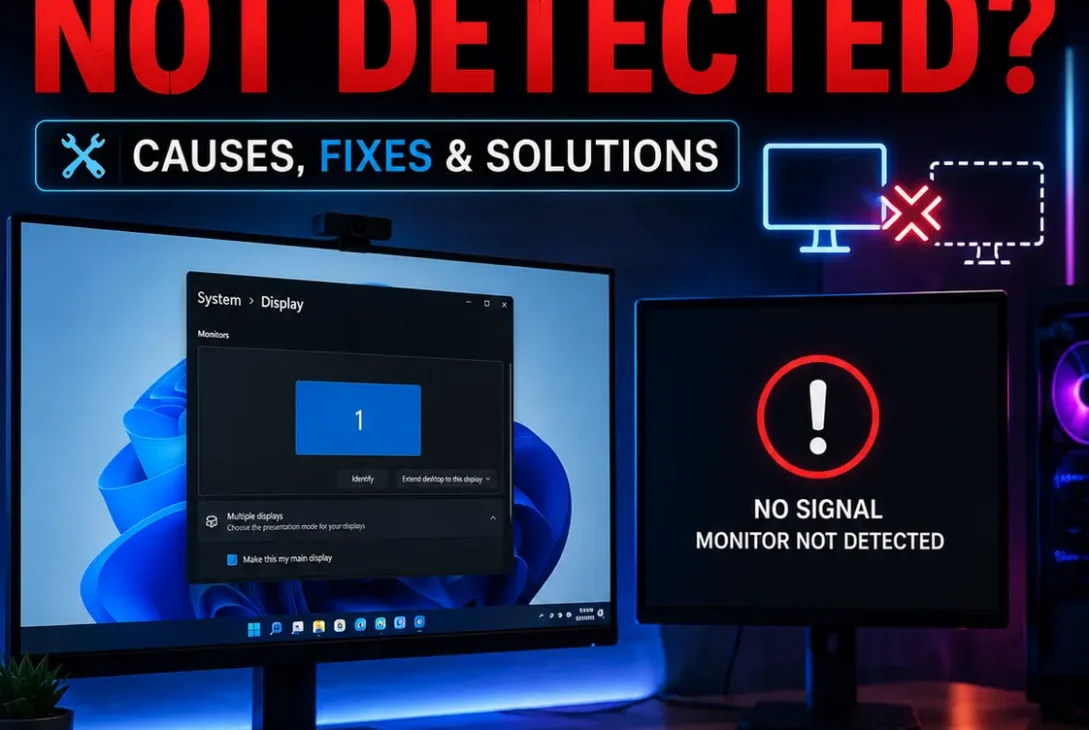
If your Windows 11 second monitor not detected problem suddenly appears, your second screen may show “No Signal,” remain black, or simply fail to appear in Windows Display settings. This can happen even when the monitor and cable seem to be connected correctly.
The good news is that a Windows 11 second monitor not detected issue is often caused by something simple, such as the wrong display mode, a loose cable, an incorrect input source, a graphics-driver problem, or Windows failing to detect the display.
Microsoft recommends checking the physical connection, using the Windows + P display menu, trying another cable or port, resetting the graphics driver, and updating or reinstalling the display driver when troubleshooting external monitors.
This guide walks through the most useful fixes in the right order, starting with the easiest checks.
Table of Contents
- Why Is My Windows 11 Second Monitor Not Detected?
- Check the Monitor and Cable
- Select the Correct Monitor Input
- Use Windows + P to Extend the Display
- Detect the Monitor in Display Settings
- Restart the Graphics Driver
- Restart Your PC
- Try Another Cable or Port
- Check Your Graphics Driver
- Roll Back a Recent Display Driver
- Check Your Dock or Adapter
- Check Display Hardware Limitations
- Update Windows 11
- Test the Monitor With Another Device
- Frequently Asked Questions
- Final Verdict
- SEO Details
Why Is My Windows 11 Second Monitor Not Detected?
A Windows 11 second monitor not detected problem can have several causes.
The most common include:
- Loose HDMI or DisplayPort connections
- Incorrect monitor input
- Windows using the wrong projection mode
- Display detection temporarily failing
- Outdated graphics drivers
- A recently installed graphics-driver update
- Faulty HDMI, DisplayPort, or USB-C cables
- Docking-station problems
- USB-C adapter limitations
- A graphics card that doesn’t support the required number of displays
- Windows software issues
- A monitor hardware problem
The fastest way to narrow down the problem is to determine whether Windows sees the monitor at all.
If Windows detects it but the screen remains black, the solution is usually different from a situation where the monitor doesn’t appear anywhere in Display settings.
https://support.microsoft.com/en-us/windows/hardware/display-graphics/troubleshoot-external-monitor-connections-in-windows
Check the Monitor and Cable
When Windows 11 second monitor not detected happens, start with the physical connection before changing Windows settings.
Check both ends of the video cable.
Make sure:
- The cable is fully inserted into the PC.
- The other end is fully inserted into the monitor.
- The monitor is powered on.
- The monitor’s power indicator is active.
- The cable isn’t visibly damaged.
- Any adapter is firmly connected.
- Your docking station has power if one is being used.
If you’re using HDMI, DisplayPort, USB-C, or another video connection, disconnect the cable and reconnect it firmly.
Microsoft recommends checking cable connections and trying another cable when an external monitor isn’t working.
Try a Different Cable
A damaged cable can cause exactly the same symptoms as a Windows configuration problem.
If you have another compatible HDMI or DisplayPort cable available, test it.
If the second monitor suddenly works, the original cable was likely the problem.
Select the Correct Monitor Input
Your monitor can be connected correctly and still show a blank screen if it’s listening to the wrong input.
For example, a monitor might have:
- HDMI 1
- HDMI 2
- DisplayPort
- USB-C
Use the monitor’s physical buttons or joystick to open its input/source menu.
Select the port you’re actually using.
For example, if your computer is connected through DisplayPort, make sure the monitor is set to DisplayPort rather than HDMI.
This simple check can resolve a surprising number of cases where users think Windows 11 second monitor not detected is a Windows problem.
Use Windows + P to Extend the Display
Windows has several display modes.
Press:
Windows + P
You’ll see options such as:
- PC screen only
- Duplicate
- Extend
- Second screen only
For a normal two-monitor setup, select Extend.
Microsoft specifically recommends checking the Windows + P menu and selecting Extend when troubleshooting an external monitor.
If the second display was accidentally set to PC screen only, Windows may be connected to the monitor while showing everything exclusively on your primary screen.
After selecting Extend, wait a few seconds and check whether the second display becomes active.
Detect the Monitor in Display Settings
If Windows 11 second monitor not detected continues, manually ask Windows to search for the display.
Go to:
Settings → System → Display
Scroll down to:
Multiple displays
Select:
Detect
Microsoft includes this option specifically for situations where a connected display isn’t appearing in Windows Display settings.
If Windows finds the monitor, you’ll see it in the display layout.
You can then choose whether you want to:
- Extend the desktop
- Duplicate the displays
- Show content on only one screen
Arrange Your Displays
Once Windows detects both monitors, you can drag the display boxes in Settings so they match their physical positions.
For example:
[Monitor 1] [Monitor 2]
If the second monitor is physically on the left but Windows thinks it’s on the right, moving the mouse between screens may feel incorrect.
Restart the Graphics Driver
One of the quickest fixes for Windows 11 second monitor not detected is resetting the graphics driver.
Press:
Windows + Ctrl + Shift + B
Your screen may briefly flicker, and you may hear a short sound.
This keyboard shortcut tells Windows to reset the graphics driver.
Microsoft recommends this shortcut when troubleshooting external-display and blank-screen problems.
After the display resets, wait several seconds and check whether the second monitor appears.
This is especially worth trying if the second monitor worked earlier and suddenly disappeared.
Restart Your PC
If the Windows 11 second monitor not detected issue appeared after waking your PC from sleep, connecting a dock, or changing display settings, restart Windows.
Select:
Start → Power → Restart
After Windows starts again:
- Turn on the monitor.
- Connect the display cable.
- Wait for Windows to load.
- Open Display settings.
- Check whether both screens are detected.
Microsoft also recommends restarting the computer as part of external-monitor troubleshooting.
A restart can clear temporary graphics-driver or display-detection problems without requiring more complicated changes.
Try Another Cable or Port
If Windows 11 second monitor not detected still appears, test a different physical connection.
For example, if you’re currently using:
HDMI → HDMI
try another compatible HDMI port if your computer or monitor has one.
You can also test:
DisplayPort → DisplayPort
if your hardware supports it.
Microsoft recommends trying another video cable and another available video output when troubleshooting external displays.
Test the Primary Monitor
A useful diagnostic trick is to disconnect your primary monitor and connect the second monitor using the same port and cable that you know works.
If the second monitor works there, the monitor itself is probably functional.
The problem may instead be related to:
- The second video port
- An adapter
- A dock
- Graphics configuration
- Display limitations
Check Your Graphics Driver
A graphics-driver problem can cause Windows 11 second monitor not detected, particularly if the issue started after a Windows or driver update.
Open:
Device Manager
Then expand:
Display adapters
You’ll see your graphics hardware listed there.
Depending on your computer, this might be an integrated GPU, a dedicated graphics card, or both.
Microsoft recommends updating or reinstalling the display driver when an external monitor isn’t detected.
Update the Driver
Right-click the display adapter and choose:
Update driver
Follow the available instructions.
You can also check the graphics-card manufacturer’s official support page for drivers appropriate for your hardware.
After installing a graphics-driver update, restart Windows and test the second monitor again.
Roll Back a Recent Display Driver
If Windows 11 second monitor not detected started immediately after a graphics-driver update, rolling back the driver may help.
Open:
Device Manager → Display adapters
Then:
- Right-click your graphics adapter.
- Select Properties.
- Open the Driver tab.
- Look for Roll Back Driver.
- Follow the instructions if the option is available.
Microsoft recommends rolling back a display driver when external-display problems begin after an update.
If the rollback option isn’t available, reinstalling the display driver may be another option.
Check Your Dock or Adapter
If your Windows 11 second monitor not detected problem occurs when using a USB-C hub, docking station, or video adapter, the accessory itself may be responsible.
Disconnect the dock or hub and test the monitor directly if your computer has a compatible video output.
Check:
- Dock power
- USB-C connection
- Adapter compatibility
- HDMI/DisplayPort connection
- Dock firmware
- Graphics-driver support
Microsoft notes that docks, dongles, adapters, and other connected accessories can cause external-display conflicts.
Don’t Assume Every USB-C Port Supports Video
USB-C describes the connector shape, not necessarily all of its capabilities.
Some USB-C ports support video output while others may not.
If you’re connecting a monitor through USB-C, check your computer manufacturer’s specifications to confirm that the specific port supports the required display functionality.
Check Display Hardware Limitations
Sometimes the Windows 11 second monitor not detected issue isn’t caused by Windows at all.
Your graphics hardware may have limitations on the number of displays it can drive simultaneously.
Microsoft notes that if one external monitor works but adding another causes problems, the display adapter may not support the additional monitor configuration.
This is particularly important with:
- Older laptops
- Older graphics cards
- USB-C adapters
- Docking stations
- Low-cost display adapters
What About HDMI Splitters?
An HDMI splitter generally duplicates one video signal rather than creating two independent extended displays.
So if your goal is:
Monitor 1 + Monitor 2 as separate Windows desktops
a basic HDMI splitter isn’t the same as a multi-display adapter.
Microsoft specifically notes that a display splitter duplicates the same signal instead of creating two independent displays.
Update Windows 11
If Windows 11 second monitor not detected persists, check Windows Update.
Go to:
Settings → Windows Update → Check for updates
Install available updates and restart the PC if Windows asks you to.
Microsoft recommends making sure Windows is up to date when troubleshooting external monitors.
This can be particularly useful if your display problem appeared after a major Windows update or hardware change.
Test the Monitor With Another Device
If you’ve tried the software fixes and Windows 11 second monitor not detected still appears, test the monitor with another computer.
This helps separate a monitor problem from a Windows PC problem.
If the Monitor Works With Another PC
Your monitor is probably functional.
Investigate:
- PC graphics driver
- Video port
- Cable
- Adapter
- Dock
- Windows display settings
- Hardware display limitations
If the Monitor Doesn’t Work Anywhere
The monitor, cable, power supply, or input port may be responsible.
Try another compatible cable and another input before assuming the monitor itself has failed.
Frequently Asked Questions
Why is my second monitor not detected in Windows 11?
A Windows 11 second monitor not detected problem can be caused by a bad cable, incorrect monitor input, display settings, graphics-driver issues, an adapter or dock, or hardware limitations.
How do I get Windows 11 to detect my second monitor?
Go to Settings → System → Display → Multiple displays → Detect. Also press Windows + P and select Extend. Microsoft recommends both steps when troubleshooting multiple monitors.
Why does my second monitor say no signal?
Check that the monitor is using the correct input source and that the HDMI or DisplayPort cable is connected securely. Testing another cable or video port can help identify the problem.
Why is my second monitor detected but showing a black screen?
Windows may detect the monitor while the graphics output isn’t working correctly. Try Windows + Ctrl + Shift + B, select Extend using Windows + P, and restart the PC.
Can a graphics driver cause a second monitor to stop working?
Yes. A corrupted, outdated, or incompatible display driver can interfere with external displays. Updating, reinstalling, or sometimes rolling back the graphics driver can help.
Why did my second monitor stop working after a Windows update?
A Windows or graphics-driver update can sometimes affect display compatibility. Check Windows Update for newer updates and consider rolling back the display driver if the issue began immediately after a driver update.
Can an HDMI splitter extend two monitors?
Usually, a basic HDMI splitter duplicates the same video signal rather than creating two independent extended displays. For separate screens, you’ll need hardware that supports multiple independent displays.
Why won’t my laptop detect a second monitor through USB-C?
The USB-C port, cable, adapter, or dock may not support the required video output. Check your laptop’s specifications and test the monitor without the dock or adapter if possible.
How do I reset my graphics driver in Windows 11?
Press Windows + Ctrl + Shift + B. Windows will reset the graphics driver, and the screen may briefly flicker.
Can a bad cable make Windows fail to detect a monitor?
Yes. A damaged or incompatible cable can prevent the video signal from reaching the monitor. Testing a known-good cable is one of the simplest troubleshooting steps.
How do I know if my graphics card supports two monitors?
Check the specifications provided by your PC or graphics-card manufacturer. Microsoft notes that some display adapters may not support multiple external monitors.
Final Verdict
If you’re dealing with a Windows 11 second monitor not detected problem, start with the simplest checks: verify the cable, select the correct monitor input, press Windows + P and choose Extend, then use Display → Multiple displays → Detect.
If Windows still doesn’t find the screen, reset the graphics driver with Windows + Ctrl + Shift + B, restart the PC, test another cable or port, and check your graphics driver.
For setups using USB-C hubs or docking stations, make sure the hardware actually supports multiple displays. And if one monitor works but a second one doesn’t, check whether your graphics hardware supports the required number of screens.
In most cases, a Windows 11 second monitor not detected issue can be traced to the connection, display mode, driver, adapter, or hardware configuration rather than a completely failed monitor.