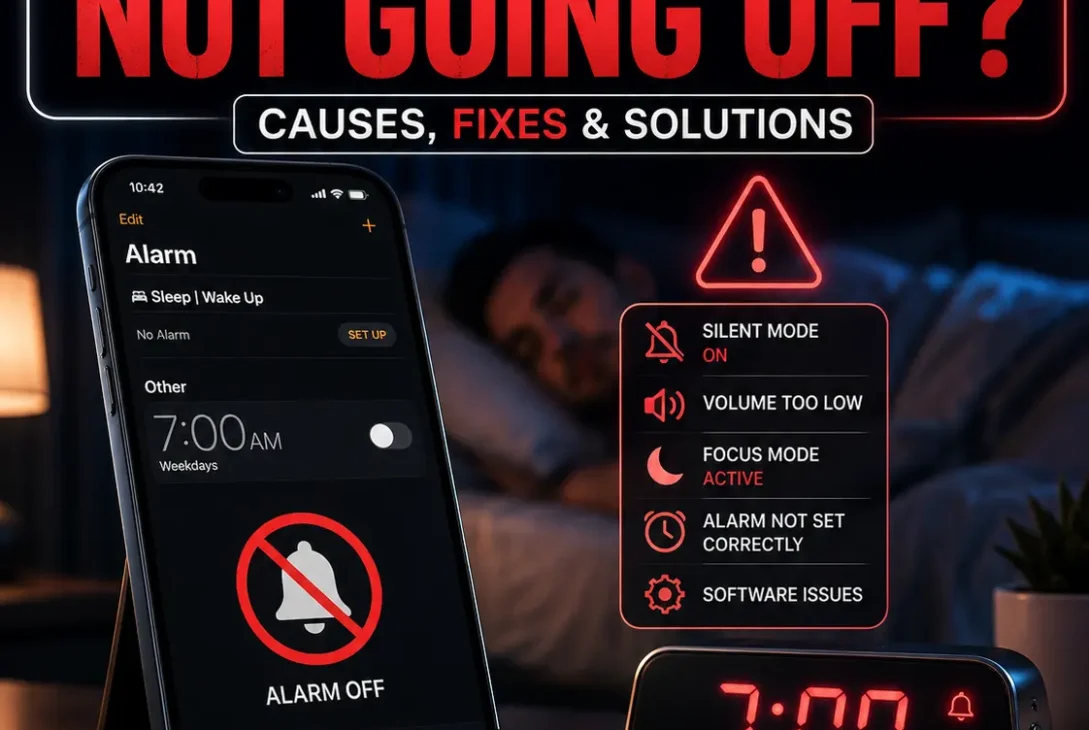
If your iPhone alarm not going off is causing you to miss important wake-up times, appointments, classes, or work, the problem can be surprisingly frustrating. An iPhone alarm should normally sound even when Silent mode or Do Not Disturb is enabled, so when an alarm appears to be set but doesn’t wake you, there is usually a specific setting or configuration issue to check.
The good news is that an iPhone alarm not going off problem is often easy to fix. The most common things to check are the alarm’s sound, the Ringtone and Alerts volume, the alarm schedule, and whether you’re using a regular Clock alarm or a Sleep Schedule alarm.
This guide explains why your iPhone alarm may not sound and provides practical fixes for iOS users.
Table of Contents
- Why Is My iPhone Alarm Not Going Off?
- Check the Alarm Sound
- Increase Your Alarm Volume
- Make Sure the Alarm Is Actually Enabled
- Check Your Sleep Schedule
- Restart Your iPhone
- Turn Off Attention Aware Features
- Check the Date and Time
- Create a New Alarm
- Update iOS
- Test Your iPhone Speaker
- What If the Alarm Only Vibrates?
- Does Silent Mode Stop iPhone Alarms?
- Frequently Asked Questions
- Final Verdict
- SEO Details
Why Is My iPhone Alarm Not Going Off?
There are several reasons an iPhone alarm not going off problem can happen.
Possible causes include:
- The alarm sound is set to None
- Ringtone and Alerts volume is too low
- The alarm was accidentally disabled
- The wrong days are selected for a repeating alarm
- A Sleep Schedule alarm is configured differently
- Attention Aware Features are reducing alert volume
- A temporary iOS problem is affecting the Clock app
- Your iPhone has a software issue
- The speaker isn’t working correctly
- You’re checking the wrong alarm or schedule
Before trying complicated troubleshooting, check the alarm itself. Apple allows you to choose an alarm sound, repeat days, snooze settings, and other options directly from the Clock app.
Check the Alarm Sound
One of the first things to check when your iPhone alarm not going off is the alarm’s sound setting.
Open:
Clock → Alarms → Edit → Select Your Alarm → Sound
Make sure the sound isn’t set to None.
If the alarm is configured with no sound, your iPhone may provide haptic feedback without playing an audible alarm.
Choose one of the built-in alarm sounds and save the change.
Apple specifically recommends checking the alarm sound when an iPhone alarm doesn’t make a sound or only vibrates.
Try a Different Alarm Sound
If the current sound appears selected but you’re still experiencing an iPhone alarm not going off issue, choose a different built-in sound.
Then create a test alarm for a few minutes in the future.
This lets you determine whether the problem is related to the particular alarm configuration rather than the entire Clock app.
Increase Your Alarm Volume
Your media volume and alarm volume aren’t necessarily the same thing.
For an iPhone alarm not going off problem, check:
Settings → Sounds & Haptics → Ringtone and Alerts
Move the slider toward the right and make sure the alert volume is high enough to hear.
Apple identifies the Ringtone and Alerts slider as the setting used to adjust alarm volume. You can also enable Change with Buttons if you want the physical volume buttons to control that volume.
Important Volume Difference
Watching YouTube and increasing the media volume doesn’t necessarily fix an alarm that is too quiet.
Your alarm relies on the alert volume setting, so check Ringtone and Alerts specifically.
Make Sure the Alarm Is Actually Enabled
Sometimes the reason for an iPhone alarm not going off is simply that the alarm switch has been turned off.
Open:
Clock → Alarms
Look at the switch next to the alarm.
If it’s disabled, turn it on.
Also check the time carefully.
For example, a 7:00 PM alarm won’t wake you at 7:00 AM, and a repeating alarm may not be configured for the day you expect.
If you’re using a repeating alarm, tap the alarm and check Repeat to confirm the correct days are selected. Apple allows individual alarms to repeat on specific days.
Check Your Sleep Schedule
If you use Apple’s Sleep Schedule, your wake-up alarm can be configured separately from ordinary Clock alarms.
Open:
Health → Search → Sleep
Then check your sleep schedule and wake-up settings.
Apple’s Sleep Schedule includes options for the wake-up time, alarm sound, alarm volume, vibration, and snooze.
This is important because a regular Clock alarm and a Sleep Schedule alarm aren’t exactly the same thing.
If you recently changed your bedtime or wake-up schedule, make sure the alarm is still enabled.
Restart Your iPhone
A restart is a simple troubleshooting step if the iPhone alarm not going off problem appeared unexpectedly.
Restart your iPhone, then create a test alarm for a few minutes later.
After restarting:
- Open Clock.
- Go to Alarms.
- Create a new test alarm.
- Select a built-in sound.
- Increase Ringtone and Alerts volume.
- Lock your iPhone.
- Wait for the alarm.
If the test alarm works after restarting, a temporary software issue may have caused the original problem.
Turn Off Attention Aware Features
On iPhones with Face ID, Attention Aware Features can lower the volume of some alerts when the device detects that you’re looking at it.
If you’re troubleshooting an iPhone alarm not going off or an alarm that seems unusually quiet, you can test this feature.
Go to:
Settings → Face ID & Passcode → Attention Aware Features
Turn it off temporarily and test the alarm.
This is particularly useful if your alarm does sound but becomes quieter than expected.
Important Distinction
Attention Aware Features aren’t necessarily the cause of an alarm completely failing to trigger. They are more relevant when the alert sounds but its volume seems unexpectedly reduced.
Check the Date and Time
If an iPhone alarm not going off happens at the wrong time or appears to skip a scheduled alarm, check your date and time settings.
Go to:
Settings → General → Date & Time
Keep Set Automatically enabled unless you have a specific reason to change it.
Avoid manually changing your iPhone’s clock simply to manipulate an app or alarm. Apple warns that manually adjusting the time can affect app behavior and alarms.
If you’re traveling between time zones, automatic time settings are especially useful.
Create a New Alarm
If your existing alarm seems unreliable, delete it and create a completely new one.
For example:
- Open Clock.
- Tap Alarms.
- Delete the problematic alarm.
- Tap +.
- Set a new time.
- Choose a built-in sound.
- Enable Snooze if you want it.
- Tap Done.
Then create a test alarm for a few minutes later.
A fresh alarm can help determine whether the problem is specific to one saved alarm configuration.
If the new alarm works but the old one doesn’t, simply recreate the original schedule.
Update iOS
An outdated version of iOS can sometimes contain bugs affecting system applications.
If you’re experiencing an iPhone alarm not going off repeatedly, check for available software updates.
Go to:
Settings → General → Software Update
Install an available update if appropriate, then test the alarm again.
Keeping your iPhone updated also ensures that you receive Apple’s latest bug fixes and system improvements.
Apple iPhone Software Update Support
Test Your iPhone Speaker
If the alarm is configured correctly but you still hear nothing, test whether your iPhone’s speaker is working.
Play:
- A YouTube video
- Music
- A ringtone preview
- A notification sound
If all sounds are extremely quiet or completely silent, the issue may not be the alarm itself.
Check whether the speaker openings are blocked and make sure the volume isn’t limited.
If other system sounds also fail, hardware or audio settings may need further investigation.
What If the Alarm Only Vibrates?
If your iPhone vibrates but doesn’t play a sound, check the alarm’s Sound setting.
Go to:
Clock → Alarms → Edit → Alarm → Sound
Choose a sound instead of None.
Apple specifically lists this as a troubleshooting step when an alarm only vibrates.
Also check the Ringtone and Alerts volume under:
Settings → Sounds & Haptics
If the volume is extremely low, increase it and test again.
Does Silent Mode Stop iPhone Alarms?
No.
This is an important point when troubleshooting an iPhone alarm not going off problem.
According to Apple, alarms still sound when:
- Silent mode is enabled
- Do Not Disturb is enabled
- Another Focus mode is active
- Headphones are connected
The alarm uses the configured alert volume and plays through the iPhone’s built-in speaker as well as connected headphones.
Therefore, turning Silent mode off isn’t normally the solution to an iPhone alarm not going off issue.
Frequently Asked Questions
Why is my iPhone alarm not going off?
Check whether the alarm is enabled, its sound isn’t set to None, and the Ringtone and Alerts volume is high enough. Also verify the alarm’s time and repeat days.
Why does my iPhone alarm only vibrate?
The alarm sound may be set to None. Open Clock, edit the alarm, tap Sound, and select an audible alarm sound.
Does Do Not Disturb stop iPhone alarms?
No. Apple’s current guidance says alarms still sound when Do Not Disturb or another Focus mode is active.
Does Silent mode stop iPhone alarms?
No. Silent mode doesn’t normally prevent an iPhone alarm from sounding.
Why is my iPhone alarm so quiet?
Check Settings → Sounds & Haptics → Ringtone and Alerts and increase the slider. On Face ID models, Attention Aware Features can also lower the volume of some alerts when you’re looking at the device.
Why does my iPhone alarm work sometimes but not other times?
Check the alarm’s repeat schedule and make sure you’re using the intended alarm. If you use a Sleep Schedule, review its wake-up alarm separately from your regular Clock alarms.
Can headphones stop an iPhone alarm?
No. Apple states that alarms sound through the iPhone’s built-in speaker as well as connected wired or wireless headphones.
Should I use the Clock alarm or Sleep Schedule?
Either can work. A regular Clock alarm is useful for one-time or repeating alarms, while Sleep Schedule is designed around recurring bedtime and wake-up schedules.
Why does my iPhone alarm go off but I don’t hear it?
Check the alert volume, alarm sound, speaker operation, and Attention Aware Features. If your iPhone only vibrates, make sure the alarm’s Sound option isn’t set to None.
Will restarting fix an iPhone alarm problem?
A restart can resolve temporary software problems. If the problem continues afterward, check the alarm configuration, volume, Sleep Schedule, and iOS version.
Final Verdict
If you’re dealing with an iPhone alarm not going off, don’t immediately assume that your iPhone is broken.
Start by checking the alarm itself, especially the Sound, Repeat, and enabled/disabled settings. Then check Settings → Sounds & Haptics → Ringtone and Alerts and make sure the volume is high enough.
If the problem continues, review your Sleep Schedule, restart the iPhone, test Attention Aware Features, update iOS, and create a completely new test alarm.
Most importantly, remember that Silent mode and Do Not Disturb do not normally prevent iPhone alarms from sounding.
If the alarm still doesn’t work after these checks and other iPhone sounds are also failing, the issue may require additional software or hardware troubleshooting.