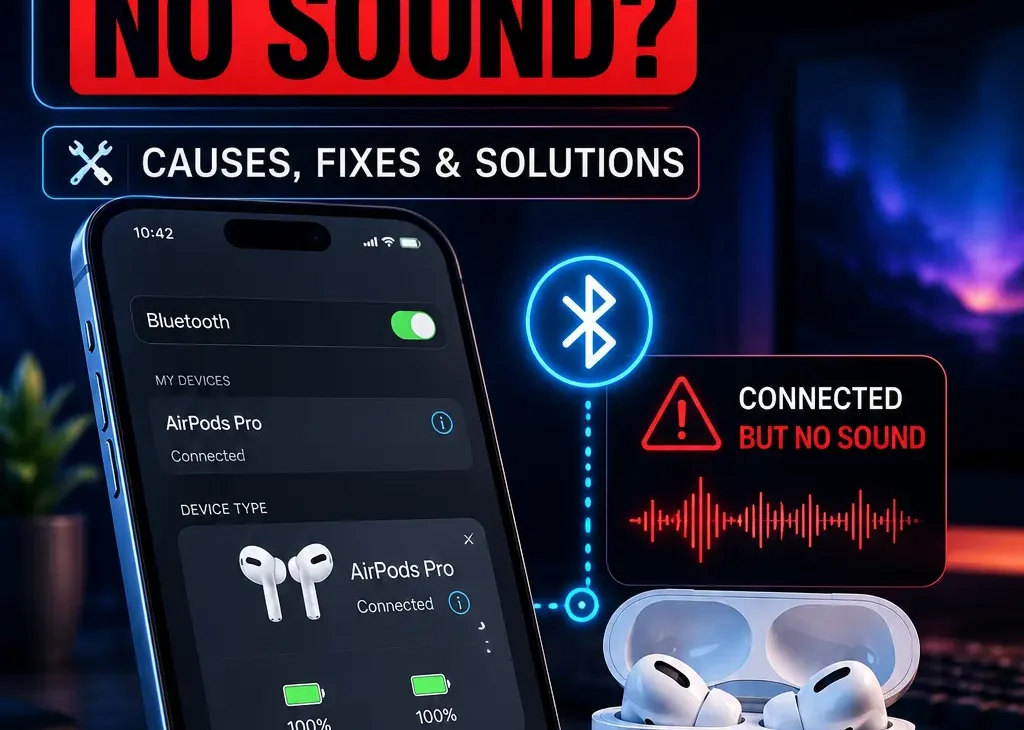
If your AirPods connected but no sound is coming from them, the problem is usually related to the selected audio output, Bluetooth connection, volume settings, app-specific audio, or a temporary software glitch. Your AirPods may appear connected while your phone or computer continues sending audio through its built-in speakers.
The good news is that AirPods connected but no sound is usually fixable without replacing the earbuds. In most cases, checking the audio output and reconnecting the AirPods can restore playback within a few minutes.
This guide covers practical solutions for iPhone, iPad, Mac, and Windows PCs, including what to do when AirPods show as connected but audio still comes from another device.
Table of Contents
- Why Are My AirPods Connected but No Sound?
- Check the Audio Output
- Turn Bluetooth Off and On
- Put AirPods Back in the Charging Case
- Check Volume and Mute Settings
- Check App-Specific Audio
- Forget and Reconnect Your AirPods
- Restart Your Device
- Update Your Device
- Check AirPods Battery and Charging
- Clean Your AirPods
- Fix AirPods Connected but No Sound on Windows
- Reset Your AirPods
- When Is It a Hardware Problem?
- Frequently Asked Questions
- Final Verdict
- SEO Details
Why Are My AirPods Connected but No Sound?
When AirPods connected but no sound appears as the problem, the Bluetooth connection itself may not be the issue.
Your device can successfully recognize AirPods while audio is still being routed somewhere else.
Common causes include:
- Incorrect audio output selection
- Low or muted volume
- Bluetooth connection glitches
- An application using another output device
- AirPods connected to another Apple device
- Outdated software
- Temporary Bluetooth problems
- Low battery
- Dirty speaker mesh
- Incorrect Windows audio settings
- A hardware problem
The quickest solution is to check where your device is actually sending the audio.
Check the Audio Output
The first thing to check when AirPods connected but no sound is the selected audio output.
On iPhone or iPad
Start playing a song or video.
Then:
- Open Control Center.
- Tap the audio output or AirPlay button.
- Look for your AirPods.
- Select your AirPods as the playback device.
- Increase the volume.
If another device is selected, your AirPods may remain connected without receiving the audio stream.
On Mac
On your Mac:
- Open Control Center.
- Select Sound.
- Choose your AirPods.
- Increase the output volume.
- Play audio again.
This is one of the first things to check if AirPods connected but no sound happens on a Mac.
Apple recommends checking the connected device and related AirPods settings when troubleshooting AirPods audio behavior.
Turn Bluetooth Off and On
A temporary Bluetooth communication problem can make AirPods appear connected even though audio isn’t being transferred correctly.
Try this:
- Open Bluetooth settings.
- Turn Bluetooth off.
- Wait around 10 seconds.
- Turn Bluetooth back on.
- Connect your AirPods again.
- Play a song or video.
If AirPods connected but no sound disappears after reconnecting, the problem was likely a temporary Bluetooth connection issue.
On Windows, Microsoft also recommends turning Bluetooth off and back on when a Bluetooth device connects but produces no sound.
Put AirPods Back in the Charging Case
Another quick fix is to completely disconnect the earbuds before reconnecting them.
Put both AirPods into the charging case and close the lid.
Wait a few seconds, then:
- Open the charging case.
- Put the AirPods back in your ears.
- Check the Bluetooth connection.
- Start playing audio again.
This can refresh the connection without requiring you to completely remove the device from Bluetooth settings.
If AirPods connected but no sound continues, move to the next step rather than repeatedly reconnecting them.
Check Volume and Mute Settings
It sounds obvious, but volume is one of the easiest things to overlook.
Check:
- Device volume
- App volume
- Media player volume
- AirPods output volume
- Mute settings
- Focus or Do Not Disturb-related behavior
Try playing audio from a different application.
For example, if YouTube has no sound, try Apple Music or another video.
If audio works in one app but not another, the AirPods themselves may not be the problem.
Check App-Specific Audio
Sometimes your device is working correctly but one application is using a different output device.
This is particularly important on Windows.
Microsoft notes that individual apps can have their own volume levels and output-device selections through Windows Volume Mixer.
https://support.apple.com/airpods
On Windows 11:
- Open Settings.
- Go to System → Sound.
- Open Volume mixer.
- Find the affected application.
- Make sure it isn’t muted.
- Check that AirPods are selected as the app’s output device.
If AirPods connected but no sound occurs only in one application, this is one of the most useful checks.
Forget and Reconnect Your AirPods
If the connection appears normal but there is still no audio, remove the AirPods from Bluetooth and pair them again.
On iPhone or iPad
Open:
Settings → Bluetooth
Then:
- Find your AirPods.
- Tap the information button.
- Choose Forget This Device.
- Confirm.
- Put the AirPods into their case.
- Put them into pairing mode.
- Connect them again.
This creates a fresh Bluetooth pairing.
On Windows, Microsoft similarly recommends removing a Bluetooth device and adding it again when a connected device doesn’t produce audio.
A fresh pairing can be especially useful if AirPods connected but no sound started after an operating-system update or Bluetooth configuration change.
Restart Your Device
Restarting your phone, tablet, Mac, or Windows PC can clear temporary Bluetooth and audio-service problems.
If you’re experiencing AirPods connected but no sound after waking your device from sleep, restarting may restore normal audio routing.
On Windows, Microsoft specifically recommends restarting the computer as part of Bluetooth audio troubleshooting.
After restarting:
- Turn Bluetooth on.
- Connect AirPods.
- Start playing audio.
- Check the selected output device.
Update Your Device
Software updates can fix Bluetooth, audio, and compatibility problems.
Check whether your device has a pending update.
For Apple devices, make sure your iPhone, iPad, or Mac is running current software.
Apple also recommends keeping connected Apple devices and AirPods firmware up to date when troubleshooting AirPods-related behavior.
On Windows, check:
Settings → Windows Update
Microsoft recommends keeping Windows updated when troubleshooting Bluetooth audio problems.
If AirPods connected but no sound began immediately after an operating-system update, also check whether additional updates are available.
Check AirPods Battery and Charging
Low battery can cause unexpected behavior.
Check the battery level of your AirPods and charging case.
If one AirPod has significantly less charge than the other, place both earbuds into the charging case and allow them to charge.
Also make sure the charging contacts are clean and that each AirPod is properly seated in the case.
If only one AirPod produces sound, battery and charging issues should be checked before assuming the speaker has failed.
Clean Your AirPods
Dirt or earwax can block the speaker mesh and make audio extremely quiet or appear to stop completely.
If AirPods connected but no sound occurs with one earbud while the other works normally, inspect the speaker mesh carefully.
Don’t push objects deep into the speaker openings or use excessive liquid.
Apple recommends cleaning AirPods when audio performance is affected by buildup or similar issues.
A gentle cleaning can sometimes restore volume when the connection itself is working correctly.
Fix AirPods Connected but No Sound on Windows
Windows users can experience additional Bluetooth audio problems because the operating system must correctly select the Bluetooth device as the playback output.
If AirPods connected but no sound happens on Windows 11, start here.
Select AirPods as the Output Device
Go to:
Settings → System → Sound
Under Output, select your AirPods.
Make sure Windows isn’t sending sound to:
- Built-in speakers
- Monitor speakers
- Another Bluetooth headset
- HDMI audio
- A USB audio device
Microsoft specifically recommends checking the selected Bluetooth output when a Bluetooth device is connected but there is no sound.
Check the Bluetooth Device
Go to:
Settings → Bluetooth & devices
Make sure your AirPods are actually connected rather than merely appearing as a previously paired device.
If necessary, remove them and pair them again.
Check Bluetooth Drivers
If AirPods connected but no sound continues on Windows after reconnecting, an outdated or incompatible Bluetooth driver could be involved.
Open:
Device Manager → Bluetooth
Then check your Bluetooth adapter for available driver updates.
Microsoft recommends checking Bluetooth drivers when a Bluetooth device connects but audio isn’t working correctly.
Reset Your AirPods
If you’ve tried the basic fixes and AirPods connected but no sound continues, resetting the AirPods may be worth trying.
The exact reset procedure depends on your AirPods model.
After resetting, pair them with your device again and test audio.
Resetting is more useful when the problem persists across reconnects rather than being a one-time Bluetooth glitch.
If resetting doesn’t help and the same AirPod consistently produces no sound, investigate whether the issue is hardware-related.
When Is It a Hardware Problem?
Software troubleshooting should be your first step, but hardware problems are possible.
Consider hardware inspection if:
- One AirPod never produces sound
- Audio remains silent on multiple devices
- The AirPods won’t respond normally
- The earbuds have been physically damaged
- The speaker mesh is damaged
- The problem remains after resetting
- The same earbud fails regardless of the device
Try your AirPods with another compatible device.
If they work normally elsewhere, the original phone, computer, or tablet is more likely to be responsible.
If the same AirPod remains silent on multiple devices, the AirPod itself may need service.
Frequently Asked Questions
Why are my AirPods connected but no sound is playing?
If AirPods connected but no sound is coming through them, first check the selected audio output. Your device may still be sending sound to its built-in speakers or another connected device.
Why do my AirPods say connected but have no sound on iPhone?
Check the AirPlay audio output and select your AirPods manually. If that doesn’t work, place the AirPods in their case, reconnect them, and restart your iPhone.
Why are my AirPods connected but no sound on Windows 11?
Windows may have selected another playback device. Open Settings → System → Sound and select your AirPods under Output. Microsoft recommends checking Bluetooth output settings and re-pairing the device if necessary.
Why is only one AirPod working?
Check the battery level and clean the affected AirPod. Also verify that the left and right audio balance is centered. Windows provides balance controls for Bluetooth audio devices.
Can Bluetooth be connected without transmitting audio?
Yes. A device can show as connected while the operating system is using another audio output or experiencing a Bluetooth audio configuration problem.
Why do AirPods work for music but not YouTube?
The particular application or browser may have its own audio settings. On Windows, check Volume Mixer and confirm that the affected app is using the AirPods as its output device.
Will forgetting AirPods fix the sound problem?
It can. Removing the AirPods and pairing them again creates a fresh Bluetooth connection and can resolve corrupted or incorrect pairing settings.
Do I need to reset AirPods if there is no sound?
Not always. Try selecting the correct output, reconnecting Bluetooth, restarting your device, checking volume, and testing another application first. Resetting should generally be a later troubleshooting step.
Can outdated Windows drivers cause AirPods audio problems?
Yes. Microsoft notes that outdated or incompatible Bluetooth drivers can contribute to Bluetooth audio problems. Updating the Bluetooth driver may help restore normal playback.
Why do my AirPods connect but keep playing sound from my laptop?
Your laptop may still have its built-in speakers selected as the output. Open the system sound settings and manually choose your AirPods as the playback device.
Final Verdict
If AirPods connected but no sound is the problem, start with the simplest solution: check your audio output and make sure the AirPods are actually selected for playback.
If that doesn’t work, reconnect Bluetooth, check volume, inspect app-specific audio settings, restart your device, update software, and pair the AirPods again. Windows users should pay particular attention to the selected output device, Volume Mixer, and Bluetooth drivers.
For problems affecting only one AirPod, check battery, charging, speaker-mesh cleanliness, and audio balance. If the same AirPod remains silent when connected to multiple devices even after resetting, hardware service may be necessary.
In most cases, AirPods connected but no sound is a configuration or connection problem rather than a sign that the earbuds are permanently broken.