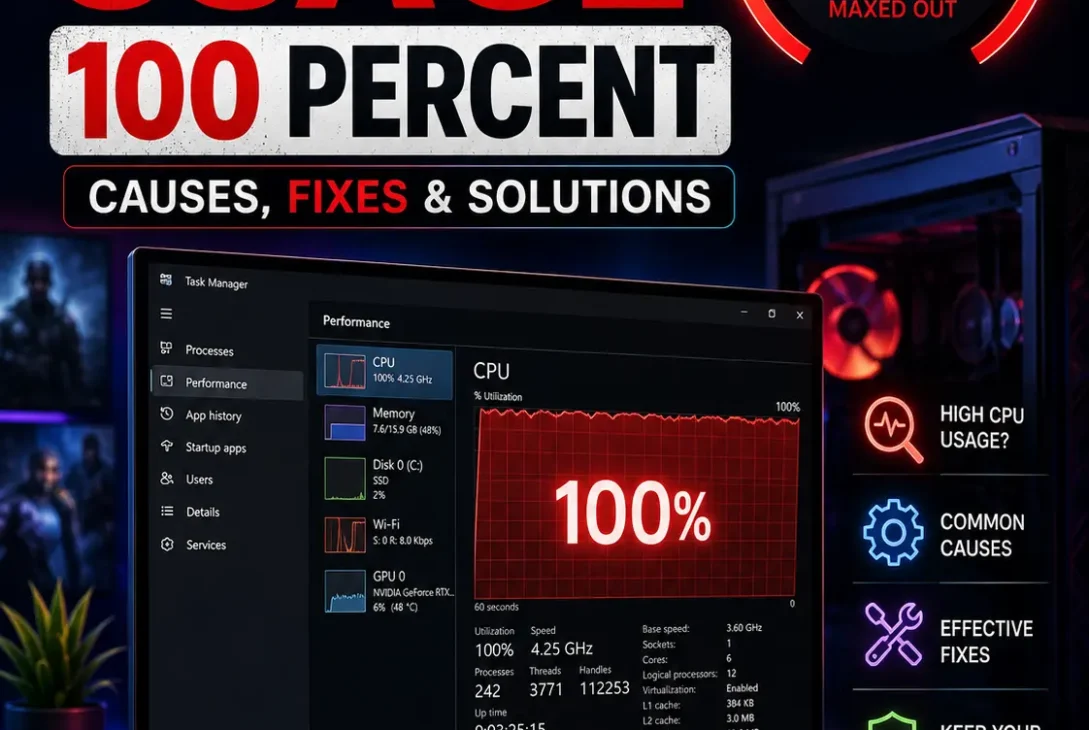
If your CPU usage 100 percent problem appears suddenly, your Windows PC may become slow, applications may freeze, fans may run constantly, and games can start stuttering. High processor usage can happen for many reasons, from a demanding application to Windows background processes, malware, outdated drivers, or overheating.
Seeing CPU usage 100 percent doesn’t automatically mean your processor is failing. A CPU can legitimately reach full utilization while rendering video, compiling code, installing software, or running demanding games.
The important question is why your CPU is running at full capacity and whether the usage drops when the task is finished.
In this guide, we’ll show you how to find the process responsible and explain the most practical ways to fix CPU usage 100 percent on Windows.
Table of Contents
- What Does CPU Usage 100 Percent Mean?
- Why Is My CPU Usage 100 Percent?
- How to Check CPU Usage in Windows
- Restart Your Computer
- Close the Program Using Too Much CPU
- Disable Unnecessary Startup Apps
- Check Windows Update
- Scan for Malware
- Update Your Drivers
- Check Background Processes
- Reduce Browser CPU Usage
- Check for Overheating
- Fix CPU Usage 100 Percent While Gaming
- When Should You Upgrade Your CPU?
- Frequently Asked Questions
- Final Verdict
- SEO Details
What Does CPU Usage 100 Percent Mean?
When Windows reports CPU usage 100 percent, your processor is currently being fully utilized.
Think of the CPU as the part of your computer that performs instructions. When applications request more processing power, CPU utilization increases.
For example, CPU usage 100 percent can be completely normal when you are:
- Rendering a video
- Compiling a large project
- Running a virtual machine
- Installing demanding software
- Playing a CPU-intensive game
- Compressing large files
- Running certain development workloads
The problem occurs when CPU usage 100 percent continues for a long time while your computer is doing almost nothing.
A PC sitting at the desktop shouldn’t normally remain heavily loaded without an obvious reason.
Why Is My CPU Usage 100 Percent?
There are several possible causes of CPU usage 100 percent.
The most common include:
- A demanding application
- Too many background processes
- Startup programs
- Windows Update activity
- Antivirus scanning
- Malware
- Browser tabs or extensions
- Outdated drivers
- Software bugs
- Insufficient processor performance
- Overheating
- System services performing maintenance
The best approach is not to randomly change Windows settings.
Instead, find the process causing the high CPU usage first.
Once you know which application or service is responsible, the solution becomes much easier.
How to Check CPU Usage in Windows
If you’re experiencing CPU usage 100 percent, Task Manager should be your first stop.
Step 1: Open Task Manager
Press:
Ctrl + Shift + Esc
You can also right-click the Windows Start button and select Task Manager.
Step 2: Open Processes
Look for the CPU column.
Click it to sort processes from highest to lowest CPU usage.
You should now be able to see which application or Windows process is consuming the most processor resources.
Step 3: Identify the Problem
For example, you might see:
- Chrome using a large amount of CPU
- A game using most of the processor
- An antivirus scan running
- Windows Update processing files
- A development tool compiling code
If one recognizable application is responsible, close it temporarily and see whether CPU usage falls.
Don’t terminate an unfamiliar Windows process simply because it appears near the top. Some system processes are essential to Windows.
Restart Your Computer
A simple restart can sometimes resolve temporary CPU usage 100 percent problems.
Applications can occasionally become stuck in the background, leaving a process consuming processor resources even after you’re no longer actively using it.
Before restarting:
- Save your work.
- Close your applications.
- Restart Windows.
- Wait for the desktop to load.
- Give Windows several minutes to finish startup tasks.
- Open Task Manager again.
Don’t worry if CPU usage briefly becomes high immediately after startup. Windows may be loading services, checking updates, indexing files, or launching startup applications.
The important thing is whether the usage eventually drops.
Close the Program Using Too Much CPU
If Task Manager shows that a specific application is causing CPU usage 100 percent, close that program and check whether the processor returns to normal.
For example, video editing software may legitimately consume most of your CPU while exporting a project.
But if a lightweight application continues consuming a large amount of CPU while idle, there may be a problem with that application.
Ask yourself:
- Did the problem start after opening the program?
- Does CPU usage fall after closing it?
- Is the application performing a demanding task?
- Does the problem return every time you launch it?
If the same application repeatedly causes CPU usage 100 percent, update it or reinstall it.
Disable Unnecessary Startup Apps
Programs that launch automatically with Windows can contribute to CPU usage 100 percent, especially on computers with many applications installed.
Open:
Task Manager → Startup apps
You’ll see programs configured to launch when Windows starts.
You may find:
- Discord
- Microsoft Teams
- Game launchers
- Cloud storage applications
- Creative software
- Update utilities
- Manufacturer applications
You don’t need to disable everything.
Instead, disable applications that you don’t need immediately after Windows starts.
This can reduce background activity and improve startup performance.
Check Windows Update
Windows can temporarily generate high processor usage while processing updates.
If CPU usage 100 percent appears while Windows is downloading, installing, or preparing an update, allow the process to finish before making major changes.
Go to:
Settings → Windows Update
Check whether updates are currently being installed.
If the system has been stuck for an unusually long time, restart the computer when Windows allows you to do so and check again.
Keeping Windows updated is also important because Microsoft regularly provides security, compatibility, and performance improvements through updates.
Scan for Malware
Malware is another possible reason for CPU usage 100 percent.
Some malicious programs run continuously in the background and consume processor resources.
You should investigate further if high CPU usage is accompanied by:
- Unknown programs
- Unexpected browser redirects
- Strange pop-ups
- New browser extensions
- Unusual network activity
- Applications launching without permission
- Unexpected system slowdowns
Windows includes Microsoft Defender for malware protection.
Open:
Windows Security → Virus & threat protection
Then run an appropriate scan.
Microsoft Defender Antivirus Support
Avoid installing random “CPU optimizer” applications. Some third-party cleanup tools provide little benefit and may introduce additional background processes.
Update Your Drivers
Driver problems can sometimes contribute to unusual CPU behavior.
If CPU usage 100 percent started after a Windows update, hardware change, or driver installation, check your system drivers.
Pay particular attention to:
- Chipset drivers
- Graphics drivers
- Network drivers
- Storage drivers
Start with Windows Update.
You can also visit your computer manufacturer’s official support website for recommended drivers.
If the problem began immediately after a specific driver update, investigate whether the previous driver can be restored.
Check Background Processes
Sometimes CPU usage 100 percent isn’t caused by an application you intentionally opened.
Windows and installed software can perform background tasks such as:
- File indexing
- Antivirus scans
- Cloud synchronization
- Software updates
- File compression
- Photo processing
- Application maintenance
Watch Task Manager for several minutes.
If CPU usage starts high but gradually falls, Windows may simply be completing a temporary task.
If the same process remains near the top for hours, investigate that process further.
Reduce Browser CPU Usage
Your web browser can be responsible for CPU usage 100 percent, particularly when you have many tabs, extensions, videos, and web applications open.
If the problem happens mainly while browsing, try:
- Closing unnecessary tabs.
- Disabling unused extensions.
- Restarting the browser.
- Updating the browser.
- Testing another browser.
- Checking which tab is using the most resources.
Chrome has its own task manager.
Press:
Shift + Esc
This allows you to identify individual tabs and extensions that are consuming CPU resources.
If one webpage consistently causes CPU usage 100 percent, close it and test whether the problem disappears.
Check for Overheating
High CPU usage and high temperatures can occur together, particularly during demanding workloads.
Overheating can cause the processor to reduce its performance to protect itself, which can make your computer feel slower.
Check for:
- Dust inside the PC
- Blocked laptop vents
- Poor airflow
- Failed cooling fans
- High room temperature
- Incorrectly installed CPU cooler
If CPU usage 100 percent happens alongside extremely high temperatures and loud fans, investigate cooling rather than simply closing applications.
For desktop PCs, make sure the CPU cooler and case fans are operating correctly.
For laptops, keep the ventilation openings clear and avoid placing the machine on soft surfaces such as beds or cushions.
Fix CPU Usage 100 Percent While Gaming
If CPU usage 100 percent occurs while gaming, don’t immediately assume something is wrong.
Modern games can place significant demand on the processor, particularly games with large worlds, many NPCs, physics calculations, or simulation systems.
First open Task Manager and determine whether the game itself is using the CPU.
If it is, try:
- Closing unnecessary background programs
- Disabling unnecessary overlays
- Updating graphics drivers
- Updating chipset drivers
- Checking CPU temperatures
- Lowering CPU-heavy game settings
- Updating the game
- Restarting Windows before playing
If another process is responsible for CPU usage 100 percent while gaming, investigate that process instead.
Also remember that lowering graphics quality doesn’t always solve a CPU bottleneck. Some graphical settings primarily affect GPU performance.
When Should You Upgrade Your CPU?
If CPU usage 100 percent happens during almost every demanding workload, your processor may simply be reaching its performance limit.
A CPU upgrade may be worth considering if:
- Modern games consistently max out the processor
- Video exports take too long
- Development builds are extremely slow
- Multitasking causes major slowdowns
- Your processor is several generations old
- The CPU is consistently the system bottleneck
However, don’t purchase new hardware before identifying the cause.
If malware, an application bug, Windows Update, or overheating is responsible for CPU usage 100 percent, replacing the CPU won’t solve the underlying problem.
Before upgrading, check motherboard compatibility, RAM, cooling, power requirements, and the overall age of the system.
https://support.microsoft.com/en-us/windows/windows-update-troubleshooting-19bc41ca-ad72-ae67-3e2b-8f1f4c3e5e4a
Frequently Asked Questions
Why is my CPU usage 100 percent?
CPU usage 100 percent can happen because of demanding applications, Windows background processes, malware scans, browser tabs, software updates, drivers, or insufficient processor performance.
Is CPU usage 100 percent bad?
Not necessarily. CPU usage 100 percent can be completely normal during video rendering, compiling, gaming, or other demanding workloads. Persistent high usage during light tasks is more concerning.
How do I fix CPU usage 100 percent on Windows 11?
Open Task Manager and identify the process consuming the most CPU. Then check startup programs, Windows Update, malware, drivers, browser activity, background processes, and system temperatures.
Why is my CPU at 100 percent when nothing is open?
Visible applications aren’t the only things that use your processor. Windows services, updates, antivirus scans, indexing, cloud synchronization, and background applications can continue running.
Can malware cause 100 percent CPU usage?
Yes. Malware can consume significant processor resources. If your computer also shows suspicious behavior, run a security scan using Windows Security.
Does restarting fix high CPU usage?
A restart can clear temporary processes and software problems. If CPU usage 100 percent returns after every restart, investigate the process responsible rather than repeatedly rebooting.
Why is CPU usage 100 percent while gaming?
The game itself may be using the processor heavily, or another background application could be consuming CPU resources. Task Manager can help identify the difference.
Can Chrome cause 100 percent CPU usage?
Yes. Multiple tabs, extensions, video content, and demanding websites can cause very high CPU usage. Chrome’s built-in task manager can help identify the specific source.
Can overheating cause high CPU usage?
Overheating and high CPU usage can occur together, although overheating isn’t always the original cause. Check your cooling system if the computer becomes unusually hot or the fans remain at high speed.
Should I end a process using 100 percent CPU?
Only terminate a process if you understand what it does and know it is safe to close. Don’t randomly terminate Windows system processes.
Do I need a new CPU if usage reaches 100 percent?
Not necessarily. If CPU usage 100 percent happens during demanding workloads, your processor may simply be working normally. Upgrade only after ruling out software and cooling problems.
Final Verdict
If you’re dealing with CPU usage 100 percent, the first step is to find out what is actually using the processor.
Open Task Manager, sort processes by CPU usage, and identify the application or service responsible. From there, you can restart the computer, close unnecessary software, disable startup applications, check Windows Update, scan for malware, update drivers, reduce browser activity, or investigate overheating.
Remember that CPU usage 100 percent isn’t automatically a problem. Full processor utilization during gaming, rendering, compiling, or other demanding work can be perfectly normal.
The real concern is persistent high CPU usage when your computer is performing simple tasks. In that situation, identifying the cause is much more important than simply trying to reduce the percentage.