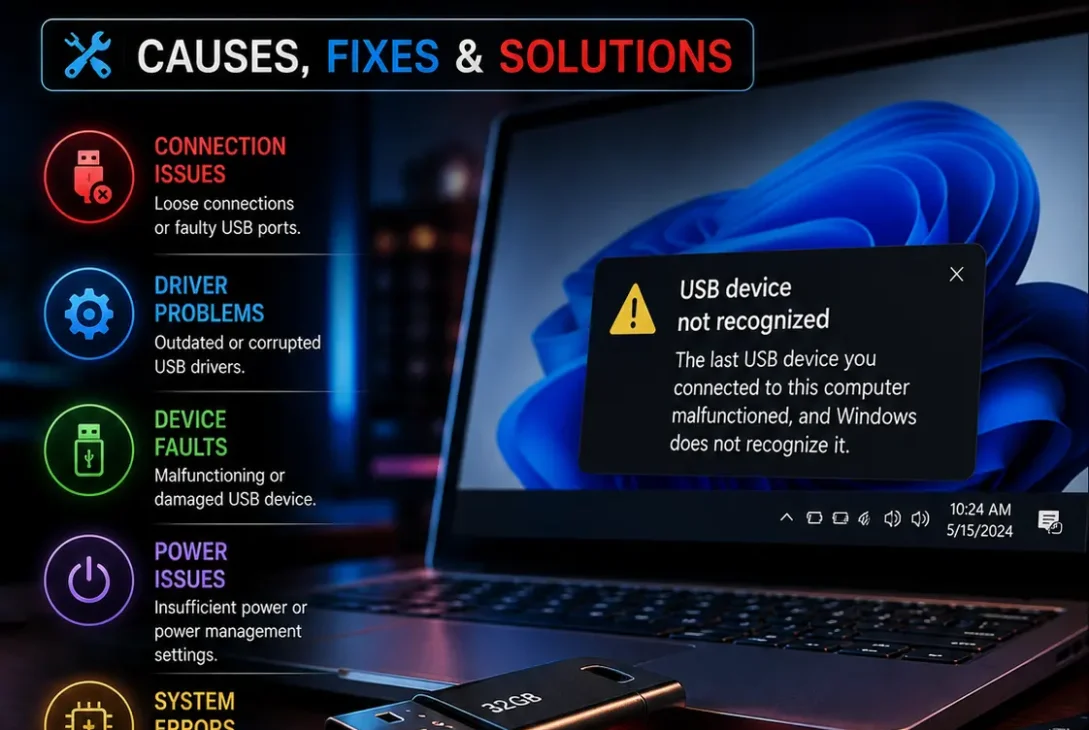
Seeing the USB device not recognized error in Windows can be frustrating, especially when a flash drive, external hard drive, keyboard, mouse, printer, or phone suddenly stops working. In many cases, the problem is caused by a faulty connection, outdated drivers, power management, or a temporary Windows USB error.
The good news is that you can usually fix a USB device not recognized problem without replacing the device. Windows provides several built-in troubleshooting options, while Microsoft recommends checking the physical connection, restarting the computer, updating drivers, and checking Device Manager when USB hardware isn’t working correctly.
This guide explains the most effective solutions, starting with the quickest checks and moving toward more advanced fixes.
Table of Contents
- Why Is My USB Device Not Recognized?
- Check the USB Connection
- Restart Your Windows PC
- Try Another USB Port
- Check the Device in Device Manager
- Update the USB Driver
- Reinstall the USB Driver
- Disable USB Power Saving
- Update Windows
- Check for Hardware Problems
- Fix USB Storage Devices
- When a USB Device Works on Another Computer
- Frequently Asked Questions
- Final Verdict
- SEO Details
Why Is My USB Device Not Recognized?
A USB device not recognized message can appear for several different reasons.
Common causes include:
- A loose USB connection
- Damaged USB cable
- Faulty USB port
- Outdated or corrupted drivers
- USB power-management problems
- Windows temporarily failing to communicate with the device
- Problems with a USB hub or adapter
- A damaged flash drive or external storage device
- Compatibility issues
- Hardware failure
Before changing advanced Windows settings, determine whether the problem is with the computer, USB port, cable, or device itself.
Check the USB Connection
The first thing to do when Windows shows USB device not recognized is disconnect the device and connect it again.
Remove the USB device carefully, wait a few seconds, and plug it back in.
If you’re using a cable, check both ends.
Look for:
- Loose connections
- Bent connectors
- Damaged cable insulation
- Dirt or debris
- Physical damage to the USB connector
If the connection feels unusually loose, try another cable or port.
For external hard drives and other devices that require significant power, make sure the device’s power adapter is connected correctly.
Restart Your Windows PC
A simple restart can resolve a temporary USB communication problem.
If Windows suddenly reports USB device not recognized, restart the computer before trying complicated solutions.
After restarting:
- Disconnect the USB device.
- Restart Windows.
- Wait until the desktop completely loads.
- Connect the USB device again.
- Give Windows a few seconds to detect it.
If the device works after restarting, the issue was likely temporary rather than a permanent hardware failure.
Try Another USB Port
A faulty USB port can make Windows display a USB device not recognized message even when the device itself is perfectly fine.
If you’re using a desktop PC, try another USB port directly on the computer.
If you’re using a laptop, test another available port.
Avoid using a USB hub during the test.
For example, if your setup is:
USB device → USB hub → PC
connect it directly:
USB device → PC
If it works directly, the hub or its connection may be responsible.
Try USB Ports on Different Sides
Some laptops have USB ports connected to different internal controllers.
Therefore, if one port doesn’t work, another port may detect the same device immediately.
This is a quick way to determine whether the problem is isolated to one port.
Check the Device in Device Manager
If Windows still shows USB device not recognized, check Device Manager.
Press:
Windows + X → Device Manager
Look under categories such as:
- Universal Serial Bus controllers
- Disk drives
- Portable Devices
- Other devices
You may see an entry with a yellow warning icon.
A device may also appear as:
Unknown USB Device
This can indicate that Windows has detected something connected to the USB controller but cannot communicate with it correctly.
Microsoft provides Device Manager as a built-in Windows tool for viewing and managing hardware and drivers.
Update the USB Driver
A corrupted or outdated driver can cause a USB device not recognized error.
In Device Manager:
- Expand Universal Serial Bus controllers.
- Find the relevant USB controller or device.
- Right-click it.
- Select Update driver.
- Choose the available automatic search option.
- Follow the instructions provided by Windows.
After updating the driver, restart your computer and reconnect the USB device.
You should also check your computer manufacturer’s official support website for chipset and USB drivers when Windows doesn’t find an appropriate update.
Reinstall the USB Driver
If updating doesn’t solve the USB device not recognized problem, reinstalling the affected device or controller can help.
Open:
Device Manager → Universal Serial Bus controllers
Then:
- Identify the problematic USB entry.
- Right-click it.
- Select Uninstall device.
- Confirm the action.
- Restart your computer.
Windows can detect and reinstall the required hardware components after restarting.
Don’t uninstall random devices if you’re unsure what they are. If multiple USB components are listed, identify the entry associated with the problem first.
Disable USB Power Saving
Windows can use power-management features to reduce power consumption.
In some situations, power management can contribute to USB connectivity problems.
If your USB device not recognized issue happens after the computer wakes from sleep, this is particularly worth investigating.
You can check the affected USB device or hub’s properties in Device Manager.
Open:
Device Manager → Universal Serial Bus controllers
Then:
- Right-click a relevant USB Root Hub.
- Select Properties.
- Open Power Management if available.
- Review the option allowing Windows to turn off the device to save power.
- Test whether changing the setting resolves the problem.
The exact options can vary depending on your hardware and Windows configuration.
Update Windows
If your USB device suddenly stops working, check Windows Update.
Go to:
Settings → Windows Update
Then select:
Check for updates
Install available updates and restart the computer if required.
Microsoft regularly distributes Windows updates containing security fixes, compatibility improvements, and hardware-related changes.
Keeping Windows current can therefore help prevent compatibility problems with newer USB hardware.
Check for Hardware Problems
If you’re still getting USB device not recognized, determine whether the problem follows the device or stays with the computer.
Try the USB device on another computer.
If It Works on Another Computer
If the device works normally on another PC, the USB device itself is probably functional.
Focus on:
- Your USB port
- Windows drivers
- USB controllers
- Power management
- Windows configuration
- USB hubs or adapters
If It Doesn’t Work Anywhere
If the same device isn’t recognized by multiple computers, the device or cable may be defective.
For a USB flash drive, external SSD, or hard drive, avoid repeatedly reconnecting a device that may be failing if it contains important data.
If the data is valuable, consider professional data-recovery assistance rather than repeatedly attempting potentially risky repairs.
Fix USB Storage Devices
The USB device not recognized message is especially concerning when you’re connecting a flash drive or external storage device.
If Windows detects the storage hardware but it doesn’t appear in File Explorer, open:
Windows + X → Disk Management
Look for the external drive.
You may find that the drive is:
- Online but missing a drive letter
- Unallocated
- Offline
- Showing an unexpected partition state
Don’t immediately format the drive.
If the drive contains important files, formatting can destroy access to existing data.
First determine whether Windows can see the disk and whether the data is still accessible.
If the Drive Is Detected but Missing From File Explorer
If Disk Management shows a healthy partition but no drive letter, assigning an appropriate drive letter may make the storage device visible again.
However, be careful with drives containing important data and avoid changing partitions unless you understand the consequences.
Check USB Hubs and Adapters
USB hubs make it convenient to connect multiple devices, but they can also introduce another point of failure.
If your USB device not recognized error happens through a hub:
- Disconnect the USB device.
- Disconnect the hub.
- Connect the device directly to the PC.
- Test it again.
If the device works directly, reconnect the hub and test each component separately.
The same approach applies to USB-C adapters and docking stations.
When a USB Device Works on Another Computer
This is one of the most useful troubleshooting tests.
If your USB device works on another computer but not yours, don’t immediately assume the device is broken.
Instead, compare the two setups.
Check:
- USB port type
- Cable
- Windows version
- Drivers
- USB controller
- Hub or dock
- Power requirements
For USB-C devices, also check whether the computer’s USB-C port supports the required functionality.
USB-C is a connector standard, but different ports can support different capabilities.
https://support.microsoft.com/en-us/windows/troubleshoot-usb-problems-2a1a8e9d-2e89-4d4f-8f06-3b0e3c6c2c7e
Frequently Asked Questions
Why does Windows say USB device not recognized?
Windows may display USB device not recognized when it cannot properly communicate with connected USB hardware. Common causes include a bad cable, faulty port, driver problems, insufficient power, or a failing device.
How do I fix a USB device not recognized in Windows 11?
Start by reconnecting the device, trying another USB port, restarting Windows, and testing the device without a USB hub. If that doesn’t help, check Device Manager and update or reinstall the relevant drivers.
Why is my USB drive not showing up in File Explorer?
The drive may not have a drive letter, or Windows may not be detecting the storage hardware correctly. Check Disk Management before making changes to the drive.
Can a bad USB cable cause this error?
Yes. A damaged or defective USB cable can prevent Windows from communicating correctly with the connected hardware. Testing another compatible cable is a quick way to rule this out.
Why does my USB device work on another computer?
If it works elsewhere, the device is likely functional. The problem may be related to your computer’s USB port, driver, Windows configuration, power management, or USB controller.
How do I update USB drivers in Windows?
Open Device Manager, expand Universal Serial Bus controllers, right-click the relevant device or controller, and select Update driver.
Should I uninstall USB drivers?
Reinstalling an affected USB device or controller can help when its driver is corrupted. Windows can reinstall hardware components after restarting, but you should avoid uninstalling devices indiscriminately.
Why does my USB stop working after Windows wakes from sleep?
Power-management settings can sometimes affect USB devices after sleep or hibernation. Check the affected USB controller’s Power Management settings and test whether changing them improves stability.
Can a USB hub cause recognition problems?
Yes. A hub, docking station, or adapter adds another component between the computer and USB device. Connect the device directly to the computer to determine whether the hub is responsible.
Why is my external hard drive not recognized?
Possible causes include a bad cable, insufficient power, faulty USB port, driver problems, or a problem with the drive itself. Test another cable and computer, then check Disk Management.
Should I format a USB drive that isn’t recognized?
No—not before checking whether the drive contains important data. Formatting can erase existing data or make recovery more difficult. Diagnose the drive first.
Final Verdict
A USB device not recognized error doesn’t necessarily mean your USB device has failed.
Start with the basics: reconnect the device, try another USB port and cable, restart Windows, and bypass any USB hub or adapter. If those steps don’t work, use Device Manager to check for driver problems and consider updating or reinstalling the affected USB components.
For storage devices, Disk Management can provide important information about whether Windows can actually see the drive. Avoid formatting an unrecognized drive if it contains important files.
If the same USB device fails on multiple computers, the hardware or cable is more likely to be the problem. If it works perfectly elsewhere, focus your troubleshooting on the Windows PC, its USB ports, drivers, and connected accessories.