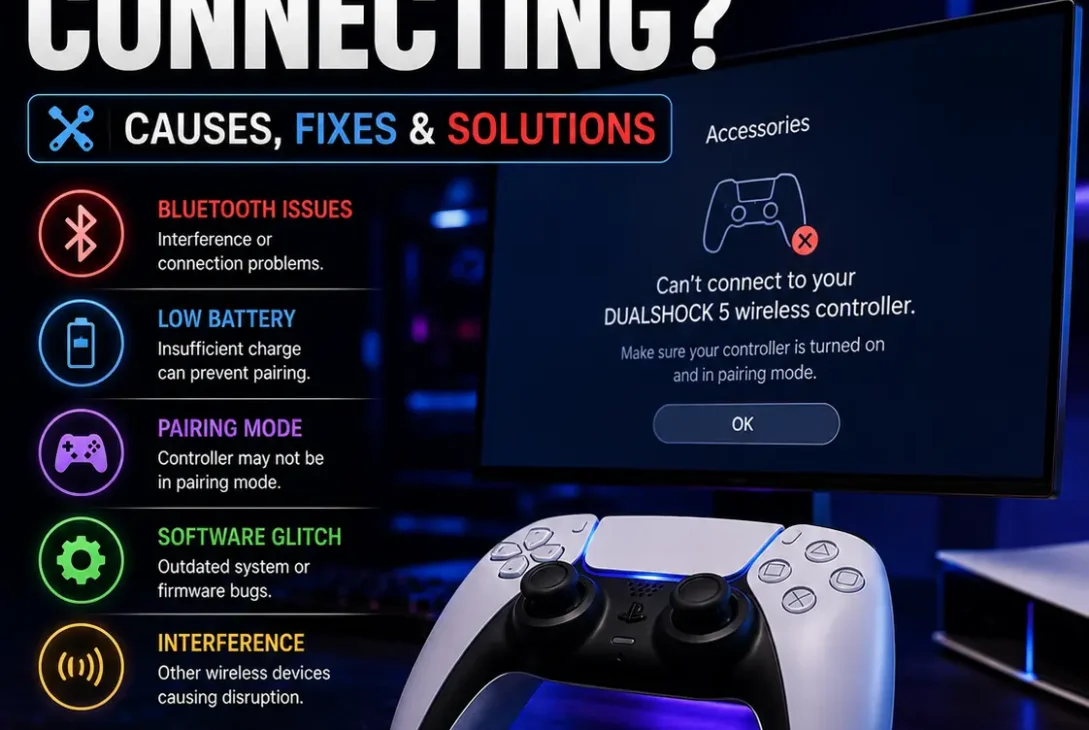
If your PS5 controller not connecting problem has suddenly appeared, you don’t necessarily need a new controller. A DualSense controller can fail to connect because of Bluetooth pairing, a USB cable that only supports charging, low battery, another paired device, outdated software, or a temporary connection issue.
The good news is that most PS5 controller not connecting problems can be fixed at home. Sony recommends reconnecting the DualSense with a compatible USB cable and pressing the PS button, while resetting the controller is another official troubleshooting step when pairing continues to fail.
This guide covers the quickest fixes first, followed by Bluetooth troubleshooting, USB connection problems, controller resets, software updates, and solutions for situations where your controller works on another device but not your PS5.
Table of Contents
- Why Is My PS5 Controller Not Connecting?
- Check the Controller Battery
- Connect the Controller With a USB Cable
- Make Sure You’re Using a Data Cable
- Try Another USB Port
- Reset the DualSense Controller
- Pair the Controller Again
- Check Bluetooth Connections
- Update Your PS5 System Software
- Update DualSense Controller Software
- Try the Controller on Another Device
- What If the PS5 Controller Still Won’t Connect?
- Frequently Asked Questions
- Final Verdict
- SEO Details
Why Is My PS5 Controller Not Connecting?
There are several reasons your PS5 controller not connecting issue can happen.
The most common possibilities include:
- The controller battery is completely drained
- The USB cable is damaged
- You’re using a charge-only USB cable
- The controller is paired with another device
- Bluetooth pairing information needs to be refreshed
- The PS5 software needs an update
- The DualSense controller software needs an update
- The controller needs to be reset
- The USB port isn’t working correctly
- The controller has a hardware problem
Before assuming the controller is broken, work through the fixes below in order.
Check the Controller Battery
A completely drained DualSense battery can make it appear as though the controller isn’t connecting.
Connect the controller to the PS5 using a compatible USB cable and allow it to charge.
Sony states that the DualSense can be charged by connecting it to the PS5 with a USB cable, and the controller’s light bar slowly blinks orange while charging in supported rest-mode conditions.
After allowing it to charge for a while, press the PS button.
If the controller turns on and connects, the problem was probably related to its battery level rather than pairing.
Look at the Light Bar
The light bar can also provide a useful clue.
If there is no response at all, check the cable, USB port, and battery before moving on to Bluetooth troubleshooting.
If the controller lights up but doesn’t connect, continue with the pairing solutions below.
Connect the Controller With a USB Cable
If your PS5 controller not connecting issue is happening wirelessly, try connecting it directly to the console.
Turn on the PS5 and connect the DualSense using a compatible USB cable.
Then press the PS button.
According to Sony’s official instructions, connecting the controller to the PS5 with the included USB cable and pressing the PS button is the standard way to pair a DualSense with the console.
If the controller works through USB but not wirelessly, the controller itself may be fine and the problem is more likely related to wireless pairing.
Make Sure You’re Using a Data Cable
One of the easiest things to overlook is the USB cable.
Not every USB cable supports data transfer. Some cables are designed primarily for charging.
If you’re troubleshooting a PS5 controller not connecting problem, use the USB cable supplied with the PS5 or another compatible cable that supports both charging and data.
Sony specifically notes that charge-only cables cannot be used for certain DualSense connection and charging situations where data communication is required.
Try another known-good cable if the PS5 doesn’t recognize the controller.
Avoid Cheap or Damaged Cables
A cable may still charge the controller while failing to establish a proper data connection.
That can make the problem confusing because the controller appears to be receiving power but doesn’t actually pair with the console.
If possible, test with the original Sony cable or a high-quality compatible data cable.
Try Another USB Port
If the controller doesn’t respond when connected by cable, try another USB port on the PS5.
A damaged or unreliable USB port can prevent the console from communicating with the controller.
Try the following:
- Disconnect the controller.
- Connect it to another PS5 USB port.
- Turn on the console.
- Press the PS button.
- Wait for the controller to pair.
Sony also recommends trying a different PS5 USB port when troubleshooting DualSense charging issues.
If one USB port works while another doesn’t, the controller may not be the problem.
Reset the DualSense Controller
If your PS5 controller not connecting problem continues, resetting the DualSense is one of the most useful official troubleshooting steps.
The reset button is located inside a small hole on the back of the controller.
To reset it:
- Turn off the PS5.
- Disconnect the USB cable from the controller.
- Locate the small reset button on the back.
- Use a pin or similar small tool.
- Press and hold the reset button for at least five seconds.
- Connect the controller to the PS5 with a compatible USB cable.
- Press the PS button.
Sony says resetting the DualSense does not affect its pairing settings.
If the controller was experiencing a temporary software or pairing problem, this can restore normal operation.
Pair the Controller Again
If resetting didn’t fix the PS5 controller not connecting issue, pair it with the console again.
Start with the PS5 turned on.
Connect the DualSense using a compatible USB cable and press the PS button.
The controller should power on and pair with the console. Sony’s official DualSense guide recommends this USB pairing method when connecting a controller to a PS5.
Once the controller successfully connects, you can disconnect the USB cable and use it wirelessly.
Pair an Additional DualSense
If you’re trying to connect a second controller, the process is slightly different.
Using the controller that’s already connected:
- Open Settings.
- Select Accessories.
- Select General.
- Choose Bluetooth Accessories.
On the second controller, press and hold the Create button + PS button until its light bar starts blinking.
The controller should appear in the Bluetooth device list, allowing you to select it and complete pairing.
Check Bluetooth Connections
Bluetooth can also be responsible when your PS5 controller not connecting issue occurs after using the controller with another device.
Modern DualSense controllers can be paired with supported devices beyond the PS5, including PCs and mobile devices. Sony has also introduced support for storing multiple device pairings on compatible controller software.
If you’re having trouble connecting to the PS5 after using the controller elsewhere, reconnect it to the console using USB first.
Make sure:
- The controller is turned on
- The PS5 is switched on
- No conflicting Bluetooth connection is active
- The controller is close to the console
- You’re using the correct pairing process
For a normal PS5 connection, USB pairing is usually the simplest way to restore the connection.
Update Your PS5 System Software
An outdated PS5 system can sometimes contribute to controller compatibility problems.
Check whether a system software update is available.
Go to the PS5 settings and look for the system software update option.
Keeping the console updated is also important because Sony distributes controller-related improvements alongside PS5 software updates.
If the controller cannot be used normally, try connecting it through USB first so you can navigate the console.
Update DualSense Controller Software
Another solution for a PS5 controller not connecting problem is updating the controller itself.
On the PS5, Sony provides controller software settings under:
Settings → Accessories → Controller (General)
You can then select:
DualSense Wireless Controller Device Software
Sony says DualSense controller updates are added alongside PS5 system software updates and can also be started manually from the controller settings.
If you have access to a compatible computer, Sony also provides software that can update a DualSense controller from a PC.
Try the Controller on Another Device
If you’re still dealing with a PS5 controller not connecting problem, testing it on another supported device can help determine whether the controller or console is responsible.
You can try connecting the DualSense to a compatible computer using USB or Bluetooth.
If it works normally elsewhere, the controller is probably functional.
That means you should focus on:
- PS5 Bluetooth pairing
- USB ports
- PS5 software
- Controller pairing state
- Console settings
If the controller doesn’t work anywhere, however, hardware failure becomes more likely.
https://www.playstation.com/en-us/support/hardware/dualsense-controller-support/
What If the PS5 Controller Still Won’t Connect?
If you’ve tried the basic fixes and the controller still won’t connect, perform one final troubleshooting sequence.
Follow This Order
- Turn off the PS5.
- Charge the controller.
- Use the original or a known-good data USB cable.
- Connect the controller directly to the PS5.
- Try another USB port.
- Press the PS button.
- Reset the controller if necessary.
- Update the PS5 software.
- Update the DualSense software.
- Test the controller on another supported device.
If none of these steps work, the problem may involve the controller’s USB port, battery, Bluetooth hardware, or another internal component.
Sony recommends using its PlayStation Repairs service if a DualSense controller continues to have connection problems after troubleshooting and resetting.
Frequently Asked Questions
Why is my PS5 controller not connecting?
The most common causes include a low battery, faulty USB cable, Bluetooth pairing problem, outdated software, or a controller that needs to be reset.
How do I reconnect my PS5 controller?
Connect the DualSense to the PS5 with a compatible USB cable and press the PS button. Once it pairs successfully, you can disconnect the cable and use it wirelessly.
Why won’t my PS5 controller connect with USB?
The cable may only support charging, the USB port may be faulty, or the controller may need to be reset. Try the original cable or another USB data cable and test another PS5 port.
How do I reset a PS5 DualSense controller?
Turn off the PS5, locate the small reset button on the back of the DualSense, and press it with a pin for at least five seconds. Then connect the controller to the PS5 with USB and press the PS button.
Why is my PS5 controller blinking but not connecting?
A blinking light can indicate that the controller is attempting to pair. Connect it directly to the PS5 using a compatible USB data cable and press the PS button to establish the connection.
Can a PS5 controller connect to multiple devices?
Supported DualSense controllers can store multiple device pairings when the appropriate controller software is available. Sony introduced a feature allowing compatible controllers to switch between registered devices using button combinations.
Why does my controller connect to my PC but not my PS5?
If it works on a PC but not the console, the controller is likely functional. Re-pair it with the PS5 using a USB data cable and press the PS button. You can also reset the controller if necessary.
Does a PS5 controller need a special USB cable?
It needs a compatible USB cable for charging, and a cable that supports data is required for USB communication and pairing. Sony specifically warns that charge-only cables cannot be used for data connections.
Can I update a PS5 controller without a PS5?
Yes. Sony provides a PC application that can be used to update supported DualSense controllers.
Why does my PS5 controller keep disconnecting?
Repeated disconnections can be related to battery level, wireless interference, software, pairing problems, or hardware issues. Try reconnecting through USB, updating the controller, and resetting it.
What should I do if my PS5 controller still doesn’t connect?
If the controller remains unresponsive after charging, trying another cable and USB port, resetting it, and updating the software, Sony recommends using PlayStation Repairs for further diagnosis.
Final Verdict
A PS5 controller not connecting problem is usually worth troubleshooting before buying a replacement.
Start with the simplest solutions: charge the DualSense, connect it directly to the PS5 with a proper USB data cable, try another USB port, and press the PS button. If that doesn’t work, reset the controller and pair it again.
Software updates are also important, particularly if the controller has recently started behaving differently.
If the controller works with another supported device but refuses to connect to your PS5, focus on the console’s USB ports, pairing process, and system software. If it fails everywhere even after a reset, the controller may have a hardware problem.
For most users, these steps should identify whether the issue is the cable, pairing, software, console, or controller itself.