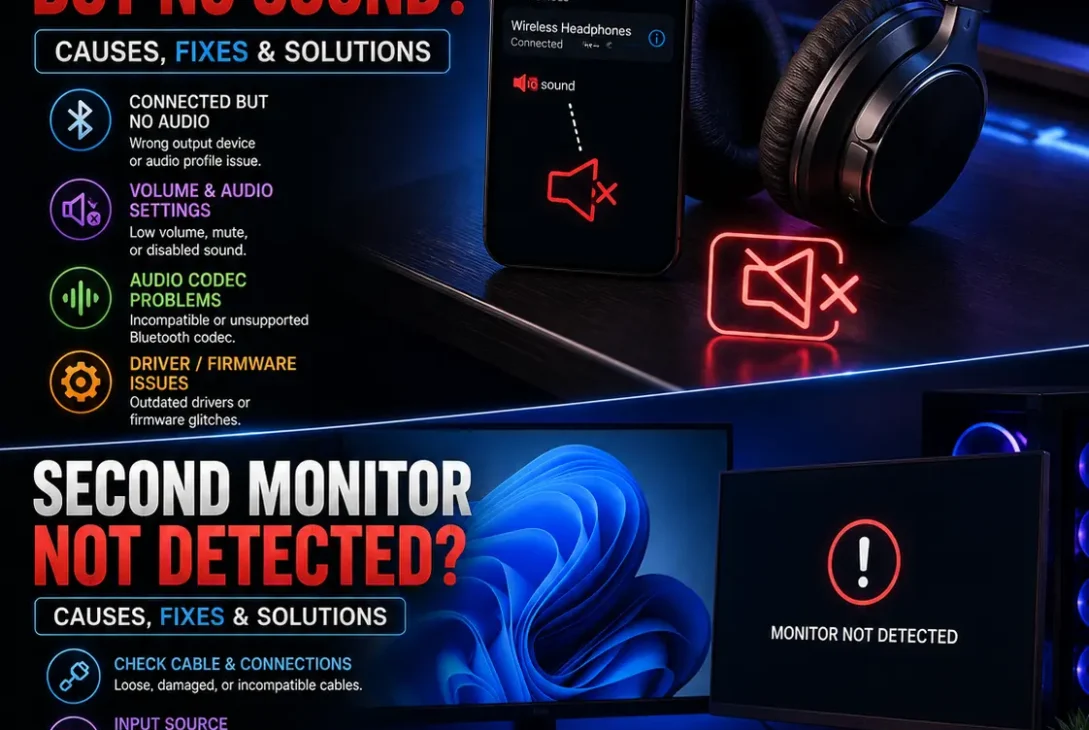
Seeing Bluetooth headphones connected but no sound on your Windows PC can be confusing. Windows may show your headphones as connected while audio continues playing through the laptop speakers, another monitor, or no device at all.
The good news is that this problem is often caused by an incorrect audio output, muted app, Bluetooth pairing issue, outdated driver, or temporary Windows audio glitch. Microsoft also recommends checking the selected output device, reconnecting Bluetooth hardware, updating drivers, and using Windows’ built-in audio troubleshooting tools.
This guide covers the most effective fixes for Bluetooth headphones connected but no sound, including solutions for Windows 11 and common problems with AirPods, Galaxy Buds, Sony headphones, Bose headphones, and other wireless audio devices.
Table of Contents
- Why Are Bluetooth Headphones Connected but No Sound?
- Check the Windows Audio Output
- Make Your Bluetooth Headphones the Default Device
- Check the Volume Mixer
- Disconnect and Reconnect the Headphones
- Remove and Pair the Headphones Again
- Check the Headphones’ Battery
- Turn Bluetooth Off and On
- Restart Your PC
- Update Bluetooth and Audio Drivers
- Turn Off Audio Enhancements
- Check Bluetooth LE Audio Settings
- Run Windows Audio Troubleshooter
- What If Sound Works in Some Apps but Not Others?
- Frequently Asked Questions
- Final Verdict
- SEO Details
Why Are Bluetooth Headphones Connected but No Sound?
The Bluetooth headphones connected but no sound problem can happen even when Windows successfully establishes a Bluetooth connection.
Common causes include:
- Windows selected the wrong audio output
- Your headphones aren’t the default playback device
- An individual app is using another output
- The headphones are muted
- Bluetooth pairing has become unstable
- The headphones have a low battery
- Bluetooth drivers are outdated
- Audio drivers aren’t working correctly
- Audio enhancements are interfering
- Bluetooth LE Audio compatibility problems
- A temporary Windows audio service problem
The fastest solution is usually to check where Windows is sending the audio before changing drivers or reinstalling anything.
https://support.microsoft.com/en-us/windows/fix-bluetooth-problems-in-windows
Check the Windows Audio Output
If you’re experiencing Bluetooth headphones connected but no sound, first check the selected output device.
On Windows 11:
- Open Settings.
- Select System.
- Select Sound.
- Look under Output.
- Select your Bluetooth headphones.
Windows can remain connected to Bluetooth headphones while sending audio to another output device. Microsoft specifically recommends checking the selected output device when headphones or speakers produce no sound.
For example, if your laptop is connected to a monitor through HDMI, Windows may accidentally send audio to the monitor instead of your headphones.
Quick Output Check
You can also click the speaker icon on the Windows taskbar and select the output-device control.
Choose your Bluetooth headphones and then play audio again.
If sound immediately returns, there was nothing wrong with the Bluetooth connection—the wrong playback device was selected.
Make Your Bluetooth Headphones the Default Device
If you’re still dealing with Bluetooth headphones connected but no sound, set them as the default playback device.
Open:
Settings → System → Sound → More sound settings
Then:
- Open the Playback tab.
- Find your Bluetooth headphones.
- Right-click them.
- Select Set as Default.
- Click Apply.
- Test the headphones.
This is particularly useful when Windows has multiple available audio devices, such as built-in speakers, HDMI audio, a USB headset, and Bluetooth headphones. Microsoft recommends selecting the correct playback device when multiple audio outputs are available.
Check the Volume Mixer
Sometimes Windows audio works normally, but an individual application is muted or assigned to another output.
If your Bluetooth headphones connected but no sound problem only happens in Chrome, Spotify, Discord, a game, or another application, check Volume Mixer.
Go to:
Settings → System → Sound → Volume mixer
Under Apps, check:
- The application isn’t muted
- Its volume slider is turned up
- The correct output device is selected
Microsoft notes that individual applications can use their own volume and output-device settings, even when system audio is working normally.
This is one of the most important checks if YouTube works but Spotify or another application doesn’t.
Disconnect and Reconnect the Headphones
A temporary Bluetooth connection problem can cause Windows to show headphones as connected even though the audio connection isn’t functioning correctly.
Try this:
- Turn off your headphones.
- Wait a few seconds.
- Turn them on again.
- Make sure they are within range.
- Play audio.
You can also disconnect them from Windows and reconnect them.
If you’re using earbuds, put them back in their charging case, close the case briefly, then remove them and try again.
Microsoft recommends turning Bluetooth devices off and on and ensuring they’re charged and within range when troubleshooting Bluetooth problems.
Remove and Pair the Headphones Again
If reconnecting doesn’t solve Bluetooth headphones connected but no sound, remove the device from Windows and pair it again.
Go to:
Settings → Bluetooth & devices
Find your headphones, select the three dots, and choose:
Remove device
Then:
- Put the headphones into pairing mode.
- Select Add device.
- Choose Bluetooth.
- Select your headphones.
- Complete the pairing process.
- Test the audio.
Microsoft recommends removing and re-adding Bluetooth devices when an existing connection isn’t working correctly.
This can clear a corrupted or outdated pairing relationship without requiring a Windows reset.
Check the Headphones’ Battery
Low battery can sometimes cause unexpected Bluetooth behavior.
If your Bluetooth headphones connected but no sound issue appeared when the headphones were nearly empty, charge them before continuing with advanced troubleshooting.
Check the battery in:
Settings → Bluetooth & devices
if your headphones report battery information to Windows.
Not every Bluetooth device provides battery status to Windows, so you may need to check the headphones’ companion app or charging case instead.
Microsoft also recommends charging Bluetooth devices when troubleshooting connection problems.
Turn Bluetooth Off and On
Restarting Bluetooth can resolve a temporary communication problem.
On Windows 11:
- Open Settings.
- Select Bluetooth & devices.
- Turn Bluetooth Off.
- Wait about 10 seconds.
- Turn Bluetooth On.
- Reconnect your headphones.
Microsoft recommends this basic reset when Bluetooth devices aren’t connecting or behaving correctly.
If the headphones immediately reconnect but still have no sound, move on to checking the Windows output device.
Restart Your PC
A Windows restart can fix temporary Bluetooth and audio-service problems.
If you’re seeing Bluetooth headphones connected but no sound, restart the computer before attempting more complicated driver changes.
After restarting:
- Turn on Bluetooth.
- Turn on your headphones.
- Allow Windows to reconnect.
- Select the headphones under Sound → Output.
- Play audio.
Microsoft lists restarting Windows as a standard troubleshooting step for both Bluetooth and audio problems.
Update Bluetooth and Audio Drivers
Outdated or incompatible drivers can cause Bluetooth audio problems.
Update the Bluetooth Driver
Open:
Device Manager → Bluetooth
Find your Bluetooth adapter, right-click it, and select:
Update driver → Search automatically for drivers
Microsoft recommends checking the Bluetooth adapter driver when Bluetooth problems persist, especially after Windows upgrades or updates.
Update the Audio Driver
You can also check:
Device Manager → Sound, video and game controllers
Right-click the relevant audio device and select:
Update driver
If Windows doesn’t find a newer driver, check your computer manufacturer’s official support website.
Microsoft notes that missing, outdated, disabled, or incompatible audio drivers can prevent Windows from detecting or using an audio output correctly.
Turn Off Audio Enhancements
Audio enhancements can sometimes interfere with playback.
If your Bluetooth headphones connected but no sound issue continues, try disabling them.
Go to:
Settings → System → Sound
Select your Bluetooth headphones and look for Audio enhancements.
Set them to Off, then test the audio again.
Microsoft recommends disabling audio enhancements when they interfere with sound playback.
If the problem disappears, you can later experiment with the enhancement settings to determine which feature was causing the conflict.
Check Bluetooth LE Audio Settings
Newer Windows 11 PCs and compatible headphones may support Bluetooth LE Audio.
Microsoft explains that stereo audio while using the microphone requires compatible Windows 11 hardware, drivers, and Bluetooth LE Audio support.
If you experience sound problems when joining a Discord call, video meeting, or game chat, the Bluetooth audio mode may be relevant.
On compatible systems, check:
Settings → System → Sound → Your Bluetooth device
Look for the available audio-format options.
If your system supports the relevant setting and stereo playback becomes unstable when the microphone is active, Microsoft suggests trying the available mono/stereo compatibility options.
Not every computer or headset supports these options, so don’t worry if the setting isn’t visible.
Run Windows Audio Troubleshooter
If you’re still experiencing Bluetooth headphones connected but no sound, let Windows diagnose the problem.
Microsoft recommends using the automated Audio troubleshooter through the Get Help app on Windows 11.
The tool can check common problems involving:
- Audio output
- Sound settings
- Drivers
- Audio services
- Device configuration
Follow the instructions provided by Get Help and test your headphones again after the troubleshooting process finishes.
What If Sound Works in Some Apps but Not Others?
This situation is different from a complete Bluetooth audio failure.
For example:
- YouTube has sound
- Windows system sounds work
- Spotify has no sound
In that case, your Bluetooth headphones are probably working correctly.
Instead, check Volume Mixer.
Go to:
Settings → System → Sound → Volume mixer
Find the affected application and check its:
- Volume
- Mute status
- Output device
Microsoft confirms that individual applications can have separate volume and output settings in Windows 11.
This can fix situations where Bluetooth audio works everywhere except one application.
Frequently Asked Questions
Why are my Bluetooth headphones connected but no sound is coming out?
The most common reason is that Windows is sending audio to another output device. Check Settings → System → Sound → Output and select your Bluetooth headphones.
How do I fix Bluetooth headphones connected but no sound on Windows 11?
Start by selecting the headphones as the Windows output device. Then check Volume Mixer, reconnect the headphones, remove and pair them again, restart Bluetooth, and update the relevant drivers.
Why does Windows show my headphones connected but use the speakers?
Windows may have selected your laptop speakers, monitor, HDMI device, or another audio output as the default playback device. Manually select your Bluetooth headphones under Sound.
Why do my Bluetooth headphones work on my phone but not my PC?
If they work normally on another device, the headphones are probably functional. The issue may be Windows’ Bluetooth pairing, output settings, drivers, or audio configuration.
Why is there no sound from Bluetooth headphones after connecting them?
A successful Bluetooth connection doesn’t always mean Windows has selected the headphones for audio playback. Check the Output section in Windows Sound settings first.
Why does Spotify have no sound through my Bluetooth headphones?
Check Windows Volume Mixer and make sure Spotify isn’t muted and is using the Bluetooth headphones as its output device. Apps can have separate audio settings from the system.
Why do Bluetooth headphones have sound but the microphone doesn’t work?
Bluetooth audio profiles can change when the microphone becomes active. On compatible Windows 11 systems, Bluetooth LE Audio provides additional options for stereo audio while the microphone is being used.
Can outdated Bluetooth drivers cause no sound?
Yes. Bluetooth drivers can affect communication between Windows and wireless audio devices. Microsoft recommends updating the Bluetooth adapter driver when Bluetooth problems persist.
Should I remove and reconnect my Bluetooth headphones?
Yes. If Windows recognizes the headphones but audio isn’t working, removing the device and pairing it again can refresh the Bluetooth connection.
Why do my headphones have no sound after a Windows update?
A Windows update can sometimes be followed by driver or audio-configuration problems. Check for additional Windows updates and update the Bluetooth and audio drivers if necessary.
What should I do if none of these fixes work?
Test the headphones with another device. If they work elsewhere, focus on your Windows PC’s Bluetooth, audio output, and drivers. If they fail on multiple devices, inspect the headphones, battery, firmware, or hardware.
Final Verdict
The Bluetooth headphones connected but no sound problem is usually caused by an audio-output setting rather than a completely failed Bluetooth connection.
Start with the fastest fix: open Windows Sound settings and make sure your headphones are selected under Output. Then check Volume Mixer, reconnect the headphones, remove and pair them again, and restart Bluetooth.
If the problem remains, update your Bluetooth and audio drivers, disable audio enhancements, check Bluetooth LE Audio compatibility, and run the Windows audio troubleshooter.
The most important thing is to identify whether the problem affects all audio or only one application. If YouTube and system sounds work but Spotify or another app doesn’t, check that application’s Volume Mixer settings instead of repeatedly repairing the headphones.
For most Windows 11 users, these steps should identify whether the problem comes from the headphones, Bluetooth connection, Windows audio settings, drivers, or an individual application.