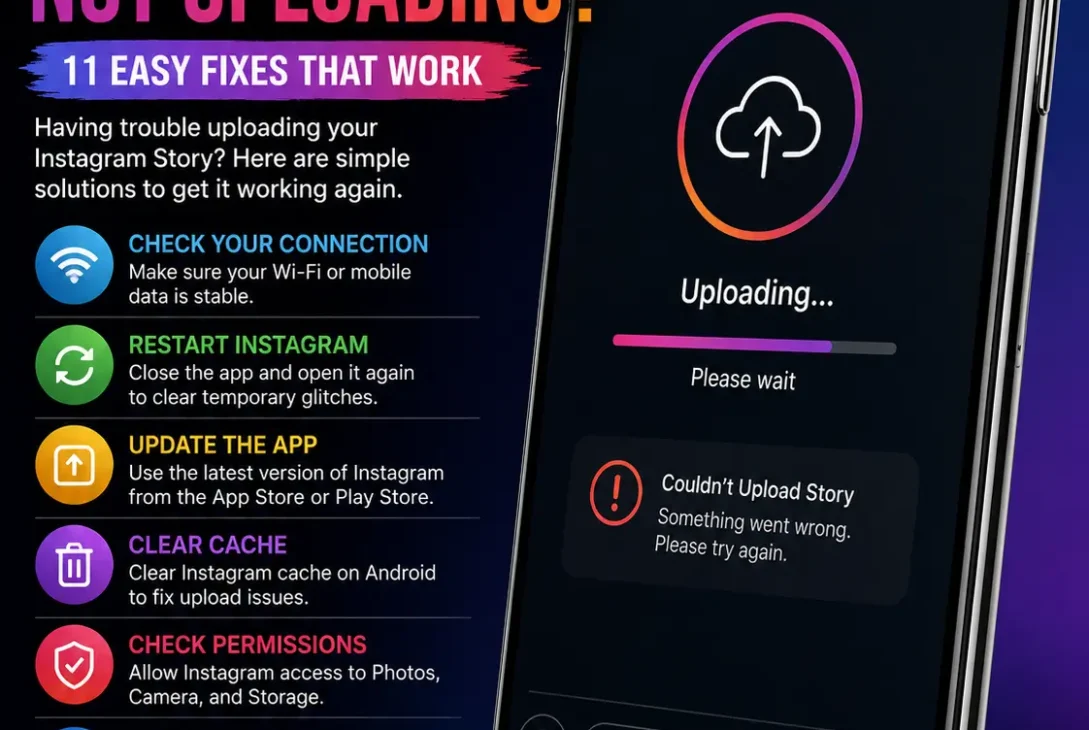
If your Instagram story not uploading, the problem can come from several different places. A weak internet connection is one of the most common causes, but it isn’t the only one.
Instagram Stories can fail to upload because of:
- Slow or unstable Wi-Fi
- Weak mobile data
- Temporary Instagram server problems
- An outdated Instagram app
- Corrupted app cache
- Large or unsupported media files
- Instagram permission problems
- Low phone storage
- Battery or background-data restrictions
- Account-related issues
- Temporary app glitches
The good news is that most Story upload problems can be fixed without deleting your account or reinstalling your phone’s operating system.
Check Your Internet Connection First
When Instagram won’t upload a Story, start with your internet connection.
A Story may appear to be uploading while the progress remains stuck because your connection is unstable rather than completely disconnected.
Try Wi-Fi and Mobile Data
If you’re currently using Wi-Fi, switch to mobile data and try uploading the Story again.
If you’re using mobile data, connect to a reliable Wi-Fi network and test again.
This simple test can tell you whether the problem is related to your current network.
You can also open another website or YouTube to confirm that your internet connection is actually working.
https://help.instagram.com/
Restart Your Router
If other apps and websites are also loading slowly, restart your router.
Turn it off, wait around 30 seconds, and turn it back on. After your phone reconnects, open Instagram and try uploading the Story again.
If everything else works normally but Instagram continues to fail, move on to the next troubleshooting step.
Check If Instagram Is Down
Sometimes there is nothing wrong with your phone.
Instagram can experience temporary service problems that affect uploading, Stories, Reels, messages or other features.
If your Story suddenly stops uploading while everything else on your device works normally, check whether other Instagram users are reporting similar problems.
You can also check Instagram’s official communication channels and reputable outage-monitoring services before changing settings on your phone.
If Instagram is experiencing a widespread outage, the best solution may simply be to wait until the service is restored.
Force Close Instagram
A temporary app glitch can also cause an Instagram Story to become stuck during uploading.
Completely close Instagram instead of simply switching to another application.
On iPhone
Swipe up from the bottom of the screen to open the app switcher, then swipe Instagram away.
Open Instagram again and try uploading the Story.
On Android
Open the recent-apps screen and swipe Instagram away.
On some Android phones, you can also go to:
Settings → Apps → Instagram → Force Stop
Then open Instagram again.
Force-closing the app can clear a temporary process that has become stuck in the background.
Update the Instagram App
If your Instagram story not uploading, an outdated version of Instagram could be responsible.
Apps are regularly updated to fix bugs, improve compatibility and address problems with features such as Stories and Reels.
Open the App Store on iPhone or Google Play Store on Android and search for Instagram.
If you see an Update button, install the latest available version.
After updating, reopen Instagram and try uploading the same Story again.
Why App Updates Matter
Instagram may change how its servers handle media uploads. An older version of the app can sometimes behave incorrectly after these changes.
Updating Instagram is especially worth trying if:
- Stories stopped uploading recently
- Instagram crashes while uploading
- Reels also fail to upload
- The problem started after an iOS or Android update
- Other Instagram features are working normally
Clear Instagram Cache on Android
A corrupted cache can sometimes cause Instagram to behave unexpectedly.
If you’re using Android, clearing the Instagram cache is one of the easiest troubleshooting steps.
Go to:
Settings → Apps → Instagram → Storage → Clear Cache
The exact menu names can differ between Samsung, Google Pixel and other Android phones.
After clearing the cache, launch Instagram again and try uploading your Story.
What Happens When You Clear the Cache?
Clearing the cache does not normally delete your Instagram account or permanently remove your photos and messages. It removes temporary files that Instagram has stored locally.
Don’t choose Clear Data unless you understand what your phone’s settings will remove, because that option can reset the app and may require you to sign in again.
Check Instagram Permissions
Instagram needs access to certain phone features to select and upload photos or videos.
If you’ve recently changed privacy settings, the required permission may have been disabled.
iPhone
Go to:
Settings → Privacy & Security
Check Instagram’s access to relevant features such as Photos and Camera.
You can also open:
Settings → Apps → Instagram
and review the permissions available on your iPhone.
Android
Go to:
Settings → Apps → Instagram → Permissions
Make sure Instagram has the permissions it needs to access your photos and camera.
After changing permissions, restart Instagram and try the upload again.
Check Your Phone’s Storage
Low storage can cause unexpected problems with apps and media.
If your iPhone or Android phone is almost full, Instagram may have difficulty processing or temporarily storing a video or photo before uploading it.
Check your available storage and remove unnecessary files if you’re running low.
Large videos, downloaded movies, duplicate photos and old applications can consume a surprising amount of space.
Once you’ve freed some storage, restart Instagram and test the Story again.
Try Uploading a Different Photo or Video
This is an important test if only one particular Story refuses to upload.
The problem may be with the media file itself rather than Instagram.
Try uploading:
- A different photo
- A short video
- A newly captured photo
- A simple image without editing
- A Story without music or stickers
If the new file uploads successfully, the original photo or video may be causing the problem.
This can happen with corrupted files, unusual video encoding, very large files or media that has been edited by another application.
Remove Stickers, Music or GIFs
Sometimes a Story works until you add an interactive element.
If your upload gets stuck after adding music, GIFs, polls, links or other stickers, create a simpler version of the Story and test it.
For example, upload the original photo without:
- Music
- GIFs
- Polls
- Questions
- Location stickers
- Links
- Multiple animated elements
If the simple version uploads, add the elements back one at a time.
This can help identify which feature is causing the problem.
Reduce the Video Size
Large video files can take longer to process and upload.
If a long or high-resolution video refuses to upload, try creating a shorter version.
You can also export the video again using a common format such as MP4.
Avoid repeatedly converting the same video through multiple apps, however, because excessive compression can reduce quality.
A practical test is to record a short 5–10 second video directly with your phone’s camera and upload that to Instagram.
If that works, your original video is more likely to be the problem.
Turn Off Data Saver
Instagram’s data-saving features can affect how media is loaded and uploaded.
Open Instagram’s settings and look for options related to data usage or data saver.
If a data-saving option is enabled, temporarily disable it and test the Story again.
Also check your phone’s own data-saving settings.
Android Data Saver
On Android, a system-wide Data Saver mode can restrict how apps use mobile data in the background.
Go to your phone’s network settings and check whether Data Saver is enabled.
iPhone Low Data Mode
On iPhone, check whether Low Data Mode is enabled for your current Wi-Fi or cellular connection.
If necessary, temporarily turn it off and retry the upload.
Disable VPN Temporarily
A VPN can sometimes interfere with the connection between your device and an online service.
If you’re using a VPN, disconnect it temporarily and try uploading your Instagram Story again.
This doesn’t mean VPNs are inherently bad. It’s simply a troubleshooting test.
If Instagram starts working immediately after disconnecting the VPN, the VPN server, routing or network configuration may be contributing to the problem.
Restart Your Phone
It sounds basic, but restarting your phone can fix temporary networking and application problems.
A restart can clear background processes, refresh the network connection and give Instagram a clean start.
After restarting:
- Connect to a reliable network.
- Open Instagram.
- Select a small photo or video.
- Upload it as a Story.
- Check whether the upload completes.
If the problem remains, continue with the account and application troubleshooting steps.
Check Your Instagram Account
If your Instagram story not uploading problem continues after checking your phone and internet connection, the issue could be related to your account.
Try uploading a Story from another Instagram account on the same phone.
This gives you a useful test:
- Another account uploads successfully: the problem may be related to your account.
- Both accounts fail: the problem is more likely your phone, network or Instagram app.
- Only one specific media file fails: the file itself may be causing the issue.
You can also try logging into your Instagram account on another phone and uploading a simple photo.
If the Story uploads from another device, your original phone or app installation is more likely to be responsible.
Check for Account Restrictions
Instagram can restrict certain account features when it detects activity that violates its rules or when an account has temporary limitations.
Open Instagram and check:
Profile → Menu → Settings and activity → Account Status
The exact menu wording can change between Instagram versions.
Look for warnings or restrictions affecting your account.
If Instagram shows that a feature is restricted, repeatedly trying to upload the same Story probably won’t solve the problem. Follow the instructions provided by Instagram instead.
Log Out and Log Back In
Another simple troubleshooting method is to sign out of Instagram and then sign in again.
Before doing this, make sure you know your Instagram password and have access to any two-factor authentication method connected to the account.
Then:
- Open Instagram.
- Go to your profile.
- Open the menu.
- Find the account logout option.
- Sign out.
- Completely close Instagram.
- Open it again.
- Sign back in.
- Try uploading a simple Story.
This can refresh your account session if something has become stuck.
Reinstall Instagram
If Instagram continues refusing to upload Stories, reinstalling the application can help.
On iPhone
Delete Instagram from your iPhone and download it again from the App Store.
On Android
Uninstall Instagram and reinstall it from Google Play.
Before reinstalling, make sure your login details are available.
Reinstalling is particularly useful when:
- Instagram crashes frequently
- Multiple features are malfunctioning
- The app behaves differently after an update
- Clearing the Android cache didn’t help
- Stories remain stuck despite a good connection
A fresh installation removes the app’s locally stored files and gives you a clean version of the application.
Check Your Date and Time Settings
Incorrect date or time settings can occasionally cause problems with online services.
Make sure your phone is using automatic date and time.
iPhone
Go to:
Settings → General → Date & Time
Enable Set Automatically.
Android
Go to:
Settings → System → Date & time
and enable automatic time and time zone options where available.
Then restart Instagram and test the Story upload again.
Check Background App Restrictions
Your phone may restrict Instagram’s background activity to save battery or mobile data.
This can interfere with some upload processes.
Android
Check:
Settings → Apps → Instagram → Mobile data & Wi-Fi
Make sure Instagram is allowed to use the necessary network access.
Also check:
Settings → Apps → Instagram → Battery
If Instagram is heavily restricted, temporarily allow normal background activity and test again.
iPhone
iOS manages background activity automatically, but you can check Instagram under:
Settings → General → Background App Refresh
Make sure Background App Refresh is available for Instagram if you rely on it.
Also check whether Low Power Mode is enabled.
Turn Off Low Power Mode Temporarily
Battery-saving modes can restrict background activity and reduce how aggressively applications perform certain tasks.
If your phone is in Low Power Mode, temporarily disable it and try uploading your Story again.
On iPhone:
Settings → Battery → Low Power Mode
On Android, the name and location depend on the manufacturer, but look for settings such as:
- Battery Saver
- Power Saving Mode
- Extreme Battery Saver
After disabling the feature, reopen Instagram and test the upload.
Try a Different Network
If Instagram works normally but Stories refuse to upload, your current network could be the problem.
Try a completely different connection.
For example:
Home Wi-Fi → Mobile data
or:
Mobile data → Another Wi-Fi network
If the Story uploads immediately on another network, your original internet connection may be blocking or interfering with the upload.
This is especially useful when using:
- Public Wi-Fi
- School networks
- Office networks
- Hotel Wi-Fi
- Shared hotspots
Some networks have restrictions that can affect particular online services.
Reset Network Settings
If multiple apps are experiencing connection problems, resetting network settings may help.
This should be considered a later troubleshooting step rather than the first thing you try.
Be aware that resetting network settings can remove saved Wi-Fi networks and other network configurations.
After resetting, reconnect to your Wi-Fi and try Instagram again.
If every other online service works normally, however, you may not need to reset your network settings just because one Instagram feature isn’t working.
Don’t Keep Retrying the Same Failed Upload
If a Story has been stuck for several minutes, repeatedly pressing retry usually isn’t the best approach.
Instead:
- Cancel the failed upload.
- Force-close Instagram.
- Restart your connection.
- Open Instagram again.
- Upload a simple photo.
- Test the original media afterward.
This helps determine whether the problem is with the particular Story or Instagram itself.
What If Instagram Stories Suddenly Stop Working?
If Stories were working normally yesterday and suddenly stopped today, don’t immediately assume your phone is broken.
A temporary Instagram-side issue could be responsible.
Check whether:
- Feed posts are working
- Reels are working
- Direct Messages are working
- Other users are reporting problems
- Instagram has acknowledged an outage
If several Instagram features are failing at the same time, waiting for the service to recover may be more effective than repeatedly changing settings on your phone.
If only your Story uploads fail while everything else works, focus on the app, media file, permissions and account-status troubleshooting steps above.
Frequently Asked Questions
Why is my Instagram Story not uploading?
The most common causes include an unstable internet connection, an Instagram app problem, an unsupported or corrupted media file, low phone storage, outdated software, permissions or a temporary Instagram server issue.
Why is my Instagram Story stuck on uploading?
A Story can get stuck when the connection is unstable or Instagram has trouble processing the photo or video. Try cancelling the upload, force-closing Instagram and uploading a smaller or different file.
Why won’t my Instagram Story upload on Wi-Fi?
Your Wi-Fi may be slow, unstable or experiencing a routing problem. Switch temporarily to mobile data and test the same Story. If it works, your Wi-Fi connection is likely contributing to the problem.
Why is Instagram Story not uploading on mobile data?
Check that Instagram is allowed to use mobile data and that your phone isn’t restricting it through Data Saver or another data-management setting. You can also try a different network.
Why is Instagram Story not uploading but posts work?
This can happen when the problem specifically affects Stories, the media file you’re using or a particular Instagram feature. Try uploading a simple photo as a Story to determine whether the original media is causing the problem.
Why won’t my Instagram video Story upload?
Large or unusually encoded videos can sometimes cause upload problems. Try trimming the video, exporting it again as a common format such as MP4, or uploading a short video recorded directly with your phone.
Does clearing Instagram cache delete my account?
No. On Android, clearing the cache removes temporary app files and normally doesn’t delete your Instagram account. Be more careful with options such as Clear Data, which can reset local app information.
Should I reinstall Instagram if Stories aren’t uploading?
Reinstalling Instagram can help when the app installation or locally stored files have become corrupted. Before doing it, make sure you know your login credentials and can complete any required two-factor authentication.
How do I know if Instagram is down?
Check whether other Instagram features are also failing and whether other users are reporting similar problems. If multiple services are affected at the same time, the problem may be on Instagram’s side rather than your phone.
Can an Instagram account be restricted from uploading Stories?
Yes. Account restrictions can affect certain Instagram features. Check Account Status inside Instagram to see whether Instagram has identified any restrictions or violations.
Why does Instagram Story upload work on another phone?
If the same account and media upload successfully on another device, the problem is more likely related to your original phone, Instagram installation, permissions, network or device settings.
Why is Instagram Story not uploading after an update?
An Instagram or phone update can occasionally introduce compatibility problems. Check for another Instagram update, restart your phone and test the upload with a simple photo or video.
Final Verdict
If your Instagram story not uploading, don’t immediately assume that your account is broken.
Start with the simplest possibilities: check your internet connection, force-close Instagram, restart your phone and try uploading a different photo or short video.
If that doesn’t work, check Instagram’s permissions, update the app, clear the Android cache, disable restrictive battery or data-saving settings and test another network.
If the problem affects only one particular photo or video, the media file itself may be responsible. If every Story fails while other Instagram features work, investigate the app and account settings. And if Instagram itself is experiencing an outage, there may be nothing you can fix locally.
For most users, the fastest troubleshooting method is to test the problem systematically rather than changing everything at once.
Try a different network → try a different media file → restart Instagram → update the app → check permissions → check Account Status → reinstall Instagram.