
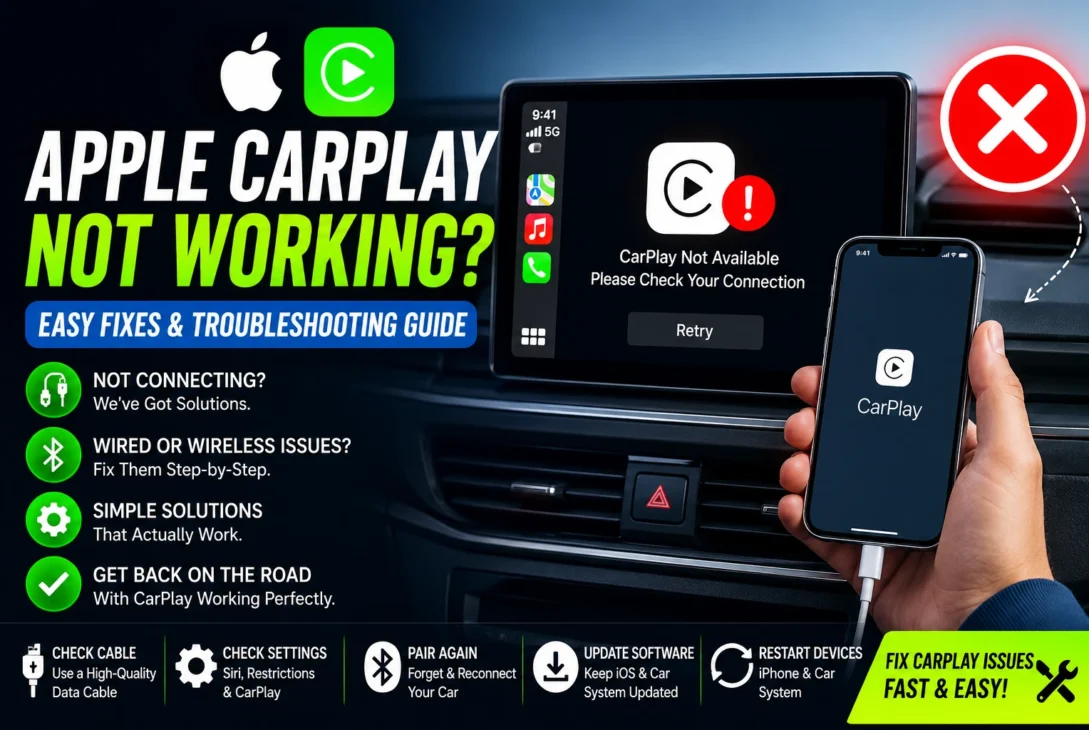
Apple CarPlay makes it easier to use an iPhone while driving by bringing navigation, calls, messages, music, and supported apps to a compatible car display. However, connection problems can sometimes prevent CarPlay from starting or cause it to disconnect unexpectedly.
If you are dealing with apple carplay not working, the problem may be related to your iPhone settings, USB cable, wireless connection, vehicle compatibility, or the car’s infotainment system.
Fortunately, most CarPlay connection issues can be fixed with a few basic troubleshooting steps.
If you are dealing with apple carplay not working, the problem may be related to your iPhone settings, USB cable, wireless connection, vehicle compatibility, or infotainment system.
This guide explains the most common reasons CarPlay stops working and provides practical solutions for both wired and wireless connections.
Table of Contents
- Why Is Apple CarPlay Not Working?
- Check CarPlay Compatibility
- Restart Your iPhone
- Check the USB Cable
- Check the USB Port
- Enable Siri
- Make Sure CarPlay Is Allowed
- Check Screen Time Restrictions
- Reconnect Your Car
- Fix Wireless CarPlay
- Update Your iPhone
- Update Your Car’s Infotainment System
- Reset CarPlay Settings
- What to Do If CarPlay Keeps Disconnecting
- Common CarPlay Problems
- Final Verdict
- Frequently Asked Questions
Why Is Apple CarPlay Not Working?
There are several reasons CarPlay may fail to connect.
The most common causes include an incompatible vehicle, damaged USB cable, incorrect iPhone settings, disabled Siri, wireless connection problems, outdated software, or an issue with the vehicle’s infotainment system.
Before trying complicated solutions, start with the simplest checks.
Make sure your iPhone is unlocked, your car supports CarPlay, and the vehicle’s infotainment system is switched on.
If you’re using wired CarPlay, check the cable and USB port. If you’re using wireless CarPlay, check Bluetooth and Wi-Fi settings.
Check CarPlay Compatibility
Before troubleshooting, confirm that your vehicle and iPhone support Apple CarPlay.
Not every car supports CarPlay, and some vehicles only support it through specific USB ports.
If you recently purchased a new vehicle or are using a different car, check the manufacturer’s specifications or Apple’s official compatibility information.
You should also confirm whether your particular vehicle supports wired CarPlay, wireless CarPlay, or both.
Restart Your iPhone
A simple restart can fix temporary software problems that prevent CarPlay from connecting.
Turn off your iPhone, wait a few seconds, and turn it back on.
After restarting, start your vehicle and try connecting again.
This is one of the quickest troubleshooting steps and doesn’t change any of your CarPlay settings.
Check the USB Cable
If you’re experiencing apple carplay not working through a wired connection, the USB cable should be one of the first things you check.
A damaged or low-quality cable may charge the iPhone while failing to establish a reliable data connection.
Try another high-quality cable that supports data transfer.
If the replacement cable works normally, the original cable was likely responsible for the problem.
Check the USB Port
Your vehicle may have multiple USB ports, but not all of them necessarily support CarPlay.
Look for the USB port designated for smartphone connectivity or CarPlay.
You can also test another compatible port if your vehicle provides one.
Dust or debris inside the port can sometimes interfere with the connection, so inspect it carefully rather than forcing the connector into place.
Enable Siri
Siri is required for many CarPlay features.
If Siri has been disabled on your iPhone, CarPlay may not work as expected.
Open your iPhone’s Siri settings and make sure Siri is enabled.
After enabling it, reconnect your iPhone to the vehicle and check whether CarPlay starts normally.
Make Sure CarPlay Is Allowed
Your iPhone includes settings that control which vehicles can use CarPlay.
If your car was previously connected but CarPlay suddenly stopped appearing, check the CarPlay settings on your iPhone.
Look for your vehicle under the CarPlay section and make sure it hasn’t been blocked or restricted.
If necessary, remove the vehicle and establish the connection again.
Check Screen Time Restrictions
Restrictions can sometimes prevent CarPlay from functioning properly.
Open the Screen Time settings on your iPhone and check the allowed apps and features.
Make sure CarPlay hasn’t been disabled by a restriction.
This is particularly important if you’re using a device managed by a parent, organization, or another account with restrictions enabled.
Reconnect Your Car to CarPlay
If you’re still dealing with apple carplay not working, removing your vehicle from the iPhone and pairing it again can often solve connection problems.
Open the CarPlay settings on your iPhone and select your vehicle. Choose the option to forget the car, then restart both your iPhone and the vehicle’s infotainment system.
After restarting, connect the iPhone again and follow the on-screen instructions.
This creates a fresh connection and can resolve problems caused by corrupted or outdated pairing information.
Fix Wireless CarPlay
Wireless CarPlay relies on both Bluetooth and Wi-Fi to establish a connection.
If wireless CarPlay isn’t connecting, check that Bluetooth and Wi-Fi are enabled on your iPhone.
Keep the iPhone inside the vehicle and close to the infotainment system during the initial pairing process.
You should also make sure Airplane Mode is disabled.
If the vehicle was previously connected but suddenly stopped working, forget the car from the CarPlay settings and pair it again.
Check Your iPhone’s Wi-Fi and Bluetooth
Wireless CarPlay can fail if either wireless connection is behaving incorrectly.
Turn Bluetooth and Wi-Fi off, wait a few seconds, and turn them back on.
Then restart the vehicle’s infotainment system and try connecting again.
If other Bluetooth devices are also experiencing connection problems, the issue may be related to the iPhone rather than CarPlay itself.
Update Your iPhone
Software updates can include fixes for connectivity problems and compatibility issues.
If your iPhone is running an older version of iOS, check for an available software update.
Before installing a major update, make sure your iPhone has sufficient battery power and storage.
After updating, restart the phone and test CarPlay again.
Update Your Car’s Infotainment System
The problem isn’t always caused by the iPhone.
Vehicle manufacturers sometimes release firmware updates for infotainment systems that improve smartphone compatibility and fix connection issues.
Check your vehicle manufacturer’s instructions to determine whether an infotainment update is available.
Some vehicles can receive updates over the air, while others may require a dealer or service center.
Reset CarPlay Settings
If standard troubleshooting doesn’t solve the issue, resetting the existing CarPlay connection can help.
Remove your vehicle from the CarPlay settings on your iPhone and establish a new connection.
This is generally preferable to immediately resetting all iPhone network settings because it only targets the affected connection.
If the problem continues with multiple vehicles or wireless accessories, broader network troubleshooting may be worth considering.
What to Do If CarPlay Keeps Disconnecting
A connection that repeatedly drops can be caused by several different factors.
For wired CarPlay, try a different cable and USB port.
For wireless CarPlay, check Bluetooth and Wi-Fi and remove unnecessary paired connections if your vehicle has reached its device limit.
Also check whether the issue happens only with one iPhone or with multiple phones.
If several phones experience the same problem in the same vehicle, the car’s infotainment system may be the more likely source of the issue.
CarPlay Audio Not Working
Sometimes CarPlay connects successfully but audio doesn’t come through the car speakers.
First, check the vehicle’s selected audio source and increase the volume.
Then open a supported audio application and start playback.
You should also check whether the audio is being routed to another Bluetooth device.
If calls work but music doesn’t, the problem may be related to the specific application rather than the CarPlay connection itself.
CarPlay Maps Not Working
Navigation problems can also occur even when CarPlay itself is connected.
Check that Location Services are enabled on your iPhone and that the navigation application has permission to access your location.
Make sure the selected navigation app is updated.
If maps work on the iPhone but not through CarPlay, reconnecting the vehicle and restarting the iPhone may resolve the problem.
CarPlay Messages and Calls Not Working
CarPlay can provide access to calls and messages while driving, but certain features depend on iPhone settings and permissions.
Make sure your contacts and messaging applications are functioning normally on the iPhone.
If Siri isn’t responding, revisit the Siri settings because voice commands are an important part of the CarPlay experience.
For safety, avoid manually interacting with your phone while driving.
When to Contact the Car Manufacturer
If you’ve tried different cables, restarted your devices, updated software, and reconnected the vehicle but CarPlay still doesn’t work, the problem may be related to the car’s infotainment hardware or firmware.
Contact the vehicle manufacturer or an authorized service center if:
- CarPlay doesn’t work with multiple compatible iPhones
- The infotainment display keeps restarting
- USB ports aren’t detecting other devices
- Wireless connectivity repeatedly fails
- The vehicle shows system errors
- Other infotainment functions are also malfunctioning
Testing another compatible iPhone can also help determine whether the problem is with the phone or the vehicle.
Quick Troubleshooting Checklist
If apple carplay not working is still an issue, go through this checklist before making major changes:
- Restart your iPhone.
- Restart the car’s infotainment system.
- Try another USB cable if using wired CarPlay.
- Try another compatible USB port.
- Make sure Siri is enabled.
- Check that CarPlay isn’t restricted.
- Turn Bluetooth and Wi-Fi off and back on for wireless CarPlay.
- Forget the vehicle and pair it again.
- Install available iOS updates.
- Check for infotainment system updates.
These simple steps can resolve many common connection problems.
https://www.apple.com/ios/carplay/
Wired vs Wireless CarPlay
Understanding the difference between wired and wireless connections can make troubleshooting easier.
| Feature | Wired CarPlay | Wireless CarPlay |
|---|---|---|
| Connection | USB cable | Bluetooth + Wi-Fi |
| Charging | Usually charges iPhone | Usually requires separate charger |
| Setup | Generally simple | Requires wireless pairing |
| Cable required | Yes | No |
| Common issue | Cable or USB port | Bluetooth/Wi-Fi connection |
| Convenience | Reliable physical connection | More convenient |
If you experience problems with one method, try the other if your vehicle supports both.
How to Prevent Future CarPlay Problems
Keeping both your iPhone and vehicle software updated can reduce compatibility issues.
Use a good-quality cable for wired connections and avoid repeatedly bending or damaging the connector.
For wireless connections, keep Bluetooth and Wi-Fi functioning normally and remove old devices that you no longer use.
It’s also useful to know which USB port in your vehicle supports CarPlay. Some cars have several USB ports, but only one may support smartphone integration.
Final Verdict
When apple carplay not working, the cause is usually related to the connection, iPhone settings, software, USB cable, wireless pairing, or the vehicle’s infotainment system.
Start with simple solutions such as restarting the iPhone, checking the cable, confirming Siri is enabled, and verifying that CarPlay is allowed.
For wireless connections, pay particular attention to Bluetooth and Wi-Fi.
If basic troubleshooting doesn’t work, remove the existing CarPlay connection and pair the vehicle again. You should also check for iOS and infotainment updates.
If CarPlay continues to fail with multiple compatible iPhones, the vehicle’s infotainment system may need professional inspection.
Frequently Asked Questions
Why is Apple CarPlay not working?
Common causes include a faulty cable, unsupported USB port, disabled Siri, wireless connection problems, outdated software, or an issue with the vehicle’s infotainment system.
Why does my iPhone charge but CarPlay doesn’t work?
Your cable or USB port may support charging but have a problem with data communication. Try another high-quality data cable and a different compatible USB port.
Why isn’t wireless CarPlay connecting?
Check that Bluetooth and Wi-Fi are enabled, then forget the vehicle and pair it again. Restarting both the iPhone and infotainment system can also help.
Does CarPlay need Bluetooth?
Wireless CarPlay uses Bluetooth during the connection process and also relies on Wi-Fi for the wireless connection. Wired CarPlay uses the USB connection instead.
How do I reset Apple CarPlay?
Remove your vehicle from the CarPlay settings on your iPhone and pair it again. This creates a fresh connection between the phone and vehicle.
Can an old iOS version cause CarPlay problems?
Yes. Software compatibility issues can sometimes affect connectivity, so keeping your iPhone updated is recommended.
What if CarPlay works with another iPhone?
If another compatible iPhone works normally in the same vehicle, the problem is more likely related to your iPhone, its settings, cable, or software.
What if CarPlay doesn’t work with any iPhone?
If multiple compatible iPhones fail to connect, the vehicle’s infotainment system, USB port, or firmware may be responsible. Contact the vehicle manufacturer or an authorized service center.


