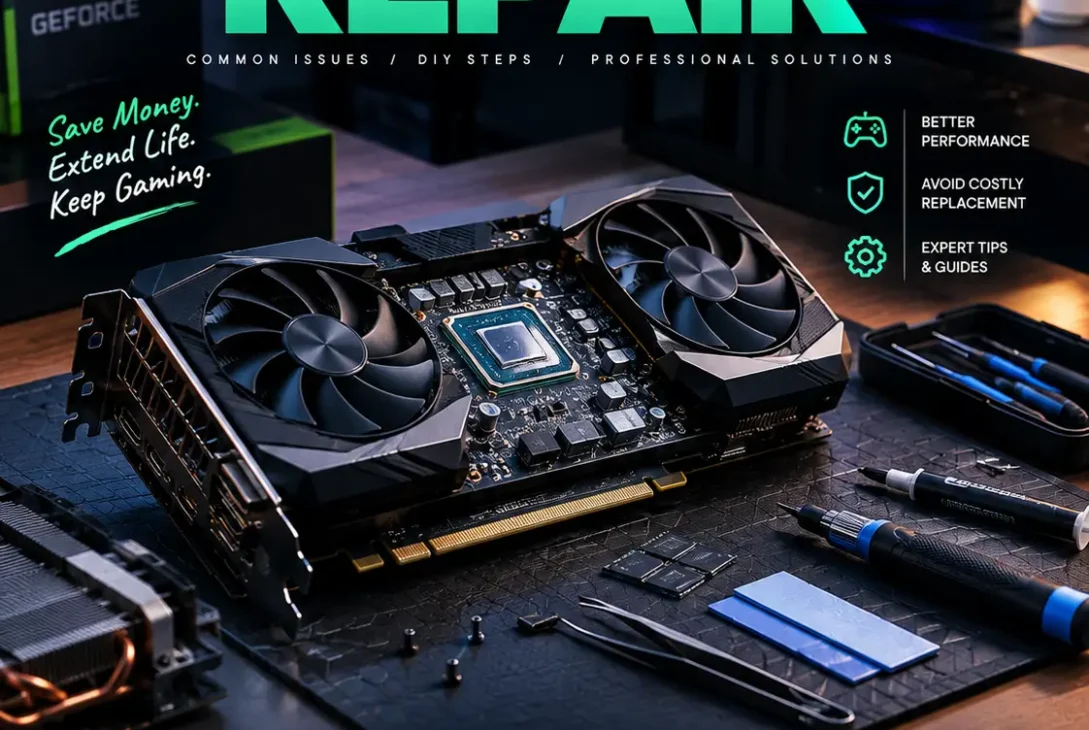
A graphics card problem can turn a reliable computer into a frustrating machine. Games crash, the monitor goes black, fans become unusually loud, or coloured squares appear across the screen. Before buying a replacement, it is worth checking whether the cause is software, overheating, a power connection, or a damaged component. A proper GPU repair process starts with diagnosis rather than immediately taking the card apart.
A graphics processing unit (GPU) handles graphics workloads for games, creative applications, video editing, 3D rendering, and other demanding tasks. However, a problem that appears to be a graphics card failure can also come from a monitor cable, power supply, RAM, motherboard, or driver. Understanding these possibilities helps you find the right solution and avoid unnecessary expenses.
This guide explains common graphics card symptoms, practical troubleshooting steps, professional repair options, and when replacing a card makes more financial sense. Whether you use a gaming PC, workstation, or everyday desktop, these steps can help you decide what to do next.
Table of Contents
- What Is GPU Repair?
- Common Signs of a Graphics Card Problem
- 9 Troubleshooting Steps Before Repair
- When Does a GPU Need Professional Repair?
- GPU Repair vs Replacement
- How to Prevent Future GPU Problems
- FAQs
- Final Verdict
What Is GPU Repair?
GPU repair refers to diagnosing and resolving problems affecting a graphics card, its software, or its connections. Sometimes the solution is simple, such as reinstalling a driver or reconnecting a power cable. Other cases involve a failing fan, damaged connector, defective memory, or a problem with the card’s power circuitry.
Not every graphics problem requires physical GPU repair. A damaged HDMI cable can cause flickering, while a corrupted driver may cause crashes after Windows starts. A disciplined diagnosis helps avoid spending money on a card that is still functional.
Modern graphics cards contain delicate electronic components and may have complex cooling systems. If the card is under warranty, check the manufacturer’s support process before opening it. Removing the cooler, replacing thermal pads, or attempting board-level work may affect warranty coverage and can cause further damage if performed incorrectly.
Common Signs of a Graphics Card Problem
Black Screen or No Display
A blank monitor does not automatically mean the GPU has failed. The display cable may be loose, the monitor may be set to the wrong input, or the computer may have a RAM or motherboard problem. Check the monitor and cable with another device, and confirm that the cable is connected to the correct output.
If the PC powers on but there is no image, check for motherboard diagnostic lights or beep codes if your system provides them. Turn the computer off before checking internal connections. If the system has integrated graphics, a technician may use it to help isolate the discrete card as the cause.
Visual Artifacts
Artifacts are unusual visual patterns, such as coloured blocks, flashing lines, corrupted textures, or strange shapes. They can indicate overheating, unstable overclocking, a driver issue, or a hardware fault.
If artifacts appear in screenshots and across more than one display, the graphics card or its driver becomes a stronger suspect. Persistent artifacts may require professional GPU repair, especially when they remain after driver troubleshooting and appear across different applications.
Crashes During Games
If a game closes unexpectedly, freezes, or causes a driver timeout, possible causes include a buggy game update, unstable overclock, high temperatures, insufficient power, or damaged drivers. A crash in one game only may be software-related rather than a sign that the card needs repair.
Overheating or Loud Fans
Dust buildup, poor case airflow, a failing fan, or degraded thermal interface material can contribute to high temperatures. Fan noise alone does not prove damage: many cards deliberately stop their fans at low temperatures. Compare readings with the manufacturer’s guidance for your exact model.
Reduced Performance
Low frame rates can result from a GPU bottleneck, CPU limitations, background applications, incorrect game settings, overheating, or a driver problem. Check temperatures and usage during the workload before concluding that physical GPU repair is necessary.
9 Troubleshooting Steps Before Repair
1. Check the Monitor and Cables
Start with the easiest possibilities. Confirm that the monitor is powered on and set to the correct input. Try another HDMI or DisplayPort cable, another port on the card, and, if possible, a different monitor or television.
Avoid changing multiple things at once. Test one change and note the result. If the problem disappears with another cable or display, the graphics card may not need repair at all. This basic check can save time and prevent unnecessary hardware purchases.
2. Restart and Check for Recent Changes
Think about when the problem began. Did it start after a driver update, game patch, Windows update, new monitor, or hardware installation? If the issue began immediately after a software change, reverse or update that change where appropriate.
A restart can clear a temporary software failure, but recurring black screens or crashes should not be ignored. Record error messages and the applications that trigger the problem. Those details can help narrow down the cause before you pay for a GPU repair service.
3. Reinstall or Roll Back Graphics Drivers
Corrupted or incompatible drivers can cause crashes, flickering, low performance, and black screens. Download drivers directly from the GPU manufacturer’s official website or application. If the problem started after a new driver, consider rolling back to a previously stable version.
For a clean reinstall, follow the manufacturer’s documented process. Avoid third-party driver download websites and do not interrupt an installation. If the display is unstable, Windows Safe Mode may help you troubleshoot.
Driver changes are a common first step because they do not require opening the card. NVIDIA provides a graphics card troubleshooting guide, while AMD publishes system stability troubleshooting advice.
4. Restore Default Clock Settings
Overclocking can make a card unstable if the core, memory, or voltage settings exceed what the particular card can handle. Return the GPU to its factory settings and test again. If you use tuning software, reset its profile and disable automatic overclocking temporarily.
Do not increase voltage or apply aggressive tuning in an attempt to fix crashes. If a card becomes stable at default settings, the issue may be an unstable configuration rather than physical damage.
Restoring factory settings is particularly useful before deciding whether hardware-level GPU repair is necessary. It removes one potential cause without requiring specialised equipment.
5. Check Temperatures and Airflow
Use a reputable monitoring utility or the manufacturer’s software to observe temperatures during normal use and a typical workload. Check whether fans spin when expected, whether vents are blocked, and whether the computer is placed in a cramped space.
Shut the PC down and unplug it before cleaning. Use suitable compressed air carefully, hold fans still so they do not spin excessively, and avoid touching circuit components. Do not use a household vacuum directly on the card because static electricity can damage electronics.
If temperatures remain unusually high after cleaning and improving airflow, the cooler, fan, or thermal interface may need attention. Professional GPU repair may be safer than dismantling the card yourself, particularly if it is expensive or still under warranty.
6. Verify Power Connections and the PSU
A graphics card can crash under load if its power supply is inadequate, faulty, or incorrectly connected. Turn the PC off and disconnect it from power before checking that the GPU’s power connectors are fully seated. Follow the card and power supply manuals, especially for modern high-power connectors.
Never force a connector, use a damaged cable, or mix modular PSU cables from different power supply models. Modular cables are not universally interchangeable, even if they physically fit.
If you notice melting, scorching, a burning smell, or a damaged connector, stop using the system and seek professional assistance. Do not attempt to power the card repeatedly to see whether it works.
7. Reseat the Graphics Card Safely
A card may not be fully seated in its PCIe slot, especially after transport or recent upgrades. If you are comfortable working inside a desktop PC and doing so will not affect your warranty, shut down, unplug the system, and follow the computer or motherboard manufacturer’s instructions before removing and reinstalling the card.
Avoid touching the gold contacts and do not force the card into the slot. Make sure the case bracket is aligned and the card is securely supported. If you are unsure, have a technician perform this step.
Laptop GPUs are often integrated or soldered to the motherboard and are not handled like a removable desktop card. Do not attempt to remove a laptop GPU as though it were a standard desktop component.
8. Test the System at Stock Settings
If crashes continue, disable CPU, RAM, and GPU overclocks and return the system to supported default settings. Instability can originate in system memory, motherboard firmware, the CPU, or the power supply rather than the graphics card itself.
Check that the motherboard chipset drivers and Windows updates are current. If possible, test the GPU in a known-working compatible computer, or test a known-working GPU in the affected system. These swaps should be done only when compatible hardware and safe handling are available.
Testing can help determine whether the fault follows the card or stays with the PC. That information makes a later GPU repair diagnosis more accurate and can prevent you from replacing a working component.
9. Run a Controlled Test and Record Results
Once basic checks are complete, test with a familiar application or game and observe whether the issue returns. Avoid extreme stress tests if the card is overheating, making unusual electrical noises, or showing visible damage.
Stop immediately if there is smoke, a burning smell, sparks, or a connector becoming unusually hot. Write down the symptoms, temperatures, driver version, error messages, and changes already attempted. A clear record makes professional diagnosis faster and reduces the chance of repeating the same steps.
When Does a GPU Need Professional Repair?
Professional assessment is appropriate when basic troubleshooting does not resolve the issue, the card has visible damage, the fans or power connectors appear defective, or artifacts continue across different displays and software. Board-level faults can involve memory chips, power delivery components, solder joints, or other components that require specialist equipment and experience.
If the card is still covered by a manufacturer or retailer warranty, contact the seller or manufacturer first. Do not remove the cooler or attempt soldering before checking the warranty terms. For workstation or data-centre GPUs, follow the vendor’s diagnostics and support process rather than improvising repairs.
Avoid tutorials that recommend heating a card in an oven or using a heat gun to reflow components. These methods are unreliable, can damage the board and surrounding parts, and may create safety hazards. They are not a dependable long-term solution.
A reputable technician should explain the likely fault, test the card, provide a written estimate, and describe any warranty on the work. Ask whether the quoted price includes parts, labour, and testing before authorising a repair.
GPU Repair vs Replacement
Whether repair is worthwhile depends on the card’s age, value, warranty, symptoms, and the price of a replacement. A fan or connector issue may be relatively straightforward for a qualified technician, while damaged memory or power circuitry can require more expensive board-level work. Not every fault is economically repairable.
Ask a repair shop for a diagnosis and written estimate before authorising work. Find out whether the quoted price includes parts, labour, testing, and any warranty on the repair. Compare that total with the price of a replacement card that provides similar performance.
For an older, lower-value card, replacement may be more practical if the repair cost approaches the price of a suitable used or new alternative. For an expensive workstation GPU, a professional repair or official warranty replacement may be worth pursuing.
There is no universal GPU repair price because labour rates, component availability, the graphics card model, and fault complexity vary by region. Ask for a diagnosis rather than relying on a fixed online estimate. If the card is still covered by warranty, compare the official support option before paying an independent shop.
How to Prevent Future GPU Problems
Keep the graphics driver and operating system updated, but be cautious about installing optional drivers immediately if your system is stable and you rely on it for work. Read release notes when troubleshooting a newly introduced issue.
Maintain good airflow by keeping case vents clear and cleaning dust periodically. Make sure the GPU has adequate support, the power supply meets the manufacturer’s recommendations, and the computer is not pushed beyond stable clock settings. Avoid liquid spills and never handle internal components while the system is powered.
Use reliable power protection where appropriate, and investigate repeated shutdowns rather than assuming they are normal. Monitor temperature trends rather than reacting to a single reading. The safest GPU repair is often the one prevented by good cooling, correct power connections, and timely troubleshooting.
Back up important files regularly, especially if the PC is used for work. A graphics card problem does not normally erase files by itself, but repeated system crashes and wider hardware faults can complicate recovery. Backups help protect your work regardless of which component fails.
FAQs
1. Can a damaged GPU be repaired?
Some graphics cards can be repaired, depending on the fault. Fan, connector, or certain board-level problems may be serviceable, while severe PCB damage or unavailable components may make repair impractical. A technician should diagnose the card before you decide.
2. How do I know if my GPU is failing?
Possible signs include persistent artifacts, repeated crashes under graphics workloads, no display, unusual overheating, or fan problems. These symptoms can also come from cables, drivers, RAM, the PSU, or the monitor, so rule out simpler causes first.
3. Can drivers cause GPU problems?
Yes. Corrupted or incompatible drivers can cause crashes, flickering, black screens, and performance issues. Reinstalling or rolling back to a stable official driver can help determine whether the issue is software-related.
4. Is it safe to repair a GPU at home?
Basic checks, such as inspecting cables, updating drivers, and improving case airflow, are generally manageable for many desktop users. Board-level work, soldering, and cooler disassembly are more difficult and may affect warranty coverage. Stop if you are unsure or see electrical damage.
5. Does overheating mean my graphics card is broken?
Not necessarily. Dust, blocked airflow, fan problems, and heavy workloads can cause high temperatures. Compare readings with the manufacturer’s guidance and check cooling before concluding that the card has failed.
6. Should I repair or replace my graphics card?
Compare the diagnosis and repair estimate with the price and performance of a replacement. Repair may make sense for a valuable card with a manageable fault; replacement may be more practical for an older card with expensive damage.
7. Can a GPU cause a black screen?
Yes, but a black screen can also result from the monitor, cable, driver, RAM, PSU, or motherboard. Test another display and cable, check power connections, and look for diagnostic lights before assuming the GPU is faulty.
8. Does cleaning a GPU improve performance?
Cleaning dust from the card and case can improve airflow and reduce temperatures if dust buildup is causing a cooling problem. Power the PC off and unplug it first. Avoid touching components, spinning fans excessively, or using unsafe cleaning methods.
9. Can a laptop GPU be repaired?
It depends on the laptop design and the fault. Many laptop GPUs are integrated into or soldered to the motherboard, so repair may require specialist board-level service or motherboard replacement. Check warranty coverage and consult a qualified repair centre.
10. What should I tell a repair technician?
Describe the exact symptoms, when they began, and whether they occur during gaming, idle use, or startup. Share driver versions, temperatures, error messages, and the troubleshooting steps already tried. Mention any recent upgrades, drops, spills, or power events.
Final Verdict
A graphics card that crashes, overheats, or shows visual errors does not always need to be replaced. Start with the monitor and cables, driver software, default clock settings, airflow, and power connections. These checks can resolve common problems and help identify whether a hardware fault is more likely.
If symptoms persist, stop experimenting and seek a qualified technician, especially if there is visible damage, a burning smell, or a suspect power connector. Check warranty coverage before opening the card, and avoid risky DIY reflow methods. The right GPU repair decision comes from a reliable diagnosis and a fair comparison between repair cost, warranty options, and replacement value.