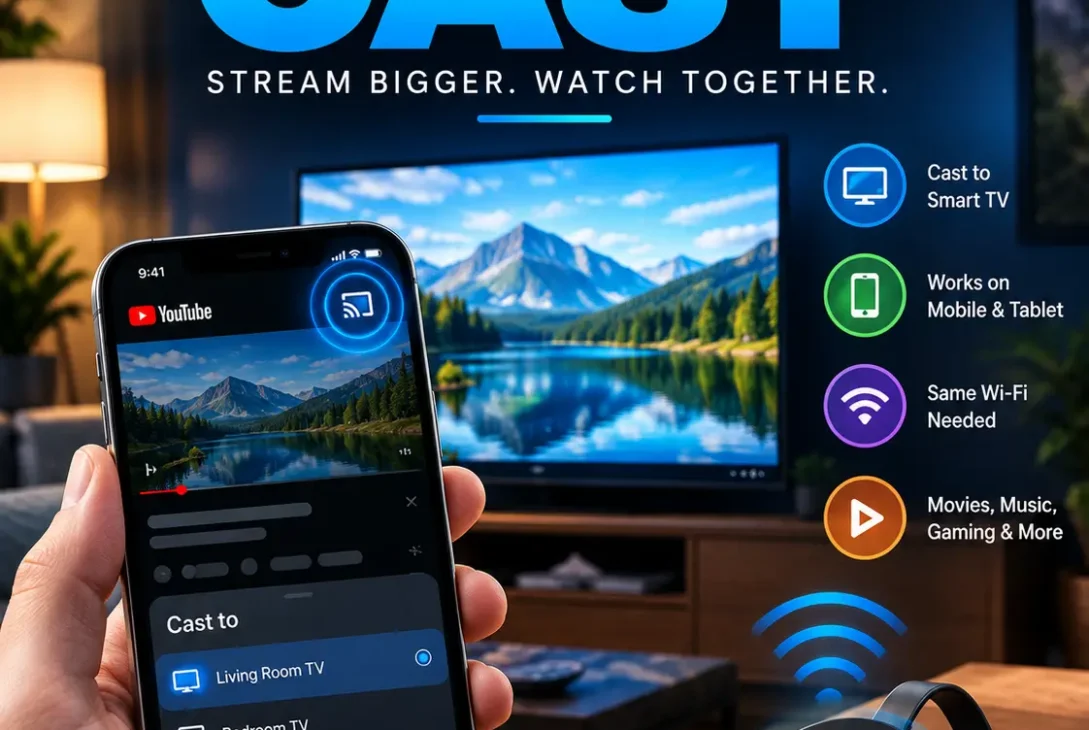
Want to watch YouTube on a bigger screen? YouTube Cast lets you send videos from your phone, tablet, or computer to a compatible smart TV or streaming device and control playback from your device. You can also use a TV code when your phone and TV aren’t connected to the same Wi-Fi network.
The good news is that setting up YouTube Cast is usually quick. You don’t need complicated cables or expensive equipment if your TV already supports Google Cast or has the YouTube app.
In this guide, you’ll learn how to cast YouTube to a TV, what to do when the Cast button is missing, and how to fix the most common connection problems.
Table of Contents
- What Is YouTube Cast?
- How to Cast YouTube From Your Phone
- How to Cast YouTube From a Computer
- How to Cast YouTube Without the Same Wi-Fi
- YouTube Cast on Android
- YouTube Cast on iPhone
- What If the Cast Button Is Missing?
- How to Fix YouTube Cast Not Working
- Can You Use YouTube Cast Without Chromecast?
- Frequently Asked Questions
- Final Verdict
- SEO Details
What Is YouTube Cast?
YouTube Cast is a feature that allows you to send YouTube videos from one device to a compatible TV or streaming device.
Instead of mirroring everything displayed on your phone, casting normally tells the TV or streaming device to play the selected YouTube video. Your phone then works more like a remote control. This means you can continue using your phone while the video plays on your TV.
Google now generally refers to its casting technology as Google Cast, although many people still use the term Chromecast when talking about casting to a TV.
Google Cast is available on compatible Chromecast devices, Google TV Streamer devices, and supported Google TV or Android TV televisions. Some other TV manufacturers also support Google Cast on selected models.
How to Cast YouTube From Your Phone
For most people, using a phone is the easiest way to start a YouTube Cast session.
Step 1: Connect Both Devices
Connect your phone and smart TV or streaming device to the same Wi-Fi network.
This is the standard setup recommended by YouTube for casting from a mobile device.
Step 2: Open YouTube
Open the YouTube app on your phone.
Find the video you want to watch and start playing it.
Step 3: Tap the Cast Button
Look for the Cast icon in the YouTube video player.
Tap it and wait for compatible devices to appear.
Step 4: Select Your TV
Choose your smart TV or streaming device from the list.
The video should begin playing on your TV, while your phone can be used to control playback.
Step 5: Control Playback
After connecting, you can normally pause, play, seek through the video, change videos, or add videos to the queue from your phone.
YouTube also allows your mobile device to work as a companion while you’re watching on TV.
How to Cast YouTube From a Computer
You can also use YouTube Cast from a computer.
YouTube’s official instructions recommend connecting your computer and TV or streaming device to the same Wi-Fi network.
Then:
- Open the YouTube app on your TV or streaming device.
- Open YouTube in your computer browser.
- Play the video you want to watch.
- Open the three-dot menu in the video player.
- Select Cast.
- Choose your TV or streaming device.
The video should then play on the larger display.
Keep in mind that some YouTube features may work differently when casting from a browser. YouTube recommends using its app on supported devices for the full casting experience.
How to Cast YouTube Without the Same Wi-Fi
One useful feature is the ability to connect YouTube devices using a TV code.
This can help when your phone and TV aren’t connected to the same Wi-Fi network.
On your TV:
- Open the YouTube app.
- Go to Settings.
- Select Add a device.
- Look for the blue TV code displayed on the screen.
On your phone or tablet:
- Open the YouTube app.
- Tap the Cast icon.
- Select Add a device.
- Enter the TV code.
- Tap Link.
After the devices are linked, you can use your phone to play YouTube content on the TV. YouTube notes that TV-code setup isn’t available for computers.
YouTube Cast on Android
Android phones generally provide a straightforward YouTube Cast experience through the YouTube app.
If your TV isn’t appearing, check whether the YouTube app has permission to discover devices on your local network.
On newer Android versions, YouTube may need permission to discover streaming devices. YouTube’s current instructions specifically note that Android 17 users should allow YouTube access to nearby devices for casting.
To check:
- Open Settings on your Android phone.
- Find the YouTube app.
- Open Permissions.
- Look for Nearby devices.
- Allow the required permission.
- Reopen YouTube and try casting again.
This can solve situations where the TV is available but doesn’t appear in the Cast device list.
YouTube Cast on iPhone
On an iPhone, the easiest approach is to use the official YouTube app.
Open YouTube, select a video, and look for the Cast button.
If your compatible TV or streaming device doesn’t appear, make sure:
- Your iPhone and TV are connected to the same Wi-Fi.
- The YouTube app is updated.
- The TV’s YouTube app is open.
- Both devices have working internet access.
- Local network access is enabled if requested.
YouTube’s official help documentation explains that mobile casting is performed through the YouTube app rather than YouTube in a mobile browser.
What If the Cast Button Is Missing?
If the Cast button isn’t showing, don’t immediately assume your TV doesn’t support YouTube Cast.
Try these checks first.
Check the YouTube App
Make sure you’re using the current YouTube app on your phone or tablet.
Check Wi-Fi
Your phone and TV normally need to be on the same Wi-Fi network for standard casting.
Restart Both Devices
Close YouTube, restart your phone, and restart the TV or streaming device.
Check TV Compatibility
Not every smart TV supports Google Cast.
A television can have the YouTube app without necessarily supporting Google Cast.
Some TV platforms use their own casting or mirroring technologies instead.
Check Permissions
On supported Android devices, make sure YouTube has permission to discover nearby or local-network devices.
How to Fix YouTube Cast Not Working
When YouTube Cast suddenly stops working, go through these steps in order.
1. Confirm the Wi-Fi Network
Check the Wi-Fi name on both your phone and TV.
They should normally be connected to the same network.
If your router has separate 2.4GHz and 5GHz networks, try putting both devices on the same one.
2. Restart YouTube
Completely close the YouTube app and open it again.
Then try the Cast button.
3. Restart the TV
Turn the TV off and restart it.
For a streaming device, disconnecting and reconnecting power can also help.
4. Restart the Router
If other devices are also struggling to communicate across your home network, restart the router and wait for the connection to return.
5. Update YouTube
Check the app store on your phone and TV for available YouTube updates.
Older app versions can sometimes cause compatibility problems.
6. Check Network Permissions
If you’re using Android, verify that YouTube has the required nearby-device or local-network permission.
7. Try a TV Code
If standard casting still doesn’t work, use the TV-code method where supported.
This provides another way to link your phone with YouTube on the TV.
Can You Use YouTube Cast Without Chromecast?
Yes.
You don’t necessarily need a separate Chromecast device to use YouTube Cast.
Compatible Google TV and Android TV devices can include Google Cast functionality, while other compatible televisions may also support casting.
If your TV doesn’t support Google Cast, you may still have alternatives such as screen mirroring, AirPlay, or a separate streaming device.
The important distinction is that casting and screen mirroring aren’t exactly the same thing.
Casting sends the selected content to the TV, while screen mirroring duplicates your device’s display.
YouTube Cast vs Screen Mirroring
For watching YouTube, casting is usually more convenient.
With casting:
- Your phone acts as a remote.
- The TV plays the selected video.
- You can continue using your phone.
- Playback can continue independently of what’s displayed on your phone.
With screen mirroring:
- Your phone’s display is duplicated.
- Everything on the phone screen may appear on the TV.
- Battery usage can be higher.
- Notifications may become visible on the TV.
For simply watching YouTube, YouTube Cast is generally the cleaner option when your devices support it.
How to Stop YouTube Casting
Stopping a YouTube Cast session is simple.
On your phone:
- Open YouTube.
- Tap the Cast icon.
- Select This device or the option to disconnect.
On a computer, select the Cast control and choose Stop casting.
If you linked a TV using a code and want to remove the connection, YouTube also provides options for disconnecting linked devices.
https://support.google.com/youtube/answer/7640706
Frequently Asked Questions
1. How do I cast YouTube from my phone to my TV?
Open the YouTube app, play a video, tap the Cast icon, and select your compatible TV or streaming device. Your phone and TV should normally be on the same Wi-Fi network.
2. Why can’t I find my TV on YouTube Cast?
Check that both devices are on the same Wi-Fi, YouTube is updated, the TV supports casting, and the app has the necessary permissions.
3. Can I cast YouTube without Chromecast?
Yes. Compatible Google TV, Android TV, and other supported devices can provide built-in Google Cast functionality, so a separate Chromecast isn’t always necessary.
4. Can I use YouTube Cast on an iPhone?
Yes. The YouTube app on iPhone can cast to compatible TVs and streaming devices.
5. Can I cast YouTube from a laptop?
Yes. Open YouTube in a supported computer browser, select the Cast option from the video player, and choose your compatible TV or streaming device.
6. Why is my YouTube Cast not working?
The most common things to check are Wi-Fi connectivity, device compatibility, YouTube app updates, network permissions, and whether the TV or streaming device needs to be restarted.
7. Do my phone and TV need to be on the same Wi-Fi?
For normal mobile casting, yes. However, YouTube also supports linking a phone and TV with a TV code in supported situations.
8. Can I use my phone while YouTube is casting?
Yes. Your phone can function as a companion and remote while the video continues playing on your TV.
9. Why does the Cast button disappear?
It can happen because of network differences, device compatibility, app permissions, or temporary connection problems. Restarting the devices and checking network settings is a good first step.
10. Can I cast YouTube from a mobile browser?
YouTube’s official help says mobile-browser casting isn’t supported; use the YouTube app instead.
Final Verdict
YouTube Cast is one of the easiest ways to move YouTube from a phone, tablet, or computer to a larger TV screen.
For the smoothest experience, use the YouTube app, connect compatible devices to the same Wi-Fi network, and make sure the necessary permissions are enabled.
If YouTube Cast isn’t working, you usually don’t need complicated fixes. Check the network, restart the devices, update YouTube, verify permissions, and confirm that your TV actually supports Google Cast.
If standard casting isn’t available, the TV-code option or another supported connection method may provide an alternative. YouTube’s official help pages remain the best place to check device-specific casting instructions.