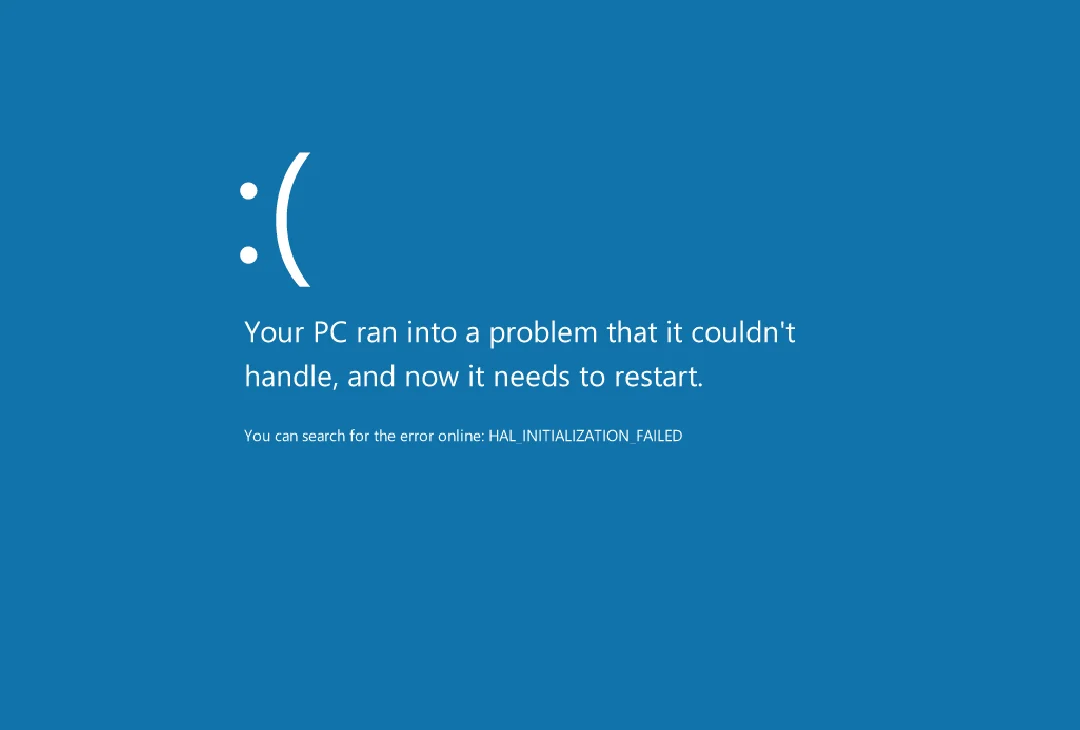
If you’ve ever seen a Windows error appear on your screen, you’re not alone. Whether it’s a Blue Screen of Death (BSOD), a startup failure, update issue, or missing system file, Windows problems can interrupt work, gaming, or everyday tasks. Fortunately, many of these issues can be diagnosed and resolved without replacing your computer or reinstalling the operating system.
A Windows error can occur for many reasons, including corrupted system files, outdated drivers, hardware failures, software conflicts, malware infections, or incomplete Windows updates. Understanding the root cause is the first step toward finding the right solution and preventing the problem from happening again.
This comprehensive guide explains the most common Windows problems, what causes them, practical troubleshooting methods, and preventive maintenance tips to help keep your PC running smoothly in 2026.
Table of Contents
- What Is a Windows Error?
- Why Windows Errors Occur
- Most Common Windows Problems
- Blue Screen of Death (BSOD)
- Windows Update Issues
- Startup and Boot Problems
- Driver Conflicts
- System File Corruption
- Comparison Table
- How to Troubleshoot Windows Issues
- Preventive Maintenance Tips
- Pros and Cons
- Conclusion
- FAQs
What Is a Windows Error?
A Windows error is any problem that prevents Microsoft’s operating system from functioning correctly. These issues may appear as warning messages, crash reports, failed updates, frozen screens, startup failures, or unexpected application behavior.
Some errors affect only a single program, while others can impact the entire operating system. The severity depends on what’s causing the issue and which part of Windows is affected.
Common categories include:
- Startup failures
- Blue screen crashes
- Windows Update problems
- Driver issues
- Missing DLL files
- Corrupted system files
- Hardware detection failures
- Network connectivity issues
Fortunately, many of these problems can be resolved using built-in troubleshooting tools.
Why Windows Errors Occur
Modern operating systems are complex, and several factors can trigger unexpected issues. Identifying the cause often makes troubleshooting much easier.
Some of the most common reasons include:
- Corrupted system files
- Outdated or incompatible drivers
- Interrupted Windows updates
- Malware or viruses
- Faulty RAM or storage drives
- Software conflicts
- Insufficient disk space
- Incorrect system settings
Regular maintenance significantly reduces the likelihood of serious operating system problems.
Most Common Windows Problems
While there are hundreds of possible system errors, a few issues appear more frequently than others.
Blue Screen of Death (BSOD)
The Blue Screen of Death is one of the most recognizable Windows problems. It usually appears when the operating system encounters a critical issue that prevents it from continuing safely.
Possible causes include:
- Driver failures
- Faulty memory
- Hardware malfunction
- Corrupted system files
- Overheating
- Storage failures
Windows typically displays a stop code that helps identify the underlying problem.
Windows Update Issues
Windows updates improve security and performance, but installation failures occasionally occur.
Common update problems include:
- Download failures
- Installation errors
- Endless update loops
- Restart failures
- Compatibility issues
Most update-related problems can be resolved by running the Windows Update Troubleshooter or clearing the update cache.
Startup and Boot Problems
Some users encounter situations where Windows refuses to boot properly or becomes stuck during startup.
Symptoms may include:
- Black screen
- Endless loading animation
- Automatic repair loop
- Missing operating system message
- Boot device errors
Startup Repair and recovery options often resolve these issues without affecting personal files.
Driver Conflicts
Device drivers allow Windows to communicate with hardware components. If a driver becomes outdated, corrupted, or incompatible, it may cause crashes, poor performance, or missing hardware functionality.
Typical driver-related symptoms include:
- Audio not working
- Wi-Fi disconnecting
- Graphics glitches
- USB devices not detected
- Printer communication failures
Updating drivers from trusted manufacturers usually resolves these problems.
System File Corruption
Corrupted system files are one of the leading causes of Windows instability. When essential operating system files become damaged or go missing, users may experience crashes, failed updates, slow performance, or applications that refuse to open.
Fortunately, Windows includes built-in repair utilities that can automatically detect and replace damaged system files.
Common signs of corrupted system files include:
- Frequent application crashes
- Random system freezes
- Missing DLL errors
- Slow startup
- Windows features not responding
- Unexpected restart messages
Useful repair tools include:
- System File Checker (SFC)
- Deployment Image Servicing and Management (DISM)
- Startup Repair
- System Restore
Running these utilities regularly can resolve many operating system problems without reinstalling Windows.
Malware and Virus Infections
Malicious software can cause system instability, reduce performance, corrupt files, and trigger unexpected warning messages. Although Microsoft Defender offers strong built-in protection, no security solution is perfect.
Signs of malware may include:
- Slow computer performance
- Unknown applications
- Browser redirects
- High CPU usage
- Pop-up advertisements
- Unauthorized system changes
Recommended security practices include:
- Keep Windows updated.
- Install software only from trusted sources.
- Enable Microsoft Defender or another reputable antivirus.
- Scan external USB devices.
- Avoid suspicious email attachments.
Preventing malware infections is much easier than repairing the damage afterward.
Common Windows Problems and Their Solutions
| Problem | Possible Cause | Recommended Solution |
|---|---|---|
| Blue Screen (BSOD) | Driver or hardware failure | Update drivers and check hardware |
| Windows Update Fails | Corrupted update files | Run Windows Update Troubleshooter |
| Slow Performance | Background programs | Disable unnecessary startup apps |
| Black Screen | Graphics driver issue | Boot into Safe Mode and update drivers |
| Missing DLL Files | Corrupted system files | Run SFC and DISM scans |
| Wi-Fi Not Working | Network driver issue | Reinstall or update network drivers |
| Printer Not Detected | Driver or USB issue | Reinstall printer drivers |
| File Explorer Freezes | Corrupted cache | Restart Explorer and clear cache |
This table covers several of the most common problems users encounter and provides a practical starting point for troubleshooting.
How to Troubleshoot Windows Problems
Most operating system issues can be solved using a structured troubleshooting process rather than guessing.
Step 1: Restart Your Computer
Many temporary software glitches disappear after a simple restart because memory is refreshed and background processes reload correctly.
Step 2: Check for Windows Updates
Install the latest updates to receive bug fixes, security improvements, and driver updates.
Go to:
Settings → Windows Update → Check for Updates
Step 3: Run the Built-in Troubleshooter
Windows includes automated troubleshooting tools for common components.
Examples include:
- Network
- Audio
- Printer
- Windows Update
- Bluetooth
- Keyboard
These tools automatically detect and repair many common issues.
Step 4: Scan System Files
Open Command Prompt (Administrator) and run:
sfc /scannowIf problems remain, follow with:
DISM /Online /Cleanup-Image /RestoreHealthThese commands repair damaged Windows components without affecting personal files.
Step 5: Update Device Drivers
Outdated drivers are responsible for many system crashes.
Check updates for:
- Graphics card
- Network adapter
- Audio device
- Chipset
- Storage controller
Download drivers directly from the hardware manufacturer’s official website whenever possible.
Step 6: Boot into Safe Mode
Safe Mode loads Windows with only essential drivers and services.
If the issue disappears in Safe Mode, it’s often caused by:
- Third-party software
- Startup applications
- Faulty drivers
- Recently installed programs
This makes Safe Mode an excellent diagnostic tool.
Preventive Maintenance Tips
Regular maintenance reduces the chances of experiencing major Windows problems.
Follow these best practices:
- Keep Windows updated.
- Create restore points before major changes.
- Back up important files regularly.
- Keep antivirus protection enabled.
- Remove unused software.
- Update hardware drivers periodically.
- Maintain adequate free disk space.
- Restart your PC occasionally instead of leaving it running for weeks.
- Monitor SSD or HDD health.
- Avoid downloading software from untrusted websites.
A few minutes of routine maintenance each month can prevent hours of troubleshooting later.
https://www.intel.com/
Pros and Cons
Pros
- Many problems can be fixed using built-in Windows repair tools.
- Microsoft regularly releases security and stability updates.
- Extensive online documentation and community support are available.
- Most driver and software issues have well-established solutions.
- System Restore can reverse many software-related problems.
- Windows Security provides built-in malware protection.
- Recovery tools help repair startup and boot issues.
- Compatible with a wide range of hardware and software.
Cons
- Troubleshooting can be difficult for beginners.
- Driver conflicts may occur after hardware changes.
- Major updates occasionally introduce new compatibility issues.
- Malware infections can cause serious system instability.
- Hardware failures sometimes require professional repair or replacement.
Final Thoughts
A Windows error doesn’t always mean your computer has a serious problem. In many cases, issues are caused by outdated drivers, corrupted system files, failed updates, or software conflicts that can be resolved using built-in recovery tools. Taking a systematic approach—identifying the symptoms, checking recent changes, and using Windows diagnostics—often leads to a successful fix.
Preventive maintenance is equally important. Keeping your operating system updated, installing drivers from trusted manufacturers, maintaining backups, and scanning for malware can significantly reduce future problems. Simple habits like freeing disk space and creating restore points also improve long-term system stability.
Whether you’re dealing with a startup failure, a Blue Screen of Death, or an update problem, understanding the cause of a Windows error helps you troubleshoot more confidently and keep your PC running reliably.
Frequently Asked Questions (FAQs)
1. What causes a Windows error?
A Windows error can be caused by corrupted system files, outdated drivers, failed updates, malware, hardware problems, or software conflicts.
2. How do I fix Windows startup problems?
You can use Startup Repair, boot into Safe Mode, restore your system using System Restore, or repair damaged files with the SFC and DISM tools.
3. Can Windows Update cause system issues?
Occasionally, yes. Incomplete downloads, corrupted update files, or incompatible drivers may cause update-related problems. Running the Windows Update Troubleshooter usually resolves many of these issues.
4. What is the Blue Screen of Death (BSOD)?
The Blue Screen of Death (BSOD) is a critical system crash that occurs when Windows encounters an error it cannot recover from safely. The displayed stop code can help identify the underlying cause.
5. How can I prevent Windows errors?
You can reduce the chances of problems by keeping Windows updated, installing trusted drivers, running antivirus scans, creating restore points, maintaining free disk space, and backing up important files regularly.