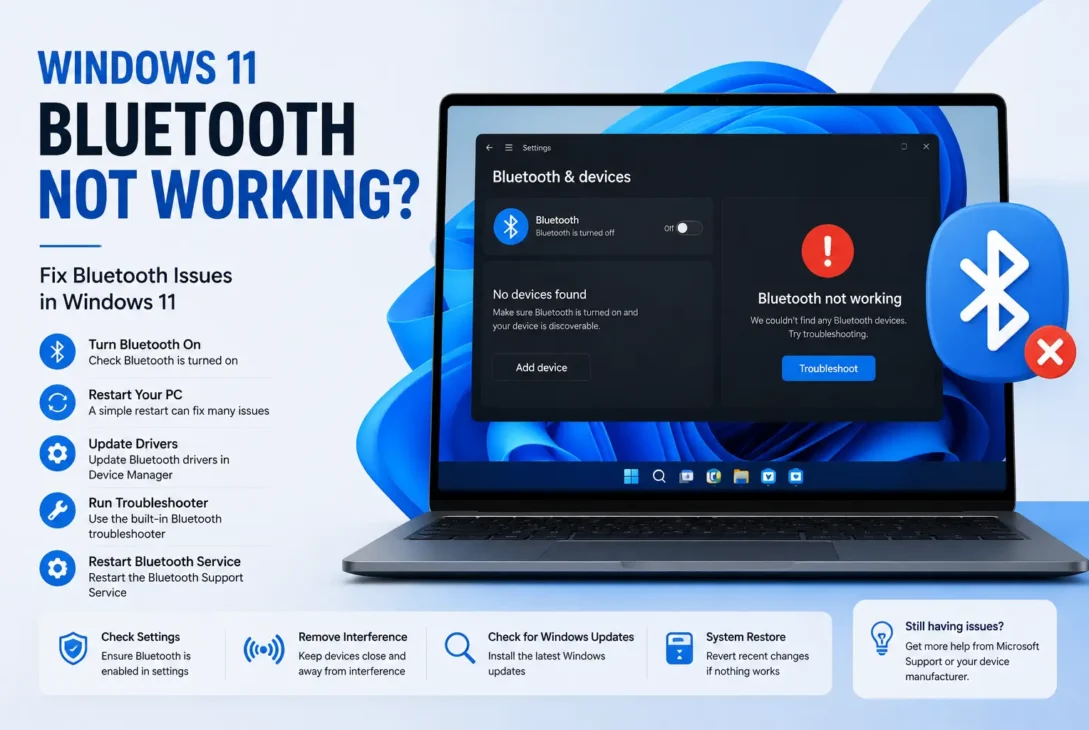
Bluetooth is one of the easiest ways to connect wireless headphones, keyboards, mice, speakers, and other devices to a Windows 11 PC. However, sometimes Windows 11 Bluetooth not working can become a frustrating problem. Bluetooth may disappear from Settings, fail to turn on, stop detecting devices, or disconnect repeatedly.
The good news is that most Bluetooth problems in Windows 11 can be fixed without replacing your hardware. Simple issues such as outdated drivers, disabled Bluetooth services, incorrect settings, Windows updates, or temporary system glitches can often cause the problem.
In this guide, we will explain the most effective ways to fix Windows 11 Bluetooth not working issues. Start with the easiest solutions and move toward the advanced fixes if Bluetooth still does not work.
Table of Contents
- Why Is Bluetooth Not Working in Windows 11?
- Check If Bluetooth Is Turned On
- Restart Your Windows 11 PC
- Check the Bluetooth Device
- Run the Windows Bluetooth Troubleshooter
- Restart Bluetooth Support Service
- Update Bluetooth Drivers
- Reinstall the Bluetooth Driver
- Check Windows Update
- Remove and Re-Pair the Bluetooth Device
- Check Airplane Mode
- Fix Bluetooth Missing From Windows 11 Settings
- Check Device Manager for Bluetooth Problems
- Turn Off Power Management for Bluetooth
- Reset Windows 11 Network Settings
- When Should You Replace Your Bluetooth Adapter?
- Frequently Asked Questions
- Final Thoughts
Why Is Bluetooth Not Working in Windows 11?
There are several reasons why Bluetooth may stop working on a Windows 11 computer. In some cases, the problem is caused by a temporary software glitch, while other situations may require driver or hardware troubleshooting.
Common causes include:
- Outdated or corrupted Bluetooth drivers
- Bluetooth being disabled in Windows 11
- Bluetooth Support Service not running
- Problems after a Windows update
- The Bluetooth device being out of range
- Low battery on wireless devices
- Airplane Mode being enabled
- Conflicting or corrupted device drivers
- Bluetooth hardware being disabled
- A faulty internal Bluetooth adapter
Before making advanced changes, try the basic solutions below. They can often resolve the problem within a few minutes.
1. Check If Bluetooth Is Turned On
The first thing to check when Windows 11 Bluetooth is not working is whether Bluetooth is actually enabled. Sometimes Windows can disable Bluetooth after an update, restart, or system change.
Follow these steps:
- Press Windows + I to open Settings.
- Click Bluetooth & devices.
- Look for the Bluetooth switch.
- Make sure it is set to On.
- Click Add device and select Bluetooth to check whether Windows can detect nearby devices.
If the Bluetooth option is missing completely, do not worry. This usually indicates a driver, service, or hardware-related issue. We will cover those solutions later in the article.
Check Bluetooth From Quick Settings
You can also enable Bluetooth from the Windows 11 Quick Settings panel.
Press Windows + A and look for the Bluetooth button. If it is turned off, click it to enable Bluetooth.
If you cannot find Bluetooth in Quick Settings, click the pencil/edit button and check whether Bluetooth can be added to the panel.
2. Restart Your Windows 11 PC
A simple restart can fix temporary Windows processes that prevent Bluetooth from working correctly.
Click Start > Power > Restart and allow Windows to boot normally. After restarting, open Bluetooth settings and try connecting your wireless device again.
This is especially useful if Bluetooth stopped working suddenly after your computer woke from sleep or installed a background update.
3. Check Your Bluetooth Device
The problem may not actually be Windows. Your wireless headphones, mouse, keyboard, or speaker may have a problem.
Before changing Windows settings, check the following:
- Make sure the device is powered on.
- Charge the device if its battery is low.
- Keep the device close to your PC.
- Put the device into pairing mode.
- Disconnect it from another phone, tablet, or computer.
- Check whether another Bluetooth device can connect to your PC.
If another Bluetooth device works normally, the original device is probably causing the connection problem.
4. Turn Airplane Mode Off
Airplane Mode can disable wireless communication, including Bluetooth, depending on your system configuration.
To check it:
- Press Windows + A.
- Find Airplane mode.
- Make sure it is turned Off.
- Turn Bluetooth off and back on.
- Try pairing your device again.
If Bluetooth still does not work, continue with the next troubleshooting method.
5. Run the Windows Bluetooth Troubleshooter
Windows 11 includes built-in troubleshooting tools that can automatically detect some Bluetooth-related problems.
Go to:
Settings > System > Troubleshoot > Other troubleshooters
Find Bluetooth and click Run.
Windows will scan for common configuration and connectivity problems. If it finds an issue that can be repaired automatically, follow the instructions displayed on the screen.
If the troubleshooter reports that no problem was found, continue to the next solution because driver and service problems may require manual fixes.
6. Restart the Bluetooth Support Service
The Bluetooth Support Service is a Windows service responsible for supporting Bluetooth device discovery and connection. If this service is stopped or malfunctioning, Bluetooth may not work correctly.
To restart it:
- Press Windows + R.
- Type
services.mscand press Enter. - Find Bluetooth Support Service.
- Right-click it and select Restart.
- Double-click the service and set Startup type to Automatic.
- Click Apply and then OK.
- Restart your PC.
After Windows starts again, try connecting your Bluetooth device.
If the service was already running, restarting it can still help resolve temporary Bluetooth communication problems.
7. Update Your Bluetooth Driver
An outdated or incompatible driver is one of the most common reasons for Windows 11 Bluetooth not working. This can happen after upgrading Windows, installing a major update, or using an older Bluetooth adapter.
You can update the driver through Device Manager:
- Right-click the Start button.
- Select Device Manager.
- Expand Bluetooth.
- Right-click your Bluetooth adapter.
- Select Update driver.
- Choose Search automatically for drivers.
- Follow the instructions if Windows finds an available update.
After updating the driver, restart your computer and test Bluetooth again.
Download the Driver From Your PC Manufacturer
If Windows says that the best driver is already installed but Bluetooth still does not work, check your computer manufacturer’s support website.
Look for the exact model of your laptop or motherboard and download the latest Bluetooth driver designed for Windows 11.
Avoid installing random Bluetooth drivers from unknown websites. Using the manufacturer’s official driver is generally safer and can prevent compatibility problems.
8. Reinstall the Bluetooth Driver
If updating the driver does not fix the problem, the existing Bluetooth driver may be corrupted. In this situation, reinstalling it can help.
Open Device Manager and follow these steps:
- Expand Bluetooth.
- Right-click your Bluetooth adapter.
- Select Uninstall device.
- Confirm the uninstallation.
- Restart your computer.
Windows may automatically reinstall the required driver after the restart.
If it does not, download the appropriate Bluetooth driver from your PC, motherboard, or Bluetooth adapter manufacturer’s official support page and install it manually.
Tip: Before uninstalling the driver, note the Bluetooth adapter’s name and model. This makes it easier to find the correct replacement driver if Windows does not reinstall it automatically.
9. Check Windows Update
A pending Windows update can sometimes contain Bluetooth driver fixes or compatibility improvements.
To check for updates:
- Press Windows + I.
- Select Windows Update.
- Click Check for updates.
- Install available updates.
- Restart your computer if Windows asks you to.
You can also open Advanced options > Optional updates and check whether Windows has listed a Bluetooth or other hardware driver update.
If Bluetooth stopped working immediately after a Windows update, however, the new update itself could be responsible. In that situation, continue to the next troubleshooting methods instead of repeatedly installing updates.
10. Remove and Re-Pair the Bluetooth Device
If Bluetooth is working but Windows 11 cannot connect to a specific device, removing the existing pairing and connecting it again can often fix the problem.
Follow these steps:
- Open Settings with Windows + I.
- Select Bluetooth & devices.
- Find your Bluetooth device under Devices.
- Click the three-dot menu next to it.
- Select Remove device.
- Turn your Bluetooth device off and back on.
- Put it into pairing mode.
- Click Add device in Windows 11.
- Select Bluetooth.
- Choose your device from the list.
This creates a fresh Bluetooth connection and can resolve pairing information that has become corrupted.
11. Check Device Manager for Bluetooth Errors
Device Manager can help determine whether Windows is detecting your Bluetooth hardware correctly.
Press Windows + X and select Device Manager. Expand the Bluetooth section and look for your Bluetooth adapter.
Pay attention to these signs:
- A yellow warning icon may indicate a driver problem.
- A Bluetooth adapter that is disabled will not work until it is enabled.
- If Bluetooth is completely missing, Windows may not be detecting the adapter correctly.
- The adapter may appear under Network adapters or Other devices on some systems.
If your Bluetooth adapter is disabled, right-click it and select Enable device.
You can also right-click the adapter and choose Properties to view its status and any reported error codes.
12. Fix Bluetooth Missing From Windows 11 Settings
One of the more frustrating situations is when the Bluetooth option completely disappears from Windows 11 Settings.
If you cannot see the Bluetooth toggle, first open Device Manager and check whether the Bluetooth adapter appears there.
If it is listed, try these steps:
- Right-click the Bluetooth adapter.
- Select Disable device.
- Wait a few seconds.
- Right-click it again.
- Select Enable device.
- Restart Windows.
If Bluetooth is still missing, uninstall the Bluetooth adapter from Device Manager and restart the computer. Windows may automatically detect and reinstall the hardware.
If the adapter does not appear anywhere in Device Manager, check your laptop’s manufacturer’s support page for Bluetooth drivers and BIOS updates. On desktop PCs, also verify that your motherboard or Bluetooth adapter actually includes Bluetooth hardware.
13. Turn Off Bluetooth Power Management
Windows may sometimes turn off a Bluetooth adapter to save power. This can cause intermittent connections, especially on laptops.
To check the setting:
- Open Device Manager.
- Expand Bluetooth.
- Right-click your Bluetooth adapter.
- Select Properties.
- Open the Power Management tab.
- If available, uncheck Allow the computer to turn off this device to save power.
- Click OK.
- Restart your PC.
If the Power Management tab is not available, simply skip this step. Some Bluetooth adapters and drivers do not provide this option.
14. Reset Bluetooth Through Windows Settings
If Bluetooth is detected but continues to behave strangely, resetting the connection can help.
Start by removing all unnecessary Bluetooth devices from:
Settings > Bluetooth & devices > Devices
Then restart your PC and pair only the device you currently need.
This is useful when Windows has accumulated old Bluetooth connections or when a device keeps connecting and disconnecting unexpectedly.
If the problem continues after these steps, the next solutions focus on Windows network settings and deeper system-level problems.
15. Reset Network Settings in Windows 11
If you have tried the previous solutions and Windows 11 Bluetooth is not working, resetting your network settings may help. This can remove corrupted network configurations that are interfering with wireless connectivity.
Keep in mind that a network reset also removes saved Wi-Fi networks and certain network settings, so you may need to reconnect to your Wi-Fi afterward.
To reset your network settings:
- Press Windows + I to open Settings.
- Go to Network & internet.
- Select Advanced network settings.
- Scroll down and click Network reset.
- Select Reset now.
- Restart your computer when Windows asks you to.
After the restart, turn Bluetooth on and try pairing your device again.
16. Check for Windows System File Corruption
Corrupted Windows system files can sometimes cause hardware features and built-in services to behave incorrectly. If Bluetooth suddenly stopped working along with other Windows features, checking system files is worth trying.
Open Terminal as Administrator:
- Right-click the Start button.
- Select Terminal (Admin).
- Enter the following command:
sfc /scannow
- Wait until the scan reaches 100%.
- Restart your computer.
The System File Checker can detect and repair certain corrupted Windows system files.
If SFC reports that it could not repair some files, you can also run:
DISM /Online /Cleanup-Image /RestoreHealth
After DISM finishes, run sfc /scannow again and restart Windows.
17. Check BIOS or UEFI Bluetooth Settings
If Bluetooth is completely missing from Windows and Device Manager does not detect the adapter, the hardware may be disabled at the firmware level.
Restart your computer and enter the BIOS or UEFI setup. The key varies by manufacturer and may be F2, F10, F12, Delete, or Esc.
Look for settings related to:
- Wireless devices
- Bluetooth
- WLAN
- Internal Bluetooth
- Wireless LAN
If Bluetooth or wireless hardware is disabled, enable it, save your changes, and boot back into Windows.
Important: BIOS/UEFI menus are different for every manufacturer. Avoid changing unrelated settings if you are not familiar with BIOS configuration.
18. Check Whether Your PC Actually Has Bluetooth
Not every desktop computer includes built-in Bluetooth.
If you are using a custom-built desktop, open Device Manager and check whether a Bluetooth adapter is present. Some motherboards include Wi-Fi and Bluetooth together, while others do not.
If your computer does not have Bluetooth hardware, Windows cannot enable Bluetooth through software alone.
In that case, you can add Bluetooth using a compatible USB Bluetooth adapter or an internal expansion card.
https://support.microsoft.com/en-us/windows/hardware/bluetooth/fix-bluetooth-problems-in-windows
When Should You Replace Your Bluetooth Adapter?
If you have updated or reinstalled the correct drivers, checked Windows settings, restarted the relevant services, and confirmed that the hardware is enabled, but Bluetooth still does not appear, the adapter itself could be faulty.
Hardware failure is more likely when:
- Bluetooth suddenly disappeared completely.
- The adapter does not appear in Device Manager.
- Multiple Bluetooth devices fail to connect.
- The problem remains after a clean driver installation.
- Bluetooth works correctly on another computer but not on your PC.
Before replacing the hardware, check your computer manufacturer’s support documentation and test the adapter with another operating system or computer if possible. This can help determine whether the problem is caused by Windows or the Bluetooth hardware itself.
Frequently Asked Questions About Windows 11 Bluetooth
Why is Bluetooth not showing up in Windows 11?
Bluetooth may be missing because the Bluetooth adapter is disabled, its driver is corrupted or missing, or Windows is not detecting the hardware. Open Device Manager and check whether a Bluetooth adapter appears. If it is missing, install the correct driver from your computer manufacturer’s official support website.
How do I fix Bluetooth not working in Windows 11?
Start by making sure Bluetooth is enabled, then restart your PC and Bluetooth device. You can also run the Bluetooth troubleshooter, restart the Bluetooth Support Service, update or reinstall the Bluetooth driver, and install pending Windows updates.
Why won’t Windows 11 find my Bluetooth device?
Make sure the device is powered on, charged, within range, and in pairing mode. If it was previously connected, remove it from Bluetooth & devices and pair it again.
How do I reinstall Bluetooth drivers in Windows 11?
Open Device Manager, expand Bluetooth, right-click your Bluetooth adapter, and select Uninstall device. Restart your computer afterward. Windows may automatically reinstall the driver. If it does not, download the correct driver from your PC or motherboard manufacturer’s official website.
Why did Bluetooth suddenly disappear from my Windows 11 PC?
Bluetooth can disappear after a driver problem, Windows update, hardware change, or system glitch. Check Device Manager first. If the adapter is listed, enable it or reinstall its driver. If it is not detected at all, check your manufacturer’s support resources and BIOS/UEFI settings.
Can a Windows update cause Bluetooth problems?
Yes. A Windows update can occasionally introduce driver compatibility problems or change hardware settings. If Bluetooth stopped working immediately after an update, check for newer driver updates from your PC manufacturer and consider Windows recovery options if the problem cannot otherwise be resolved.
Final Thoughts
When Windows 11 Bluetooth not working becomes a problem, you usually do not need to replace your computer or Bluetooth device immediately. Start with simple fixes such as restarting Windows, checking Bluetooth settings, putting your device into pairing mode, and running the built-in troubleshooter.
If those steps do not help, move on to more advanced solutions. Restarting the Bluetooth Support Service, updating or reinstalling the Bluetooth driver, checking Device Manager, disabling Bluetooth power management, and resetting network settings can resolve many persistent issues.
If Bluetooth is completely missing from Windows and the adapter is not detected in Device Manager, investigate the hardware, BIOS/UEFI settings, and manufacturer drivers. In cases where the built-in adapter has failed or the computer does not include Bluetooth, a compatible USB Bluetooth adapter can provide a simple alternative.
By working through these solutions in order, you should be able to identify whether the problem is caused by Windows settings, drivers, software, or the Bluetooth hardware itself.