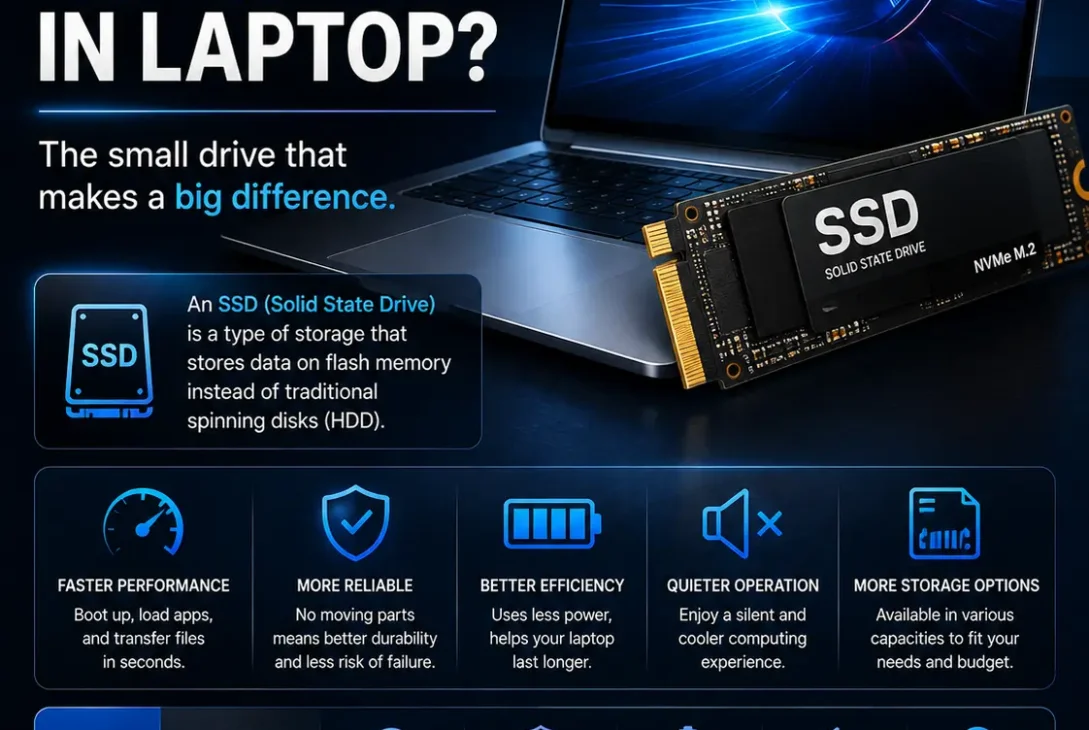
If you are shopping for a new computer, you may have seen specifications such as 256GB SSD, 512GB SSD, or 1TB NVMe SSD. But what is SSD in laptop, and why is it so important for modern computers?
An SSD, or Solid-State Drive, is the storage device that keeps your operating system, applications, documents, photos, videos, games, and other files. Unlike a traditional hard disk drive (HDD), an SSD uses flash memory instead of spinning mechanical disks. This allows it to access data much faster and operate without the mechanical noise associated with hard drives.
Understanding what is SSD in laptop can help you choose the right storage when buying a new computer or upgrading an older one. SSDs are now widely used in modern laptops because they provide fast performance, silent operation, lower power consumption, and compact designs.
In this guide, we will explain how an SSD works, the difference between SSD and HDD, what NVMe means, how much storage you need, and whether upgrading to an SSD is worth it in 2026.
Table of Contents
- What Is SSD in Laptop?
- How Does an SSD Work?
- Why Are SSDs Used in Laptops?
- SSD vs HDD
- What Is an NVMe SSD?
- SATA SSD vs NVMe SSD
- How Much SSD Storage Do You Need?
- Does an SSD Make a Laptop Faster?
- Can You Upgrade a Laptop SSD?
- SSD Advantages and Disadvantages
- SSD vs RAM
- Frequently Asked Questions
- Final Verdict
What Is SSD in Laptop?
So, what is SSD in laptop in simple words?
An SSD is the permanent storage inside your laptop. It stores everything that needs to remain available after you shut down the computer. Your Windows installation, applications, games, documents, photos, videos, and downloaded files can all be stored on the SSD.
SSD stands for Solid-State Drive. Instead of using magnetic platters and moving read/write heads like an HDD, an SSD uses NAND flash memory to store information.
For example, if your laptop specifications say:
512GB SSD
that means the computer has approximately 512GB of solid-state storage.
If the specification says:
1TB SSD
the laptop has approximately 1TB of storage capacity.
The exact usable capacity will be somewhat lower because some space is used by the operating system, formatting, recovery files, and other system data.
For most modern laptops, an SSD is now the preferred storage technology because it can provide considerably faster responsiveness than an HDD.
How Does an SSD Work?
To better understand what is SSD in laptop, it helps to know what happens when you save or open a file.
An SSD stores information inside NAND flash memory cells. These cells can retain data even when the laptop is powered off, which is why an SSD can permanently store your files.
When you install an application, for example, the computer writes the application’s data to the SSD. When you open the application later, the SSD reads that information and sends it to the rest of the system.
The SSD contains a controller that manages these operations. It determines where data should be stored, retrieves information when requested, and performs other tasks that help manage the flash memory.
The biggest difference compared with an HDD is that an SSD does not need to physically move a mechanical head or wait for a platter to rotate into position.
This is one of the main reasons SSD-equipped laptops feel much faster during everyday use.
Why Are SSDs Used in Laptops?
Once you understand what is SSD in laptop, the next question is why manufacturers prefer SSDs.
There are several important reasons.
1. Faster Data Access
SSDs can access stored information very quickly.
This can result in faster Windows startup, quicker application launches, and shorter file-loading times.
If you replace an old HDD with an SSD, the difference can be particularly noticeable.
2. No Moving Mechanical Parts
An SSD has no spinning platters or mechanical read/write head.
This makes the technology more suitable for portable computers that are regularly moved from one location to another.
3. Silent Operation
Because there are no spinning disks or moving mechanical components, an SSD operates silently.
This is useful when working in quiet environments such as offices, classrooms, libraries, or bedrooms.
4. Compact Form Factors
SSDs are available in very small designs.
M.2 NVMe drives, for example, can look like small circuit boards that connect directly to a compatible slot on the motherboard.
This allows laptop manufacturers to create thinner and lighter computers.
5. Lower Power Requirements
SSDs generally consume less power than traditional mechanical hard drives. This can be beneficial in battery-powered laptops, although actual battery life depends on the complete system and workload.
SSD vs HDD: What’s the Difference?
If someone asks what is SSD in laptop, they may also be asking why an SSD is different from an HDD.
Both devices perform the same basic job: they provide permanent storage.
The technology behind them is different.
| Feature | SSD | HDD |
|---|---|---|
| Storage technology | NAND flash | Magnetic platters |
| Moving parts | No | Yes |
| Speed | Faster | Slower |
| Noise | Silent | Mechanical noise possible |
| Shock resistance | Generally better | Generally lower |
| Size | Compact options | Usually larger |
| Power consumption | Generally lower | Generally higher |
| Boot performance | Faster | Slower |
| Application loading | Faster | Slower |
| Cost per GB | Usually higher | Usually lower |
An HDD can still be useful when you need a large amount of inexpensive storage. However, SSDs are generally a better choice for the primary storage drive in a modern laptop.
Should You Choose SSD or HDD?
For most people buying a laptop in 2026, SSD is the better choice.
If the laptop will be used for Windows, applications, web browsing, programming, gaming, Photoshop, office work, or general productivity, an SSD can provide a much more responsive experience.
An HDD may make sense as secondary storage when capacity and low cost are more important than speed.
What Is an NVMe SSD?
Another term you may encounter while researching what is SSD in laptop is NVMe.
NVMe stands for Non-Volatile Memory Express. It is a storage protocol designed to work with high-speed PCIe connections.
In simple terms:
SSD refers to the storage technology.
NVMe refers to a protocol commonly used by high-performance SSDs.
Most modern NVMe SSDs use an M.2 form factor, although M.2 and NVMe are not the same thing.
M.2 describes the physical form factor, while NVMe describes the communication protocol. Some M.2 drives can use SATA instead of NVMe.
This distinction is important when upgrading a laptop because an M.2 slot does not automatically mean that every type of M.2 SSD will be compatible.
SATA SSD vs NVMe SSD
Both SATA SSDs and NVMe SSDs are much faster than traditional HDDs, but NVMe models can provide significantly higher performance.
SATA SSD
SATA SSDs use the SATA interface.
They are commonly found in older laptops and are an excellent upgrade for computers that originally shipped with HDDs.
A SATA SSD is suitable for:
- Web browsing
- Office work
- Windows
- Programming
- General productivity
- Basic photo editing
- Everyday applications
NVMe SSD
NVMe SSDs communicate through PCIe and are designed to take advantage of much higher bandwidth.
They are common in modern premium laptops and desktops.
NVMe drives are particularly useful for workloads involving large files, demanding applications, gaming, video editing, and other storage-intensive tasks.
For a new laptop, an NVMe SSD is generally the preferred option when supported by the hardware.
How Much SSD Storage Do You Need?
Knowing what is SSD in laptop is only part of choosing the right computer. You also need to decide how much storage you actually need.
256GB SSD
A 256GB SSD can be sufficient for light users.
It can work for:
- Web browsing
- Microsoft Office
- Streaming
- Basic documents
- Cloud storage
However, 256GB can become restrictive if you install many applications or store large files locally.
512GB SSD
For many people, 512GB is the sweet spot.
A 512GB SSD provides enough room for Windows, applications, documents, photos, and a reasonable number of games.
It is a good choice for students, office workers, programmers, and general laptop users.
1TB SSD
A 1TB SSD is better for people who need more local storage.
It is especially useful for:
- Gaming
- Video editing
- Photography
- Large software installations
- Large media collections
- Professional workloads
2TB SSD or More
If you regularly work with large video files, extensive game libraries, or professional media projects, 2TB or more may be worthwhile.
The right capacity depends on how much information you plan to keep locally rather than in cloud storage.
Does an SSD Make a Laptop Faster?
Yes, an SSD can make a laptop feel significantly faster, particularly when replacing an HDD.
However, it is important to understand what an SSD actually changes.
An SSD can improve:
- Windows boot times
- Application startup
- File transfers
- Game loading
- File access
- General system responsiveness
For example, a laptop that takes a long time to start because it uses an old HDD can feel dramatically more responsive after moving to an SSD.
However, an SSD does not replace the processor or RAM.
If a laptop has a slow CPU or insufficient RAM, installing an SSD will not automatically fix every performance problem.
The overall speed of a laptop depends on multiple components, including the CPU, RAM, GPU, storage, cooling, and software.
Can You Upgrade a Laptop SSD?
Sometimes.
Whether you can upgrade the SSD depends on the laptop’s design.
Some laptops include a replaceable M.2 SSD, while others use a 2.5-inch SATA drive.
However, some extremely thin laptops have storage soldered directly to the motherboard. In those systems, replacing the internal storage may not be possible through a normal SSD upgrade.
Before buying an SSD, check:
- Your exact laptop model
- Whether the SSD is replaceable
- Available M.2 slot
- Supported interface
- PCIe generation
- Maximum supported capacity
- Physical dimensions
It is also important to back up your data before replacing the existing drive.
If you are replacing the main SSD, you may need to reinstall Windows or clone the existing drive onto the new one.
SSD Advantages and Disadvantages
Advantages of SSD
- Faster than traditional HDDs
- Faster Windows startup
- Faster application loading
- Silent operation
- No mechanical moving parts
- Compact form factors
- Generally better resistance to physical movement
- Generally lower power consumption
- Excellent for modern laptops
Disadvantages of SSD
- Usually more expensive per GB than HDDs
- High-capacity models can be expensive
- SSD performance varies between models
- Some laptops don’t allow storage upgrades
- SSDs have finite write endurance
For normal laptop use, modern SSD endurance is generally sufficient for many years. Heavy professional workloads involving constant large-scale writing can place more stress on a drive.
SSD vs RAM: Are They the Same?
No.
This is one of the most common misconceptions about laptop specifications.
If you are learning what is SSD in laptop, remember that an SSD and RAM perform completely different jobs.
RAM is temporary working memory.
SSD is permanent storage.
For example:
16GB RAM + 512GB SSD
means the laptop has 16GB of working memory and 512GB of permanent storage.
You can think of RAM as the laptop’s temporary workspace and the SSD as its long-term storage.
Increasing RAM can help when you run many applications simultaneously, while upgrading from an HDD to an SSD can dramatically improve storage-related responsiveness.
What Does SSD Mean in Laptop Specifications?
Laptop specifications can sometimes look confusing.
Here are some common examples:
256GB SSD
The laptop has approximately 256GB of solid-state storage.
512GB NVMe SSD
The laptop has approximately 512GB of storage using an NVMe SSD.
1TB PCIe SSD
The laptop has approximately 1TB of solid-state storage connected through a PCIe interface.
16GB RAM + 1TB SSD
The laptop has 16GB of RAM for temporary working memory and 1TB of permanent storage.
Understanding these terms makes it easier to compare laptops before purchasing one.
Is an SSD Worth It in 2026?
Absolutely.
If you are buying a new laptop in 2026, an SSD should generally be considered essential rather than an optional upgrade.
For most users, a 512GB NVMe SSD provides a good balance between storage capacity and performance.
If you play many games, edit videos, work with large Photoshop files, or store large amounts of media, moving to 1TB or 2TB can be a better choice.
If you own an older laptop with an HDD, replacing it with an SSD can also be one of the most noticeable upgrades you can make.
https://support.microsoft.com/en-us/windows/all-about-ssd-hdd-and-storage-types-9c6c7c59-7d1c-4611-9ba9-676d53cc0ff1
Frequently Asked Questions
1. What is SSD in laptop?
An SSD in a laptop is the permanent storage device used to store Windows, applications, games, documents, photos, videos, and other files.
2. Is SSD better than HDD?
Yes, for most laptop users. SSDs generally provide faster performance, silent operation, compact designs, and better resistance to physical movement.
3. What does SSD stand for?
SSD stands for Solid-State Drive.
4. Is 512GB SSD enough for a laptop?
For most everyday users, 512GB is enough. However, gamers and content creators may prefer 1TB or more.
5. Is NVMe SSD better than SATA SSD?
NVMe SSDs can provide significantly higher performance than SATA SSDs because they use PCIe technology. For modern laptops, NVMe is generally preferred when supported.
6. Does SSD increase RAM?
No. SSD storage and RAM are different components. An SSD provides permanent storage, while RAM provides temporary working memory.
7. Does SSD make a laptop faster?
Yes. An SSD can significantly improve boot times, application loading, file access, and overall system responsiveness, especially when replacing an HDD.
8. Can I upgrade my laptop SSD?
It depends on the laptop. Some models have replaceable SSDs, while others have storage soldered to the motherboard.
9. Is 256GB SSD enough?
It can be enough for basic users, but 512GB is generally more comfortable for modern applications, documents, and personal files.
10. What is the best SSD size for a laptop?
For most users, 512GB is a good starting point. Users who store large games, videos, photos, or professional files should consider 1TB or more.
Final Verdict
So, what is SSD in laptop?
An SSD is the permanent storage device that keeps your operating system, applications, games, documents, photos, videos, and other files.
Unlike an HDD, an SSD uses flash memory instead of spinning mechanical disks. This allows it to provide faster data access, silent operation, a compact design, and generally better resistance to physical movement.
For most people buying a laptop in 2026, a 512GB NVMe SSD is an excellent starting point. Users with larger storage requirements should consider 1TB or 2TB.
If your current laptop still uses an HDD, upgrading to an SSD can also provide a substantial improvement in everyday responsiveness.
Now that you know what is SSD in laptop, you can make a much more informed decision when comparing laptop specifications or planning a storage upgrade.