Introduction
Managing digital files has become more complicated than ever. Photos, videos, work documents, business projects, backups, and personal media can quickly fill up a computer’s internal storage. Cloud storage services provide convenient access, but monthly subscriptions, storage limits, privacy concerns, and internet dependency can make them less attractive for people who manage large amounts of data.
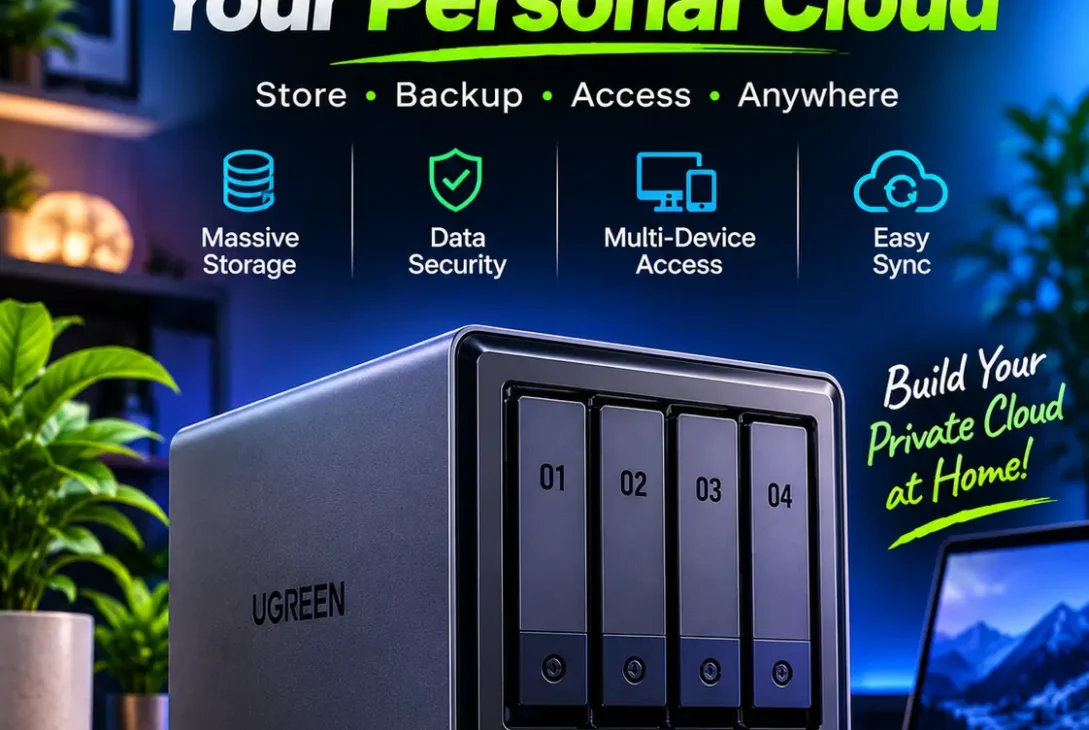
This is where UGREEN NAS devices come into the picture. UGREEN’s NASync range gives home users, creators, professionals, and small businesses a way to build their own network-attached storage system. Instead of keeping every file on one computer or paying for multiple cloud subscriptions, users can store and manage data on a dedicated device connected to their network.
UGREEN NAS devices run UGOS Pro, an operating system designed for storage management, file access, backups, multimedia, and additional applications. Depending on the model, users can also explore features such as Docker containers, virtual machines, SSD caching, and faster network connectivity.
But is a UGREEN NAS worth buying? What can it actually do, and how does it compare with traditional external drives and cloud storage?
This guide explains how UGREEN NAS works, its main features, practical uses, setup process, security considerations, limitations, and the things you should check before choosing a model.
Table of Contents
- What Is UGREEN NAS?
- How Does UGREEN NAS Work?
- Understanding the UGREEN NASync Range
- 11 Important UGREEN NAS Features
- What Can You Use UGREEN NAS For?
- How to Set Up a UGREEN NAS
- UGREEN NAS vs External Hard Drives vs Cloud Storage
- Is UGREEN NAS Secure?
- Advantages and Disadvantages
- Who Should Buy a UGREEN NAS?
- Things to Consider Before Buying
- Frequently Asked Questions
- Final Verdict
What Is UGREEN NAS?
UGREEN NAS is a range of network-attached storage devices developed by UGREEN. NAS stands for Network Attached Storage, which describes a dedicated storage device connected to a local network. Computers, smartphones, tablets, and other authorized devices can access files stored on it.
Unlike a regular USB external hard drive, a NAS does not need to remain directly connected to one computer. Once configured on a network, it can provide shared storage to multiple users and devices. You can organize files into folders, create user accounts, manage permissions, and access supported services through compatible clients or a web browser.
UGREEN’s NAS products are marketed under the NASync name. They combine storage hardware with UGOS Pro, the company’s NAS operating system. The exact hardware and available features depend on the model.
For example, a two-bay system may suit a household that needs centralized file storage and basic backups. A larger multi-bay model can provide more drive capacity and additional storage configurations for demanding home or business environments.
The important point is that UGREEN NAS is more than a place to plug in a hard drive. It is a small storage server that can provide several services across your network.
How Does UGREEN NAS Work?
A UGREEN NAS connects to your router or network switch using an Ethernet cable. You install compatible storage drives inside the device, complete the initial configuration, and create storage space for your files.
After setup, other devices on the network can connect to the NAS. Depending on the operating system and services enabled, you may access shared folders through a desktop file manager, mobile application, or browser.
A typical setup works like this:
- Install compatible hard drives or SSDs in the NAS.
- Connect the device to your router or network switch.
- Power it on and complete the initial setup.
- Create a storage pool and volume.
- Configure user accounts and shared folders.
- Install or enable the applications you need.
- Connect your computers and mobile devices.
Once everything is configured, you can transfer files, create backups, organize photos, and share data with authorized users.
The NAS performs its storage tasks independently. Your computer does not have to remain switched on for the NAS to keep operating, although network access and the NAS itself must be available when you want to use stored files.
Understanding the UGREEN NASync Range
UGREEN offers different NASync configurations for different storage requirements. The number of drive bays, processor, memory, network ports, expansion options, and software capabilities can vary considerably.
Two-Bay NAS Devices
A two-bay NAS is a practical starting point for people who want centralized storage without purchasing a large system. It can hold two compatible drives and may support configurations such as RAID 1, depending on the model and software.
RAID 1 mirrors data across two drives. This means one drive can continue providing the mirrored data if the other fails, but usable capacity is generally limited to the size of one drive.
A two-bay device can be suitable for personal documents, photo collections, computer backups, and smaller home media libraries.
Four-Bay NAS Devices
A four-bay NAS provides more flexibility because it can accommodate additional drives. Depending on supported RAID modes, users can balance usable capacity, performance, and drive-failure protection.
This configuration may appeal to photographers, video creators, families with large media libraries, and small teams that need shared storage.
Six-Bay and Eight-Bay NAS Devices
Larger systems are designed for users who need more drive capacity or advanced hardware options. Certain higher-end models offer faster network connections, more powerful processors, additional memory capacity, and expansion features.
These systems may be useful for larger media collections, demanding file workflows, multiple users, and applications running directly on the NAS.
Check the Exact Model Specifications
Do not assume that every UGREEN NAS includes the same hardware or software features. A model’s drive-bay count, maximum memory, processor, network speed, virtualization support, and expansion options should be checked before purchase.
The official UGREEN NASync product range provides model information and specifications.
11 Important UGREEN NAS Features
UGREEN NAS devices combine storage hardware with software tools designed to make file management and data protection easier. Here are 11 features worth understanding before choosing a device.
1. Centralized File Storage
One of the main reasons people buy a UGREEN NAS is to keep their files in one central location.
Instead of spreading documents across several computers, portable drives, and memory cards, you can organize them on a shared storage system. Authorized users can access the relevant folders without manually transferring files between devices.
This can be particularly useful for households with several computers or small businesses that regularly exchange large files.
For example, a design team could keep project folders on the NAS so that team members can access approved artwork, reference images, and completed files from their own workstations.
2. RAID Storage Configurations
RAID allows multiple drives to work together as a storage arrangement. Supported RAID options vary by model, but UGREEN systems offer several common configurations through their storage management tools.
Common options include:
- RAID 0: Combines drives for performance and capacity but does not provide drive-failure protection.
- RAID 1: Mirrors data between drives, providing redundancy.
- RAID 5: Uses distributed parity and generally requires at least three drives.
- RAID 6: Uses dual parity and generally requires at least four drives.
- RAID 10: Combines mirroring and striping and generally requires at least four drives.
- JBOD: Combines drives into a larger storage arrangement without the same redundancy provided by parity or mirroring.
Not every configuration is available on every device. Check the model’s supported storage modes before planning a setup.
It is also important to understand that RAID is not a backup. It can help maintain availability after certain drive failures, but it cannot protect against accidental deletion, ransomware, theft, fire, or other events that affect the entire system.
3. UGOS Pro Operating System
UGOS Pro is the operating system developed for UGREEN NAS devices. It provides a graphical interface for managing storage, users, applications, network settings, and other system functions.
The control panel helps users configure the device without having to manage every task through command-line tools. The App Center provides access to supported applications, while storage tools help users monitor drives and manage storage pools.
UGOS Pro also brings together features for file access, remote connectivity, backup, multimedia, and containerized applications.
You can learn more through the official UGOS Pro operating system overview.
4. Automatic Backup and Synchronization
A NAS can become an important part of a backup strategy. UGREEN’s Sync & Backup tools support different workflows for copying and synchronizing data between supported devices and storage destinations.
For example, you could configure a computer to back up selected folders to your NAS. You may also create tasks that copy data between storage locations or compatible remote systems.
It is important to distinguish synchronization from backup. Synchronization keeps files consistent across locations, so changes can be reflected on connected devices. A backup is intended to preserve a separate copy that can be restored later.
If a file is accidentally deleted and that deletion is synchronized everywhere, synchronization alone may not help you recover it. Use appropriate backup settings and retain additional copies of important data.
UGREEN explains these functions in its Sync & Backup documentation.
5. Remote File Access
A NAS is not limited to access from one computer in your home or office. UGREEN provides remote-access options, including UGREENlink, that can allow users to reach their files away from the local network.
This can be useful when you need a document while travelling, want to download a project file from another location, or need to share data with an authorized team member.
Remote access should always be configured carefully. Use strong passwords, keep firmware updated, enable available account-protection features, and give users only the permissions they need.
6. Photo and Video Management
People who regularly capture photos and videos can use a NAS to create a centralized media library.
Instead of keeping every photo on a phone or paying for additional cloud capacity, users can transfer supported media files to their storage system and organize them into folders or libraries.
Depending on the device, software version, and applications installed, UGREEN’s photo tools can help organize images and provide browsing and search functions.
This can be useful for families, photographers, content creators, and anyone with a large collection of personal media.
However, a NAS should not be treated as the only copy of irreplaceable photographs. Keep a separate backup in another physical location or a trusted cloud service.
7. Docker and Container Support
Some UGREEN NAS models support Docker-based container applications. Containers allow compatible software to run in isolated environments without requiring a separate physical server for every application.
Depending on your experience and the hardware available, you may use containers for development tools, media services, automation platforms, databases, and other self-hosted applications.
This feature can make a NAS more versatile than a traditional storage device.
However, Docker support is model-dependent. UGREEN’s software documentation identifies which devices support container functionality, so check the exact model before buying if Docker is important to your workflow.
8. Virtual Machine Support
Certain UGREEN DXP models support virtual machines. A virtual machine allows another operating system to run in an isolated environment using the NAS hardware.
This can be useful for software testing, learning, running compatible services, or maintaining a separate environment for a specific task.
Virtual machines require processing power and memory. Running several demanding systems simultaneously may reduce the resources available for file transfers and other NAS applications.
Do not assume that every UGREEN device supports virtualization. Confirm the feature and hardware requirements for the specific model.
9. SSD Caching and NVMe Expansion
Some UGREEN NAS models include M.2 NVMe slots. Depending on the model and supported software configuration, these slots can be used for SSD storage or caching.
SSD caching can help certain workloads by keeping frequently accessed data on faster storage. However, it does not automatically make every operation faster. The benefit depends on the workload, network connection, drive configuration, and system implementation.
NVMe drives can also be useful when a supported model allows them to function as additional storage.
Before buying SSDs, check the device’s compatibility requirements and supported configurations.
10. Faster Network Connectivity
Network speed has a major impact on how quickly computers can transfer files to and from a NAS.
Some UGREEN models include 2.5GbE or 10GbE networking, while other models may have different connection options. Faster Ethernet can be useful when transferring large video files, working with shared media, or backing up multiple computers.
However, the entire network must support the faster connection. A 10GbE NAS connected to a 1GbE router or switch will not deliver 10GbE transfer speeds to that device.
Your computer’s network adapter, cables, switch, router, and storage drives can all affect real-world performance.
11. User Permissions and Shared Folders
A shared storage system needs access controls, especially when multiple people use it.
UGOS Pro provides user and permission management tools. Administrators can create accounts, organize shared folders, and control which users can access particular data.
For example, a small business could create separate folders for administration, design projects, finance, and client deliveries. Each employee can receive access only to the folders required for their role.
This helps keep shared storage organized and reduces the chance of users accidentally changing files outside their responsibilities.
What Can You Use UGREEN NAS For?
The practical value of a NAS depends on what you store and how you work. Here are some common use cases.
Home File Storage
Families can use a NAS to store documents, photographs, videos, and other files in one place. It can reduce dependence on multiple portable drives and make files easier to access across household devices.
Computer Backups
A NAS can act as a destination for backups from supported Windows and macOS computers. Rather than relying on manual copying, users can configure scheduled backup tasks.
For better protection, maintain another backup outside the NAS.
Video Editing and Creative Projects
Video editors and designers often work with large files. A NAS with suitable drives and networking can provide shared access to project assets, footage, exports, and archived work.
Performance depends on the model, drive configuration, network speed, and number of people accessing the system.
For demanding editing workflows, test the actual transfer speeds before moving your entire production process to network storage.
Small Business Storage
Small teams can use a NAS for shared documents, project files, internal archives, and backup tasks. User permissions help separate departments and restrict access to sensitive folders.
A NAS can reduce the need to move large files through email attachments or individual USB drives.
Personal Media Library
Users can organize movies, music, and personal videos in a centralized library. Supported media applications can make browsing and playback more convenient across compatible devices.
The experience depends on file formats, network performance, client-device support, and the applications available on the selected NAS model.
Learning and Self-Hosting
For technically curious users, a compatible UGREEN NAS can provide an environment for Docker containers, development projects, and other self-hosted services.
It can be a useful learning platform, although users should understand basic networking, security, and resource management before exposing services to the internet.
How to Set Up a UGREEN NAS
The initial setup is generally straightforward, but it is worth planning your storage and security configuration before transferring important files.
Step 1: Choose Compatible Drives
Check the model’s drive compatibility requirements. Select hard drives or SSDs suitable for NAS workloads and confirm the supported drive sizes and capacities.
If you plan to use multiple drives, decide how much usable storage and redundancy you need.
Step 2: Install the Drives
Power off the device and install the drives in the appropriate bays according to the manufacturer’s instructions. Make sure each drive is seated correctly before powering on the NAS.
Step 3: Connect It to Your Network
Connect the NAS to your router or network switch using an Ethernet cable. For better performance, use a network connection supported by both the NAS and your networking equipment.
Step 4: Initialize the System
Use the supported UGREEN client or browser-based setup process to discover and initialize the device. Follow the on-screen instructions to create an administrator account and configure the basic settings.
UGREEN’s Beginner’s Guide explains the initial setup process.
Step 5: Create a Storage Pool
Open the storage management tools and create a storage pool using the drives you installed. Select a supported configuration based on your capacity, redundancy, and performance requirements.
Read the warnings carefully. Creating or changing storage configurations can erase data on the selected drives.
Step 6: Create Users and Shared Folders
Set up individual accounts for people who need access. Create shared folders for different types of files and assign permissions carefully.
Avoid using one administrator account for every person in your household or business.
Step 7: Configure Backup Tasks
Install or open the relevant backup application and configure the folders and devices you want to protect.
Run a test backup and confirm that you can locate and restore files. A backup is only useful if it can be recovered when needed.
Step 8: Configure Remote Access Carefully
If you need access outside your home or office, review the available remote-access options and security settings. Use strong, unique passwords and enable additional account protection where available.
Do not expose services to the public internet without understanding the risks and the required security configuration.
UGREEN NAS vs External Hard Drives vs Cloud Storage
These three storage options solve related but different problems.
| Feature | UGREEN NAS | External Hard Drive | Cloud Storage |
|---|---|---|---|
| Centralized storage | Yes | Usually connected to one device at a time | Yes |
| Multiple users | Supported | Limited without additional sharing | Usually supported |
| Local network access | Yes | Requires direct connection or sharing | Internet-based |
| Remote access | Supported when configured | Not built in | Usually included |
| Upfront cost | Higher | Usually lower | Often low or free to start |
| Ongoing subscription | Not inherently required | No | Commonly required for larger plans |
| Maintenance | User-managed | Minimal | Provider-managed |
| Storage expansion | Depends on model and drives | Replace or add drives | Upgrade subscription |
An external hard drive is often the simplest and least expensive option for someone who only needs extra space for one computer.
Cloud storage is convenient for syncing files and accessing them across locations without maintaining hardware. It can also provide an off-site copy of important data.
A UGREEN NAS is more suitable when you want local centralized storage, multiple users, control over your storage environment, and additional server-style features.
These options do not have to compete. A sensible setup can use a NAS for everyday storage, an external drive for local backup, and cloud storage for an off-site copy.
Is UGREEN NAS Secure?
Security depends on both the device’s software and how the administrator configures it.
UGOS Pro provides tools for user permissions, remote access, and system management. UGREEN also describes encryption and other security protections in its software documentation.
However, no NAS is automatically secure simply because it is connected to a private network. Weak passwords, outdated firmware, excessive permissions, exposed services, and poor backup practices can put stored data at risk.
Follow these practical steps:
- Use a strong, unique administrator password.
- Create separate accounts for different users.
- Give each account only the permissions it requires.
- Install firmware and application updates.
- Enable available two-factor authentication or additional login protection.
- Avoid exposing unnecessary services to the internet.
- Review remote-access settings regularly.
- Keep a separate backup of important files.
- Test file restoration instead of assuming backups work.
A particularly important point is that RAID does not replace backup. If ransomware encrypts files or someone accidentally deletes a folder, RAID may simply preserve the damaged or deleted state across the storage system.
For important business and personal data, follow a backup strategy that keeps multiple copies in separate locations.
Advantages and Disadvantages of UGREEN NAS
Advantages
Centralized storage: Keep files from multiple devices organized in one location.
Flexible configurations: Different models provide different drive-bay counts and hardware options.
Private-cloud-style access: Access supported files remotely when remote connectivity is configured.
Backup tools: Sync & Backup provides options for protecting and transferring files.
Expandable functionality: Compatible models can support Docker, virtual machines, and additional applications.
User management: Shared folders and permissions help organize access for households and teams.
No mandatory cloud-storage subscription for local storage: You purchase the hardware and drives, then manage your own storage environment.
Disadvantages
Higher initial investment: The NAS enclosure and compatible drives can cost considerably more than a single external hard drive.
Setup requires some learning: Storage pools, RAID, permissions, networking, and remote access may be unfamiliar to beginners.
Software maturity matters: UGOS Pro continues to develop, and its application ecosystem and advanced features may not match every established NAS platform.
Drive and network performance vary: The model, installed drives, network equipment, and workload determine real-world speeds.
Ongoing maintenance: Users need to monitor drive health, install updates, manage backups, and review security settings.
Not a complete backup by itself: A NAS can fail, be damaged, or be affected by ransomware, so important data needs additional protection.
Who Should Buy a UGREEN NAS?
A UGREEN NAS can be a good option for people who regularly manage large amounts of digital data and want more control over where their files are stored.
It may suit:
- Photographers: People who need organized storage for large photo collections and project archives.
- Video creators: Editors who manage footage, exports, and other large media files.
- Small businesses: Teams that need shared folders, centralized documents, and backup workflows.
- Home users: Families who want one storage location for photos, videos, and computer backups.
- Technology enthusiasts: Users interested in Docker, self-hosted applications, and compatible virtual machines.
It may not be the best choice for someone who only needs a small amount of extra storage or does not want to manage hardware and backups. A portable external drive or cloud-storage plan may be simpler for those users.
Things to Consider Before Buying
Before choosing a UGREEN NAS, compare the specifications with your actual requirements.
Number of Drive Bays
Think about how much storage you need today and how much you may need in the future. A two-bay model may be enough for personal backups, while a larger system offers more room for expansion and different RAID configurations.
Processor and Memory
The processor and installed memory affect how well the NAS handles multiple tasks. Basic file storage does not require the same hardware resources as virtualization, multiple containers, or demanding media applications.
Network Ports
Check whether the model offers Gigabit Ethernet, 2.5GbE, or 10GbE. Make sure your router, switch, and computer can use the speed you are paying for.
Software Features
If Docker, virtual machines, media applications, or remote access are important, verify that the exact model supports them. Features available on one DXP model may not be available on a DH model or a different product configuration.
Total Cost
The enclosure is only part of the cost. Include the price of drives, optional SSDs, networking upgrades, and a separate backup destination.
Backup and Recovery Plan
Decide how you will protect important files before moving them to the NAS. Consider an external drive or reputable cloud backup for an additional copy, and test that you can restore your data.
Frequently Asked Questions
1. What is a UGREEN NAS used for?
A UGREEN NAS is used to store, organize, share, and back up files across multiple devices. Depending on the model, it can also support photo management, media services, Docker containers, virtual machines, and remote file access.
2. Is UGREEN NAS good for home use?
Yes. A suitable model can provide centralized storage for family photos, videos, documents, and computer backups. A smaller two-bay system may be enough for many households, while larger models provide more capacity and expansion options.
3. Does UGREEN NAS require a monthly subscription?
Local storage does not inherently require a monthly cloud-storage subscription. You purchase the NAS hardware and drives and manage the system yourself. Some third-party applications or services may have their own fees, so check the terms of anything you choose to use.
4. Can I access my UGREEN NAS remotely?
UGREEN provides remote-access options such as UGREENlink. Remote access must be configured, and users should follow recommended security practices, including strong passwords, updates, and appropriate account permissions.
5. Does UGREEN NAS support Docker?
Docker support depends on the model. Some current DXP devices and selected other models support Docker, while certain entry-level devices do not. Always check the official compatibility information for the exact device you plan to purchase.
6. Can UGREEN NAS replace Google Drive or Dropbox?
It can replace some cloud-storage workflows by providing centralized storage and remote access to your own files. However, it is not automatically a complete replacement for every cloud feature, such as collaborative editing, third-party integrations, or managed off-site redundancy.
7. Is RAID a backup?
No. RAID can provide protection against certain drive failures, depending on the configuration, but it does not protect against accidental deletion, ransomware, theft, or physical damage to the NAS. Keep separate backups of important data.
8. Can I use UGREEN NAS with Mac and Windows?
UGREEN provides clients and network file-access options for supported platforms, including Windows and macOS. The exact setup and available features depend on the operating system, NAS model, and software version.
9. Which UGREEN NAS should I buy?
Choose according to the number of drives you need, storage capacity, network speed, processor, memory, and software features. A two-bay model may suit basic home storage, while a four-bay or larger device may be better for expanding media libraries and business workflows.
10. Is UGREEN NAS suitable for small businesses?
It can be useful for centralized file storage, shared folders, user permissions, and backup workflows. Businesses should also consider access policies, off-site backups, recovery testing, and whether they need professional IT support.
Final Verdict
UGREEN NAS devices offer a flexible way to build centralized storage for homes, creators, and small businesses. The NASync range combines dedicated storage hardware with UGOS Pro, providing tools for file management, backups, remote access, media organization, and additional applications on supported models.
The biggest advantage is control. Instead of depending entirely on individual computers or cloud-storage subscriptions, users can manage a shared storage system and choose how to organize and protect their data.
However, the right choice depends on your requirements. A basic two-bay model may be sufficient for household backups, while creators and businesses may benefit from more drive bays, faster networking, and stronger hardware. Advanced features such as Docker and virtual machines should always be checked against the exact model.
Overall, UGREEN NAS is worth considering if you need centralized storage and are comfortable managing a dedicated device. Just remember to plan for drive costs, security, maintenance, and a separate backup strategy before trusting it with important files.