KVM switches are useful devices for anyone who works with two or more computers but wants to share the same keyboard, monitor, and mouse. Instead of disconnecting cables every time you move between a work laptop and a personal desktop, you can press a button and switch your desk setup between computers.
The technology is especially helpful for remote workers, software developers, gamers, IT professionals, and people who use separate computers for work and personal tasks. Some models support one monitor, while more advanced options can handle multiple displays, USB accessories, and high-resolution video.
However, not every switch supports the same connections or performance. Choosing the wrong model can result in limited refresh rates, missing display outputs, or peripherals that do not switch correctly.
This guide explains how KVM switches work, their main types, important features, connection options, benefits, limitations, and what to check before buying one.
Table of Contents
- What Is a KVM Switch?
- How Do KVM Switches Work?
- 9 Important Features to Consider
- Types of KVM Switches
- KVM Switch vs USB Switch
- HDMI vs DisplayPort vs USB-C
- How to Set Up a KVM Switch
- Benefits of Using a KVM Switch
- Common Problems and How to Fix Them
- How to Choose the Right KVM Switch
- Frequently Asked Questions
- Final Verdict
What Is a KVM Switch?
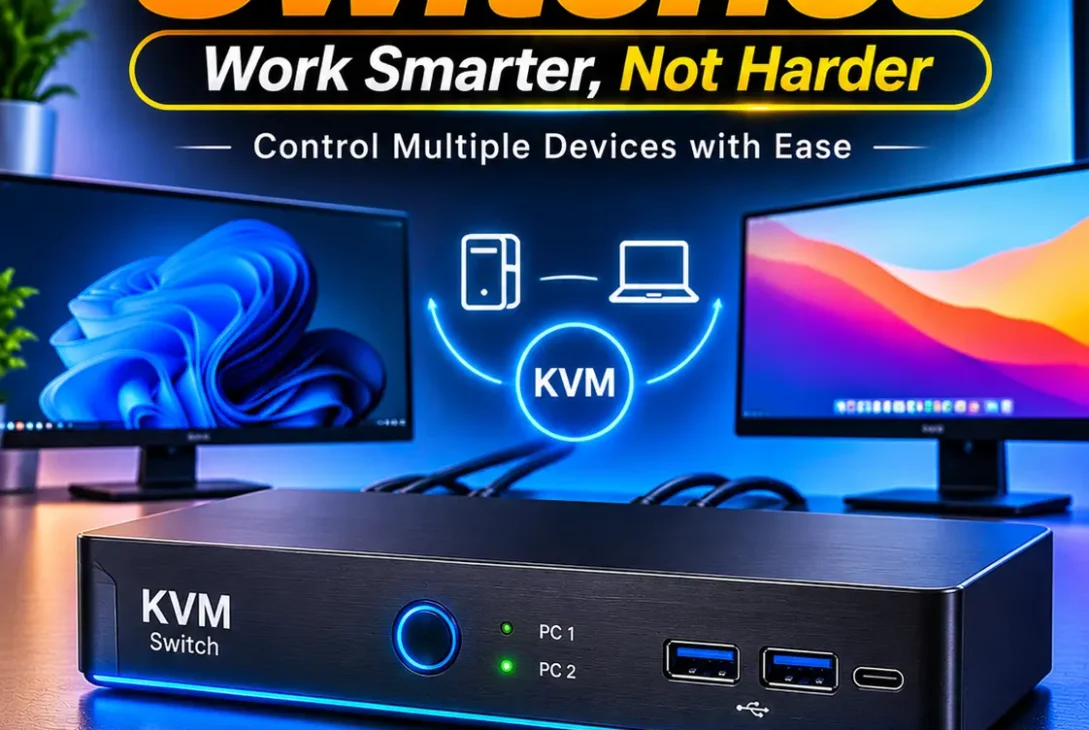
KVM stands for Keyboard, Video, and Mouse. A KVM switch is a hardware device that allows multiple computers to share one set of input and display equipment.
For example, imagine you have a Windows desktop for gaming and a laptop for work. Normally, you would need separate keyboards and mice, or you would have to move cables between the two computers. With a KVM switch, both computers connect to the device, while your monitor, keyboard, and mouse connect to its shared output ports.
When you switch from one computer to another, the device changes which system receives the shared keyboard and mouse signals and which computer sends video to the monitor.
Depending on the model, switching can happen through a physical button, keyboard shortcut, remote control, or software. Some KVM switches also include additional USB ports for webcams, storage drives, printers, and other accessories.
The main purpose is simple: control multiple computers from one workstation without repeatedly reconnecting equipment.
How Do KVM Switches Work?
A KVM switch manages the connections between computers and shared peripherals. Each computer connects to the switch through the required video and USB connections. Your monitor, keyboard, and mouse connect to the output or peripheral ports.
When you select a computer, the switch directs the shared devices to that system. The other computer remains connected but no longer controls the shared keyboard and mouse.
A basic setup might look like this:
- Computer 1 connects to the first video and USB input.
- Computer 2 connects to the second video and USB input.
- The monitor connects to the video output.
- The keyboard and mouse connect to the shared USB ports.
- A button or shortcut changes the active computer.
An important detail is that video and USB data are separate connections in many models. Connecting the HDMI cable alone may display the computer’s picture, but the keyboard and mouse will not necessarily work. You may also need a USB upstream connection from each computer to the switch.
Some modern KVM switches use USB-C or Thunderbolt connections to simplify the setup. However, the computer’s USB-C port must support the required video output and data features. A USB-C connector does not automatically guarantee display compatibility.
9 Important Features to Consider
1. Number of Computers Supported
The first thing to check is how many computers the device can connect. Basic models commonly support two computers, while larger setups may require a switch for four or more systems.
If you only use a work laptop and a desktop, a two-computer model may be enough. IT teams and professional workstations may need more inputs to manage several machines.
Do not confuse the number of USB ports with the number of supported computers. A device can have several USB ports for accessories but still support only two computer inputs.
2. Single-Monitor or Dual-Monitor Support
Not all KVM switches support multiple displays. A single-monitor model sends video from the selected computer to one shared screen. A dual-monitor model supports two separate display paths.
This difference matters if you use two monitors for coding, editing, research, or multitasking.
Before purchasing, confirm that the model supports the number of monitors you need. For a true dual-monitor setup, each computer generally needs to provide two independent video outputs, and the switch must support both paths. A simple HDMI splitter does not create two independent desktops.
3. Resolution and Refresh Rate
Resolution and refresh rate determine how sharp and smooth the display looks. A switch may advertise 4K support, but that does not automatically mean it supports 4K at 144Hz.
Check the exact combination of resolution and refresh rate supported by the device. For example, a model might support 4K at 60Hz but offer a lower refresh rate at higher resolutions.
This is particularly important for gaming monitors and professional displays. Your computer’s graphics output, cables, switch, and monitor must all support the intended display mode.
When comparing KVM switches, look beyond a headline resolution. Check whether the specifications cover your actual refresh rate, colour format, and number of connected monitors.
4. HDMI and DisplayPort Compatibility
HDMI and DisplayPort are two common video connection standards. Some switches support HDMI, others use DisplayPort, and certain models offer both.
Choose a model that matches the video outputs on your computers and the inputs on your monitor. If your desktop uses DisplayPort but the switch accepts only HDMI, you may need an appropriate converter. Not every adapter works in both directions.
Also check the supported version of the connection. An older HDMI or DisplayPort implementation may limit resolution or refresh rate, even when the monitor itself supports more.
5. USB Port Speed
Some devices provide USB 2.0 ports, while others include USB 3.x connections. The right choice depends on which accessories you plan to share.
A keyboard and mouse generally do not require high USB bandwidth. However, an external SSD, webcam, audio interface, or other data-heavy accessory may benefit from faster USB support.
If you intend to connect storage devices, check the switch’s USB data rate and whether its ports are designed for high-speed peripherals. A port labelled as USB charging may not provide the same data functionality.
6. Switching Methods
The switching method affects everyday convenience. Many models include a physical button on the device, allowing you to change computers with a press.
Other options include keyboard hotkeys, wired remote buttons, infrared remotes, or software controls.
A physical button can be useful if the switch is placed within reach. A remote button is convenient when the device sits under a desk. Hotkeys are useful for people who switch frequently and prefer not to reach for hardware.
Check whether the switching method is compatible with your operating system and keyboard. Some shortcuts can conflict with existing applications or system commands.
7. EDID Support
EDID stands for Extended Display Identification Data. It is information that a monitor provides to a connected computer about its supported resolutions, refresh rates, and other display capabilities.
Some switches include EDID emulation or management to help computers maintain a consistent display connection while switching.
This can reduce problems such as windows moving between screens, desktop layouts changing, or displays taking longer to reconnect. However, EDID features vary between models, so check what the manufacturer actually supports.
For people who use multiple monitors or frequently switch between computers, this feature can make the experience more predictable.
8. Audio and Additional USB Support
Some models include audio connections or extra USB ports. These features can help share speakers, headphones, microphones, printers, webcams, and other devices.
However, additional ports do not always mean every connected accessory will work exactly as expected. Certain gaming keyboards, wireless receivers, webcams, and specialised devices may need more power or specific USB compatibility.
If you plan to share a headset or microphone, confirm that the switch supports the required audio connection. If you need to share several USB accessories, check the number and type of downstream ports.
9. Power Supply and Build Quality
Some basic models receive power directly through USB, while more advanced switches use an external power adapter.
An external power supply can be important when connecting multiple accessories or devices that require more power. Check whether the manufacturer recommends a powered configuration for your setup.
Build quality also matters. Look for clearly labelled ports, a stable enclosure, reliable buttons, and good ventilation. A device that is difficult to identify or reach can become frustrating in a frequently used workstation.
Types of KVM Switches
Different KVM switches are designed for different setups. Understanding the main categories can help you avoid paying for features you do not need.
HDMI KVM Switches
HDMI models are common in home offices, gaming setups, and everyday workstations. They connect computers and monitors through HDMI video cables while using separate USB connections for keyboard and mouse sharing.
They are a practical choice when your computers and displays already use HDMI. Check the supported HDMI version, resolution, and refresh rate before buying.
DisplayPort KVM Switches
DisplayPort models are often used with desktop computers and high-refresh-rate monitors. They can be suitable for gaming, design, and professional workstations that use DisplayPort connections.
Make sure the switch supports the DisplayPort version and display mode required by your monitor. Features such as HDR, adaptive sync, and high refresh rates may depend on the exact model.
USB-C KVM Switches
USB-C models can simplify connections when compatible laptops support video output through USB-C. Depending on the product, one cable may carry display signals and USB data between a laptop and the switch.
However, not every USB-C port supports video. Check whether your laptop supports DisplayPort Alt Mode or the relevant Thunderbolt or USB4 features required by the switch.
Dual-Monitor KVM Switches
These models are designed for users who want to share two displays between multiple computers. They are useful for multitasking and professional environments where one screen is not enough.
Before buying, confirm that the switch supports two independent display signals from each computer. Also check the maximum resolution and refresh rate when both monitors are connected.
KVM-over-IP Switches
KVM-over-IP devices allow users to access and control computers remotely over a network. They are commonly used in server rooms, data centres, and IT environments.
Unlike a basic desktop switch, a KVM-over-IP system may allow an administrator to manage a computer from another location, depending on network access and device capabilities. Some enterprise systems can provide access even before the operating system has fully started.
KVM Switch vs USB Switch
A KVM switch and a USB switch may look similar, but they do different jobs.
A USB switch shares USB peripherals between computers. It can move a keyboard, mouse, printer, webcam, or external drive from one computer to another, but it does not normally switch the monitor’s video signal.
A full KVM switch handles video as well as keyboard and mouse connections. This means you can switch the display and shared peripherals together.
| Feature | KVM Switch | USB Switch |
|---|---|---|
| Shares keyboard | Yes | Yes |
| Shares mouse | Yes | Yes |
| Switches monitor video | Yes | No |
| Shares USB accessories | Usually | Yes |
| Supports multiple computers | Yes | Yes |
| Main purpose | Complete workstation switching | USB peripheral sharing |
A USB switch may be enough if both computers are already connected to the monitor and you are comfortable changing the monitor input separately. If you want the display and peripherals to change together, a full KVM is usually more convenient.
HDMI vs DisplayPort vs USB-C
The connection type is one of the most important parts of choosing KVM switches. Your computers, switch, and monitors must use compatible connections.
HDMI: A common option for laptops, desktops, televisions, and monitors. It carries video and audio, making it suitable for many everyday setups.
DisplayPort: Frequently used with desktop graphics cards and high-refresh-rate monitors. It is worth considering when your display setup relies on DisplayPort features.
USB-C: A versatile connector that can carry data, video, and power when the connected hardware supports those functions. It can reduce cable clutter, particularly with compatible laptops.
Remember that a connector’s physical shape does not confirm its capabilities. For example, a laptop may have USB-C ports for charging and data but not support video output through every port.
For a useful explanation of monitor KVM connections and the difference between built-in and external switching, see RTINGS’ KVM switch guide.
How to Set Up a KVM Switch
Setting up a switch is generally straightforward, but the correct cable arrangement depends on the model.
Step 1: Identify Your Connections
Check the video outputs on each computer and the inputs on the switch. Identify whether you will use HDMI, DisplayPort, USB-C, or another supported connection.
Also identify the USB connections needed to share your keyboard and mouse.
Step 2: Connect the First Computer
Connect the first computer’s video output to the corresponding video input on the switch. Then connect its USB upstream cable to the matching USB input.
Step 3: Connect the Second Computer
Repeat the process for the second computer. Make sure the video and USB cables are connected to the same computer input group. Mixing connections can cause the display to switch while the keyboard and mouse remain connected to the wrong system.
Step 4: Connect Your Monitor
Connect the monitor to the video output of the switch. If you are using two monitors, connect both displays according to the manufacturer’s instructions.
Step 5: Connect the Keyboard and Mouse
Plug your keyboard and mouse into the shared USB ports. If the switch has dedicated keyboard and mouse ports, use those for the primary input devices.
Step 6: Power On and Test
Connect the power adapter if the device requires one. Turn on both computers and the monitor, then use the switching button or shortcut to test each input.
Check that the display, keyboard, and mouse all move to the selected computer. If you are using multiple monitors, confirm that each screen displays the correct extended desktop.
A useful setup guide is available from iTechGuides’ hardware KVM selection guide.
Benefits of Using a KVM Switch
Less Desk Clutter
Using one keyboard, mouse, and monitor for multiple computers reduces the number of accessories on your desk. It can also reduce the need to keep duplicate peripherals connected.
Easier Switching Between Work and Personal Computers
People who use separate systems for work and personal activities can move between them without repeatedly disconnecting cables. This can make daily routines more convenient.
Better Use of Multiple Monitors
A compatible multi-monitor model allows users to share a larger display setup between computers. This can be particularly helpful for developers, analysts, designers, and video editors.
Convenient Access to Shared Accessories
Some models allow several USB accessories to be shared alongside the main keyboard and mouse. This can be useful when you regularly use a webcam, printer, microphone, or external storage device with different computers.
More Organised Workstations
A well-planned setup can make it easier to manage several computers from one desk. Instead of arranging separate peripherals for every machine, you can keep the main workspace consistent.
Common Problems and How to Fix Them
Even well-designed KVM switches can cause connection issues when cables, settings, or devices are incompatible.
Monitor Shows No Signal
Check that the selected computer is powered on and connected to the correct video input. Make sure the monitor is using the matching HDMI or DisplayPort source.
If the problem continues, test the computer directly with the monitor. This helps identify whether the issue comes from the switch, cable, or computer.
Keyboard and Mouse Do Not Switch
Check the USB upstream connections from both computers. A video connection alone does not provide the USB data path required for shared peripherals.
Try another USB port and confirm that the keyboard and mouse work when connected directly to each computer.
Resolution or Refresh Rate Is Lower Than Expected
The switch may not support the display mode you are trying to use. Check the specifications for the exact resolution and refresh rate, especially when multiple displays are connected.
Also inspect the cables, adapters, and computer graphics settings. Every part of the signal path must support the required display mode.
Display Layout Changes After Switching
Some computers may detect the monitor as disconnected when you change inputs. This can cause windows to move or the desktop layout to change.
A model with suitable EDID emulation may help maintain display information between switches. Check the product documentation to understand how this feature works.
USB Accessories Disconnect or Behave Unusually
Some devices require more power or bandwidth than a basic switch can provide. Try connecting the accessory to a powered USB hub or using a switch with the appropriate USB specification.
If a gaming keyboard or wireless receiver does not work correctly, check whether the device supports the relevant USB mode and whether the switch has dedicated peripheral ports.
How to Choose the Right KVM Switch
The best model depends on how many computers and displays you use, which accessories you want to share, and what performance your setup requires.
Before purchasing, work through these checks:
- Count your computers: Choose a model that supports the number of systems you need to connect.
- Count your monitors: Decide whether you need one display or a dual-monitor configuration.
- Match video connections: Check the HDMI, DisplayPort, or USB-C ports on your computers and displays.
- Check resolution and refresh rate: Make sure the complete setup supports your preferred display mode.
- Review USB requirements: Choose suitable USB ports for your keyboard, mouse, webcam, and storage devices.
- Choose a switching method: Decide whether a physical button, hotkey, remote, or software control is most convenient.
- Check EDID support: Consider this feature if you frequently switch between computers or use multiple monitors.
- Confirm power requirements: Check whether the device needs an external power adapter.
- Read compatibility information: Verify support for your operating systems, computers, and accessories.
For a basic home office with two computers and one monitor, a simple model may be enough. A professional workstation with multiple displays, high refresh rates, and several USB accessories will need a more capable device.
Avoid choosing only by price or a headline resolution. A cheaper model may have limitations that become frustrating once you connect all your equipment.
Frequently Asked Questions
What does KVM stand for?
KVM stands for Keyboard, Video, and Mouse. A KVM device allows multiple computers to share these main workstation components.
Can I use two computers with one monitor?
Yes. A compatible switch lets you connect two computers to one monitor and select which computer appears on the display. It can also share a keyboard and mouse.
Do KVM switches work with laptops?
Yes. Many models support laptops, provided the laptop has compatible video and USB connections. Some USB-C models can simplify laptop connections when the port supports video output.
Can a KVM switch support two monitors?
Yes. Dual-monitor models can share two displays between compatible computers. Each computer must provide the required independent video outputs, and the switch must support the intended resolution and refresh rate.
Does a KVM switch reduce monitor quality?
It can if the device has lower bandwidth or limited display support. Choose a model that supports your monitor’s resolution, refresh rate, and other required features.
Can I use a KVM switch for gaming?
Yes. It can help share a gaming monitor, keyboard, and mouse between a gaming PC and another computer. However, check the supported refresh rate, resolution, and any features you need for gaming.
Is a USB switch the same as a KVM switch?
No. A USB switch shares USB accessories but does not normally switch video. A full KVM handles the display connection as well as shared peripherals.
Do KVM switches need external power?
Some basic models draw power through USB, while more advanced devices require an external adapter. Follow the manufacturer’s power requirements, especially when connecting multiple accessories.
Can I switch computers using a keyboard shortcut?
Many models support keyboard hotkeys, but the shortcut varies by manufacturer. Some devices use a physical button or remote control instead.
Final Verdict
KVM switches make it easier to use multiple computers from one workstation. They reduce cable swapping, help organise desk accessories, and let you share a monitor, keyboard, and mouse between systems.
The right choice depends on your setup. A simple two-computer model may be enough for a home office, while a professional workstation may need dual-monitor support, higher refresh rates, faster USB connections, and EDID management.
Before buying, check the number of computers and displays supported, video connections, resolution limits, USB capabilities, and switching options. Make sure your computers can provide the required video and USB signals.
A suitable KVM switch can make a multi-computer workspace much more convenient. The key is choosing a model that matches your actual hardware instead of paying for specifications you will never use.