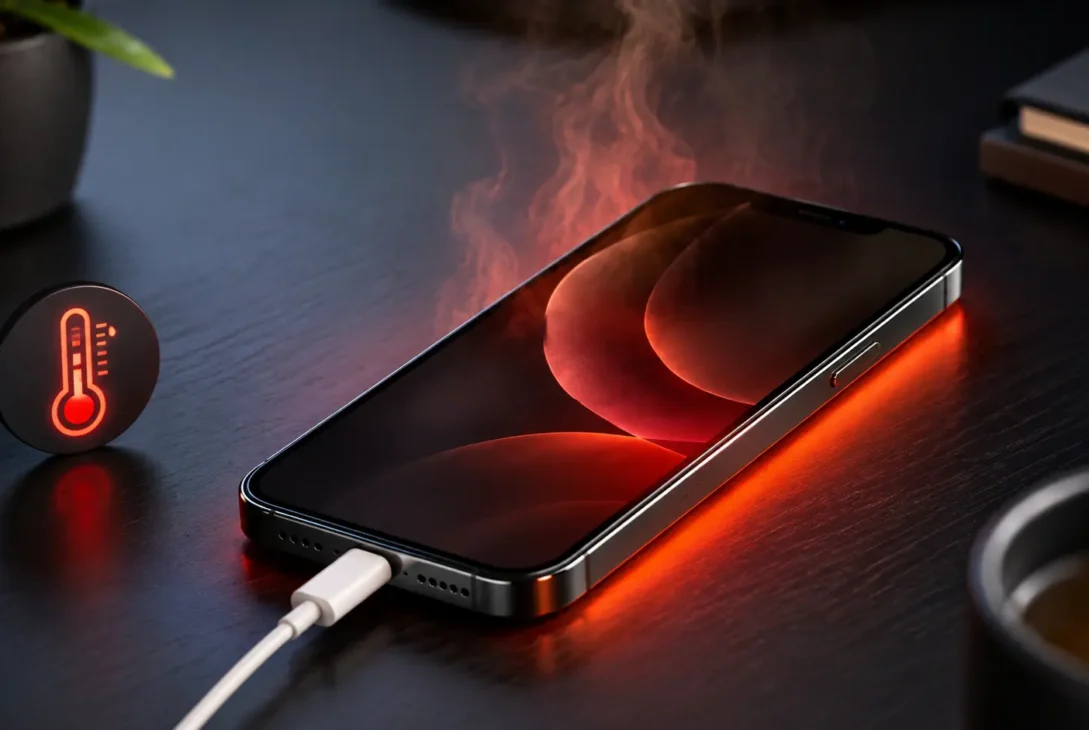
If your iPhone overheating while charging has become a regular problem, don’t ignore it. A little warmth during charging can be normal, especially when you’re using the phone at the same time, but an iPhone that becomes unusually hot may be dealing with a demanding app, poor ventilation, a damaged cable or adapter, a hot environment, or a battery-related issue.
Apple says iPhone can slow or temporarily pause charging when its temperature gets too high or too low. You may also see a temperature warning that prevents you from using the device until it cools down.
The good news is that many cases of an iPhone overheating while charging can be resolved with a few simple changes. This guide explains the most common causes, what you should do immediately, and when the problem may require professional service.
Table of Contents
- Is It Normal for an iPhone to Get Warm While Charging?
- Why Is My iPhone Overheating While Charging?
- Stop Using Your iPhone While It Charges
- Remove the Case
- Check the Charging Cable and Adapter
- Move the iPhone to a Cooler Location
- Check for Demanding Apps
- Update iOS
- Check Battery Health
- Optimized Battery Charging
- What to Do When iPhone Shows a Temperature Warning
- When to Stop Charging Immediately
- When to Contact Apple
- Frequently Asked Questions
- Final Verdict
Is It Normal for an iPhone to Get Warm While Charging?
Yes, some warmth during charging is normal.
Charging involves electrical energy moving into the battery, and the process naturally produces some heat. Your iPhone can also become warmer when you’re simultaneously using demanding applications, streaming video, playing games, navigating with GPS, or downloading large files.
Apple explains that iPhone is designed to operate within a specific ambient temperature range and that charging can slow or stop when the device becomes too warm.
The important distinction is between warm and unusually hot.
If your iPhone feels mildly warm and returns to a normal temperature after charging, there may be nothing wrong.
If it becomes extremely hot, displays a temperature warning, repeatedly stops charging, dims the display, or becomes uncomfortable to hold, you should investigate the cause.
Why Is My iPhone Overheating While Charging?
There isn’t one single reason an iPhone gets hot during charging.
Common causes include:
- Using the phone while charging
- Gaming during charging
- Streaming high-resolution video
- Wireless charging
- A hot room or direct sunlight
- A thick or insulating phone case
- Damaged charging cables
- Poor-quality charging accessories
- Background processes
- A demanding or malfunctioning app
- An aging or damaged battery
The first step is to determine whether the heat appears only during charging or whether your iPhone is also getting hot during normal use.
https://support.apple.com/en-us
1. Stop Using Your iPhone While It Charges
One of the easiest ways to reduce charging temperature is to stop actively using the phone while it’s plugged in.
Gaming, video calls, camera use, GPS navigation and video streaming can make the processor work harder while the battery is simultaneously receiving power.
That combination can increase the amount of heat produced.
If you’re experiencing an iPhone overheating while charging problem, try this simple test:
- Connect the iPhone to its charger.
- Lock the screen.
- Stop demanding apps.
- Leave the phone on a hard, open surface.
- Check its temperature after 15–30 minutes.
If the phone remains much cooler when you’re not using it, the charging temperature may be related to workload rather than a hardware fault.
Avoid Gaming While Charging
Gaming is particularly demanding.
High-performance games can keep the processor and graphics hardware busy for long periods. Charging at the same time adds another source of heat.
If your iPhone gets hot while playing a demanding game and charging, let it charge without gaming whenever possible.
2. Remove the Case
Your phone case can contribute to heat retention.
This is especially true with thick cases, rugged cases, battery cases or materials that don’t allow heat to dissipate easily.
You don’t necessarily need to stop using your case permanently.
Instead, remove it temporarily while charging and see whether the temperature changes.
Quick Test
Charge your iPhone:
With the case → check temperature.
Then try:
Without the case → check temperature again.
If the phone is noticeably cooler without the case, the case may be trapping heat.
This is particularly useful if you use wireless charging because the charging process itself can generate additional heat.
3. Check the Charging Cable and Adapter
A faulty or damaged charging accessory can also cause charging problems and excessive heat.
Inspect the cable carefully for:
- Frayed sections
- Exposed wires
- Bent connectors
- Burn marks
- Loose connections
- Damaged insulation
Don’t continue using a visibly damaged cable.
Apple recommends using Apple or compliant third-party accessories and says damaged accessories can cause safety problems.
If possible, test your iPhone with another known-good cable and compatible power adapter.
Don’t Ignore Unusual Heat Near the Connector
If the cable connector or charging port becomes unusually hot, disconnect the charger and inspect the setup.
Heat concentrated around the connector can be more concerning than ordinary warmth across the back of the phone.
4. Move Your iPhone to a Cooler Location
The environment matters more than many people realize.
Charging your iPhone in direct sunlight, inside a hot car, under a pillow or on a thick blanket can prevent heat from escaping.
Apple specifically advises keeping iPhone in a well-ventilated area while charging and avoiding charging it in direct sunlight or other hot environments.
Better Charging Locations
Use a:
- Desk
- Table
- Open shelf
- Hard bedside surface
Avoid:
- Beds
- Sofas
- Blankets
- Direct sunlight
- Enclosed bags
- Hot cars
Don’t cover the phone while it’s charging.
5. Check Which Apps Are Using the Most Battery
An app running heavily in the background can contribute to heat.
Open:
Settings → Battery
iOS provides information about battery usage and can help identify apps consuming significant power.
Look for applications that suddenly appear near the top of the battery-usage list.
Examples could include:
- Games
- Video-editing apps
- Navigation apps
- Social-media apps
- Camera applications
- Cloud-sync services
If one app is consuming an unusually large amount of battery, update it first.
If the problem started immediately after installing or updating an app, temporarily removing that app can also help determine whether it is responsible.
6. Update iOS
Software bugs can sometimes affect battery usage and device performance.
If your iPhone is running an older version of iOS, check:
Settings → General → Software Update
Install an available update if appropriate.
Apple regularly releases software updates containing bug fixes, security improvements and other changes.
After updating, don’t immediately assume something is wrong if the phone temporarily behaves differently. Background processes can run after an update, including indexing and other system tasks.
Give the device some time to settle before judging its normal temperature.
7. Check Battery Health
If your iPhone has been used for several years, battery condition becomes another important factor.
Go to:
Settings → Battery → Battery Health & Charging
Depending on your iPhone model and iOS version, you’ll see information about battery health and charging features.
An aging battery doesn’t automatically mean your phone will overheat.
However, if unusual heat is happening together with rapid battery drain, unexpected shutdowns or charging problems, the battery deserves closer attention.
Signs That Your Battery May Need Attention
Watch for a combination of:
- Battery draining unusually quickly
- iPhone shutting down unexpectedly
- Charging problems
- Significant performance changes
- Excessive heat
- Battery health showing a service recommendation
If several of these happen together, consider having the device inspected.
8. Use Optimized Battery Charging
Optimized Battery Charging is designed to reduce the amount of time an iPhone spends fully charged.
Apple explains that the feature can delay charging beyond 80% under certain circumstances to help reduce battery wear.
You can check the relevant settings under:
Settings → Battery → Charging
The exact options can vary depending on your iPhone model and iOS version.
Optimized Battery Charging isn’t a direct fix for every overheating problem, but it can be useful for long-term battery management.
9. Be Careful With Wireless Charging
Wireless charging can produce more heat than some wired charging situations.
If your iPhone becomes particularly warm during wireless charging, try switching to a wired charger temporarily.
You can also:
- Remove the case
- Keep the phone on a hard surface
- Avoid using the phone during charging
- Keep the charging area ventilated
- Make sure the wireless charger is compatible
If the phone stays significantly cooler when using wired charging, the wireless charging setup may be contributing to the heat.
10. Restart Your iPhone
A simple restart can sometimes resolve temporary software processes that are consuming excessive resources.
If your iPhone is warm but otherwise functioning normally:
- Disconnect it from the charger.
- Let it cool down.
- Restart the device.
- Try charging it again without using it.
If overheating repeatedly returns after restarting, continue troubleshooting rather than relying on restarts as a permanent solution.
11. Don’t Charge It Under a Pillow or Blanket
This deserves its own warning because it’s an easy mistake.
A charging iPhone needs to dissipate heat.
Putting it under a pillow, blanket or other soft material can trap that heat around the device.
Apple advises keeping iPhone and its power adapter in a well-ventilated area while in use or charging.
Charge your phone on a hard, uncovered surface instead.
What to Do If Your iPhone Shows a Temperature Warning
If your iPhone displays a temperature warning, stop using it and disconnect it from the charger.
Move it to a cooler location away from direct sunlight.
Apple says that when iPhone becomes too hot, charging may be paused and the device may display a temperature warning. You should turn it off if possible and allow it to cool down before continuing to use it.
Don’t try to force the phone to keep charging while it is displaying a temperature warning.
Don’t Put a Hot iPhone in the Refrigerator
It might seem like a quick solution, but don’t use a refrigerator or freezer to cool your phone.
A sudden temperature change can create condensation and potentially cause additional problems.
Let the device cool naturally in a shaded, well-ventilated location.
When Should You Stop Charging Immediately?
Stop charging and disconnect the cable if your iPhone:
- Becomes extremely hot
- Shows a temperature warning
- Smells unusual
- Has visible damage
- Has a swollen battery or raised display
- Produces smoke
- Makes unusual sounds
- Has a damaged charging cable or adapter
If you see smoke, smell burning or notice physical battery damage, don’t continue handling or charging the device.
Move away from the device and seek appropriate professional assistance.
Could a Hot iPhone Be Dangerous?
A mildly warm phone during charging is not automatically dangerous.
However, unusual or extreme heat should not be ignored.
Lithium-ion batteries require proper handling, and damaged batteries can create safety risks.
Apple advises against using an iPhone or battery that is damaged and recommends having battery service performed by trained technicians.
If you suspect battery damage, don’t attempt to open the iPhone yourself.
When Should You Contact Apple?
Contact Apple Support or an authorized service provider if the problem continues after you’ve tried basic troubleshooting.
Professional inspection becomes particularly sensible when:
- The iPhone overheats every time you charge it
- It overheats while idle
- Charging repeatedly stops
- The battery drains extremely quickly
- The phone shuts down unexpectedly
- The display is lifting from the frame
- The battery appears swollen
- A temperature warning appears frequently
Apple provides battery service and support options through its official support channels.
Quick Fix Checklist
If you’re experiencing an iPhone overheating while charging problem, try these steps in order:
| Step | What to Do |
|---|---|
| 1 | Stop using demanding apps |
| 2 | Disconnect the charger if the phone is extremely hot |
| 3 | Remove the case |
| 4 | Move the phone away from sunlight |
| 5 | Charge on a hard, open surface |
| 6 | Check the cable and adapter |
| 7 | Try another compatible charging setup |
| 8 | Check battery usage |
| 9 | Update iOS |
| 10 | Check Battery Health & Charging |
| 11 | Contact Apple if the problem continues |
Frequently Asked Questions
Why is my iPhone overheating while charging?
Common causes include heavy use during charging, a hot environment, poor ventilation, a thick case, demanding background processes, wireless charging heat, damaged accessories or an aging battery.
Is it normal for an iPhone to get hot while charging?
Some warmth is normal. An iPhone can become warmer during charging, particularly when performing demanding tasks. However, extreme heat or a temperature warning is not something you should ignore.
Should I stop using my iPhone when it gets hot while charging?
Yes. Stop demanding tasks and, if the phone is extremely hot, disconnect it from the charger and let it cool down.
Can a phone case make an iPhone overheat?
A thick or insulating case can retain heat. Removing the case while charging can help determine whether it is contributing to the problem.
Does wireless charging make an iPhone hotter?
Wireless charging can produce additional heat. If your iPhone becomes unusually warm wirelessly, try wired charging and compare the temperature.
Should I put my hot iPhone in the refrigerator?
No. Let the phone cool naturally in a shaded, ventilated location. Avoid sudden temperature changes.
Can an old iPhone battery cause overheating?
Battery aging can contribute to charging and performance problems, but overheating has multiple possible causes. If heat occurs alongside rapid battery drain, unexpected shutdowns or other battery symptoms, have the battery checked.
How can I check iPhone battery health?
Go to Settings → Battery → Battery Health & Charging. The available information and options can vary by iPhone model and iOS version.
What should I do if my iPhone says it needs to cool down?
Disconnect it from the charger, move it away from direct sunlight or heat, and allow it to cool naturally. Apple says charging can be paused when the device becomes too hot.
Final Verdict
An iPhone overheating while charging doesn’t automatically mean the battery or phone is defective.
In many cases, the problem can be linked to something simple, such as using demanding apps while charging, keeping the phone in a hot environment, trapping it under bedding, using a thick case or relying on a problematic charging accessory.
Start with the basics: stop using the phone while it charges, remove the case, use a compatible charger, keep the device on a hard open surface and check Battery settings.
If the iPhone becomes extremely hot, shows a temperature warning, develops physical battery damage or repeatedly overheats even when idle, stop charging it and seek professional service.
The key is to distinguish normal charging warmth from excessive heat. A little warmth can be expected; persistent or extreme overheating deserves attention.