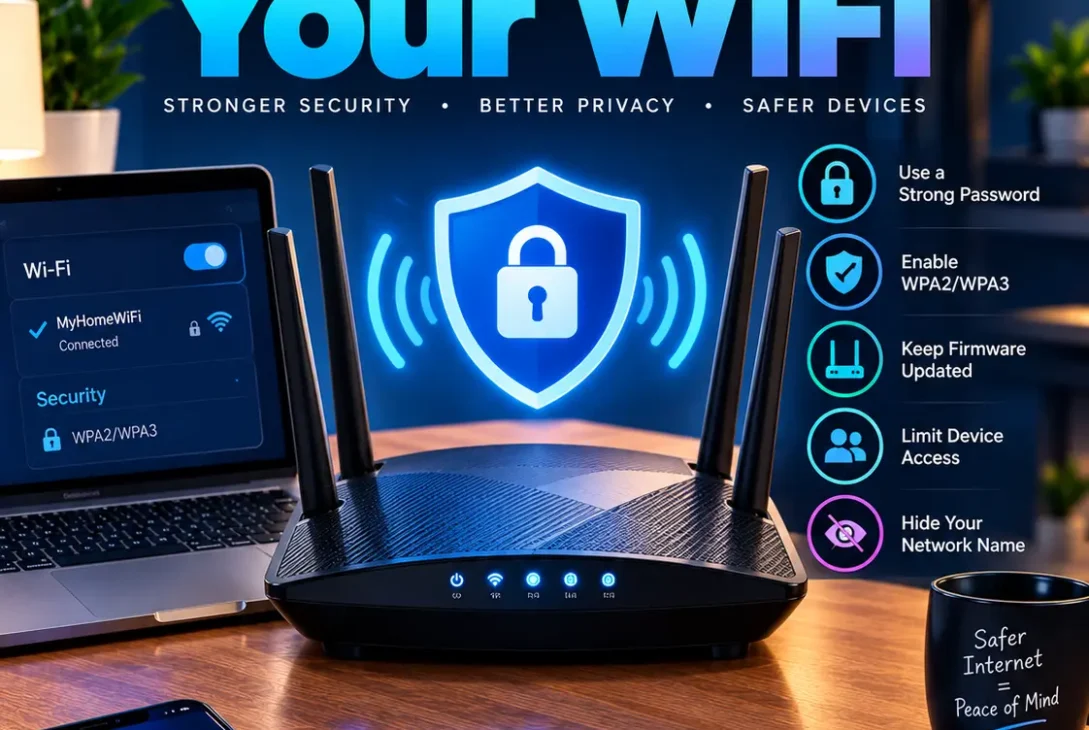
Your home WiFi network connects smartphones, laptops, smart TVs, cameras, gaming consoles, and many other devices to the internet. If it is not properly protected, attackers or unauthorized users may be able to access your network, consume your bandwidth, or target connected devices.
Learning how to secure your WiFi does not require advanced technical knowledge. A few important changes to your router settings can make your network significantly safer.
This guide explains practical ways to secure your WiFi, including choosing strong encryption, changing default passwords, updating router firmware, creating a guest network, and protecting connected devices.
Table of Contents
- Why Should You Secure Your WiFi?
- How to Secure Your WiFi Step by Step
- Change Your WiFi Password
- Use WPA3 or WPA2 Encryption
- Change the Router Admin Password
- Update Your Router Firmware
- Disable WPS
- Create a Guest WiFi Network
- Change Your WiFi Network Name
- Keep Your Router in a Safe Location
- Check Connected Devices
- Disable Remote Router Management
- Use a Strong Router Firewall
- Protect Your Connected Devices
- What to Do If You Suspect Someone Is Using Your WiFi
- Common WiFi Security Mistakes
- Frequently Asked Questions
- Final Verdict
- SEO Details
Why Should You Secure Your WiFi?
Your router is the gateway between your home network and the internet. Every device connected through it may depend on the router’s security.
An unsecured network can create several problems. Someone nearby could potentially connect without permission, use your internet connection, monitor network traffic in certain circumstances, or attempt to access vulnerable devices.
Understanding how to secure your WiFi is therefore important even if you live in an apartment, house, dorm, or shared accommodation.
A secure network also helps prevent unauthorized devices from consuming your bandwidth. If your internet suddenly becomes slow, checking the devices connected to your router can be a useful first step.
How to Secure Your WiFi Step by Step
The easiest way to improve your network security is to work through your router settings systematically.
Start by logging into your router’s administration panel. The exact interface depends on your manufacturer and internet provider.
Once inside, check the following settings:
- WiFi password
- Wireless security mode
- Router administrator password
- Firmware version
- WPS
- Guest network
- Remote administration
- Connected devices
- Firewall settings
If your router is supplied by your internet provider, some options may be controlled or managed by the provider.
Change Your WiFi Password
One of the most important steps when learning how to secure your WiFi is changing the wireless password.
Never use an easy password such as your name, phone number, home address, or a simple sequence of numbers.
A strong WiFi password should be:
- Long
- Unique
- Difficult to guess
- Unrelated to personal information
- Different from passwords used for other accounts
A passphrase containing several unrelated words can be easier to remember while still providing strong protection.
For example, instead of using something predictable like Home12345, use a long unique passphrase that only your household knows.
After changing the password, all previously connected devices may need to reconnect.
Use WPA3 or WPA2 Encryption
Encryption protects communication between your devices and your wireless router.
If your router supports WPA3, it should generally be your first choice. If WPA3 is unavailable, use WPA2 with AES rather than outdated security standards.
Avoid using WEP because it is obsolete and insecure.
The Wi-Fi Alliance provides information about modern WiFi security standards and WPA3 on its official website.
Wi-Fi Alliance – WPA3 Security
When checking your router settings, look for options such as:
WPA3-Personal
or
WPA2-Personal / WPA3-Personal
The exact names vary between routers.
Change the Router Admin Password
Changing your WiFi password alone is not enough.
Your router also has an administrator account that controls its settings. If the administrator password remains at the factory default, an unauthorized person who gains access to the administration interface may be able to change important settings.
Set a strong administrator password that is different from your WiFi password.
This is an important part of understanding how to secure your WiFi, because the router’s management interface controls the entire network.
Update Your Router Firmware
Router manufacturers regularly release firmware updates to fix security vulnerabilities, improve performance, and add features.
Check your router’s administration panel to see whether a firmware update is available.
Some modern routers automatically update their firmware, while others require you to install updates manually.
If your router has not received security updates for many years, consider replacing it with a newer model that receives ongoing manufacturer support.
The U.S. Cybersecurity and Infrastructure Security Agency also recommends keeping networking equipment updated.
CISA – Securing Your Home Network
Disable WPS
WiFi Protected Setup, commonly called WPS, was designed to make connecting devices easier.
However, if you do not need it, disabling WPS can reduce the number of features exposed by your router.
The exact location of the WPS setting varies by manufacturer.
Log into your router and look under wireless, WiFi, or advanced settings.
If you cannot find WPS, check the router manufacturer’s documentation.
Create a Guest WiFi Network
A guest network is useful when visitors need internet access but should not have unrestricted access to your primary home network.
Instead of giving guests your main WiFi password, create a separate guest network.
Many routers allow you to configure a guest network with its own:
- Network name
- Password
- Access controls
- Device isolation settings
A guest network can also be useful for less-trusted devices such as some smart home products.
When available, enable client or device isolation so connected guest devices cannot communicate freely with one another or with devices on your main network.
Change Your WiFi Network Name
Your WiFi network name is called an SSID.
Changing the default SSID can make it less obvious which router model or internet provider you are using.
However, avoid putting your name, home address, apartment number, or other personal information in the network name.
For example, a neutral name is preferable to an SSID containing your full name and house number.
Changing the SSID is not a replacement for strong encryption and a secure password, but it is another useful privacy measure.
Keep Your Router in a Safe Location
Physical access to your router matters too.
If someone can easily access the router, they may be able to reset it or connect directly to it.
Keep the router somewhere inside your home where unauthorized people cannot easily reach it.
Avoid placing it in a publicly accessible hallway, outside area, or another location where strangers could physically interact with the device.
Physical security is an often-overlooked part of learning how to secure your WiFi.
Check Connected Devices
Most modern routers provide a list of devices currently connected to your network.
Open the router’s administration interface and review the device list periodically.
You may see:
- Smartphones
- Computers
- Smart TVs
- Printers
- Game consoles
- Cameras
- Smart speakers
- Streaming devices
- IoT products
If you see an unfamiliar device, investigate it before assuming that someone has hacked your network. Device names can sometimes be unclear, and some products may appear under manufacturer names rather than familiar names.
If you cannot identify a device, change your WiFi password and reconnect only the devices you recognize.
Disable Remote Router Management
Some routers allow administrators to manage the device remotely over the internet.
This feature can be useful for certain advanced setups, but most home users do not need it.
If you do not require remote administration, disabling it can reduce the router’s externally accessible management surface.
Look for settings such as:
- Remote Management
- Remote Administration
- Web Access from WAN
- Remote Access
The exact terminology depends on your router manufacturer.
Use a Strong Router Firewall
Many home routers include a built-in firewall.
Make sure it is enabled unless you have a specific reason to configure it differently.
A router firewall can help block unwanted inbound connections from the internet.
However, firewall protection does not replace secure passwords, software updates, antivirus protection, or safe browsing habits.
A secure network works best when multiple layers of protection are used together.
Protect Your Connected Devices
Knowing how to secure your WiFi is only one part of protecting your home network.
Every connected device should also be secured.
Install operating-system and application updates on computers and smartphones. Keep smart home devices updated when manufacturers provide firmware updates.
You should also:
- Use screen locks on phones and tablets
- Enable security updates
- Avoid suspicious downloads
- Use unique account passwords
- Enable two-factor authentication where available
- Remove devices and applications you no longer use
A secure router cannot completely protect a device that has already been compromised through malicious software or unsafe account practices.
What to Do If You Suspect Someone Is Using Your WiFi
If you notice an unknown device or unusual network activity, do not panic.
Start by checking the router’s connected-device list.
If you identify an unfamiliar device, change the WiFi password immediately. Use a strong unique password and reconnect your own devices.
You should also change the router administrator password and make sure the router firmware is updated.
If the problem continues, restart the router and review its configuration.
If your router supports it, you can also reset the device to factory settings and configure the network from scratch. Before doing this, make sure you know the internet connection details and have a record of the settings you need.
Common WiFi Security Mistakes
Using a Simple Password
Short and predictable passwords are easier to guess.
Use a long unique password instead.
Keeping the Default Admin Password
The router administrator password is separate from the WiFi password.
Change both.
Using Outdated Encryption
Avoid obsolete wireless security standards such as WEP.
Use WPA3 when supported, or WPA2 with AES on compatible equipment.
Never Updating the Router
A router that never receives firmware updates can remain vulnerable to known security problems.
Sharing Your Main Password With Everyone
Use a guest network for visitors whenever possible.
Leaving Remote Administration Enabled
If you don’t need remote access to the router, disabling it can reduce unnecessary exposure.
Ignoring Unknown Devices
Review connected devices periodically and investigate anything you cannot identify.
How to Secure Your WiFi on a Phone
You can improve your WiFi security even if you primarily manage your network from a smartphone.
First, use a strong WiFi password and connect your phone only to trusted networks.
On public WiFi, avoid entering sensitive information on suspicious websites and consider using cellular data for particularly sensitive activities.
On your home network, make sure your phone’s operating system is updated.
You can also review your phone’s saved WiFi networks and remove networks that you no longer use.
How to Secure Your WiFi From Neighbors
If you are concerned that a nearby person is using your network, start with the basics.
Change your WiFi password to a strong unique passphrase and use WPA3 or WPA2 encryption.
Then review the connected-device list on your router.
Do not rely on hiding your SSID as your primary security measure. A hidden network name does not provide the same protection as proper wireless encryption.
If your router supports a guest network, keep visitors and less-trusted devices separate from your main network.
How to Secure Your WiFi for Smart Home Devices
Smart home devices can introduce additional security considerations because many remain connected to the internet continuously.
Cameras, smart speakers, televisions, plugs, lights, and other IoT products should receive firmware updates whenever possible.
Use unique passwords for their associated accounts and remove devices that are no longer being used.
If your router supports multiple networks or VLANs, advanced users can place IoT devices on a separate network.
For ordinary home users, a properly configured guest or IoT network can provide an easier alternative when supported by the router.
Frequently Asked Questions
What is the first step in securing WiFi?
The first steps should be changing the default WiFi and router administrator passwords and selecting WPA3 or WPA2 encryption.
How do I know if my WiFi is secure?
Log into your router and check the wireless security mode, password, firmware version, WPS settings, remote administration, and connected devices.
Should I use WPA2 or WPA3?
Use WPA3 if your router and devices support it. If WPA3 is unavailable, WPA2 with AES is a strong modern alternative.
Can someone hack my WiFi if they know the password?
If someone knows your WiFi password, they can potentially connect to your network. Use a strong unique password and change it if you believe it has been shared with someone who should no longer have access.
Should I hide my WiFi network?
Hiding the SSID is not necessary for strong WiFi security. Proper encryption and a strong password provide much more meaningful protection.
Does changing the WiFi password kick people off?
Yes. Changing the password normally requires connected devices to authenticate again using the new password.
How often should I change my WiFi password?
You do not necessarily need to change it on a fixed schedule. Change it immediately if you suspect unauthorized access or if the password has been shared too widely.
Is a guest WiFi network safer?
A properly configured guest network can help isolate visitors and some less-trusted devices from your primary network.
Should WPS be disabled?
If you do not need WPS, disabling it is a reasonable security measure. Check your router’s documentation because available WPS options vary.
Can a VPN secure my WiFi?
A VPN can encrypt traffic between your device and the VPN service, but it does not replace router security. You should still use strong WiFi encryption, secure passwords, updates, and safe device practices.
Final Verdict
Learning how to secure your WiFi is one of the simplest ways to improve the security of your connected home.
Start with the fundamentals: use WPA3 or WPA2 encryption, create a strong WiFi password, change the router’s administrator password, keep firmware updated, and disable features you do not need.
After that, create a guest network, review connected devices, protect your smart home equipment, and disable remote administration if it is unnecessary.
No single setting makes a network completely secure. The strongest approach is to combine several layers of protection and keep them maintained over time.
If you have an older router that no longer receives security updates, replacing it may ultimately be more effective than trying to secure outdated hardware.
By following these steps, you can make your home network considerably harder for unauthorized users to access while keeping your everyday WiFi experience simple and reliable.