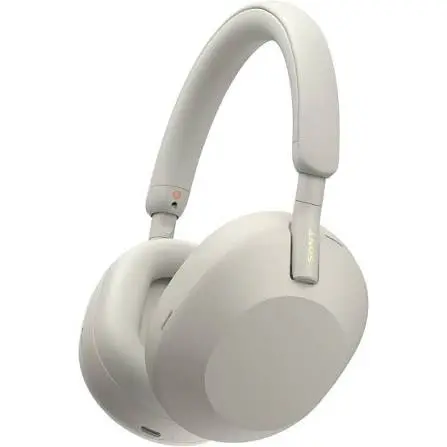
Sony headphones are known for their excellent sound quality, advanced noise cancellation, and reliable Bluetooth connectivity. Whether you have a pair of Sony WH-1000XM5, WH-1000XM4, WF-1000XM5 earbuds, LinkBuds, or any other Sony wireless headphones, the first thing you need to know is how to pair Sony headphones with your device.
The good news is that the process is simple. Once you understand how pairing mode works, you can connect your headphones to smartphones, laptops, tablets, gaming consoles, and even smart TVs in just a few minutes.
This guide explains everything you need to know about how to pair Sony headphones, including troubleshooting tips, multi-device connections, NFC pairing, and answers to the most common questions users have.
Understanding Bluetooth Pairing
Before learning how to pair Sony headphones, it’s helpful to understand what Bluetooth pairing actually means.
Bluetooth pairing creates a secure wireless connection between your headphones and another device. Once paired, both devices remember each other. The next time Bluetooth is enabled, they usually reconnect automatically without requiring another setup.
Most Sony headphones can remember multiple paired devices, although only some premium models support simultaneous connections with two devices at once.
Before You Begin
To make the pairing process smooth, complete these quick checks:
- Charge your Sony headphones to at least 30%.
- Turn on Bluetooth on the device you want to connect.
- Move close to the device during pairing.
- Disconnect your headphones from other nearby devices if necessary.
- Make sure the headphones are not already connected to another device.
These small steps help avoid most pairing problems.
How to Pair Sony Headphones for the First Time
If your headphones are brand new, pairing is usually automatic.
Step 1: Turn On Your Headphones
Press and hold the power button.
Many Sony models automatically enter pairing mode the first time they are powered on.
You’ll usually hear a voice prompt saying:
“Bluetooth pairing.”
A blue indicator light may also begin flashing.
Step 2: Open Bluetooth Settings
On your phone, tablet, or computer:
- Open Settings
- Tap Bluetooth
- Turn Bluetooth on
Wait a few seconds for nearby devices to appear.
Step 3: Select Your Sony Headphones
Look for your headphone model.
Examples include:
- Sony WH-1000XM5
- Sony WH-1000XM4
- Sony WH-CH720N
- Sony WF-1000XM5
- Sony LinkBuds S
Tap the device name.
Within a few seconds, the connection should complete.
Step 4: Confirm the Connection
You’ll usually hear a confirmation such as:
“Bluetooth connected.”
Your device should now show the headphones as Connected.
You can now enjoy music, calls, videos, and games wirelessly.
How to Put Sony Headphones into Pairing Mode
If your headphones have already been connected to another device, you may need to manually activate pairing mode.
The method is similar across most Sony models.
- Turn off the headphones.
- Press and hold the power button.
- Continue holding it for around 7 seconds.
- Wait until the LED flashes blue repeatedly.
- Listen for the voice prompt saying:
“Bluetooth pairing.”
Your headphones are now discoverable.
How to Pair Sony Headphones with an Android Phone
Android phones work seamlessly with Sony headphones.
Steps
- Open Settings.
- Select Bluetooth.
- Enable Bluetooth.
- Put the headphones into pairing mode.
- Tap your Sony headphones.
- Accept any pairing requests.
Many Android devices also support Google’s Fast Pair feature, making setup even quicker.
Once paired, your headphones reconnect automatically whenever Bluetooth is enabled.
How to Pair Sony Headphones with an iPhone
Pairing with an iPhone follows the same process.
Instructions
- Open Settings.
- Tap Bluetooth.
- Enable Bluetooth.
- Put your Sony headphones into pairing mode.
- Wait for the device name to appear.
- Tap it.
- Wait until Connected appears.
After pairing, audio from music apps, YouTube, FaceTime, and calls will automatically route through your Sony headphones.
How to Pair Sony Headphones with Windows
Windows computers support Sony headphones without requiring additional software.
Windows 11
- Open Settings.
- Click Bluetooth & Devices.
- Turn Bluetooth on.
- Select Add Device.
- Choose Bluetooth.
- Put the headphones into pairing mode.
- Click the headphone name.
After a few moments, Windows installs the necessary drivers automatically.
Windows 10
- Open Settings.
- Select Devices.
- Click Bluetooth & Other Devices.
- Choose Add Bluetooth Device.
- Select your Sony headphones.
- Wait until pairing finishes.
You can now use the headphones for music, meetings, Zoom, Teams, and gaming.
How to Pair Sony Headphones with a Mac
MacBooks make Bluetooth pairing easy.
Steps
- Click the Apple menu.
- Open System Settings.
- Select Bluetooth.
- Turn Bluetooth on.
- Put your Sony headphones into pairing mode.
- Choose the headphones from the device list.
- Click Connect.
Once connected, your Mac automatically switches audio to the headphones.
How to Pair Sony Headphones with a Smart TV
Many modern Smart TVs support Bluetooth audio.
The process usually looks like this:
- Open TV Settings.
- Navigate to Bluetooth.
- Turn Bluetooth on.
- Put the Sony headphones into pairing mode.
- Search for available devices.
- Select your headphones.
Keep in mind that some televisions may introduce slight audio delay while watching videos.
How to Pair Sony Headphones Using NFC
Some Sony headphone models include NFC for quicker pairing.
To use NFC:
- Unlock your Android phone.
- Enable NFC.
- Turn on your headphones.
- Tap the phone against the NFC logo on the headphones.
The phone should automatically ask if you’d like to pair.
Tap Yes, and the connection completes in seconds.
How to Connect Sony Headphones to Multiple Devices
Premium Sony headphones support Multipoint Connection.
This allows two devices to stay connected simultaneously.
For example:
- Laptop + smartphone
- Tablet + smartphone
- Computer + tablet
If a call comes in on your phone while you’re watching a movie on your laptop, the headphones automatically switch to the phone.
You can manage this feature using Sony’s Headphones Connect app.
Using the Sony Headphones Connect App
Sony provides a companion app that unlocks additional features.
The app allows you to:
- Update firmware
- Adjust equalizer settings
- Enable noise cancellation
- Configure touch controls
- Activate multipoint
- Customize adaptive sound control
- Check battery levels
Keeping the firmware updated can also improve Bluetooth stability.
Common Pairing Problems
Sometimes Bluetooth connections don’t work immediately.
Fortunately, most issues have simple solutions.
Headphones Do Not Appear
Try these steps:
- Restart Bluetooth.
- Restart the phone.
- Move closer.
- Recharge the headphones.
- Re-enter pairing mode.
Most discovery issues are solved within minutes.
Already Connected to Another Device
Sony headphones often reconnect automatically to the last paired device.
Turn Bluetooth off on the previous device or disconnect the headphones before pairing with a new one.
Bluetooth Keeps Disconnecting
Possible causes include:
- Low battery
- Software bugs
- Wireless interference
- Outdated firmware
Updating the firmware through Sony’s app often improves connection reliability.
No Sound After Pairing
If the headphones appear connected but produce no sound:
- Increase the volume.
- Select the headphones as the audio output.
- Disconnect and reconnect.
- Restart both devices.
How to Reset Sony Headphones
If pairing continues to fail, resetting the headphones often fixes the issue.
The exact procedure depends on the model, but it generally involves holding specific buttons for several seconds until the indicator light flashes.
After resetting:
- Delete the headphones from your Bluetooth device list.
- Restart Bluetooth.
- Pair them again as if they were new.
Tips for Better Bluetooth Performance
To enjoy a stable connection:
- Keep firmware updated.
- Avoid crowded wireless environments.
- Stay within Bluetooth range.
- Keep your headphones charged.
- Disconnect unused paired devices occasionally.
These habits reduce connection drops and improve audio quality.
Frequently Asked Questions
Why won’t my Sony headphones enter pairing mode?
They may still be connected to another device. Disconnect them first, then hold the power button for about seven seconds until the pairing prompt is heard.
Can Sony headphones connect to two devices?
Yes. Many premium models support Multipoint Connection, allowing simultaneous pairing with two compatible devices.
Do I need the Sony app?
No. Pairing works without the app, but the Sony Headphones Connect app offers extra features such as firmware updates, equalizer controls, and multipoint settings.
Can I use Sony headphones with gaming consoles?
Some consoles support Bluetooth audio directly, while others require a compatible Bluetooth adapter. Check your console’s compatibility before pairing.
Why do my Sony headphones keep disconnecting?
Common reasons include low battery, Bluetooth interference, outdated firmware, or the headphones switching back to another paired device automatically.
How many devices can Sony headphones remember?
Most Sony Bluetooth headphones can store several paired devices in memory, although the number varies depending on the model.
Final Thoughts
Learning how to pair Sony headphones is straightforward once you know how to activate pairing mode and navigate your device’s Bluetooth settings. Whether you’re using an Android phone, iPhone, Windows PC, MacBook, Smart TV, or tablet, the process typically takes only a minute or two.
If you experience connection issues, simple troubleshooting steps—such as re-entering pairing mode, restarting Bluetooth, updating firmware, or resetting the headphones—can usually resolve the problem quickly. Premium Sony models also offer convenient features like Multipoint Connection and NFC pairing, making everyday use even more seamless.
By following the steps in this guide, you’ll be able to connect your Sony headphones confidently and enjoy high-quality wireless audio across all your favorite devices.