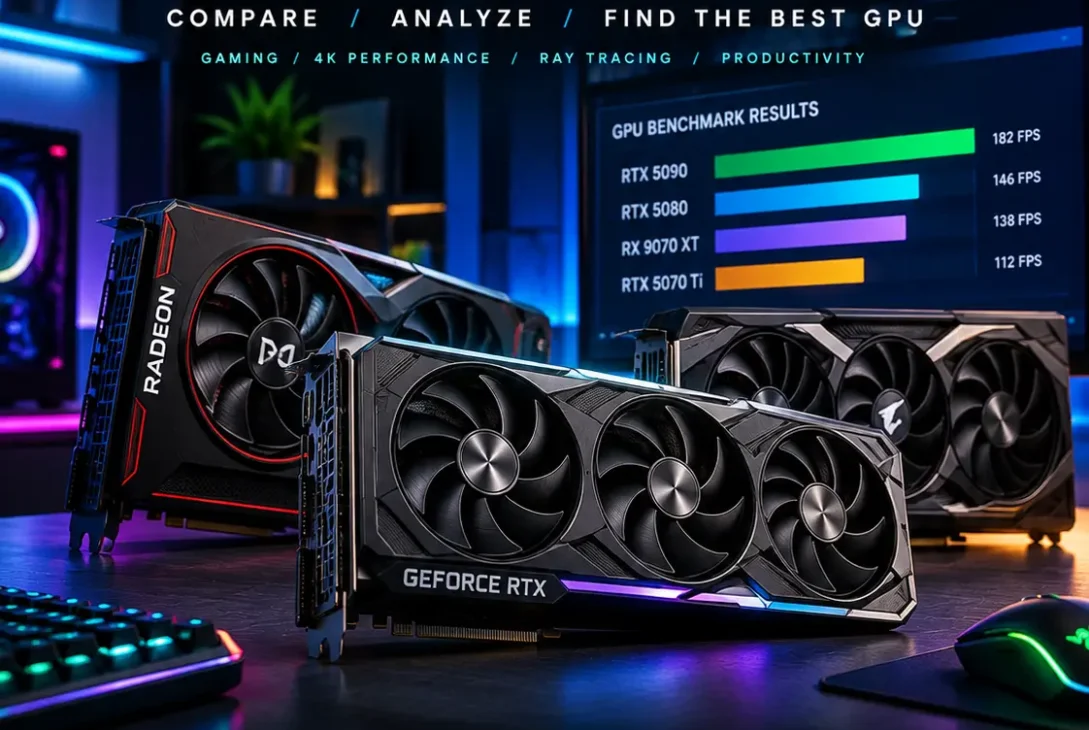
A GPU benchmark is one of the easiest ways to understand how well a graphics card performs in gaming, rendering, content creation, AI workloads, and other demanding applications. Instead of judging a graphics card only by its specifications, benchmarking lets you compare measurable performance under controlled conditions.
A modern graphics card can look impressive on paper because of its VRAM capacity, clock speed, architecture, or core count. However, real-world performance depends on many factors, including drivers, game engines, resolution, graphics settings, cooling, CPU limitations, and power limits.
This guide explains what a GPU benchmark actually measures, how to run one correctly, which tests are useful, how to compare results, and what benchmark numbers really mean in 2026.
Table of Contents
- What Is a GPU Benchmark?
- Why Run a GPU Benchmark?
- How GPU Benchmarks Work
- Types of GPU Tests
- Best GPU Benchmark Tools
- How to Run a GPU Benchmark Correctly
- Gaming Benchmarks and FPS
- Synthetic vs Real-World Tests
- GPU Temperature and Power Testing
- How to Compare Graphics Cards
- What Causes Different Benchmark Results?
- GPU Benchmark for Gaming
- GPU Benchmark for Content Creation
- How to Improve Benchmark Results
- Common Benchmarking Mistakes
- Frequently Asked Questions
- Final Verdict
- SEO Details
What Is a GPU Benchmark?
A GPU benchmark is a test designed to measure the performance of a graphics processing unit under a specific workload.
The test can measure things such as:
- Average FPS
- 1% low FPS
- Frame times
- Rendering performance
- Ray tracing performance
- Compute performance
- Temperature
- Power consumption
- Stability
- Performance consistency
Some tests use games or applications, while others use dedicated synthetic workloads.
Tom’s Hardware explains that graphics cards can be tested using real games, synthetic graphics tests, and compute workloads, with each method revealing different aspects of performance.
This is why there isn’t a single number that completely describes a graphics card.
A card may perform extremely well in traditional rasterized gaming but show a different position when ray tracing or professional rendering workloads are used.
Why Run a GPU Benchmark?
There are several reasons to perform a GPU benchmark.
Compare Graphics Cards
Benchmarking makes it easier to compare two or more graphics cards using the same workload.
For example, if you’re deciding between two GPUs, specifications alone may not tell you how much faster one model actually is in your favorite games.
Check a New GPU
If you have recently installed a graphics card, testing it can help confirm that it is performing within the expected range.
An unusually low result can indicate:
- Driver problems
- Thermal throttling
- Incorrect power settings
- Background applications
- CPU limitations
- Poor airflow
- Incorrect graphics settings
Test Stability
A benchmark can also expose crashes, overheating, visual artifacts, or instability that may not appear during light desktop use.
This is particularly useful after changing GPU settings or installing a new graphics card.
How GPU Benchmarks Work
A typical GPU benchmark runs a repeatable graphical workload and records performance data.
The workload may render a complex 3D scene, simulate lighting, run a game sequence, or perform a computational task.
The software then produces measurements such as an average frame rate, score, frame time, or rendering time.
For meaningful comparisons, the testing conditions need to remain consistent.
Important variables include:
- Resolution
- Graphics quality
- Ray tracing
- Upscaling
- Frame generation
- Driver version
- CPU
- RAM
- Operating system
- Background applications
- Temperature
Tom’s Hardware says its graphics-card testing uses repeated passes at each setting and resolution, with additional testing when anomalies appear.
Types of GPU Tests
Not every test measures the same thing.
Gaming Tests
Gaming tests use actual games to measure how a graphics card performs in real gameplay.
They are particularly useful because game engines can behave very differently depending on the GPU architecture.
Synthetic Tests
Synthetic benchmarks use controlled scenes designed specifically for testing graphics performance.
They make comparisons convenient because every graphics card can run the same workload under the same conditions.
However, a synthetic score doesn’t necessarily predict exactly how a GPU will perform in every game.
Compute Tests
Compute workloads focus on tasks such as rendering, scientific calculations, AI processing, or other GPU-accelerated workloads.
These tests can produce results that differ significantly from gaming performance.
Best GPU Benchmark Tools
Several popular tools can help test graphics performance.
3DMark
3DMark is one of the most widely used benchmarking suites for gaming PCs.
It includes different tests designed for various performance levels and graphics technologies.
Depending on the workload, it can measure traditional rendering, ray tracing, or other aspects of modern GPU performance.
Unigine Superposition
Superposition is another popular graphics benchmark that places a demanding 3D workload on the GPU.
It can be useful for checking performance and stability while monitoring temperature and clock speeds.
Built-In Game Benchmarks
Many PC games include their own benchmark modes.
These are particularly valuable because they test the actual game engine you intend to use.
A built-in benchmark can sometimes provide more practical information than a generic synthetic test.
Blender Benchmark
Blender Benchmark is useful for users interested in 3D rendering.
Instead of focusing primarily on gaming FPS, it measures how quickly a system can complete specific Blender workloads.
How to Run a GPU Benchmark Correctly
Running a GPU benchmark isn’t simply a matter of pressing the Start button.
For reliable results, prepare the computer first.
1. Update Your Graphics Driver
Install an appropriate NVIDIA, AMD, or Intel graphics driver.
However, when comparing results with older benchmark data, remember that driver versions can affect performance.
2. Close Unnecessary Programs
Close applications that may consume CPU, RAM, storage, or GPU resources.
Web browsers with many tabs, recording software, overlays, and background applications can influence results.
3. Keep Settings Identical
If you’re comparing two GPUs, use the same:
- Resolution
- Graphics preset
- Ray-tracing settings
- Upscaling mode
- Texture settings
- Driver conditions
Changing these variables makes the comparison less useful.
4. Run Multiple Passes
Don’t rely on a single run.
Run the same test several times and look for consistent results.
If one result is dramatically different from the others, investigate the reason before using it for comparison.
Gaming Benchmarks and FPS
FPS is one of the easiest ways to understand gaming performance.
For example, a game running at 120 FPS generally feels much smoother than the same game running at 45 FPS, assuming similar frame-time behavior and display conditions.
However, average FPS isn’t the entire story.
Average FPS
Average FPS provides a broad overview of performance during the test.
1% Low FPS
1% lows can reveal dips that aren’t obvious from the average.
A graphics card producing 100 FPS average but regularly dropping to 35 FPS may feel less consistent than one maintaining a much narrower performance range.
Frame Times
Frame time measures how long the GPU takes to produce individual frames.
Consistent frame times generally contribute to smoother gameplay.
This is why experienced reviewers often examine more than just the headline FPS number.
Synthetic vs Real-World Tests
A synthetic GPU benchmark is useful for controlled comparisons, but it should not be treated as a complete representation of gaming performance.
A graphics card may achieve an excellent synthetic score but perform differently in a particular game because of:
- Game-engine optimization
- Driver support
- CPU limitations
- VRAM requirements
- Ray-tracing implementation
- Upscaling technology
- Shader workload
Real games are therefore important when determining how a GPU will behave in your own library.
Tom’s Hardware’s 2026 graphics-card hierarchy uses a large collection of games and separates traditional rasterization results from ray-tracing results.
GPU Temperature and Power Testing
Performance numbers should be considered alongside temperature and power consumption.
A GPU that produces strong results but reaches its thermal limit may reduce clock speeds during long workloads.
During testing, monitor:
- GPU temperature
- Hotspot temperature
- GPU utilization
- Clock speed
- Power consumption
- Fan speed
- VRAM usage
A short benchmark may not expose thermal problems that appear after 20 or 30 minutes of sustained workload.
Longer tests can therefore be useful for checking stability.
How to Compare Graphics Cards
When comparing graphics cards, don’t focus on a single benchmark score.
Instead, examine performance across several workloads.
For gaming, compare:
- 1080p performance
- 1440p performance
- 4K performance
- Ray tracing performance
- 1% lows
- VRAM usage
- Power consumption
- Temperature
Tom’s Hardware’s current 2026 hierarchy includes testing across multiple resolutions and games, with separate rasterization and ray-tracing results.
This approach provides a much clearer picture than looking at one synthetic score.
https://www.tomshardware.com/reviews/gpu-hierarchy%2C4388.html
What Causes Different Benchmark Results?
Two computers using the same graphics card can produce different numbers.
The CPU is one of the biggest factors.
At lower resolutions, the processor can become a bottleneck because the GPU can render frames faster than the CPU can prepare them.
Other factors include:
- RAM speed
- RAM capacity
- CPU architecture
- Motherboard settings
- Resizable BAR
- Smart Access Memory
- Driver version
- Windows configuration
- Background processes
- Cooling
- Power limits
This is particularly important when comparing results from different websites.
A benchmark score from one test system shouldn’t automatically be compared directly with a score from another system unless the testing conditions are similar.
GPU Benchmark for Gaming
A GPU benchmark is especially useful when choosing a graphics card for gaming.
Start by identifying your target resolution.
1080p Gaming
At 1080p, many modern GPUs can deliver high frame rates.
However, powerful graphics cards can become CPU-limited in some games, particularly when targeting very high refresh rates.
1440p Gaming
1440p provides a useful middle ground between image quality and performance.
It is also a common resolution for modern gaming PCs.
4K Gaming
4K places substantially more load on the graphics card.
GPU performance becomes increasingly important as resolution increases, particularly when ray tracing is enabled.
For this reason, 4K testing can reveal differences that aren’t always obvious at 1080p.
GPU Benchmark for Content Creation
Gaming isn’t the only reason to test a graphics card.
Modern GPUs can accelerate:
- Video editing
- 3D rendering
- AI workloads
- Image processing
- CAD applications
- Scientific computing
For content creators, application-specific benchmarks can be more useful than gaming results.
For example, a creator working heavily in Blender should pay attention to Blender rendering performance rather than choosing a graphics card solely because it has a high gaming score.
How to Improve Benchmark Results
If your result is lower than expected, don’t immediately assume the graphics card is defective.
First check:
- GPU drivers
- GPU temperature
- Power connection
- PCIe slot
- Windows power settings
- Background applications
- CPU utilization
- RAM configuration
- GPU clock speeds
Also check whether the graphics card is actually reaching high utilization during the test.
If GPU usage remains low while the CPU is heavily loaded, the workload may be CPU-limited.
Common Benchmarking Mistakes
One of the biggest mistakes is comparing results produced using different settings.
For example, a GPU tested at 1440p native resolution shouldn’t be directly compared with another GPU tested at 1080p using aggressive upscaling.
Other common mistakes include:
- Using different driver versions
- Comparing different game versions
- Ignoring temperatures
- Running only one test
- Leaving background applications open
- Comparing synthetic scores with game FPS
- Ignoring 1% lows
- Using different graphics presets
A good test should be repeatable and transparent.
Frequently Asked Questions
What is a GPU benchmark?
A GPU benchmark is a controlled test used to measure graphics-card performance under a specific workload, such as gaming, rendering, ray tracing, or compute tasks.
What is the best GPU benchmark?
There isn’t one universal test that is best for every purpose. 3DMark is useful for synthetic gaming tests, while actual games are useful for real-world gaming performance.
How do I benchmark my GPU?
Install a trusted benchmarking application, close unnecessary programs, select consistent settings, run the test, and compare the results with similar hardware.
What should I monitor during a GPU benchmark?
Monitor GPU temperature, utilization, clock speed, power consumption, fan speed, and frame-time behavior where available.
Does a GPU benchmark increase temperature?
Yes. A demanding test can place sustained load on the graphics card and raise temperatures significantly compared with normal desktop use.
Why is my GPU benchmark score lower than expected?
Possible reasons include thermal throttling, outdated drivers, CPU bottlenecks, background applications, incorrect power settings, or differences in benchmark settings.
Should I benchmark my GPU after buying it?
Testing a new graphics card can be useful for checking whether it performs within the expected range and remains stable under load.
Are synthetic GPU benchmarks accurate?
Synthetic tests are useful for controlled comparisons, but they don’t perfectly predict performance in every game or application.
Does resolution affect GPU benchmark results?
Yes. Higher resolutions generally place more workload on the graphics card, making GPU differences more visible.
What is more important, average FPS or 1% low FPS?
Both matter. Average FPS shows overall performance, while 1% lows can reveal significant performance dips and help explain how smooth gameplay feels.
Final Verdict
A GPU benchmark is one of the most useful tools for understanding graphics-card performance before or after a hardware upgrade.
The key is to avoid relying on one number. Use several games or workloads, keep the testing conditions consistent, monitor temperatures and power, and pay attention to both average performance and frame-time consistency.
For gaming, real games are especially valuable because different engines can produce very different results. Synthetic tests are still useful because they provide repeatable workloads for comparison.
Current 2026 GPU testing from Tom’s Hardware covers dozens of graphics cards across multiple generations and separates rasterization and ray-tracing performance, demonstrating why a broad testing approach is more informative than a single score.
Whether you’re checking a new graphics card, troubleshooting poor FPS, comparing GPUs, or preparing a PC upgrade, structured benchmarking can give you much more useful information than specifications alone.