
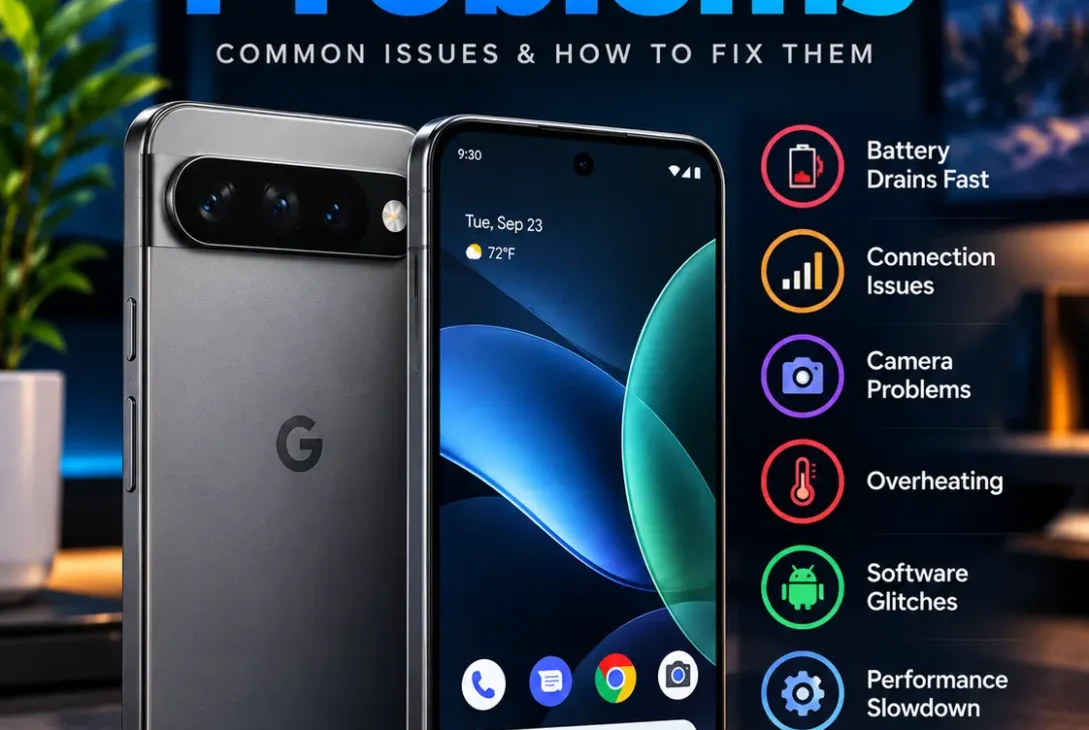
The Google Pixel 11 brings a new Tensor G6 processor, a brighter 6.3-inch display, improved cameras, Android 17, and several new AI features. But like almost every newly released smartphone, it can experience software, connectivity, battery, and performance problems.
Some early reports have already highlighted issues involving Wi-Fi, 5G, Bluetooth, boot loops, overheating, and camera behavior. However, these reports appear to affect a relatively small portion of users, so they should not be treated as problems affecting every device.
If you have recently purchased Google’s latest phone and something doesn’t seem right, this guide explains the most common Google Pixel 11 problems, why they may happen, and what you can try before contacting support.
Table of Contents
- Google Pixel 11 Problems at a Glance
- Wi-Fi Keeps Disconnecting
- 5G or Mobile Data Problems
- Bluetooth Connection Issues
- Phone Getting Too Hot
- Battery Draining Quickly
- Boot Loop or Restart Problems
- Camera App Problems
- Slow or Stuttering Performance
- Charging Problems
- Face Unlock Not Working
- Display and Refresh Rate Issues
- Apps Crashing or Freezing
- How to Fix Pixel 11 Problems
- When to Contact Google Support
- Frequently Asked Questions
- Final Verdict
Google Pixel 11 Problems at a Glance
The Google Pixel 11 problems reported so far cover several different areas.
The most discussed issues include:
| Problem | Possible Cause | First Solution |
|---|---|---|
| Wi-Fi drops | Router or software issue | Restart network settings |
| 5G problems | Carrier or modem | Check network settings |
| Bluetooth disconnects | Pairing/software issue | Re-pair device |
| Overheating | Heavy workload | Close demanding apps |
| Battery drain | Background activity | Check battery usage |
| Boot loops | Software/reset issue | Restart or recovery options |
| Camera glitches | App/software bug | Update camera and system |
| Gaming stutter | Thermal/performance limits | Lower graphics settings |
| Charging issues | Cable/charger/software | Try a compatible charger |
| Face Unlock issues | Low light/angle | Use fingerprint unlock |
Google’s official specifications confirm that the phone uses the Tensor G6 processor, a 4,985mAh typical battery, Wi-Fi 6E, Bluetooth 6, and Android 17.
Wi-Fi Keeps Disconnecting
One of the connectivity complaints reported by early owners involves Wi-Fi reliability.
Some users have reported Wi-Fi dropouts or unstable connections. These reports do not appear to affect everyone, and network conditions, router configuration, firmware, and individual hardware can all play a role.
How to Fix Wi-Fi Problems
Try these steps:
- Turn Wi-Fi off and back on.
- Restart your phone.
- Restart your router.
- Forget the Wi-Fi network and reconnect.
- Test another Wi-Fi network.
- Install the latest system update.
- Reset network settings if the problem continues.
If other devices also disconnect from the same router, the problem may be with the network rather than your phone.
5G or Mobile Data Problems
Another category of reported Google Pixel 11 problems involves cellular connectivity.
Some early owners have experienced unreliable 5G or mobile-data connections. Google changed the modem approach for this generation, but it is too early to conclude that the modem itself is responsible for every connectivity complaint. Carrier compatibility and local network conditions can also influence performance.
What to Try
Check that:
- Mobile data is enabled.
- Airplane Mode is disabled.
- Your SIM or eSIM is correctly activated.
- Your carrier supports the required bands.
- Preferred network type is configured correctly.
- The phone has the latest software.
You can also test the device in another location to determine whether the problem follows the phone or the local network.
Bluetooth Connection Issues
Bluetooth problems can be frustrating when wireless headphones, watches, cars, or speakers repeatedly disconnect.
Early reports have included Bluetooth connectivity complaints alongside Wi-Fi and mobile-data issues.
Quick Fix
Go to Bluetooth settings and remove the problematic accessory.
Then:
Restart phone → Turn Bluetooth on → Pair accessory again
If the accessory works normally with another smartphone, the problem may be related to the phone or its current software configuration.
For persistent Bluetooth problems, installing the latest Android update is worth trying before performing a factory reset.
Phone Getting Too Hot
Heating is another concern that appears in discussions around the new generation.
A smartphone can naturally become warm during gaming, video recording, navigation, charging, or other demanding tasks. The issue becomes more concerning when the phone remains unusually hot during light use.
Independent testing found that demanding games could make the phone warm and produce dropped frames, while another Android 17 beta update has addressed thermal-management bugs that could cause overheating and restarts.
How to Reduce Heat
Try:
- Closing demanding background apps
- Avoiding intensive gaming while charging
- Removing unnecessary background processes
- Keeping the phone away from direct sunlight
- Installing system updates
- Lowering game graphics settings
If the phone becomes extremely hot during normal activities, stop using it heavily and contact Google support.
Battery Draining Quickly
Battery life is one area where expectations should be realistic.
The phone has a typical 4,985mAh battery, and Google advertises more than 30 hours of battery life under its testing conditions. It also supports wired charging and Qi2.2 wireless charging up to 25W.
Still, battery drain can increase after setting up a new phone because apps are synchronizing, photos are indexing, and system processes are running in the background.
Check Battery Usage
Open:
Settings → Battery → Battery usage
Look for applications consuming unusually large amounts of power.
If one app is responsible for most of the drain, update it or restrict its background activity.
Boot Loop or Restart Problems
Boot loops are among the more serious reported Google Pixel 11 problems.
Android Authority reported an early case involving a Pixel 11 Pro that became bricked during the reset process. The report also notes that it remains unclear how widespread the issue is.
If your phone repeatedly restarts, first try a normal forced restart.
If that doesn’t work, use Google’s official troubleshooting and recovery instructions rather than repeatedly attempting random resets.
A factory reset should generally be considered a later step because it can erase personal data.
Camera App Problems
Camera issues can appear as:
- Camera app freezing
- Slow camera startup
- Photos taking longer to process
- Unexpected crashes
- Problems switching between lenses
The Pixel 11 has a triple rear camera system consisting of a 48MP wide camera, 13MP ultrawide camera, and 10.8MP 5x telephoto camera.
Some early Pixel 11-family troubleshooting reports have included camera-related problems, although the number of reports remains limited.
Camera Fixes
Try:
- Restarting the phone.
- Updating the Camera app.
- Updating Android.
- Clearing the Camera app cache.
- Checking available storage.
- Testing the camera in another application.
If the camera consistently produces abnormal results after software troubleshooting, hardware inspection may be necessary.
Slow or Stuttering Performance
The Tensor G6 provides smooth everyday performance for most users, but demanding gaming is a different situation.
Independent testing found that a demanding title could experience dropped frames and stuttering, with the phone becoming warm during extended gameplay.
This does not necessarily mean the device is slow.
Everyday activities such as:
- Browsing
- Messaging
- Streaming
- Social media
- Photography
- Multitasking
can remain smooth even when demanding games push the hardware harder.
Gaming Performance Tips
Reduce:
- Resolution
- Graphics quality
- Shadow quality
- Frame-rate targets
Also avoid playing demanding games while the phone is charging.
Charging Problems
The device supports wired charging of up to 55% in around 30 minutes when using a suitable 30W USB-C PPS charger or higher, according to Google’s specifications. Wireless charging through Qi2.2 is supported up to 25W.
If charging seems unusually slow:
- Try another USB-C cable.
- Check the charger.
- Clean the charging port carefully.
- Remove heavy apps running in the background.
- Try charging while the phone is cooler.
- Restart the device.
Avoid assuming that every slow-charge situation indicates a hardware defect.
Face Unlock Not Working
Face Unlock can occasionally fail depending on lighting, positioning, or software behavior.
Independent testing has noted that Face Unlock may not work reliably in dark environments.
If Face Unlock isn’t recognizing you:
- Make sure your face is clearly visible.
- Try better lighting.
- Hold the phone at a normal viewing angle.
- Delete and re-register your face.
- Use fingerprint unlock when necessary.
The fingerprint sensor can be particularly useful when lighting conditions make facial recognition difficult.
Display and Refresh Rate Issues
The Pixel 11 features a 6.3-inch OLED display with a 60–120Hz refresh rate and peak brightness of up to 3,000 nits.
One thing new owners may notice is that the display can default to 60Hz.
If scrolling doesn’t look as smooth as expected, check:
Settings → Display → Smooth Display
Turning this feature on allows supported content to use the higher refresh rate.
Higher refresh rates can consume more battery, so users who prioritize battery life may choose differently.
Apps Crashing or Freezing
Individual applications can sometimes crash after a major Android release.
If one particular app repeatedly stops working:
- Update the app.
- Restart the phone.
- Clear its cache.
- Check for Android updates.
- Reinstall the app.
If multiple unrelated applications begin crashing, the issue may be system-wide rather than limited to one application.
Android 17 updates are expected to continue addressing compatibility and stability problems as Google releases additional maintenance updates.
How to Fix Pixel 11 Problems
Before performing anything drastic, follow this troubleshooting order:
1. Restart the Phone
A simple restart can resolve temporary software glitches.
2. Update Android
Go to:
Settings → System → Software updates
Install available updates.
3. Update Your Apps
Open Google Play and check for pending application updates.
4. Check Battery and Storage
Extremely low storage or abnormal background activity can affect the experience.
5. Reset Network Settings
For Wi-Fi, Bluetooth, or mobile-data problems, resetting network settings can help.
Remember that this can remove saved network information.
6. Test Safe Mode
If you suspect a third-party application is causing problems, testing the phone without third-party apps can help identify the source.
7. Factory Reset as a Last Resort
A factory reset removes personal information and applications.
Back up important data before using this option.
When to Contact Google Support
Some problems should not be treated as normal software glitches.
Contact Google support if you experience:
- Repeated boot loops
- A phone that will not turn on
- Persistent overheating during light use
- Battery swelling
- A damaged charging port
- Camera hardware failure
- Screen hardware defects
- Connectivity failure across multiple networks
You can use Google’s official Pixel support resources for troubleshooting, warranty information, and device-specific assistance.
Frequently Asked Questions
What are the most common Google Pixel 11 problems?
Early reports have included Wi-Fi, 5G, Bluetooth, overheating, battery, boot-loop, and camera-related issues. The available reports are still relatively early and do not indicate that every Pixel 11 is affected.
Is the Pixel 11 overheating?
The phone can become warm during demanding workloads such as gaming or video processing. Independent testing found noticeable warmth during intensive gaming, while some software-related thermal issues have also been addressed in Android updates.
Why does my Pixel 11 battery drain quickly?
New phones can consume additional battery during initial setup and synchronization. Check Settings → Battery → Battery usage to identify apps or processes using excessive power.
Why does my Pixel 11 keep disconnecting from Wi-Fi?
Possible causes include router problems, software bugs, network congestion, or device-specific connectivity issues. Try restarting both the phone and router, forgetting the network, and installing available updates.
Does Pixel 11 have Bluetooth problems?
Some early owners have reported Bluetooth connectivity issues, although these reports appear limited and do not affect every device.
Why is my Pixel 11 slow while gaming?
Demanding games can push the Tensor G6 harder than everyday applications. Independent testing has reported stuttering and dropped frames in demanding gaming workloads.
Does Pixel 11 support Wi-Fi 7?
No. Google’s specifications list Wi-Fi 6E for the standard Pixel 11.
How much RAM does the Pixel 11 have?
The standard model comes with 12GB of RAM and is available with 256GB or 512GB storage.
How long will Google support the Pixel 11?
Google lists seven years of OS, security, and Pixel Drop updates for the device.
Final Verdict
The Google Pixel 11 problems reported so far are worth knowing about, but they should be viewed in context.
Early reports have pointed toward connectivity glitches, thermal behavior, boot-loop incidents, and camera-related problems. At the same time, independent reviews have generally found the phone responsive for everyday use, with strong battery life and an improved overall experience.
If your device is experiencing an issue, don’t immediately assume the hardware is defective. Start with basic troubleshooting, install the latest software, check individual app behavior, and test whether the problem happens consistently.
The phone’s Tensor G6 platform, Android 17, improved cameras, 12GB RAM, 256GB base storage, and seven years of software support make it a capable flagship despite some early concerns.
As more users spend time with the device, software updates and broader user reports should make it clearer which issues are genuine widespread problems and which are isolated cases.


