
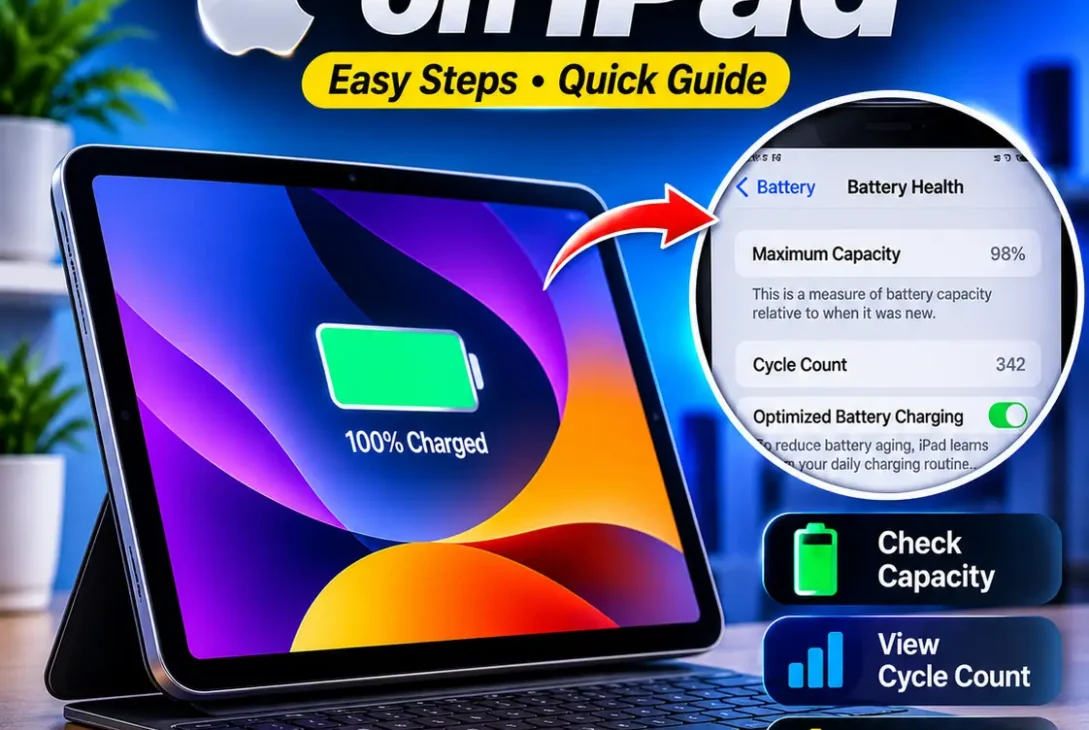
Your iPad may still turn on, charge normally, and run apps smoothly, but that does not necessarily mean its battery is in good condition. Over time, rechargeable batteries lose some of their ability to hold a charge. This can lead to shorter usage time, unexpected shutdowns, and more frequent charging.
Learning how to check battery health on iPad can help you understand whether the battery is ageing normally or may need professional attention. The process is straightforward on newer supported models, where Apple provides a Battery Health screen directly in Settings. Older iPads do not have the same built-in percentage display, but there are other ways to investigate battery condition.
This guide explains how to check battery health on iPad, what Maximum Capacity and Cycle Count mean, how to inspect older models, and what you can do to maintain battery performance.
Table of Contents
- What Is iPad Battery Health?
- How to Check Battery Health on iPad Through Settings
- Which iPad Models Support the Battery Health Menu?
- How to Check Battery Health on Older iPads
- How to Check iPad Battery Health Using a Mac or PC
- What Do Maximum Capacity and Cycle Count Mean?
- What Is a Good Battery Health Percentage?
- Signs Your iPad Battery May Be Degrading
- How to Improve and Maintain iPad Battery Health
- When Should You Replace an iPad Battery?
- Frequently Asked Questions
- Final Verdict
What Is iPad Battery Health?
Battery health describes how much charge a battery can hold compared with its original capacity when it was new. A brand-new battery starts with its designed capacity, but that capacity gradually decreases as the battery ages and completes charge cycles.
For example, imagine an iPad originally had a battery capacity of 10,000mAh. After years of use, it might retain only 8,500mAh of usable capacity. This means it can store less energy than it could when new, even if it still charges to 100% on the screen.
Battery health is different from the current battery percentage. The percentage tells you how much charge is available right now, while battery health estimates the battery’s ability to hold energy over its lifetime.
Understanding how to check battery health on iPad is useful when buying a second-hand device, troubleshooting poor battery life, or deciding whether a battery replacement is worthwhile.
How to Check Battery Health on iPad Through Settings
The easiest method is to use Apple’s built-in Battery Health menu. However, this menu is available only on specific iPad models.
If your device supports it, follow these steps:
- Open the Settings app on your iPad.
- Scroll down and select Battery.
- Tap Battery Health.
- Review the available battery information.
- Check Maximum Capacity, Cycle Count, and other details shown on the screen.
Depending on your model, you may see:
- Battery Health: A status indicating the battery’s current condition.
- Maximum Capacity: An estimate of the battery’s remaining capacity compared with when it was new.
- Cycle Count: The number of completed battery charge cycles.
- Manufacture Date: When the battery was manufactured.
- First Use: When the battery was first used.
If you see a Maximum Capacity reading of 95%, the battery is estimated to retain 95% of its original capacity. It does not mean the battery is currently charged to 95%.
If the Battery Health option is missing, do not immediately assume something is wrong. Your iPad model may simply not support Apple’s built-in health screen.
Apple explains the supported models and the official checking process in its iPad battery health and history guide.
Which iPad Models Support the Battery Health Menu?
Apple’s dedicated Battery Health screen is not available on every iPad. According to Apple’s current support documentation, the supported models include:
| iPad model | Battery Health menu |
|---|---|
| iPad Pro (M4 and M5) | Yes |
| iPad Air (M2, M3, and M4) | Yes |
| iPad mini (A17 Pro) | Yes |
| iPad (A16) | Yes |
| Older iPad models | Not officially supported through this menu |
This distinction is important because two iPads running a similar version of iPadOS may show different battery settings. Hardware model support matters, not just the software version.
If you own an older iPad Pro, iPad Air, or standard iPad and cannot find Battery Health, you can still inspect battery usage and use other diagnostic options.
How to Check Battery Health on Older iPads
Older iPads generally do not show an official Maximum Capacity percentage in Settings. However, you can investigate battery condition through analytics information or a computer-based diagnostic tool.
Method 1: Check Analytics Data
iPadOS can generate diagnostic files containing information about device performance and battery activity. Some files may include battery-related values that can help estimate remaining capacity.
Follow these steps:
- Open Settings.
- Select Privacy & Security.
- Tap Analytics & Improvements.
- Check whether Share iPad Analytics is enabled.
- If you have only just enabled it, allow time for new analytics data to become available.
- Open Analytics Data.
- Look for a recent analytics file and inspect its contents for battery-related fields.
Some files may contain values such as:
MaximumCapacityPercentCycleCountMaximumFCCNominalChargeCapacity
The availability and naming of these fields can vary between iPadOS versions and diagnostic files.
MaximumCapacityPercent may provide an estimated remaining-capacity percentage. CycleCount indicates recorded charge cycles when that information is available. The other capacity fields may help with an additional estimate, but interpreting them correctly requires care.
Important: Analytics data is not the same as Apple’s official Battery Health screen. Values may be missing, outdated, or difficult to interpret. Treat them as estimates rather than a guaranteed battery diagnosis.
Method 2: Check Battery Usage in Settings
Even without a dedicated health percentage, you can inspect how your iPad uses power.
- Open Settings.
- Tap Battery.
- Review the battery usage graph.
- Check which apps use the most power.
- Look for unusually high background activity.
This does not directly measure battery capacity. However, it can help identify software-related problems that make the battery drain quickly.
For example, if one application is using a large amount of power in the background, the problem may be related to that app rather than a worn-out battery.
Method 3: Use a Trusted Computer Diagnostic Tool
Another option is to connect your iPad to a Mac or Windows computer and use a reputable device-management or battery diagnostic application.
Some tools can display information such as:
- Estimated battery capacity
- Design capacity
- Charge cycle count
- Battery condition
- Device identification details
For example, applications such as iMazing and coconutBattery may provide additional battery information, depending on the device, operating system, and software version.
Download diagnostic software only from its official website. Avoid unknown applications that request unnecessary permissions or promise guaranteed battery-health readings.
If you are unsure how to interpret the results, an Apple Store or Apple Authorised Service Provider can perform a more reliable assessment.
How to Check iPad Battery Health Using a Mac or PC
If your iPad does not have Apple’s built-in Battery Health menu, a computer can be useful for gathering additional information.
Using a Mac
- Connect your iPad to your Mac using a compatible USB cable.
- Unlock the iPad and approve the computer connection if prompted.
- Open a trusted diagnostic application that supports iPad battery information.
- Select your connected iPad.
- Review the available battery details.
A tool may report design capacity and estimated current capacity. Comparing these values can provide an indication of battery wear.
Using Windows
- Install a reputable iPad-compatible device utility from its official website.
- Connect your iPad to the computer.
- Unlock the device and approve the connection.
- Select the iPad in the software.
- Open the battery information or diagnostic section, if available.
Not every application provides the same information. Some may show the cycle count but not a reliable capacity estimate. Others may require a specific iPadOS version or connection method.
Remember that third-party readings are estimates. For an official assessment, contact Apple or an authorised service provider.
What Do Maximum Capacity and Cycle Count Mean?
When learning how to check battery health on iPad, two figures deserve particular attention: Maximum Capacity and Cycle Count. They help explain battery ageing, but they measure different things.
Maximum Capacity
Maximum Capacity estimates how much energy the battery can hold compared with its original capacity.
For example:
| Maximum Capacity | General interpretation |
|---|---|
| 100%–95% | Very little capacity loss |
| 94%–90% | Some normal ageing |
| 89%–85% | Noticeable capacity reduction |
| 84%–80% | Reduced capacity; monitor performance |
| Below 80% | Consider a professional battery assessment |
These ranges are general guidance, not official Apple health categories. A percentage alone does not determine whether a battery needs replacement. Actual performance, unexpected shutdowns, battery warnings, and diagnostic results also matter.
Cycle Count
A charge cycle represents the use of an amount equal to 100% of the battery’s capacity. It does not necessarily mean charging the iPad from zero to 100% in one session.
For example, if you use 50% of your iPad’s battery on Monday and recharge it, then use another 50% on Tuesday, that adds up to one complete cycle.
This is why charging your iPad several times does not automatically mean you have completed several cycles. The total amount of energy used is what matters.
Apple states that iPad batteries are designed to retain up to 80% of their original capacity after 1,000 complete charge cycles for the applicable models and usage conditions. Actual battery ageing varies with temperature, charging habits, and overall use.
Manufacture Date and First Use Date
Some supported iPads also show when the battery was manufactured and when it was first used.
These dates can be useful when purchasing a used iPad. A device may look almost new but have an older battery that has spent a long time in storage.
The first-use date and cycle count provide additional context, although neither one independently proves the battery’s current condition.
What Is a Good Battery Health Percentage?
A higher Maximum Capacity reading generally means the battery retains more of its original energy-storage capability. However, there is no single percentage that determines whether an iPad is good or bad.
A device showing 92% Maximum Capacity may still provide excellent battery life for everyday activities. Another iPad showing 88% may drain quickly because of demanding applications, high screen brightness, poor network conditions, or background processes.
When evaluating battery health, consider the following:
- 95%–100%: Generally indicates relatively little capacity loss.
- 90%–94%: Often represents normal ageing for a used device.
- 85%–89%: The battery has lost more capacity, so monitor daily runtime.
- 80%–84%: Consider an assessment if battery life is affecting normal use.
- Below 80%: Professional battery service may be worth discussing.
These percentages are practical reference points, not a guarantee of battery performance or a universal replacement rule.
If you are learning how to check battery health on iPad before buying a used device, do not judge it using Maximum Capacity alone. Check the screen, charging port, physical condition, performance, and whether the seller allows a proper test.
Signs Your iPad Battery May Be Degrading
Sometimes you may notice battery problems before checking the technical readings. The following symptoms can indicate battery ageing or another issue affecting power consumption.
1. The Battery Drains Faster Than Before
If your iPad used to last most of the day but now needs charging after only a few hours of similar use, battery capacity may have declined.
However, first check whether your usage has changed. Gaming, video editing, video calls, and high screen brightness can consume significantly more power than reading or browsing.
2. Unexpected Shutdowns
An ageing battery may struggle to provide enough power during demanding tasks. In some cases, the device may shut down unexpectedly even when the battery indicator shows that some charge remains.
Repeated unexpected shutdowns deserve attention, especially if they occur during ordinary tasks.
3. The iPad Takes Longer to Charge
Slow charging is not always a battery-health problem. It can also result from a low-power adapter, damaged cable, dirty charging port, or high device temperature.
Try a compatible charger and cable before assuming the battery is damaged.
4. The Device Gets Unusually Hot
Some warmth during charging or demanding tasks is normal. However, repeated excessive heat may indicate a problem with the device, charger, software, or battery.
If the iPad becomes unusually hot, disconnect it from power and allow it to cool. If the issue continues, seek professional support.
5. Battery Percentage Changes Unexpectedly
If the displayed percentage drops suddenly or behaves inconsistently, the battery may be ageing or the device may need further diagnostics.
Do not rely on one unusual reading. Observe the behaviour over several charging and usage sessions.
6. The Battery or Screen Appears Swollen
A swollen battery is a serious safety concern. Signs may include a screen lifting away from the frame, gaps around the display, or unusual pressure on the casing.
Stop using and charging the iPad if you suspect battery swelling. Do not press the screen back into place or attempt to open the device yourself. Contact Apple or an authorised repair provider.
How to Improve and Maintain iPad Battery Health
You cannot restore lost battery capacity through software settings. However, good charging and temperature habits can help reduce unnecessary battery wear.
Avoid Excessive Heat
Heat is one of the important factors that can accelerate battery ageing. Avoid leaving your iPad in direct sunlight, inside a hot vehicle, or near a heat source.
If the device becomes hot during a demanding task, give it time to cool down. Remove a thick case temporarily if it is contributing to heat buildup.
Use Compatible Chargers and Cables
Use a reliable charger and cable that meet your iPad’s charging requirements. Poor-quality accessories can create charging problems and may present safety risks.
You do not need to buy the most expensive charger. Focus on reputable manufacturers and compatible specifications.
Avoid Keeping the Battery Completely Empty
Lithium-ion batteries do not need to be fully discharged before charging. You can connect your iPad whenever it is convenient.
Leaving a device completely discharged for a long period is not a good storage practice. If you will not use your iPad for an extended time, follow Apple’s battery-storage guidance.
Use the 80% Charge Limit if Available
Some newer supported iPads provide an 80% charge limit. This feature can reduce the time the battery spends at a full charge, which may help slow long-term battery wear.
To check whether your device offers it:
- Open Settings.
- Tap Battery.
- Select Battery Health.
- Look for the 80% Limit option, if available.
- Enable it if it suits your charging routine.
This setting is not available on every iPad. It may also be unnecessary if you regularly need a full charge for long periods away from a power source.
Review Background App Activity
Apps running in the background can contribute to unnecessary battery consumption.
Open Settings, select Battery, and review the usage information. If a particular app consistently consumes unusually high power, check its background activity and update it if an update is available.
You can also reduce screen brightness, disable unnecessary notifications, and turn off features you do not use.
Keep iPadOS Updated
Software updates can include bug fixes and improvements that affect power management. Keeping your iPad updated can help avoid battery drain caused by known software problems.
However, an update cannot reverse chemical battery ageing. If the battery has physically lost capacity, software changes will not restore its original condition.
Apple also provides guidance on maximising battery performance.
When Should You Replace an iPad Battery?
Battery replacement becomes worth considering when the device no longer provides enough runtime for your needs, shows persistent battery problems, or receives a service recommendation.
A Maximum Capacity reading below 80% can be a useful reason to request an assessment, but it is not the only factor. Apple’s service options and coverage depend on the device, region, warranty, and AppleCare agreement.
Before arranging a replacement, consider:
- How quickly the battery drains during normal use.
- Whether the iPad shuts down unexpectedly.
- Whether the device shows a battery service warning.
- Whether the iPad has any physical damage or swelling.
- The cost of service compared with the value of the device.
If the iPad is otherwise working well, replacing the battery may be more economical than purchasing a new tablet. If it is very old and no longer receives software updates, compare the repair cost with the price of a newer model.
Use Apple or an Apple Authorised Service Provider for battery service. Avoid attempting a DIY battery replacement unless you have the appropriate professional experience and equipment. iPad batteries are difficult to access, and improper handling can cause damage or injury.
Frequently Asked Questions
How do I check battery health on iPad?
On supported models, open Settings, tap Battery, and select Battery Health. You can view Maximum Capacity, Cycle Count, and other battery information. Older models do not have this same built-in screen.
Why can’t I see Battery Health on my iPad?
The dedicated Battery Health menu is available only on certain models, including iPad Pro M4 and M5, iPad Air M2, M3 and M4, iPad mini A17 Pro, and iPad A16. If your model is not supported, the option will not appear.
Can I check iPad battery health without an app?
Yes, if your iPad supports Apple’s built-in Battery Health feature. For older models, you can review battery usage in Settings and inspect available analytics data, although those methods do not provide the same official health reading.
Is 85% battery health good for an iPad?
An 85% Maximum Capacity reading means the battery retains an estimated 85% of its original capacity. It may still work well, but you may notice shorter usage time than when it was new. Actual performance depends on how you use the device.
How many battery cycles are normal for an iPad?
There is no universal cycle count that makes every iPad battery good or bad. Apple designs applicable iPad batteries to retain up to 80% of original capacity after 1,000 complete charge cycles. Temperature and usage habits also affect battery ageing.
Does charging an iPad overnight damage its battery?
Modern iPads manage charging automatically, so overnight charging is generally safe when using suitable charging equipment. However, reducing prolonged exposure to heat and using an available charge limit can help manage long-term battery wear.
Can I improve my iPad battery health from 80% to 100%?
No. You cannot restore chemically lost battery capacity through an app, reset, or software update. If the battery has degraded significantly, replacement is the way to restore the device’s original battery capacity.
Should I buy a used iPad with 80% battery health?
It depends on the price, model, overall condition, and your expected usage. An iPad at 80% capacity may still be usable, but you should account for potentially shorter battery life and future service costs before purchasing.
Final Verdict
Knowing how to check battery health on iPad helps you make better decisions about maintenance, troubleshooting, and buying used devices. On supported models, Apple’s Battery Health menu provides the clearest information through Maximum Capacity, Cycle Count, and battery history.
Older iPads require a different approach. You can review battery usage, inspect available analytics data, or use a trusted computer diagnostic tool, but these alternatives should be treated as estimates rather than official battery assessments.
Most importantly, do not judge an iPad battery by one number alone. Consider daily runtime, charging behaviour, unexpected shutdowns, and the device’s overall condition. Avoid excessive heat, use compatible charging accessories, and seek professional help if the battery shows signs of damage.
If your iPad still meets your needs, a battery replacement may be a sensible way to extend its useful life. Checking its condition first helps you decide whether to keep using it, arrange a repair, or consider an upgrade.