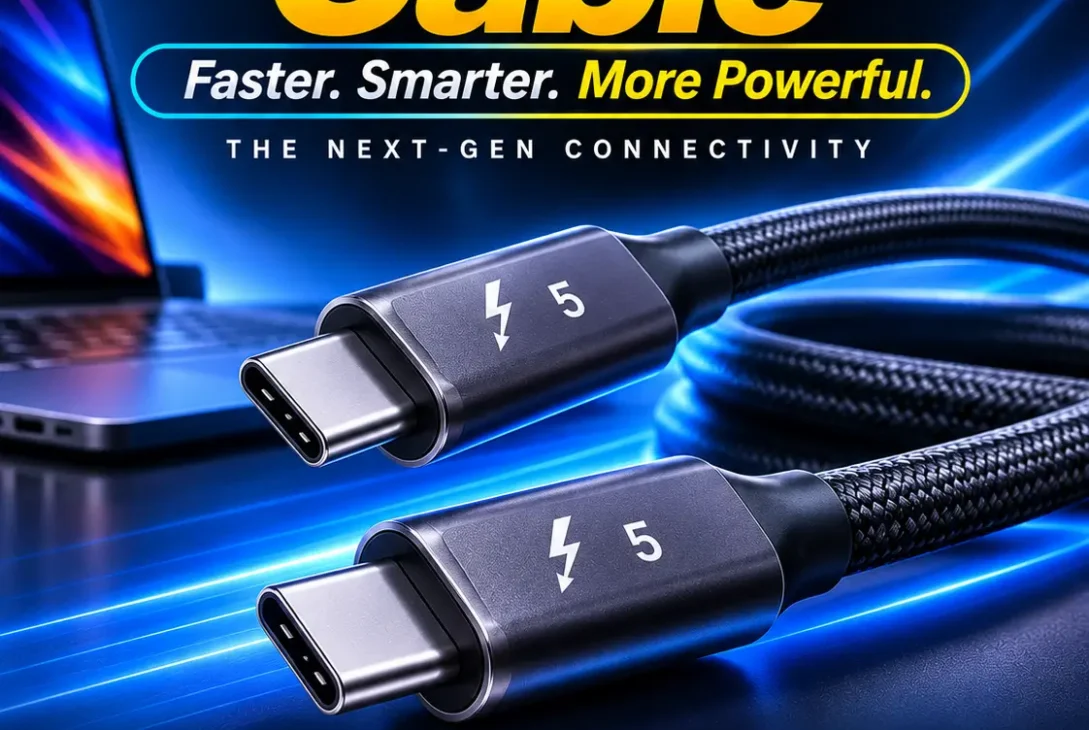
A Thunderbolt 5 cable is designed for high-performance connectivity, combining fast data transfer, high-resolution display support, and laptop charging through one USB-C connection. With bandwidth reaching 80Gbps and display-focused Bandwidth Boost reaching up to 120Gbps, it is built for demanding setups involving external SSDs, docks, multiple monitors, and professional creative equipment.
However, buying a Thunderbolt 5 cable does not automatically make every USB-C device faster. Your laptop, monitor, dock, and connected accessories must support the relevant features. Cable length and certification also matter.
This guide explains how the technology works, what the specifications mean, how it compares with Thunderbolt 4 and USB-C, and what to check before buying. Whether you are building a workstation, connecting multiple displays, or choosing a cable for a modern laptop, you will learn which features actually make a difference.
Table of Contents
- What Is a Thunderbolt 5 Cable?
- How Does Thunderbolt 5 Technology Work?
- Thunderbolt 5 Cable Specifications
- 9 Important Features to Understand
- Thunderbolt 5 vs Thunderbolt 4
- Thunderbolt 5 vs USB-C and USB4
- What Devices Can You Connect?
- Is It Worth It for Multiple Monitors?
- Can It Charge a Laptop?
- Cable Length and Certification
- How to Choose the Right Cable
- Common Buying Mistakes
- Frequently Asked Questions
- Final Verdict
What Is a Thunderbolt 5 Cable?
A Thunderbolt 5 cable is a USB-C-to-USB-C cable designed and certified to support Intel’s Thunderbolt 5 connectivity standard. It can carry data, video, and power through a single connection, reducing the need for separate cables between compatible devices.
The connectors look like standard USB-C connectors, but the technology supported by the cable is different. Not every USB-C cable supports Thunderbolt speeds, advanced display features, or high-wattage charging.
The main reason people consider a Thunderbolt 5 cable is its bandwidth. It supports up to 80Gbps of bidirectional bandwidth, while Bandwidth Boost can provide up to 120Gbps in one direction for supported display-intensive workloads. It can also support USB Power Delivery charging of up to 240W when the cable, charger, and device support the required power profile.
This combination makes it useful for professional workstations, high-speed storage, docking stations, and advanced monitor setups. It is particularly relevant to people who want one cable to handle several tasks instead of connecting separate display, data, and charging cables.
How Does Thunderbolt 5 Technology Work?
Thunderbolt combines several connectivity technologies into one interface. It can transport data, video signals, and power through a USB-C connector. The connected devices negotiate which features they support and operate according to the capabilities of the host, cable, and accessory.
For example, connecting a compatible laptop to a Thunderbolt dock can provide access to external displays, storage drives, Ethernet, USB accessories, and charging through one cable.
A Thunderbolt 5 cable is only one part of this connection. If the laptop supports an older standard, the connection will operate according to that older device’s capabilities. The same applies to a dock or monitor that does not support the newer standard.
Thunderbolt 5 also improves available bandwidth compared with its predecessor. This is useful when several demanding devices share the same connection, such as external storage and high-resolution displays.
Thunderbolt 5 Cable Specifications
Here are the main specifications buyers should understand before choosing a cable.
| Specification | Thunderbolt 5 capability |
|---|---|
| Connector | USB-C to USB-C |
| Standard bandwidth | Up to 80Gbps bidirectional |
| Bandwidth Boost | Up to 120Gbps |
| Maximum supported charging | Up to 240W |
| Display technology | DisplayPort 2.1 support |
| PCI Express bandwidth | Up to 64Gbps |
| Backward compatibility | Thunderbolt 4, Thunderbolt 3, and supported USB standards |
| Main uses | Docks, monitors, storage, and charging |
These are maximum capabilities, not guaranteed results in every setup. Actual performance depends on the connected hardware, cable certification, display configuration, and power requirements. Intel’s official overview explains the bandwidth and feature improvements over earlier Thunderbolt generations. Intel Thunderbolt technology overview.
9 Important Features to Understand
1. Up to 80Gbps Data Transfer
The standard bandwidth is one of the biggest reasons to consider a Thunderbolt 5 cable. It supports up to 80Gbps of bidirectional bandwidth, meaning data can move in both directions at high speed.
This can benefit professionals working with large video files, high-resolution photographs, extensive audio projects, and large external storage systems.
For example, a video editor transferring large project files from a compatible external SSD can benefit from a high-bandwidth connection. However, the SSD itself must also support fast transfer speeds. Connecting a slower external drive will not make it perform at the cable’s maximum rating.
2. Bandwidth Boost Up to 120Gbps
Thunderbolt 5 introduces Bandwidth Boost for display-intensive workloads. Under supported conditions, it can allocate up to 120Gbps in one direction while maintaining 40Gbps in the other direction.
This asymmetric configuration is designed for demanding display setups where more bandwidth is needed for video output.
It is important to understand that 120Gbps is not the normal bidirectional data-transfer speed. It is a special operating mode for supported display workloads. A Thunderbolt 5 cable must connect compatible equipment for this feature to be available.
3. Up to 240W Charging
Some certified cables support USB Power Delivery Extended Power Range, allowing power delivery of up to 240W. This can be useful for high-performance laptops and other devices with demanding charging requirements.
A cable’s maximum rating does not mean it will force 240W into every connected device. The charger and laptop negotiate the power level they support. A laptop designed for a lower charging wattage will draw only the supported amount.
When purchasing a Thunderbolt 5 cable, check the stated power rating if you intend to use it for charging. Also make sure your power adapter supports the required USB PD profile.
4. High-Resolution Display Support
Thunderbolt 5 supports advanced display connections through DisplayPort 2.1 technology. Depending on the host, display, resolution, refresh rate, and Display Stream Compression support, it can handle demanding monitor configurations.
This is useful for video editors, designers, developers, and professionals who work across multiple screens.
For example, a workstation may connect two high-resolution displays through a compatible dock. The actual resolution and refresh rate depend on the complete setup, not the cable alone.
5. Faster External Storage
External SSDs can make large files easier to access and move between computers. Thunderbolt 5 offers a high-bandwidth connection for compatible storage devices and enclosures.
This is especially useful when working with large video projects, virtual machines, backups, and professional media libraries.
However, the storage drive, enclosure, and host computer must all support the required performance. A standard USB external drive will not suddenly reach Thunderbolt 5 speeds just because you use a newer cable.
6. Improved Docking Station Connectivity
A compatible Thunderbolt dock can connect multiple accessories through a single laptop port. Depending on the dock, these may include monitors, USB devices, Ethernet, audio equipment, and external storage.
A Thunderbolt 5 cable can carry the connection between the laptop and dock while supporting the capabilities of the compatible hardware.
This can make a desk setup easier to manage. Instead of reconnecting several accessories whenever you sit down, you can connect one cable to access your workstation.
7. Backward Compatibility
Thunderbolt 5 is designed to work with supported earlier Thunderbolt generations and USB standards. This makes it easier to use newer cables with existing equipment.
However, backward compatibility does not upgrade older hardware. If you connect a Thunderbolt 5 cable to a Thunderbolt 4 laptop, the connection will operate within Thunderbolt 4 capabilities.
This is an important point when deciding whether a Thunderbolt 5 cable is a worthwhile purchase for your current computer. It may work perfectly well, but you will not receive every new feature unless the other connected devices support them.
8. One Cable for Data, Video, and Power
One of the most convenient features is the ability to combine several functions through one connection. A compatible laptop can connect to a dock that handles displays, storage, accessories, and charging.
This reduces cable clutter and makes it easier to connect or disconnect a laptop from a workstation.
The exact features depend on the dock and computer. Some docks may have limited display outputs, lower charging capacity, or fewer high-speed ports. Always check the specifications of the complete setup.
9. Better Support for Demanding Workflows
Thunderbolt 5 is aimed at users who need more connectivity bandwidth than ordinary USB connections can provide. This includes professional video editing, large storage arrays, advanced docking stations, and multi-monitor workstations.
For everyday browsing, office documents, streaming, and basic charging, the difference may be difficult to notice. The benefits become more meaningful when several high-bandwidth devices are connected at the same time.
Thunderbolt 5 vs Thunderbolt 4
Thunderbolt 5 improves the bandwidth available for demanding workloads while retaining the USB-C connector and compatibility with supported older devices.
| Feature | Thunderbolt 5 | Thunderbolt 4 |
|---|---|---|
| Maximum standard bandwidth | 80Gbps | 40Gbps |
| Display Bandwidth Boost | Up to 120Gbps | Not available |
| Maximum charging capability | Up to 240W | Up to 240W with supported equipment |
| Display support | More bandwidth for advanced setups | Strong multi-display support |
| Connector | USB-C | USB-C |
| Backward compatibility | Supported older standards | Supported older standards |
The most significant improvement is bandwidth. Thunderbolt 5 doubles the standard maximum bidirectional bandwidth compared with Thunderbolt 4 and adds the 120Gbps display-focused mode.
Charging is not necessarily a reason to replace an existing cable. Thunderbolt 4 equipment can already support high-wattage charging in compatible configurations. If your current setup works well and does not need additional bandwidth, upgrading may not provide a noticeable everyday improvement.
Thunderbolt 5 vs USB-C and USB4
USB-C describes the connector shape, not a single performance standard. A USB-C port may support basic charging and data transfer, USB4, Thunderbolt 4, or Thunderbolt 5. The capabilities depend on the device specifications.
USB4 also has different performance levels. Some USB4 devices support up to 40Gbps, while USB4 Version 2.0 can support higher bandwidth. This is why checking the exact port and cable specifications is more useful than relying on the connector’s appearance.
A certified Thunderbolt 5 cable is designed for Thunderbolt 5 features, but it can also connect to supported earlier devices. When connected to a basic USB-C port, it will operate according to the capabilities of that port and the connected equipment.
For a useful overview of Thunderbolt and USB connectivity, see Intel’s Thunderbolt comparison.
What Devices Can You Connect?
A compatible Thunderbolt 5 connection can be used with several types of equipment.
Laptops and desktop computers
Compatible computers can use the connection for docks, external storage, displays, and other accessories. Check the computer’s technical specifications to confirm that its USB-C port supports Thunderbolt 5 rather than assuming every USB-C port has the same capabilities.
External SSDs and storage enclosures
High-speed external drives can benefit from the available bandwidth, particularly when transferring large files or working directly from external storage. The drive and enclosure must support the relevant connection standard.
Monitors
Compatible displays and docks can use the connection for high-resolution video. The available resolution and refresh rate depend on the graphics hardware, display inputs, cable, and display configuration.
Docking stations and hubs
A compatible dock can expand one computer connection into multiple ports. This may include display outputs, USB ports, Ethernet, audio, and storage connections. Check the dock’s own specifications because not every dock supports every feature of the standard.
External graphics and PCIe equipment
Thunderbolt can connect supported external PCIe devices, including certain expansion enclosures. These setups are useful in specialist workflows, although performance depends on the enclosure, connected hardware, and computer.
Is It Worth It for Multiple Monitors?
A Thunderbolt 5 cable can be useful in a workstation with multiple high-resolution monitors, especially when the displays are connected through a compatible dock. Its additional bandwidth gives compatible systems more room for demanding display configurations.
This does not mean every two-monitor setup needs the latest standard. Two ordinary office displays may work perfectly well through an older dock or USB-C connection. The benefit is more relevant when using high resolutions, high refresh rates, or several demanding displays together.
Before buying, check:
- The number of displays supported by your computer.
- The maximum resolution and refresh rate supported by its graphics hardware.
- Whether the dock supports the display configuration you want.
- Whether the displays use compatible inputs.
- Whether Display Stream Compression is required for the intended configuration.
A Thunderbolt 5 cable cannot overcome a limitation in the laptop’s graphics hardware or the dock’s display outputs.
Can It Charge a Laptop?
Yes, a compatible cable can carry charging power as well as data and video. Some models support USB Power Delivery up to 240W, which is enough for many high-performance laptops.
The actual charging rate depends on three things: the cable, the power adapter, and the laptop. All three must support the required power level. If one component has a lower rating, the system will use a lower supported level.
For example, using a 240W-rated cable with a 65W charger will not turn that charger into a 240W power source. Likewise, a laptop with a lower maximum charging requirement will not draw the cable’s full rating.
If charging is your main reason for purchasing a Thunderbolt 5 cable, check its USB Power Delivery rating and make sure the adapter is suitable. A high data-transfer rating by itself does not guarantee 240W charging.
Cable Length and Certification
Cable length can affect which performance levels are supported. Passive cables are generally simpler, while active designs use additional electronics to maintain signal quality over longer distances. The exact limits depend on the cable design and its certification.
For a short connection between a laptop and a dock on the same desk, a certified cable around 0.5 to 1 metre may be practical. Longer cables can be useful when equipment is placed farther away, but check that the specific model supports the required Thunderbolt bandwidth at its advertised length.
Certification is also important. Look for clear Thunderbolt 5 certification information from the manufacturer rather than relying on phrases such as “high-speed USB-C” or “supports 8K.” Those descriptions alone do not prove that the cable supports the full standard.
A certified Thunderbolt 5 cable is tested for the standard’s requirements. You can compare technical details using manufacturers’ specification pages, such as StarTech’s Thunderbolt 5 cable specifications.
How to Choose the Right Cable
Choosing the right cable starts with the devices you already own. Buying the highest specification is not always necessary, especially if your computer does not support the latest connectivity standard.
Check your computer’s port
Look up the exact laptop or desktop model. Confirm whether the port supports Thunderbolt 5, Thunderbolt 4, Thunderbolt 3, USB4, or another USB-C mode. The connector shape alone is not enough to identify its capabilities.
Check charging requirements
If you want one cable for charging and data, confirm the power rating. A 240W-capable model may provide flexibility for future devices, but it still needs a suitable charger and compatible laptop.
Choose a practical length
Avoid buying a cable that is much longer than necessary without checking its performance rating. A shorter cable can be easier to manage on a desk, while a longer one may be needed for a more distant dock or monitor.
Look for clear certification
Check the manufacturer’s official specifications and product packaging. Make sure the cable is explicitly identified as Thunderbolt 5 certified if you need full Thunderbolt 5 capabilities. Also check its supported power rating and length.
Common Buying Mistakes
Assuming every USB-C cable supports Thunderbolt 5
This is one of the most common mistakes. USB-C is a connector type, and cables with the same physical connectors can have very different data, display, and charging capabilities.
Expecting 120Gbps all the time
The 120Gbps figure refers to Bandwidth Boost for supported display-intensive workloads. Standard bidirectional bandwidth is up to 80Gbps. These figures describe different operating modes.
Expecting faster internet
A faster cable does not increase your broadband speed or improve your Wi-Fi connection. It can improve the wired connection between compatible devices, but internet performance depends on your network service and equipment.
Ignoring the computer’s specifications
A cable cannot upgrade an older laptop’s port. If the computer supports only an earlier standard, the connection will work within that standard’s limits.
Buying based only on charging wattage
A cable that supports 240W charging is not automatically a full Thunderbolt 5 cable. Check the data-transfer and certification details separately.
Overlooking the dock
A dock can become the limiting part of a setup. Confirm that it supports your desired monitors, refresh rates, storage devices, and charging requirements before purchasing a cable.
Frequently Asked Questions
Is Thunderbolt 5 faster than Thunderbolt 4?
Yes. Thunderbolt 5 supports up to 80Gbps of standard bidirectional bandwidth, compared with up to 40Gbps for Thunderbolt 4. It also introduces Bandwidth Boost up to 120Gbps for supported display-intensive workloads.
Does a Thunderbolt 5 cable work with Thunderbolt 4?
Yes. Thunderbolt 5 is backward compatible with supported Thunderbolt 4 devices. The connection will operate at the capabilities of the older hardware rather than providing Thunderbolt 5 performance.
Can I use a Thunderbolt 5 cable with a regular USB-C charger?
It can work with compatible USB-C charging equipment, but the charging rate depends on the cable, charger, and connected device. A regular charger will not provide 240W unless it supports the required power profile.
Does Thunderbolt 5 support 8K monitors?
Yes, it supports advanced high-resolution display configurations, including compatible 8K setups. The actual resolution and refresh rate depend on the computer, graphics hardware, display, dock, and connection configuration.
Is Thunderbolt 5 the same as USB-C?
No. USB-C is the physical connector, while Thunderbolt 5 is a connectivity standard that uses that connector. Not every USB-C cable or port supports Thunderbolt 5 features.
Can I use a Thunderbolt 5 cable for an external SSD?
Yes, if the computer, cable, and SSD enclosure support a compatible high-speed connection. The drive’s own performance also affects transfer speeds, so an ordinary USB drive will not reach Thunderbolt 5’s maximum bandwidth.
Does a longer Thunderbolt 5 cable reduce speed?
It can, depending on the cable’s design and certification. Check the manufacturer’s specifications for the maximum supported bandwidth at the length you plan to buy.
Is a certified cable worth the extra money?
If you need full Thunderbolt 5 bandwidth, reliable display connectivity, or high-wattage charging, certification is worth prioritising. If you only need basic charging or ordinary USB data transfer, a less expensive cable with the correct specifications may be sufficient.
Should I buy Thunderbolt 5 for everyday use?
Not necessarily. Everyday browsing, documents, video streaming, and basic charging do not usually require its maximum bandwidth. It makes more sense for users with compatible high-speed storage, advanced monitors, or demanding docking setups.
Final Verdict
A Thunderbolt 5 cable is a powerful connectivity option for modern computers and professional workstations. Its 80Gbps bidirectional bandwidth, 120Gbps display-focused Bandwidth Boost, support for advanced displays, and charging capability of up to 240W make it suitable for demanding setups.
However, the cable is only one part of the system. Your computer, dock, monitor, storage device, and charger must support the features you want to use. Buying a high-specification cable will not upgrade the capabilities of older hardware.
For users who work with large files, multiple displays, external SSDs, and advanced docks, Thunderbolt 5 can be a worthwhile investment. For basic everyday use, a suitable USB-C or Thunderbolt 4 cable may already provide everything needed.
Before purchasing, verify certification, supported bandwidth, charging capacity, and cable length. Choosing according to your actual devices and workflow is the best way to get value from a Thunderbolt 5 cable.