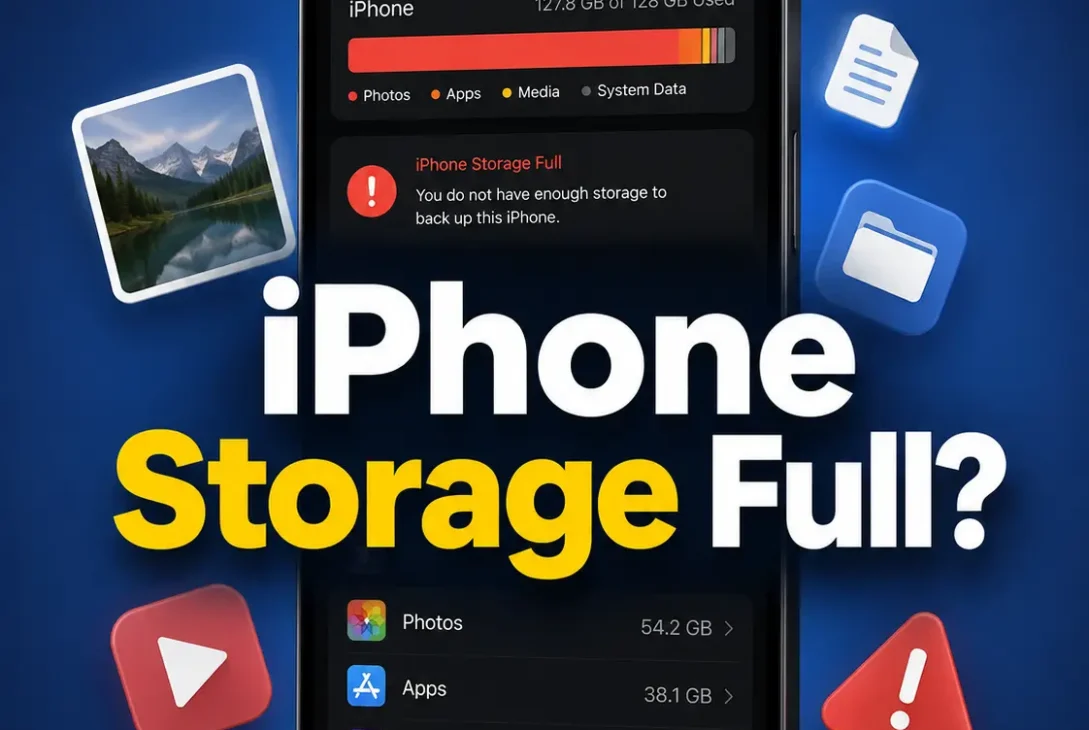
Seeing the iPhone Storage Full message can be frustrating, especially when you need to take photos, install an app, or update iOS. When your iPhone runs out of storage, apps may stop working properly, new photos may not save, and system updates can become difficult to install.
The good news is that you can usually free up a significant amount of space without deleting everything from your iPhone. iOS provides several built-in storage management tools that show exactly what is taking up your space.
In this guide, we will explain how to find what’s using your iPhone storage and the safest ways to free up space. We’ll cover photos, videos, apps, messages, Safari data, downloads, and other files that can quietly consume storage.
Table of Contents
- Why Is My iPhone Storage Full?
- Check What Is Using Your iPhone Storage
- Delete Unnecessary Photos and Videos
- Empty the Recently Deleted Album
- Optimize iPhone Photo Storage
- Delete Large Apps You Don’t Use
- Offload Unused Apps
- Remove Downloaded Videos and Music
- Delete Large Message Attachments
- Clear Safari Website Data
- Remove Old Podcasts and Downloads
- Delete Unnecessary Files From the Files App
- Manage WhatsApp and Other App Storage
- Restart Your iPhone
- Update iOS
- What to Do When System Data Is Taking Too Much Space
- How Much Free Storage Should an iPhone Have?
- Frequently Asked Questions
- Final Thoughts
Why Is My iPhone Storage Full?
An iPhone can run out of storage for several reasons. Photos and videos are often the biggest storage users, but apps, downloaded media, messages, and temporary system files can also consume a large amount of space.
Common reasons include:
- Large photo and video libraries
- 4K or high-resolution videos
- Large games and apps
- Downloaded movies, music, and podcasts
- WhatsApp and other messaging attachments
- Old Messages conversations
- Files downloaded through Safari
- Offline content stored by apps
- Cached and temporary data
- iOS system files
Before deleting anything, check your iPhone’s storage breakdown. This will help you identify the biggest storage users instead of removing files randomly.
https://support.apple.com/en-by/guide/iphone/iph47c931112/ios
Check What Is Using Your iPhone Storage
The first step when your iPhone storage is full is to see exactly where your storage is going.
Open:
Settings > General > iPhone Storage
Wait a few seconds while iOS calculates your storage usage. You will see a colored bar showing categories such as Apps, Photos, Media, Messages, iOS, and System Data.
Below the storage bar, iOS displays a list of apps and categories ordered by how much space they use.
Look for unusually large items first. If one app is using several gigabytes of storage or your Photos library is taking up most of the available space, you now know where to focus.
Do not immediately delete an app or photo library just because it appears near the top. Check what the data contains first, especially if you have important photos, documents, or conversations stored on your device.
Delete Unnecessary Photos and Videos
Photos and videos can quickly consume your iPhone’s available storage, especially if you regularly record high-resolution or long videos.
Open the Photos app and review your library. Look for duplicate photos, blurry images, screenshots, screen recordings, and videos you no longer need.
You can also use the built-in Duplicates section if it is available on your iPhone:
Photos > Collections > Utilities > Duplicates
Review the suggested duplicates before merging them. This can help remove unnecessary copies without manually checking every photo.
Be Careful Before Deleting Photos
If you use iCloud Photos, deleting a photo from your iPhone can also remove it from your other devices connected to the same iCloud Photos library.
Make sure important photos are backed up before deleting them.
Empty the Recently Deleted Album
Deleting photos does not immediately recover all of the storage. Deleted photos and videos remain in the Recently Deleted album for a period of time before being permanently removed.
To permanently remove items you no longer need:
- Open Photos.
- Go to Collections.
- Scroll to Utilities.
- Select Recently Deleted.
- Unlock the album if required.
- Review the files carefully.
- Delete the items you are certain you no longer need.
Once permanently deleted, these photos generally cannot be recovered through the Photos app, so check the contents carefully before confirming.
Optimize iPhone Photo Storage
If your Photos library is taking up most of your iPhone storage, Optimize iPhone Storage can be a better solution than deleting your pictures.
When iCloud Photos is enabled, your iPhone can keep smaller device-friendly versions of photos while the original, full-resolution versions remain stored in iCloud.
To check the setting, open:
Settings > [your name] > iCloud > Photos
Then make sure Sync this iPhone is enabled and select Optimize iPhone Storage.
Keep in mind that this option requires enough available iCloud storage for your photo library. It also does not mean your photos are removed from iCloud.
Delete Large Apps You Don’t Use
Apps and games can take up several gigabytes of storage, particularly games with large downloadable resources.
Go to:
Settings > General > iPhone Storage
The apps are listed according to their storage usage. Review the largest apps and decide whether you still need them.
If you no longer use an app, tap it and select Delete App.
Before deleting an important app, check whether it stores information locally. Some apps keep important files or downloads on the device, so make sure anything you need is synchronized or backed up.
Offload Unused Apps
If you want to free up space without permanently removing an app’s documents and data, iOS provides an Offload App option.
Go to:
Settings > General > iPhone Storage
Select an app and tap Offload App.
Offloading removes the app itself while keeping its documents and data on the iPhone. If you reinstall the app later, you can generally continue using the stored data.
You can also enable the automatic option from the iPhone Storage settings if it is available on your version of iOS.
This is particularly useful when your iPhone storage is full but you do not want to lose data from apps you use occasionally.
Remove Downloaded Videos and Music
Offline media can quietly consume a large amount of storage. Movies, TV shows, playlists, podcasts, and downloaded songs can remain on your iPhone long after you have finished using them.
Check the apps you use for offline content, such as music and video streaming services.
Open Settings > General > iPhone Storage and look for large media apps. You can also open each app directly and remove downloaded content you no longer need.
For example, if you downloaded several movies for a trip but have already watched them, removing those downloads can immediately recover several gigabytes of space.
You do not necessarily need to delete the entire app. In many cases, removing individual offline downloads is enough.
Delete Large Message Attachments
Messages can take up more storage than you might expect, especially if you regularly receive photos, videos, GIFs, or other large attachments.
Go to:
Settings > General > iPhone Storage > Messages
Depending on your iOS version, you may see categories such as:
- Top Conversations
- Photos
- Videos
- GIFs and Stickers
- Other attachments
Review these categories and remove attachments you no longer need.
Be careful when deleting message attachments because they may contain important information or memories. If you want to keep something, save it to Photos or another storage location before removing it from Messages.
Clear Safari Website Data
Safari stores website data to make websites load faster and remember certain information. Over time, this data can build up.
To clear Safari history and website data, open:
Settings > Apps > Safari
Then select Clear History and Website Data and follow the on-screen instructions.
The exact options can vary depending on your iOS version.
Keep in mind that clearing Safari data may sign you out of websites and remove some browsing information. If you regularly use saved website sessions, make sure you know your login details before clearing the data.
Remove Old Podcasts and Downloads
Podcast apps can store multiple downloaded episodes, and some users forget about them after listening.
Open your podcast app and check for downloaded episodes you have already finished. Remove old downloads that you no longer need.
The same idea applies to:
- Downloaded documents
- Offline maps
- Audiobooks
- Saved videos
- Large email attachments
- Files downloaded from websites
Checking these areas can help recover storage without deleting your personal photos or important apps.
Delete Unnecessary Files From the Files App
The Files app can contain downloaded documents, ZIP archives, PDFs, videos, and other files that you may have forgotten about.
Open Files > Browse and check locations such as On My iPhone and Downloads.
Sort through large or unnecessary files and delete anything you no longer need.
After deleting files, check the Recently Deleted folder in Files as well. Items stored there can continue taking up space until they are permanently removed.
If a file is important, move it to cloud storage or another device before deleting the local copy.
Manage WhatsApp and Other App Storage
Messaging apps can become major storage users because they often save received photos, videos, documents, voice messages, and other media.
For WhatsApp, open its storage management section and review large files and frequently forwarded media. Delete unnecessary items rather than removing the entire app.
You can also check other messaging and social media apps from:
Settings > General > iPhone Storage
If an app is using an unusually large amount of space, open its storage details and determine whether the data can be safely removed.
This approach is especially useful when your iPhone storage is full but your Photos library does not appear to be the main cause.
Restart Your iPhone
If your iPhone shows that storage is almost completely full even after deleting files, restart the device before trying more advanced solutions.
A restart can allow iOS to clear temporary files and recalculate available storage correctly.
To restart a Face ID iPhone:
- Press and hold the side button and either volume button.
- Drag the power-off slider when it appears.
- Wait a few seconds.
- Press and hold the side button until the Apple logo appears.
After the iPhone starts again, go to Settings > General > iPhone Storage and check whether the available space has changed.
Update iOS
If your iPhone storage behaves strangely or System Data appears unusually large, make sure your iPhone is running a current version of iOS.
Go to:
Settings > General > Software Update
If an update is available, review the required storage and install it when convenient.
iOS updates can include bug fixes, performance improvements, and changes to how the system manages temporary files and storage.
However, if your iPhone has almost no free space, you may need to temporarily remove some large files or apps before an update can be installed.
What Is System Data on iPhone?
One of the most confusing storage categories is System Data. It can include items such as caches, logs, temporary files, Siri-related data, fonts, and other system resources.
Because this category contains different types of temporary and system-related information, it can change in size over time.
If System Data suddenly becomes very large, try these basic steps:
- Restart your iPhone.
- Install the latest available iOS update.
- Clear Safari website data if appropriate.
- Remove large downloads you no longer need.
- Check apps that are storing excessive cached content.
- Leave some free storage available so iOS can manage temporary files normally.
Do not rely on random “storage cleaner” apps that claim they can completely clean iOS System Data. iOS restricts what third-party apps can access, so these apps may not be able to perform the deep cleaning they advertise.
How Much Free Storage Should an iPhone Have?
There is no single amount of free storage that every iPhone needs. However, keeping some space available is a good idea because iOS and apps need working room for temporary files, updates, and normal operations.
If your iPhone repeatedly reaches 0 GB available, you may experience problems installing updates, downloading files, taking photos, or using certain apps.
Instead of waiting until the storage is completely full, periodically review:
- Photos and videos
- Large apps and games
- Offline media
- Messages and attachments
- Downloads
- Files
- Messaging apps
Keeping unnecessary data under control makes it much easier to avoid the iPhone Storage Full warning in the future.
What If iPhone Storage Is Still Full After Deleting Files?
If you deleted a large amount of content but your available storage barely changed, wait a few moments and restart the iPhone. Some storage categories may need time to update.
Also check Recently Deleted sections in Photos and Files because deleted content can remain there temporarily.
If storage remains unusually high, open Settings > General > iPhone Storage again and identify which category is consuming the space.
If System Data or another category is unexpectedly large and normal troubleshooting does not help, backing up your iPhone and using Apple’s official recovery or support options may be the next step.
Frequently Asked Questions
Why is my iPhone storage full when I have deleted everything?
Deleted photos and files may still be stored in Recently Deleted. Check the Recently Deleted sections in Photos and Files. Also review Settings > General > iPhone Storage to see which category is still using the most space.
How do I free up storage on my iPhone quickly?
Start with the largest storage categories. Delete unwanted videos, remove downloaded movies and music, uninstall large apps you no longer use, delete unnecessary message attachments, and clear old files and downloads.
Does deleting photos free up iPhone storage?
Yes, deleting photos and videos can free up storage, but items in the Recently Deleted album may continue using space until they are permanently removed. If you use iCloud Photos, remember that deleting a photo can also remove it from your other synced Apple devices.
Why is System Data taking so much space on my iPhone?
System Data can contain caches, logs, temporary files, and other system resources. Its size can change over time. Restarting the iPhone, updating iOS, and removing unnecessary downloads can sometimes reduce the amount of storage used by this category.
How do I fix iPhone storage full without deleting photos?
You can free up space by offloading unused apps, deleting large games, removing downloaded videos and music, cleaning message attachments, deleting old files, and removing offline content from apps.
Does iCloud free up iPhone storage?
iCloud can help reduce local storage usage when you use features such as iCloud Photos with Optimize iPhone Storage enabled. However, iCloud storage and iPhone storage are separate, and moving data to iCloud does not automatically mean every file is removed from your iPhone.
Why does my iPhone storage keep filling up?
Storage can continue increasing because of new photos and videos, app data, downloaded media, message attachments, browser data, and temporary files. Regularly reviewing the iPhone Storage screen can help you identify what is growing.
Final Thoughts
When your iPhone Storage Full warning appears, the best approach is to identify what is actually consuming your space before deleting important data.
Start with Settings > General > iPhone Storage and review the largest categories. Photos and videos are often the biggest users, but large apps, downloaded media, Messages, WhatsApp, and Files can also consume significant storage.
Use options such as Optimize iPhone Storage and Offload App when you want to reduce local storage without permanently deleting everything. Also remember to check Recently Deleted folders and remove old downloads that you no longer need.
If System Data appears unusually large, restart your iPhone, update iOS, and give the system some time to recalculate storage. For persistent or unusual problems, Apple’s official support resources are the safest place to look for further assistance.
With a quick storage check every few weeks, you can keep your iPhone from reaching the point where you can no longer take photos, install apps, or download important files.