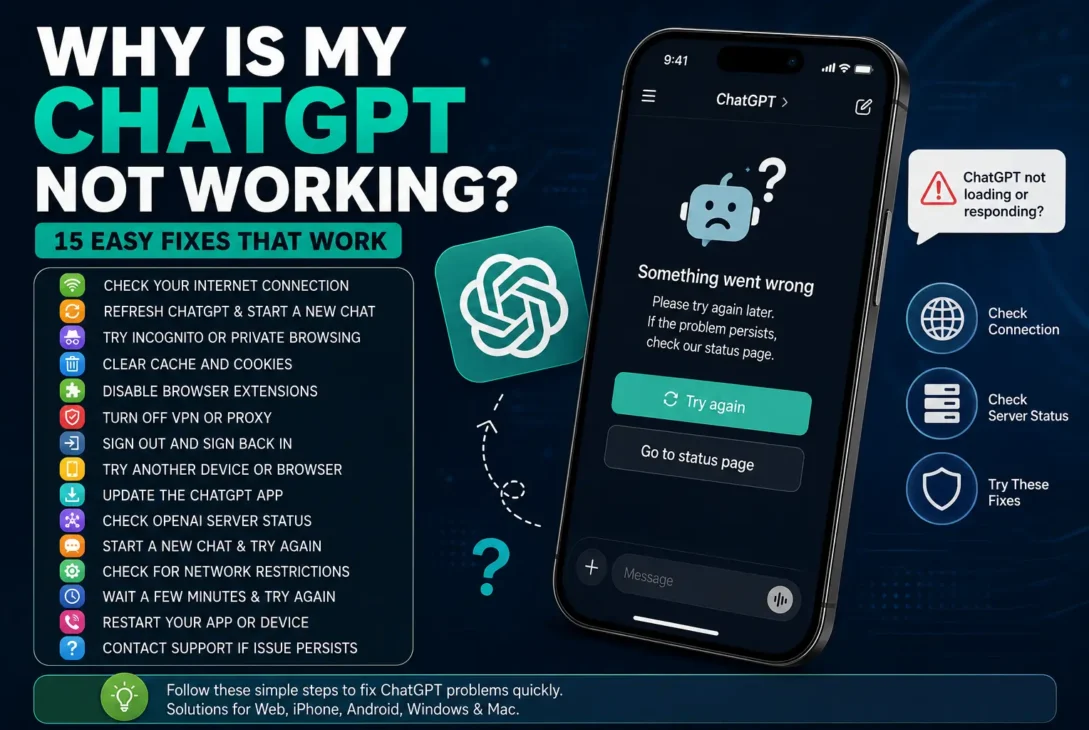
If you’re searching why is my ChatGPT not working, the problem isn’t always caused by your device. ChatGPT can stop responding because of a temporary OpenAI service issue, an unstable internet connection, browser problems, extensions, VPNs, cached data, login problems or an issue with the ChatGPT app.
The quickest way to find the cause is to troubleshoot the problem step by step instead of immediately reinstalling everything.
Check ChatGPT’s Server Status
Before changing anything on your device, check whether OpenAI is experiencing an outage.
OpenAI’s official status page currently shows ChatGPT as operational, but service availability can change, and individual users can sometimes experience problems even when there isn’t a broad outage.
If ChatGPT suddenly stops working on multiple devices and networks at the same time, a service-side problem becomes more likely.
What to Check
Look for problems such as:
- ChatGPT not loading
- Messages failing to send
- Extremely slow responses
- Login failures
- Conversations not appearing
- Features suddenly becoming unavailable
- Repeated server errors
If OpenAI reports an active incident, waiting for the service to recover is usually better than changing your device settings.
Refresh ChatGPT and Start a New Chat
Sometimes a single conversation can become stuck even though ChatGPT itself is working normally.
OpenAI recommends refreshing the page or starting a new chat when you encounter a general “Something went wrong” error.
Try this first:
- Refresh ChatGPT.
- Wait a few seconds.
- Open a new conversation.
- Send a short message such as “Hello.”
- Check whether the response works.
If the new conversation works but your original conversation doesn’t, the problem may be specific to that chat.
Check Your Internet Connection
A weak or unstable connection can make ChatGPT appear to be broken.
You may be able to open websites normally while still experiencing problems with a real-time service such as ChatGPT.
Try switching between:
Wi-Fi → Mobile data
or:
Mobile data → Wi-Fi
If ChatGPT immediately starts working after changing networks, your original connection may be responsible.
You can also restart your router and reconnect your device before testing again.
Try Incognito or Private Browsing
If ChatGPT works in an incognito or private window but not in your normal browser, the problem is likely related to cached data, cookies or a browser extension.
OpenAI specifically recommends trying an incognito/private window when troubleshooting ChatGPT errors and login problems.
This is one of the fastest tests because you don’t have to permanently change your browser settings.
If ChatGPT works normally in private browsing, continue troubleshooting your regular browser rather than your internet connection.
Clear Your Browser Cache and Cookies
If you’re still wondering why is my ChatGPT not working, outdated browser data is one of the next things to check.
ChatGPT can sometimes behave incorrectly when cached files or cookies become outdated or corrupted. OpenAI recommends clearing browser cache and cookies when troubleshooting persistent ChatGPT errors.
On Chrome
Open:
Chrome → Settings → Privacy and security → Delete browsing data
Select cached images/files and cookies, then clear the relevant data.
Afterward, reopen ChatGPT and sign in again if necessary.
Try Site Data First
If you don’t want to clear everything from your browser, you can remove the stored data specifically for ChatGPT.
This is often a better option because it limits the troubleshooting to the website that’s experiencing the problem.
Disable Browser Extensions
Browser extensions can interfere with ChatGPT, particularly extensions that block scripts, modify web pages, filter content or add privacy/security controls.
OpenAI specifically recommends disabling extensions when troubleshooting ChatGPT errors.
Common extensions worth testing include:
- Ad blockers
- Privacy extensions
- Script blockers
- Content filters
- Security extensions
- VPN browser extensions
- Grammar or writing extensions
You don’t necessarily need to uninstall them.
Temporarily disable them, refresh ChatGPT and test again.
If ChatGPT starts working, enable your extensions one at a time until you identify the one causing the conflict.
Turn Off Your VPN or Proxy
If you’re using a VPN and ChatGPT suddenly stops working, temporarily disconnect it.
VPNs and proxy services can affect authentication, network routing and security checks. OpenAI also recommends disabling VPNs and proxies when troubleshooting certain ChatGPT access and login problems.
This is particularly important if you see:
- “Sorry, you have been blocked”
- Repeated verification
- Login failures
- CAPTCHA appearing repeatedly
- Connection errors
- Pages that won’t load
After disabling the VPN, refresh ChatGPT and try again.
If the problem disappears, the VPN connection or its IP address may have been responsible.
Try Another Browser
If ChatGPT isn’t working in Chrome, test it in another browser.
For example:
- Safari
- Microsoft Edge
- Firefox
- Another Chromium-based browser
If ChatGPT works normally in another browser, your internet connection and account are probably not the main problem.
The issue is more likely related to the original browser’s cache, cookies, extensions or settings.
Try Another Device
Another useful test is to open ChatGPT on a different device.
For example, if ChatGPT isn’t working on your computer, try your phone.
If it works on your phone but not your computer, the problem is probably local to your computer, browser or network configuration.
If it fails on both devices, test another network as well.
This gives you a much clearer picture of where the problem is coming from.
Check Your Login Method
If ChatGPT isn’t working because you can’t sign in, make sure you’re using the same authentication method you originally used to create your account.
For example, if you originally selected Continue with Google, try signing in with Google rather than entering a separate password.
OpenAI says using a different authentication method can result in errors such as “Wrong authentication method.”
The same applies to accounts created through:
- Microsoft
- Apple
- Email and password
- Organization SSO
Using the correct method can solve login problems without changing your account settings.
What If ChatGPT Is Stuck on “Thinking”?
If ChatGPT remains stuck on Thinking, Generating or another loading state, don’t keep waiting indefinitely.
OpenAI recommends waiting around 30–60 seconds first. If nothing happens, stop the generation and try again. You can also start a new chat, refresh the page or restart the application.
A long conversation can also contribute to problems, so starting a completely new chat is a useful test.
Quick Fix
Try this sequence:
Wait → Stop generating → Regenerate → New chat → Refresh → Try again
If that still doesn’t work, continue with the browser and network troubleshooting steps above.
Check for Network Restrictions
If you’re still asking why is my ChatGPT not working, especially on a school, office or company network, the network itself may be blocking part of ChatGPT.
OpenAI notes that ChatGPT can require access to several OpenAI domains and secure WebSocket connections. Network filtering, proxies, firewalls or security gateways can interfere with these connections.
Test With a Phone Hotspot
The easiest way to check is to disconnect from your current Wi-Fi and connect your computer to your phone’s hotspot.
If ChatGPT works normally over the hotspot, your device is probably fine and the original network is the more likely cause.
This is particularly useful on:
- Office Wi-Fi
- School networks
- University networks
- Public Wi-Fi
- Corporate VPNs
OpenAI specifically recommends comparing the problematic network with a cellular connection when diagnosing network-related ChatGPT errors.
Hard Refresh ChatGPT
A normal refresh doesn’t always reload every resource.
Try a hard refresh instead:
Windows: Ctrl + Shift + R
Mac: Cmd + Shift + R
OpenAI recommends a hard refresh when ChatGPT becomes stuck, freezes or continuously loads.
After refreshing, wait a few seconds and try sending a short message.
Restart the ChatGPT App
If you’re using the ChatGPT desktop or mobile app rather than a browser, completely close the application and open it again.
If the problem continues, check whether an update is available for the app.
For persistent desktop-app problems, OpenAI also recommends reloading the application and trying ChatGPT through the web as an alternative troubleshooting step.
Sign Out and Sign Back In
If ChatGPT loads but doesn’t respond correctly, your current login session may be the problem.
Sign out of ChatGPT, close the browser or app, reopen it and sign back in.
This is especially worth trying when:
- Conversations aren’t loading
- Your account appears partially logged in
- Features aren’t appearing correctly
- ChatGPT repeatedly asks you to authenticate
- You keep getting session-related errors
OpenAI includes signing out and signing back in among its recommended troubleshooting steps for persistent loading and response problems.
What If ChatGPT Shows a Network Error?
A network error or WebSocket connection error generally means your device isn’t maintaining a reliable connection with OpenAI’s servers.
Try this order:
- Disable VPN.
- Disable proxy settings.
- Turn off security filtering temporarily.
- Try a private browser window.
- Try another browser.
- Switch to mobile data or another Wi-Fi network.
- Restart ChatGPT.
These are among the network troubleshooting steps recommended by OpenAI.
Don’t Forget About Long Conversations
Sometimes ChatGPT can become slower or behave unexpectedly when you’re working inside a very long conversation.
If a particular conversation is extremely long, start a new chat and send the same prompt again.
OpenAI specifically recommends starting a new conversation when a long chat becomes slow, stuck or stops responding.
If the new chat works normally, the problem may be limited to the original conversation rather than your entire ChatGPT account.
Frequently Asked Questions
Why is my ChatGPT not working?
The most common causes are internet problems, browser cache, extensions, VPNs, outdated apps, account issues or a temporary OpenAI service problem.
Why is ChatGPT not loading?
Refresh the page, try a private browser window, disable extensions and VPNs, or switch to another network. You can also check the OpenAI status page for service problems.
Why is ChatGPT stuck on Thinking?
Wait briefly, then stop the response and try again. Starting a new chat, refreshing the page or restarting the app can also help.
Why is ChatGPT not responding to my messages?
The issue could be caused by a temporary service problem, an unstable connection or a browser/app issue. Try another browser or network to identify the cause.
Why is ChatGPT not working on my phone?
Update the ChatGPT app, restart your phone, check your internet connection and try switching between Wi-Fi and mobile data.
Why is ChatGPT not working on Chrome?
Try a hard refresh, private browsing, disabling extensions and clearing ChatGPT’s cached site data. You can also test ChatGPT in Edge, Safari or Firefox.
Can a VPN stop ChatGPT from working?
Yes. VPNs and proxies can sometimes interfere with authentication or network connections. Temporarily disabling the VPN is a useful troubleshooting test.
Why does ChatGPT work on my phone but not my computer?
The problem may be specific to your computer, browser, extensions, security software or network. Try another browser and connect the computer to a phone hotspot.
Why is ChatGPT showing a network error?
A network error can happen when your connection to OpenAI’s servers is unstable or blocked by a VPN, proxy, firewall or network filter.
Should I reinstall ChatGPT?
Reinstalling can help if the app itself is malfunctioning, but try restarting it, updating it and checking your network first.
Final Verdict
If you’re wondering why is my ChatGPT not working, start with the simplest fixes before making major changes.
First, check the OpenAI status page and your internet connection. Then refresh ChatGPT, try a new conversation and test another browser or private window.
If the problem continues, disable VPNs and browser extensions, clear cached site data, update the ChatGPT app and try another network such as a phone hotspot.
If ChatGPT works on another device or network, you’ve narrowed the problem down considerably. If it fails everywhere at the same time, an OpenAI-side issue is more likely.
For persistent problems, OpenAI’s official troubleshooting guidance recommends checking the service status, testing another network or browser, disabling VPNs/proxies and extensions, and collecting relevant error information before contacting support. (help.openai.com)