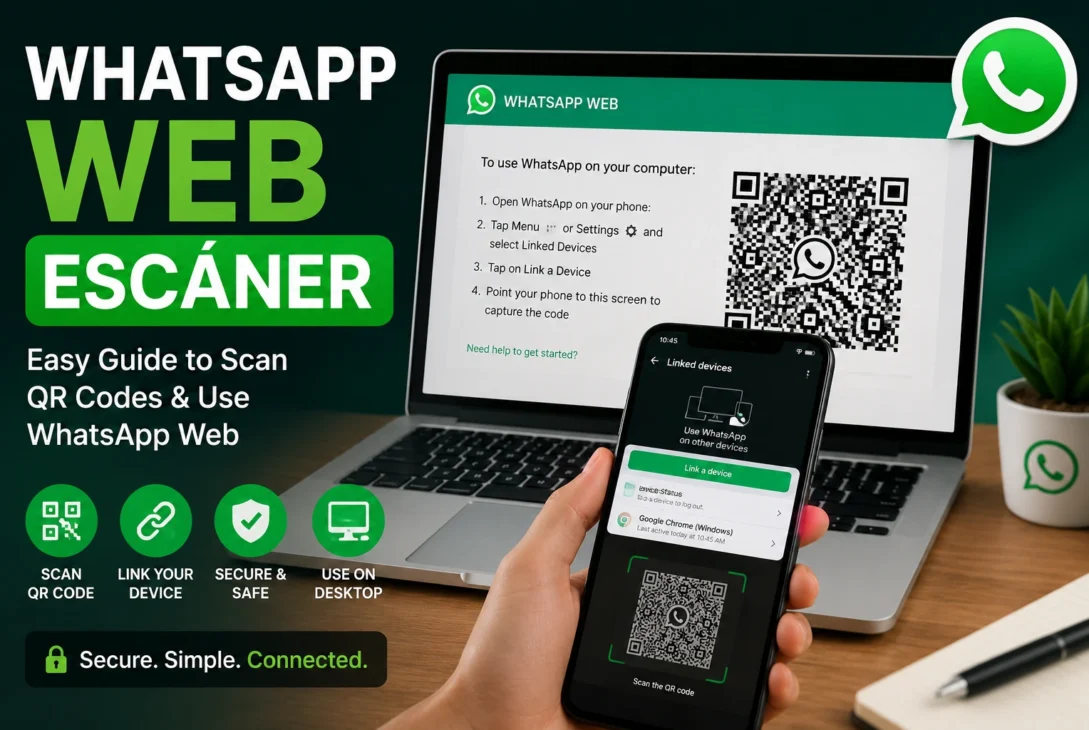
Using WhatsApp on a computer is much easier when you know how the QR-code login system works. The whatsapp web escáner allows users to connect their WhatsApp account to a desktop or laptop browser by scanning a QR code with the WhatsApp mobile application.
Instead of typing a username and password, WhatsApp Web uses a secure device-linking process. You open WhatsApp Web on your computer, display the QR code, and then use your phone to scan it.
This method makes it possible to send messages, share files, view conversations, and manage chats from a larger screen while your WhatsApp account remains connected to your phone.
In this guide, you’ll learn what the whatsapp web escáner is, how to use it, how to scan the QR code correctly, how linked devices work, and what to do if WhatsApp Web isn’t connecting.
Table of Contents
- What Is WhatsApp Web Escáner?
- How WhatsApp Web QR Scanning Works
- How to Use WhatsApp Web
- How to Scan the WhatsApp Web QR Code
- WhatsApp Web on Android
- WhatsApp Web on iPhone
- Linking Multiple Devices
- WhatsApp Web Security
- Common QR Scanner Problems
- How to Fix WhatsApp Web Connection Issues
- WhatsApp Web vs WhatsApp Desktop
- Tips for Using WhatsApp Web Safely
- Pros and Cons
- Frequently Asked Questions
What Is WhatsApp Web Escáner?
The term whatsapp web escáner generally refers to the QR-code scanner used to link a WhatsApp account with WhatsApp Web on a computer.
When you visit WhatsApp Web, the website displays a unique QR code. You then open WhatsApp on your smartphone and use the linked-devices option to scan that code.
Once the process is completed, your conversations become available through the browser.
The system is designed to make computer access simple without requiring users to manually enter their phone number and password every time they want to use WhatsApp on a desktop.
https://www.whatsapp.com/
How WhatsApp Web QR Scanning Works
The whatsapp web escáner process is based on linking your phone with another device.
The basic process looks like this:
- Open WhatsApp Web on your computer.
- Wait for the QR code to appear.
- Open WhatsApp on your phone.
- Go to the linked-devices section.
- Select the option to link a new device.
- Scan the QR code displayed on your computer.
- Wait for the devices to connect.
After successful authentication, your WhatsApp account will become available in the browser.
The exact menu names can vary slightly depending on whether you’re using Android or iPhone and which version of WhatsApp is installed.
How to Use WhatsApp Web
Using WhatsApp Web is relatively straightforward.
First, open a supported browser on your computer and navigate to the official WhatsApp Web website.
Once the page loads, you’ll see a QR code on the screen. Keep this page open while you prepare your smartphone.
Open WhatsApp on your phone and access the linked-devices settings. From there, choose the option to link a new device.
Point your phone’s camera toward the QR code on your computer screen.
After the code is recognized, WhatsApp will authenticate the connection and load your chats.
Once connected, you can use WhatsApp from the larger computer interface.
How to Scan the WhatsApp Web QR Code
To use the whatsapp web escáner, make sure the QR code is clearly visible on your computer screen.
Avoid placing the phone too far away from the monitor. You should also ensure that the screen is clean and the QR code isn’t partially hidden.
If the camera has trouble recognizing the code, try:
- Increasing your monitor brightness
- Cleaning the phone camera lens
- Moving the phone slightly closer
- Keeping the phone steady
- Refreshing the WhatsApp Web page
- Checking your internet connection
A QR code can expire or change, so if the current code doesn’t work, refresh WhatsApp Web and try scanning the newly generated code.
WhatsApp Web on Android
Android users can connect WhatsApp Web through the linked-devices feature inside the WhatsApp application.
Open WhatsApp and access the menu containing Linked devices. From there, select the option to link a new device.
The phone’s camera will open, allowing you to scan the QR code displayed by WhatsApp Web.
After authentication, the browser will synchronize the account and display the available conversations.
Android users should keep WhatsApp updated because menu locations and available features can change with new application versions.
WhatsApp Web on iPhone
The process is also straightforward on iPhone.
Open WhatsApp and navigate to the settings area. Find Linked Devices, select the option to link a new device, and scan the QR code shown on your computer.
Once the code is accepted, the browser session will be connected to your WhatsApp account.
If the connection doesn’t work, check that your iPhone has a working internet connection and that WhatsApp is updated to the latest available version.
Linking Multiple Devices
WhatsApp supports linking additional devices to an account, which can make it easier to use the service across computers and other supported devices.
After linking a device, you don’t necessarily need to scan a new QR code every time you open the same computer.
However, sessions can be removed or disconnected for security reasons. You can review connected devices from WhatsApp’s linked-devices section and remove any device you no longer recognize or use.
WhatsApp Web Security and Privacy
When using the whatsapp web escáner, security should be one of your main priorities. A WhatsApp Web session gives access to your conversations and other account information, so you should only link devices that you trust.
Always check the computer you’re connecting to before scanning the QR code. Avoid linking your account on public or shared computers unless you plan to log out afterward.
Check Linked Devices Regularly
WhatsApp allows users to review the devices connected to their account.
If you see a computer or device that you don’t recognize, remove it immediately from the linked-devices section.
This is one of the easiest ways to maintain control over your WhatsApp account.
Avoid Suspicious QR Codes
Only scan the QR code displayed by the official WhatsApp Web service.
Don’t scan QR codes from random websites, messages, advertisements, or unknown applications that claim to provide special WhatsApp features.
A QR code can be used to authorize a device connection, so you should treat unexpected WhatsApp-related QR codes carefully.
Common WhatsApp Web QR Scanner Problems
Sometimes the whatsapp web escáner may not work as expected. Several common issues can prevent the QR code from being scanned or the account from connecting.
QR Code Isn’t Scanning
If the camera doesn’t recognize the QR code, make sure the entire code is visible on your computer screen.
Try adjusting the distance between your phone and monitor. Increasing screen brightness can also make the code easier for the camera to recognize.
QR Code Keeps Loading
If WhatsApp Web doesn’t display a QR code properly, refresh the browser page.
You can also try opening WhatsApp Web in another supported browser to determine whether the issue is browser-specific.
WhatsApp Web Disconnects
A connection can sometimes be interrupted by network problems, browser issues, or account-related changes.
Check your internet connection on both devices and review your linked devices in WhatsApp.
Camera Doesn’t Recognize the Code
Clean your phone’s camera lens and make sure you’re using the correct scanner inside WhatsApp.
Don’t use the normal camera application if WhatsApp instructs you to scan the code through its linked-device feature.
How to Fix WhatsApp Web Connection Issues
If you’re having trouble connecting WhatsApp Web, try these solutions one at a time.
1. Refresh WhatsApp Web
Reload the WhatsApp Web page and wait for a new QR code to appear.
2. Restart WhatsApp
Close WhatsApp on your phone and open it again. Then return to the linked-devices section and try the connection again.
3. Check Your Internet
Make sure both your phone and computer have a stable internet connection.
A weak or unstable connection can interfere with authentication and synchronization.
4. Update WhatsApp
An outdated version of WhatsApp can sometimes cause compatibility or feature issues.
Check your device’s application store and install any available WhatsApp updates.
5. Try Another Browser
If the problem continues, try another modern browser.
This can help determine whether the issue is caused by browser extensions, cached data, or compatibility problems.
6. Remove the Existing Device
If a previously connected session is causing problems, remove that device from the linked-devices section and create a new connection.
WhatsApp Web vs WhatsApp Desktop
WhatsApp can be used on a computer through a web browser or through its dedicated desktop application.
WhatsApp Web
WhatsApp Web works directly inside a browser.
Its main advantage is convenience because you don’t need to install a separate desktop application.
It can be useful when you’re using a temporary computer or don’t want another application installed on your system.
WhatsApp Desktop
The desktop application provides a dedicated WhatsApp experience.
It can be more convenient for people who use WhatsApp regularly on their computer and want the application available from the desktop.
Both options can provide access to your conversations, depending on the features supported by your current WhatsApp version.
Tips for Using WhatsApp Web Safely
Following a few simple practices can make the whatsapp web escáner experience safer.
- Only use the official WhatsApp Web website.
- Don’t scan unknown QR codes.
- Review linked devices regularly.
- Remove computers you no longer use.
- Avoid connecting your account on public computers.
- Log out after using a shared computer.
- Keep WhatsApp updated.
- Use a screen lock on your phone.
- Don’t share screenshots of sensitive QR codes.
- Be cautious with websites claiming to offer unofficial WhatsApp features.
These precautions can help reduce the risk of accidentally linking your account to an unauthorized device.
Pros and Cons
Pros
- Quick QR-code authentication
- No traditional password required for WhatsApp Web
- Easy access from a larger screen
- Convenient for work and productivity
- Simple device-linking process
- Useful for sending files and messages from a computer
Cons
- Public computers can create privacy risks
- QR codes should only be scanned from trusted sources
- Browser or network problems can interrupt access
- Users need to monitor linked devices
- Features can change as WhatsApp updates its applications
Final Verdict
The whatsapp web escáner makes connecting WhatsApp to a computer simple by using a QR-code-based device-linking process.
Instead of entering complicated login information, users can open WhatsApp Web, access the linked-devices feature on their phone, and scan the code shown on the computer.
Once connected, WhatsApp Web provides a convenient way to manage conversations, send messages, share files, and communicate from a larger screen.
Security is still important. Users should only scan trusted QR codes, regularly review linked devices, and log out of shared computers when finished.
For everyday computer use, WhatsApp Web remains one of the simplest ways to access WhatsApp without relying entirely on a smartphone screen.
Frequently Asked Questions
1. What is the WhatsApp Web scanner?
The WhatsApp Web scanner refers to the QR-code scanning process used to connect a WhatsApp account with WhatsApp Web on a computer.
2. How do I scan WhatsApp Web?
Open WhatsApp Web on your computer, then open WhatsApp on your phone, go to Linked Devices, select the option to link a device, and scan the QR code displayed on your computer.
3. Why isn’t my WhatsApp Web QR code scanning?
Try increasing screen brightness, cleaning your camera lens, adjusting the phone’s distance from the screen, refreshing WhatsApp Web, and checking your internet connection.
4. Is WhatsApp Web safe?
WhatsApp Web can be used safely when you connect only trusted devices and regularly check your linked devices.
5. Can I use WhatsApp Web without my phone?
WhatsApp supports linked devices, allowing connected devices to continue working independently in supported circumstances. However, your WhatsApp account still needs to be set up and linked through the mobile application.
6. How do I log out of WhatsApp Web?
You can log out from the WhatsApp Web interface or remove the connected computer from the Linked Devices section of WhatsApp on your phone.