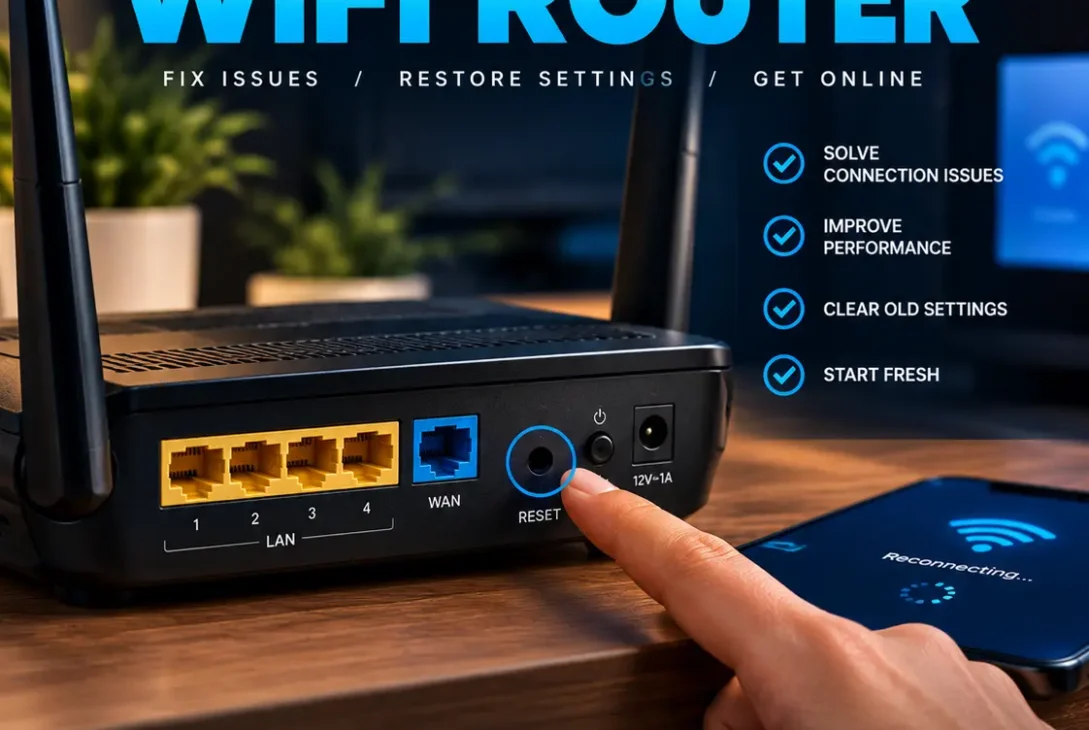
If your internet connection keeps dropping, your WiFi becomes unstable, or your router stops responding, learning how to reset WiFi router settings can help you get your network working again. However, there is an important difference between restarting a router and performing a complete factory reset.
A restart temporarily powers the router off and back on without normally deleting your settings. A factory reset is much more serious because it can erase your WiFi name, password, administrator settings, internet configuration, and other custom options.
If you’re searching for how to reset WiFi router settings because of a connection problem, start with the simplest solution first. A restart is often enough for temporary problems, while a factory reset should generally be reserved for persistent configuration issues or situations where you need to return the device to its original state.
This guide explains how to reset WiFi router devices using the physical reset button, administration panel, and manufacturer apps. It also explains what happens after a reset and how to configure your network again.
Table of Contents
- Why Reset a WiFi Router?
- Restart vs Factory Reset
- How to Reset WiFi Router Safely
- Method 1: Restart the Router
- Method 2: Use the Physical Reset Button
- Method 3: Reset From the Router Admin Panel
- Method 4: Use the Router’s Mobile App
- What Happens After a Factory Reset?
- How to Set Up Your Router Again
- What to Do If Internet Still Doesn’t Work
- Common Router Reset Mistakes
- Frequently Asked Questions
- Final Verdict
- SEO Details
Why Reset a WiFi Router?
There are several reasons you might need to reset a wireless router.
Common situations include:
- WiFi keeps disconnecting
- Internet access suddenly stops
- The router becomes unresponsive
- You forgot the router administrator password
- A configuration change caused connection problems
- The router needs to be returned to factory settings
- You are giving the router to another person
- You want to remove old network settings
- The router has persistent configuration problems
Before you learn how to reset WiFi router settings, determine whether a restart is enough.
If your internet problem started suddenly and you haven’t changed any settings, restarting the router is usually the better first step.
If you’ve changed advanced settings or forgotten your administrator password, a factory reset may be necessary.
Restart vs Factory Reset
Understanding this difference is essential when learning how to reset WiFi router devices.
Restarting the Router
A restart, sometimes called a power cycle, simply turns the router off and back on.
Your existing configuration normally remains intact.
A restart can clear temporary problems involving:
- Network connections
- DHCP assignments
- Temporary software errors
- Wireless communication
- Router memory
- Internet sessions
Google Fiber, for example, recommends restarting the router by disconnecting power briefly and reconnecting it when troubleshooting internet problems.
Factory Reset
A factory reset returns the router to its original configuration.
Depending on the manufacturer, this can remove:
- WiFi name
- WiFi password
- Administrator password
- Internet settings
- DNS settings
- Port forwarding
- Guest networks
- Parental controls
- Custom security settings
TP-Link states that a factory reset can erase customized internet, WiFi, and administrator settings, requiring the router to be configured again.
That’s why you should not perform a factory reset simply because your internet was slow for a few minutes.
How to Reset WiFi Router Safely
Before following how to reset WiFi router instructions, collect any information you’ll need afterward.
Write down:
- Your current WiFi name
- WiFi password
- Router administrator password
- ISP username
- ISP password
- PPPoE information, if required
- Custom DNS settings
- Port forwarding rules
- Other important network settings
If your router was supplied by your internet provider, check the ISP’s setup instructions before resetting it.
Some connections require specific credentials or configurations that may need to be entered again.
If you don’t know your ISP settings, contacting your provider before performing a factory reset can save you from unnecessary downtime.
Method 1: Restart the Router
The easiest way to troubleshoot a router is to restart it.
If you’re learning how to reset WiFi router equipment because the connection suddenly stopped working, try this method first.
Steps to Restart
- Turn off the router if it has a power button.
- Disconnect the power adapter.
- Wait about 10–30 seconds.
- Connect the power adapter again.
- Turn the router on.
- Wait several minutes for the router to reconnect.
- Connect your phone or computer to WiFi.
The exact startup time varies by router.
Google recommends waiting for the router’s status indicators to return to their normal state before testing the connection again.
A restart doesn’t normally erase your WiFi password or customized settings.
Method 2: Use the Physical Reset Button
If restarting doesn’t solve the problem and you need a complete factory reset, you can usually use the physical reset button.
Most routers have a small recessed button on the rear or bottom.
You may need a pin or unfolded paperclip to press it.
How to Reset WiFi Router Using the Reset Button
Follow these general steps:
- Keep the router powered on.
- Locate the Reset button.
- Insert a pin or paperclip into the reset hole.
- Press and hold the button.
- Hold it for the amount of time specified by your router manufacturer.
- Release the button when the router’s LEDs respond appropriately.
- Wait for the router to reboot.
- Allow the factory reset process to finish.
The exact timing varies between models.
For example, TP-Link says many of its routers require the reset button to be held for approximately 6–10 seconds, while some models use different procedures.
Don’t unplug the router while it is performing the reset.
Method 3: Reset From the Router Admin Panel
Some routers let you reset the device from their web-based administration interface.
This can be useful if the physical reset button is difficult to access.
First, connect your computer or phone to the router.
Then open the router’s administration address.
Common addresses include:
- 192.168.1.1
- 192.168.0.1
- 10.0.0.1
Your router may use a different address, so check the manufacturer’s documentation.
After logging in, look for a menu such as:
Administration → System → Backup & Restore
or:
Advanced → System Tools → Factory Defaults
The wording varies by manufacturer.
TP-Link documentation, for example, provides factory-reset options through its web-based management interface on supported models.
Before clicking the final reset option, make sure you have recorded important configuration information.
Method 4: Use the Router’s Mobile App
Modern routers often come with smartphone applications.
If your router supports an official app, it may provide options to:
- Restart the router
- Check internet status
- Change WiFi settings
- Update firmware
- Manage connected devices
- Reset network settings
- Perform a factory reset
Google Nest and Google Wifi devices, for example, provide factory-reset options through their supported apps.
If you’re following how to reset WiFi router instructions through an app, carefully check whether the option says Restart, Reset Settings, or Factory Reset.
These options are not always equivalent.
What Happens After a Factory Reset?
If you’re learning how to reset WiFi router settings because you want to start from scratch, remember that a factory reset can remove your customized configuration.
Afterward, the router may return to its original:
- WiFi network name
- Wireless password
- Administrator credentials
- Internet configuration
- DNS settings
- Security settings
- Guest network
- Port forwarding rules
Your devices may also disconnect immediately.
Google explains that factory-resetting supported Google Wifi equipment erases current settings and requires the network to be set up again.
This is why you should treat a factory reset as a last-resort configuration step rather than a routine troubleshooting method.
How to Set Up Your Router Again
Once you understand how to reset WiFi router settings and complete a factory reset, you’ll need to configure the device again.
Start by connecting a computer or smartphone to the router.
Open the manufacturer’s setup page or official mobile application.
Choose a WiFi Name
Create a network name that doesn’t reveal unnecessary personal information.
You don’t need to use your real name, address, or phone number.
Create a Strong WiFi Password
Choose a long and unique password.
Avoid simple combinations such as:
- 12345678
- password
- your name
- your phone number
- your home address
A unique password reduces the risk of unauthorized access.
Select Appropriate WiFi Security
Use the strongest security standard supported by your router and connected devices.
Newer routers may support WPA3, while older hardware may require WPA2 compatibility.
For additional information about WiFi security standards, see the Wi-Fi Alliance security guidance.
Configure Internet Access
Depending on your ISP, the router may automatically detect the connection.
Other connections may require:
- PPPoE username
- PPPoE password
- Static IP information
- DNS configuration
- VLAN settings
If you’re unsure, contact your ISP before changing advanced settings.
https://support.google.com/fiber/answer/14640386
What to Do If Internet Still Doesn’t Work
Knowing how to reset WiFi router settings doesn’t guarantee that every internet problem will disappear.
Sometimes the router isn’t actually the source of the problem.
Check the Modem or ONT
If your setup includes a separate modem or fiber ONT, check its status lights.
The router may be working correctly while the incoming ISP connection is down.
Check Ethernet Connections
Inspect the Ethernet cable between your modem, ONT, and router.
Make sure each connector is firmly inserted.
If possible, test another Ethernet cable.
Test Multiple Devices
Connect another phone, laptop, or tablet.
If every device has the same problem, investigate the router, modem, ONT, or ISP.
If only one device is affected, troubleshoot that device instead of repeatedly resetting the router.
Contact Your ISP
If the router has been correctly configured but the internet remains unavailable, contact your internet provider.
The problem could involve an outage, account issue, line problem, modem, or ISP configuration.
Common Router Reset Mistakes
When researching how to reset WiFi router settings, it’s easy to make the process more complicated than necessary.
Avoid these mistakes.
Factory Resetting Too Quickly
Don’t immediately factory reset the router because the internet is temporarily slow.
Try restarting it first.
Forgetting ISP Credentials
A factory reset may remove the settings required to connect to your provider.
Make sure you have the necessary information before resetting.
Holding the Reset Button for the Wrong Amount of Time
Different manufacturers use different reset procedures.
Follow the instructions for your exact model instead of assuming every router resets after the same number of seconds.
Changing Too Many Settings
After resetting the router, don’t change several advanced settings simultaneously.
Make one change at a time.
Unplugging During Reset
Don’t disconnect the router’s power while it is restoring factory settings.
Some manufacturers specifically warn users to allow the reset process to complete without interruption.
When Should You Factory Reset a Router?
A factory reset can be appropriate when:
- You’ve forgotten the administrator password
- A configuration change caused persistent problems
- You want to erase your settings
- You’re giving the router to another person
- You’re returning the device
- Standard troubleshooting hasn’t resolved a configuration problem
- The manufacturer specifically recommends a reset
If the only problem is a temporary internet interruption, a normal restart is usually the better starting point.
Frequently Asked Questions
How do I reset WiFi router settings without deleting everything?
If you only want to refresh the connection, restart the router by disconnecting its power briefly and reconnecting it. A factory reset is different because it can erase customized settings.
How long should I hold the router reset button?
The exact time depends on the router model. Some TP-Link routers require approximately 6–10 seconds, while other devices can require different timings. Check your manufacturer’s instructions before resetting.
Does resetting a router delete the WiFi password?
A factory reset can remove your customized WiFi password and restore the router’s default configuration. A normal restart usually keeps your existing password.
Will resetting my router improve internet speed?
A restart can sometimes resolve temporary connection or performance problems. However, a factory reset does not automatically increase your internet speed.
Why is my WiFi not working after a factory reset?
The router may need to be configured again. Check your WiFi settings, internet connection type, ISP credentials, Ethernet cables, and modem or ONT.
Will a factory reset disconnect my devices?
Yes. A factory reset can remove your existing wireless configuration, meaning phones, laptops, smart TVs, consoles, and other devices may need to connect again.
Do I need my ISP password after resetting the router?
Not necessarily. Some internet connections configure automatically, while others require PPPoE or other provider-specific credentials.
Can I reset a router from my phone?
Some modern routers support factory-reset or restart options through their official mobile applications.
Should I restart or factory reset my router?
Start with a restart if you’re experiencing a temporary connection problem. Use a factory reset when you need to erase the configuration or when persistent configuration problems remain.
What should I do after resetting my router?
Set a new WiFi name and strong password, configure your internet connection, update the router firmware if necessary, and reconnect your devices.
Final Verdict
Learning how to reset WiFi router settings can help when your network develops persistent connection or configuration problems, but a factory reset isn’t always necessary.
Start with a normal restart. Disconnect the router’s power, wait briefly, reconnect it, and give the device time to establish the internet connection again.
If that doesn’t work and you need to restore the original configuration, use the manufacturer’s factory-reset procedure. Depending on the model, this may involve holding a recessed reset button or selecting a factory-reset option through the router’s administration panel or official app.
Before you reset, save important network information and make sure you understand what will be erased.
Afterward, configure your WiFi again, choose a strong password, check your security settings, and reconnect your devices.
If the internet still doesn’t work after completing how to reset WiFi router steps, the problem may be outside the router. Check your modem, ONT, Ethernet cables, and ISP connection before repeatedly performing additional resets.