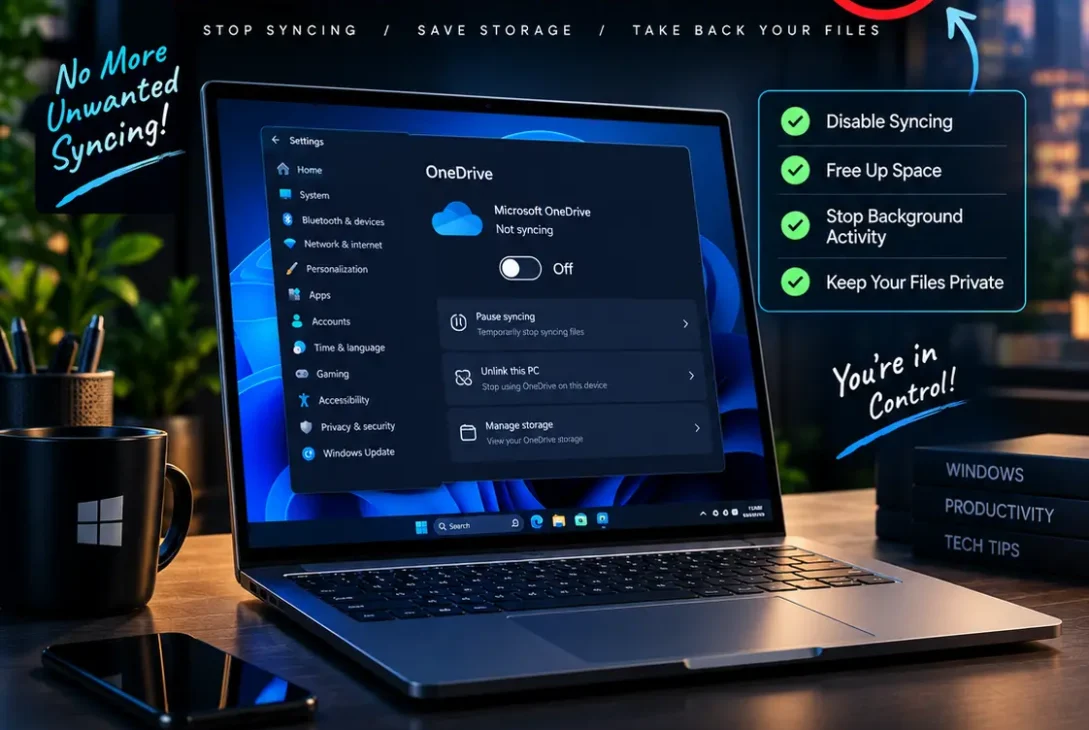
If OneDrive keeps syncing files, backing up your folders, showing cloud icons, or starting every time you turn on your computer, you may be wondering how to turn off OneDrive without deleting your files. The good news is that Microsoft provides several ways to stop or limit OneDrive depending on what you actually want to achieve.
You can temporarily pause syncing, quit OneDrive, unlink your computer from your Microsoft account, stop specific folders from syncing, disable automatic backup, or uninstall the OneDrive application completely. These options have different effects, so choosing the right one is important.
For example, someone who only wants to stop OneDrive for a few hours does not need to uninstall it. Likewise, someone who wants to keep using OneDrive online but remove it from their Windows PC may only need to unlink the computer.
This guide explains how to turn off OneDrive on Windows 10, Windows 11, and Mac, while also explaining what happens to your files when you disconnect or uninstall the application.
Table of Contents
- How to Turn Off OneDrive Temporarily
- How to Turn Off OneDrive Completely on Windows
- How to Unlink OneDrive From Your PC
- How to Stop OneDrive From Starting Automatically
- How to Turn Off OneDrive Folder Backup
- How to Stop Specific OneDrive Folders From Syncing
- How to Uninstall OneDrive
- How to Turn Off OneDrive on Mac
- What Happens to Your Files When You Turn Off OneDrive?
- Common OneDrive Problems After Disabling Sync
- Frequently Asked Questions
- Final Verdict
How to Turn Off OneDrive Temporarily
The easiest option is to pause OneDrive if you only need to stop synchronization for a short period.
Microsoft allows users to pause syncing for different periods, including 2, 8, or 24 hours. You can also quit the OneDrive application completely.Once you understand where your files are stored, you can choose the OneDrive option that best fits your setup.
Pause OneDrive Syncing
On Windows:
- Select the OneDrive cloud icon in the notification area of the taskbar.
- Open Help & Settings.
- Select Pause syncing.
- Choose the available pause period.
During the pause, OneDrive will stop synchronizing changes between your computer and the cloud.
This can be useful if your internet connection is slow, you are working with large files, or OneDrive is consuming system resources while you need to complete another task.
Quit OneDrive
If you want to stop the application rather than simply pause synchronization:
- Select the OneDrive cloud icon.
- Open Help & Settings.
- Choose Quit OneDrive.
- Confirm if Windows asks you to do so.
Microsoft explains that OneDrive can be restarted later by opening the OneDrive application again.
This method does not disconnect your Microsoft account or delete anything from OneDrive.
How to Turn Off OneDrive Completely on Windows
If your goal is to stop OneDrive from syncing your computer altogether, unlinking your PC is usually a better option than simply pausing synchronization.
Microsoft’s recommended process is to open OneDrive settings, go to the Account section, and select Unlink this PC.
Unlink OneDrive From Windows 11
Follow these steps:
- Select the OneDrive cloud icon in the Windows taskbar.
- Select the Help & Settings gear icon.
- Choose Settings.
- Open the Account tab.
- Select Unlink this PC.
- Confirm by selecting Unlink account.
After this, OneDrive will no longer synchronize that account with the computer.
This is one of the most useful methods for anyone searching for how to turn off OneDrive because it stops the connection without requiring you to delete your cloud account.
Unlink OneDrive From Windows 10
The process is very similar in Windows 10:
- Click the OneDrive cloud icon.
- Open Help & Settings.
- Select Settings.
- Go to Account.
- Select Unlink this PC.
- Confirm the action.
Microsoft states that unlinking OneDrive from a computer does not delete your OneDrive files or data. Your files can still be accessed by signing in to OneDrive on the web.
How to Unlink OneDrive From Your PC
Unlinking is different from deleting your Microsoft account or deleting files from OneDrive.
When you unlink the PC, the computer is disconnected from the OneDrive account. Files already available locally can remain on the computer, while files that exist only online may no longer be available locally after the account is disconnected.
Microsoft specifically notes that files marked as Available on this device remain in the computer’s OneDrive folders after an account is removed, while online-only files remain accessible through OneDrive on the web.
This distinction is important before you remove or reorganize your OneDrive folder.
Does Unlinking Delete OneDrive Files?
No. Unlinking your computer does not delete your OneDrive account or the files stored in the cloud.
Your files remain available through OneDrive online.
However, you should avoid manually deleting files from a synchronized OneDrive folder immediately before disconnecting unless you understand how synchronization works. Deleting synchronized files can cause those changes to be reflected in the cloud.
If you are unsure, verify that important files are available online before making major changes.
https://support.microsoft.com/en-us/onedrive/how-to-cancel-or-stop-sync-in-onedrive
How to Stop OneDrive From Starting Automatically
Some users do not necessarily want to uninstall OneDrive. They simply want it to stop opening whenever Windows starts.
In that situation, disabling its startup behaviour can be enough.
Disable OneDrive Startup in Windows
Open Task Manager by pressing:
Ctrl + Shift + Esc
Then:
- Select Startup apps.
- Find Microsoft OneDrive.
- Right-click it.
- Select Disable.
This prevents OneDrive from automatically launching when Windows starts.
However, disabling startup is not the same as unlinking your computer. If OneDrive is already running, it may continue operating until you quit it. Likewise, the account can remain connected.
For a complete stop, Microsoft recommends unlinking the PC or uninstalling OneDrive rather than relying only on startup settings.
How to Turn Off OneDrive Folder Backup
Another common reason people search for how to turn off OneDrive is that Windows has started backing up folders such as Desktop, Documents, or Pictures.
This can make it appear as though OneDrive is controlling your normal Windows folders.
Stop Folder Backup
Depending on your OneDrive version and account configuration:
- Open the OneDrive cloud menu.
- Select Help & Settings.
- Open Settings.
- Look for Sync and backup.
- Select Manage backup.
- Choose the folder you want to stop backing up.
- Follow the prompts to stop the backup.
The exact options can vary depending on the OneDrive version and whether you are using a personal or work/school account.
Microsoft’s OneDrive settings include controls for backup and synchronization, although available settings can vary by account type.
Be Careful With Desktop and Documents
If your Desktop or Documents folder has been redirected to OneDrive, turning off backup can change where new files are stored.
Before disabling folder backup, check where important files are currently located.
If necessary, copy important files to a local folder first. This helps prevent confusion when OneDrive changes the location or synchronization status of a folder.
How to Stop Specific OneDrive Folders From Syncing
You do not always need to disable OneDrive completely.
If you only want to prevent certain folders from taking up space on your computer, use OneDrive’s folder selection controls.
Microsoft allows users to choose which OneDrive folders synchronize with their computer.
Choose Which Folders Sync
To manage synchronized folders:
- Open OneDrive settings.
- Select the Account tab.
- Choose Choose folders.
- Uncheck the folders you do not want to synchronize.
- Confirm the changes.
The selected folders can remain available through OneDrive online even though they are no longer synchronized to that particular computer.
This is a useful solution if you want to keep OneDrive active but reduce local storage usage.
Why This Option Can Be Better
Suppose you have 200 GB of files in OneDrive but only need 20 GB on your laptop.
Unlinking OneDrive would disconnect everything, while uninstalling it would remove the synchronization application. Choosing specific folders gives you more control.
You can keep important work folders synchronized while leaving archives and older projects online.
How to Uninstall OneDrive
If you have decided that you do not want OneDrive installed on your Windows computer, you can uninstall the application.
Microsoft states that uninstalling OneDrive does not delete your OneDrive files or data from the cloud. You can still access them by signing in to OneDrive.com.
Uninstall OneDrive on Windows 11
- Open Settings.
- Select Apps.
- Open Installed apps.
- Search for Microsoft OneDrive.
- Select the three-dot menu.
- Choose Uninstall.
- Follow the instructions shown by Windows.
After uninstalling the application, OneDrive will no longer synchronize through the installed desktop application.
Uninstall OneDrive on Windows 10
On Windows 10:
- Open Settings.
- Select Apps.
- Choose Apps & features.
- Find Microsoft OneDrive.
- Select it.
- Click Uninstall.
Microsoft also notes that some versions of Windows have OneDrive integrated more closely into the operating system, so the available options can vary.
How to Turn Off OneDrive on Mac
Mac users can also disconnect OneDrive without deleting their Microsoft account.
If you are learning how to turn off OneDrive on macOS, the equivalent option is to unlink the Mac.
Unlink OneDrive on Mac
- Select the OneDrive cloud icon in the Mac menu bar.
- Open Help & Settings.
- Select Preferences.
- Open the Account tab.
- Select Unlink this Mac.
Microsoft documents this as the method for disconnecting a OneDrive account from a Mac.
After unlinking, the Mac will no longer synchronize the account through that OneDrive connection.
Quit OneDrive on Mac
If you only want to stop OneDrive temporarily:
- Select the OneDrive icon in the menu bar.
- Open the OneDrive menu.
- Choose the option to quit the application.
You can launch OneDrive again later from Finder or Spotlight.
What Happens to Your Files When You Turn Off OneDrive?
This is one of the most important questions to understand before changing OneDrive settings.
Turning off synchronization is not the same as deleting files.
Files Stored in the Cloud
Files already stored in OneDrive remain in your Microsoft account when you pause syncing, quit the application, unlink the computer, or uninstall the OneDrive application.
You can continue accessing them through the OneDrive website after signing in. Microsoft explicitly states that unlinking or uninstalling OneDrive from a computer does not remove your cloud data.
Files Stored Locally
Files that were downloaded and stored locally can remain on the computer.
However, online-only files may not remain accessible locally after the computer is disconnected from OneDrive. Microsoft distinguishes between files that are available on the device and files that are available only online.
If you need a file offline, make sure it is downloaded before disconnecting OneDrive.
Will OneDrive Delete My Files?
Simply unlinking or uninstalling OneDrive does not delete the cloud files.
The bigger risk comes from manually deleting synchronized files. If you delete a synchronized file while OneDrive is active, that deletion can synchronize to the cloud.
Therefore, do not treat the OneDrive folder like an ordinary backup folder unless you understand its synchronization behaviour.
Common OneDrive Problems After Disabling Sync
Even after you turn off synchronization, you may still see OneDrive folders or icons in Windows.
This does not necessarily mean that OneDrive is still uploading your files.
OneDrive Still Appears in File Explorer
Windows can continue displaying a OneDrive entry in File Explorer even after you stop synchronization.
Microsoft provides options for hiding OneDrive in some Windows configurations. The available behaviour depends on the Windows version and how OneDrive is integrated into the system.
OneDrive Starts Again
If OneDrive launches after you restart Windows, check the Startup apps section in Task Manager.
You can disable Microsoft OneDrive there if you do not want it to launch automatically.
Files Have Cloud Icons
Cloud icons indicate OneDrive file availability or synchronization status.
An online-only file does not necessarily mean the file has disappeared. It can still be stored in your OneDrive account and downloaded when required.
Before disabling OneDrive, review important files and make sure the ones you need offline are stored locally.
Sync Does Not Stop Immediately
If files are currently uploading or downloading, allow important transfers to complete before making major changes.
Microsoft provides options to pause syncing, cancel transfers, quit OneDrive, and unlink an account depending on the situation.
Frequently Asked Questions
1. How do I turn off OneDrive without deleting my files?
The safest simple option is usually to unlink your computer from OneDrive. Open OneDrive settings, go to the Account tab, select Unlink this PC, and confirm. Your cloud files remain available online.
2. How do I turn off OneDrive temporarily?
Open the OneDrive menu and select Pause syncing. Microsoft provides several pause periods. You can also quit OneDrive and restart it later.
3. Can I disable OneDrive without uninstalling it?
Yes. You can unlink your PC, disable its automatic startup, stop folder backup, or choose which folders synchronize. Uninstalling is only necessary if you want to remove the application.
4. Will turning off OneDrive delete my files?
No, not when you simply pause, quit, unlink, or uninstall the application. Your cloud files remain available through OneDrive online. However, deleting synchronized files is a separate action and can affect your cloud storage.
5. How do I stop OneDrive from syncing my Desktop?
Open OneDrive settings and look under Sync and backup for Manage backup. From there, you can manage backup for supported folders such as Desktop, Documents, and Pictures.
6. How do I stop OneDrive from starting with Windows?
Open Task Manager, select Startup apps, find Microsoft OneDrive, right-click it, and choose Disable. This prevents automatic startup but does not necessarily unlink your account.
7. Can I remove OneDrive from Windows 11?
On supported Windows installations, you can uninstall Microsoft OneDrive from Settings > Apps > Installed apps. Microsoft also provides alternative options for versions where OneDrive cannot be completely removed.
8. How do I turn off OneDrive on Mac?
Select the OneDrive cloud icon in the Mac menu bar, open Preferences, go to Account, and select Unlink this Mac.
9. Can I still access OneDrive after unlinking my PC?
Yes. Your files remain in your OneDrive account and can be accessed through OneDrive on the web. Unlinking only disconnects the selected computer from the account.
10. Should I uninstall OneDrive or just unlink it?
If you may want to use OneDrive again later, unlinking is usually more convenient because the application remains installed. If you are certain you do not want the application on the computer, uninstalling may be more appropriate.
Final Verdict
Learning how to turn off OneDrive is easier once you understand the difference between pausing synchronization, quitting the application, unlinking your computer, disabling startup, stopping folder backup, and uninstalling OneDrive.
For a temporary break, pause syncing or quit the application. If you want to permanently stop synchronization on one computer while keeping your Microsoft account and cloud files, unlink the device. If you want OneDrive completely removed from your supported Windows installation, uninstall the application.
Most importantly, turning off OneDrive does not automatically mean losing your cloud files. Microsoft confirms that unlinking or uninstalling OneDrive does not delete the data stored in your OneDrive account.
Before making changes, check your important files and make sure anything you need offline is actually stored on your computer. Once you understand where your files are stored, you can choose the OneDrive option that best fits your setup.