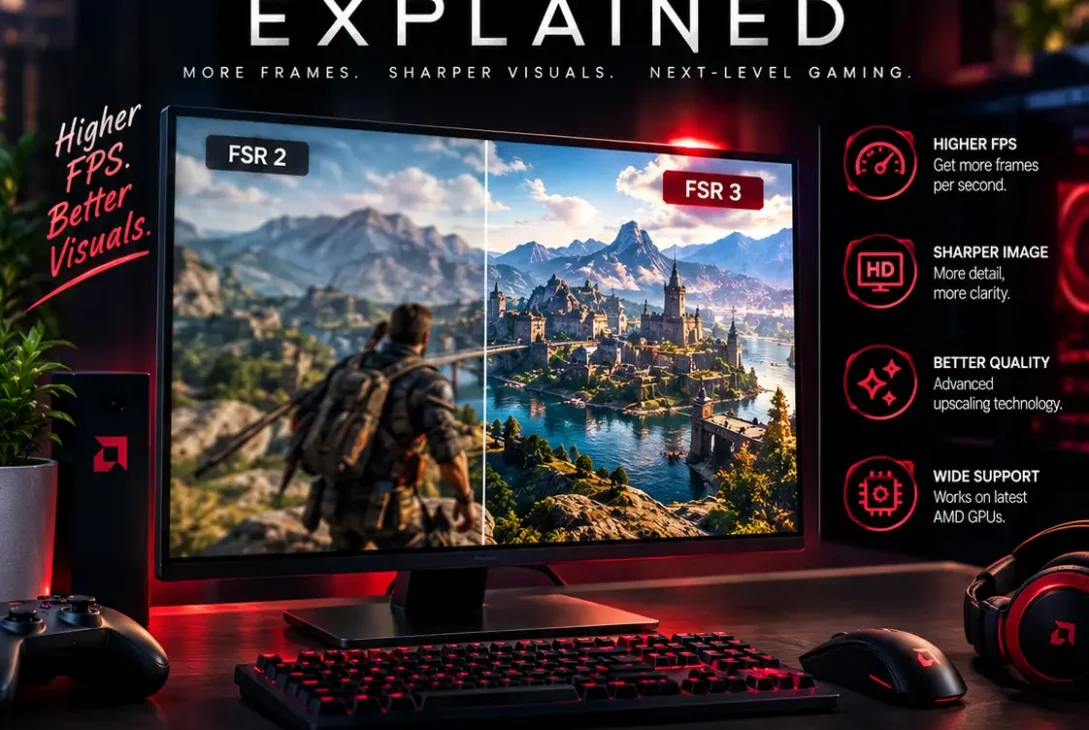
AMD FSR 3 is a gaming graphics technology designed to help compatible games run at higher frame rates while maintaining good image quality. It combines temporal upscaling with frame generation, allowing a game to render at a lower internal resolution and then reconstruct the image while generating additional frames between traditionally rendered ones.
For PC gamers, the appeal is simple: smoother gameplay without immediately buying a more powerful graphics card. However, the results depend on the game, GPU, settings, and the frame rate you already achieve. AMD FSR 3 is not a magic switch that makes every game faster or sharper, so it helps to understand what it does, how to enable it, and when it makes sense to use it.
This guide explains the technology in plain English, compares its quality modes, covers hardware compatibility, and shares practical settings advice.
Table of Contents
- What Is AMD FSR 3?
- How AMD FSR 3 Works
- Upscaling vs. Frame Generation
- AMD FSR 3 Quality Modes
- Hardware Requirements and Compatibility
- Games That Support AMD FSR 3
- How to Enable AMD FSR 3
- Best Settings for Image Quality and FPS
- Advantages and Limitations
- AMD FSR 3 vs. FSR 2, FSR 4, and DLSS
- Is AMD FSR 3 Worth Using?
- Frequently Asked Questions
- Final Verdict
- SEO Details
What Is AMD FSR 3?
AMD FidelityFX Super Resolution 3, commonly shortened to AMD FSR 3, is a graphics technology developed by AMD. It builds on the temporal upscaling approach used in FSR 2 and adds frame generation, which creates intermediate frames to increase the number of frames displayed per second.
Unlike solutions tied to a single graphics-card brand, FSR 3 is designed for broad compatibility. Actual support still depends on the game’s implementation and the graphics hardware. AMD’s developer documentation describes support for DirectX 12 and Vulkan, while individual games may have different requirements.
There are two main parts to understand:
- Upscaling: The game renders at a lower resolution, and the technology reconstructs a higher-resolution image.
- Frame generation: The system creates additional frames between rendered frames to make motion appear smoother.
Developers must integrate the technology into their games, so it is not automatically available in every PC title. Check the game’s graphics settings or AMD’s official supported-games list to see whether it is included.
How AMD FSR 3 Works
To understand the benefit, imagine a game that struggles to render every frame at your monitor’s target resolution. Rendering fewer pixels can reduce the GPU workload, leaving more resources for other tasks. Upscaling then reconstructs the output image from that lower-resolution render.
AMD FSR 3 also uses frame generation. It analyses information from rendered frames, including motion data, to estimate what an intermediate frame should look like. The generated frame is inserted between rendered frames, potentially increasing the displayed frame rate.
This can make camera movement and animation look smoother, especially on a high-refresh-rate monitor. But generated frames are not the same as frames fully rendered by the game engine. They do not improve the game’s underlying simulation rate, and they cannot fix every performance bottleneck.
The starting frame rate matters. If a game already runs smoothly, frame generation may improve visual fluidity. If the base frame rate is very low, generated frames can make motion look smoother while controls still feel sluggish. This is why it is usually better to get a reasonable native frame rate before enabling frame generation.
For a technical explanation of the rendering pipeline and developer integration, see AMD GPUOpen’s FSR 3 documentation.
Upscaling vs. Frame Generation
Upscaling and frame generation solve different problems, even though they can be used together.
Upscaling
Upscaling reduces the resolution at which the game initially renders and reconstructs the image to match your display output. For example, a game might render internally below 4K and upscale to a 4K output. Because fewer pixels need to be rendered, the GPU can often deliver higher performance.
The trade-off is image quality. At aggressive scaling levels, fine details can look softer, thin objects may flicker, and moving foliage or fences can show artifacts. The best result depends on the game engine and the selected quality mode.
Frame Generation
Frame generation creates extra frames between rendered frames. The goal is to improve perceived smoothness without requiring the GPU to render every displayed frame from scratch.
It can be useful in visually demanding single-player games, but it introduces some processing overhead and can add latency. It may also produce visual glitches around fast-moving objects, particles, HUD elements, or areas that become visible as objects move away.
Which Should You Enable?
If you want a performance boost with the least extra latency, try upscaling first. If the base frame rate is already reasonably stable and you want smoother motion, test frame generation as well. In supported FSR 3.1 implementations, frame generation can be disabled separately, giving players more control over the two features.
AMD FSR 3 Quality Modes
FSR 3 provides different image-quality presets to balance clarity and performance. The exact names and availability depend on how each game implements the feature.
| Mode | General purpose | What to expect |
|---|---|---|
| Quality | Prioritizes image clarity | Higher internal resolution and a more detailed image |
| Balanced | Middle ground | More performance with some additional softness |
| Performance | Prioritizes FPS | Lower internal resolution and greater image reconstruction |
| Ultra Performance | Maximum scaling | Useful in selected high-resolution scenarios, but image quality may suffer |
| Native AA | Anti-aliasing without upscaling | Keeps native output resolution but adds processing overhead |
Quality mode is usually the best starting point if you want the image to remain close to native rendering. Balanced can be a useful compromise when performance is still too low. Performance mode may help more demanding games, but inspect fine details and motion carefully.
Native AA is different from the other presets because it does not lower the input resolution for upscaling. It is an anti-aliasing option and can be paired with frame generation in supported implementations. It may cost more performance than expected, so compare it with the game’s native anti-aliasing option.
The best mode is not universal. Test a busy scene, move the camera, and look at hair, foliage, wires, fences, and text before settling on a preset.
Hardware Requirements and Compatibility
A major selling point of AMD FSR 3 is that it is not restricted to one specific generation of AMD graphics cards. AMD’s technology overview lists frame-generation support for Radeon RX 5000 Series and newer, while upscaling-only support extends to older compatible graphics hardware such as the Radeon RX 590. Exact requirements vary by game, driver, and implementation.
AMD also recommends stronger hardware for frame generation than the minimum compatibility list might suggest. In its FSR 3.1 guidance, AMD notes that performance depends on GPU capability and recommends Radeon RX 6000 Series and newer, or NVIDIA GeForce RTX 30 Series and newer, for an optimal frame-generation experience. Older hardware may see little benefit or an unsatisfactory result.
Compatibility is not guaranteed just because a graphics card is technically capable. The game must support the feature, and the operating system, graphics API, driver, and specific implementation may affect availability. Laptop GPUs can also perform differently from desktop cards with similar names because of power and cooling limits.
Before troubleshooting, check three things: whether the game supports FSR 3, whether your graphics driver is up to date, and whether your GPU can deliver a stable base frame rate at the chosen settings.
Games That Support AMD FSR 3
Support depends on developers integrating the technology, and the supported-games list changes over time. Games have included titles such as Forspoken, Immortals of Aveum, F1 24, Marvel’s Spider-Man Remastered, Marvel’s Spider-Man: Miles Morales, and other releases. Availability can differ between game updates and platforms.
Do not assume that every game with an AMD graphics option uses the same version. A title may support FSR 2 upscaling, FSR 3 upscaling and frame generation, or a newer technology with different hardware requirements. Check the actual graphics menu and the developer’s patch notes.
AMD maintains a supported-games database that separates titles by technology. It is the most reliable place to check before changing hardware or buying a game for a particular feature.
How to Enable AMD FSR 3
For most players, enabling the feature is straightforward if the game supports it.
- Update your graphics driver from the official AMD or NVIDIA support page, depending on your GPU.
- Launch the game and open Settings or Options.
- Go to Graphics, Display, or Video.
- Find the upscaling option and select the FSR mode offered by the game.
- If available, enable Frame Generation separately.
- Apply the settings and test performance in a representative gameplay scene.
Some games place upscaling and frame generation in different menus. Others use different labels or only offer one of the features. If you cannot find the option, check the game’s official documentation and patch notes before assuming your GPU is incompatible.
In supported FSR 3.1 games, upscaling and frame generation can operate separately. This means you may be able to use FSR upscaling with frame generation disabled, or use frame generation alongside another supported upscaler. The precise options depend on the developer’s integration.
Avoid downloading unofficial DLL files from unknown websites to force the feature into unsupported games. Modified files can cause crashes, break updates, or create security risks. Use official game updates and supported driver features whenever possible.
Best Settings for Image Quality and FPS
The best settings depend on your GPU, monitor resolution, and the game you play. Start with a sensible baseline rather than changing every graphics option at once.
Start With a Stable Base Frame Rate
Before enabling frame generation, reduce demanding settings until the game runs at a reasonably stable frame rate. A stable base helps frame generation deliver a smoother result and keeps input response more consistent.
Choose Quality Mode First
If your GPU has enough performance headroom, begin with Quality mode. Move to Balanced if you need more speed, then test Performance only if the extra boost is worth the loss in clarity. At 1080p, aggressive upscaling can be more noticeable because the starting image contains fewer pixels.
Test Frame Generation Separately
Compare the game with frame generation off and on. Look at fast camera turns, moving characters, thin geometry, and the user interface. If you notice distracting artifacts or increased input lag, switch it off or try a lower graphics workload to improve the base frame rate.
Consider Latency
Frame generation increases displayed FPS, but it does not automatically make controls respond as quickly as a game running at the same frame rate natively. If supported, enable an appropriate latency-reduction feature and test whether it improves responsiveness. Competitive shooters and rhythm games may benefit less from frame generation than cinematic single-player games.
Measure More Than the FPS Counter
A higher FPS number is useful, but it is not the only measure of quality. Consider frame pacing, input response, visual stability, and whether the game feels smoother. A consistent 60 FPS can feel better than a higher but uneven output.
Advantages and Limitations
Advantages
- Can increase frame rates in supported games.
- Upscaling can reduce GPU rendering workload.
- Frame generation can make motion look smoother.
- Works across a broader range of graphics hardware than some vendor-specific solutions.
- Quality presets allow users to balance clarity and performance.
- FSR 3.1 separates frame generation from upscaling in supported integrations.
Limitations
- Developers must integrate it; it is not available in every game.
- Upscaling can soften details or introduce shimmering.
- Frame generation can create artifacts in fast motion or around interface elements.
- Generated FPS does not equal the same level of input responsiveness as native rendering.
- Results depend heavily on base frame rate, game engine, GPU, and settings.
- Older hardware may not provide a worthwhile frame-generation experience.
The key point is to treat AMD FSR 3 as a tool for improving a compatible game, not as a replacement for appropriate hardware or good graphics settings. It can be very useful when the game and GPU are a good match, but it may not solve every performance problem.
AMD FSR 3 vs. FSR 2, FSR 4, and DLSS
FSR 3 vs. FSR 2
FSR 2 focuses on temporal upscaling. FSR 3 builds on that approach by adding frame generation. FSR 3.1 also improves upscaling quality and separates frame generation from the upscaling component, making it more flexible for developers.
FSR 3 vs. FSR 4
FSR 4 introduced machine-learning-based upscaling designed for newer Radeon hardware. AMD’s current product naming places FSR 4 under its newer FSR Upscaling technology and groups additional ML-powered features under the FSR “Redstone” suite. It effectively supersedes FSR 3 where supported, while older game integrations may still use FSR 3.1.
FSR 4 is not simply an option that every GPU can enable. Its machine-learning upscaling has specific hardware requirements, and availability depends on the GPU, driver, and game. If your system supports only the older implementation, FSR 3 can remain useful.
FSR 3 vs. NVIDIA DLSS
NVIDIA DLSS uses NVIDIA’s own upscaling and frame-generation technologies and generally requires supported GeForce hardware for its newer features. FSR is designed to work across a broader selection of graphics cards, although feature compatibility and image quality vary by game and hardware.
There is no single winner for every game. Compare image quality, latency, frame pacing, and performance on your own setup. A game’s implementation can matter as much as the name of the technology.
Is AMD FSR 3 Worth Using?
For many PC gamers, yes—especially when a supported game is demanding and the GPU can maintain a decent frame rate before frame generation. Upscaling can improve performance with a manageable visual trade-off, while frame generation can make motion look smoother on high-refresh-rate displays.
It is less appealing if you already have a high native frame rate, if the base performance is extremely low, or if you play a competitive game where input latency matters more than visual smoothness. In those cases, lowering a few demanding graphics settings may be a better first step.
The most practical approach is to test one setting at a time. Try Quality upscaling first, then enable frame generation if it helps. Compare the result in actual gameplay rather than relying on the FPS counter alone.
Frequently Asked Questions
What does AMD FSR 3 do?
AMD FSR 3 combines temporal upscaling with optional frame generation in supported games. Upscaling reconstructs a higher-resolution image from a lower-resolution render, while frame generation creates extra frames to improve perceived smoothness.
Does AMD FSR 3 increase FPS?
It can increase displayed FPS in supported games. Upscaling reduces the rendering workload, and frame generation inserts additional frames. The result depends on the game, GPU, settings, and starting frame rate.
Is AMD FSR 3 only for AMD graphics cards?
No. It is designed for broader compatibility, and some implementations support selected NVIDIA graphics cards as well. Exact requirements vary by game and by whether you use upscaling, frame generation, or both.
Is AMD FSR 3 better than FSR 2?
FSR 3 adds frame generation to the upscaling approach used by FSR 2. FSR 3.1 also improves image quality and allows frame generation to be used separately from upscaling in supported games.
Does frame generation cause input lag?
It can add latency, and generated frames do not improve the underlying game simulation rate. A stable base frame rate and supported latency-reduction features can help, but the experience varies.
Which FSR 3 quality mode should I use?
Start with Quality for clearer visuals. Try Balanced if you need more performance and Performance if the extra FPS is worth the reduction in image detail. Test your own game and monitor resolution.
Can I enable FSR 3 in every game?
No. The game must include a compatible integration. Check the graphics menu, developer patch notes, or AMD’s official supported-games list.
Does AMD FSR 3 work with Vulkan?
Yes. AMD’s developer documentation includes support for Vulkan as well as DirectX 12, although individual games determine which graphics APIs and features are available.
Should I use FSR 3 for competitive gaming?
It depends on your priorities. If responsive controls are more important than smooth-looking motion, try lowering graphics settings first and compare the experience with frame generation disabled.
Is FSR 4 replacing FSR 3?
FSR 4’s machine-learning-based upscaling supersedes FSR 3 in supported configurations, but it has specific hardware and game requirements. FSR 3 remains relevant for games and systems that use its implementation.
Final Verdict
AMD FSR 3 is a useful gaming technology because it combines upscaling with optional frame generation to improve performance and motion smoothness in supported games. Its broad hardware approach makes it accessible to many PC gamers, but the quality of the result depends on the game’s implementation and the GPU’s starting performance.
For the best experience, begin with Quality upscaling, make sure the game runs at a stable base frame rate, and test frame generation separately. Keep it enabled when the extra smoothness is noticeable and visual artifacts or latency are not distracting. If it makes the game feel less responsive, turn it off and adjust conventional graphics settings instead.
In short, AMD FSR 3 can extend the life of a graphics card and make demanding games more enjoyable, but it works best when used thoughtfully rather than treated as a guaranteed FPS fix.