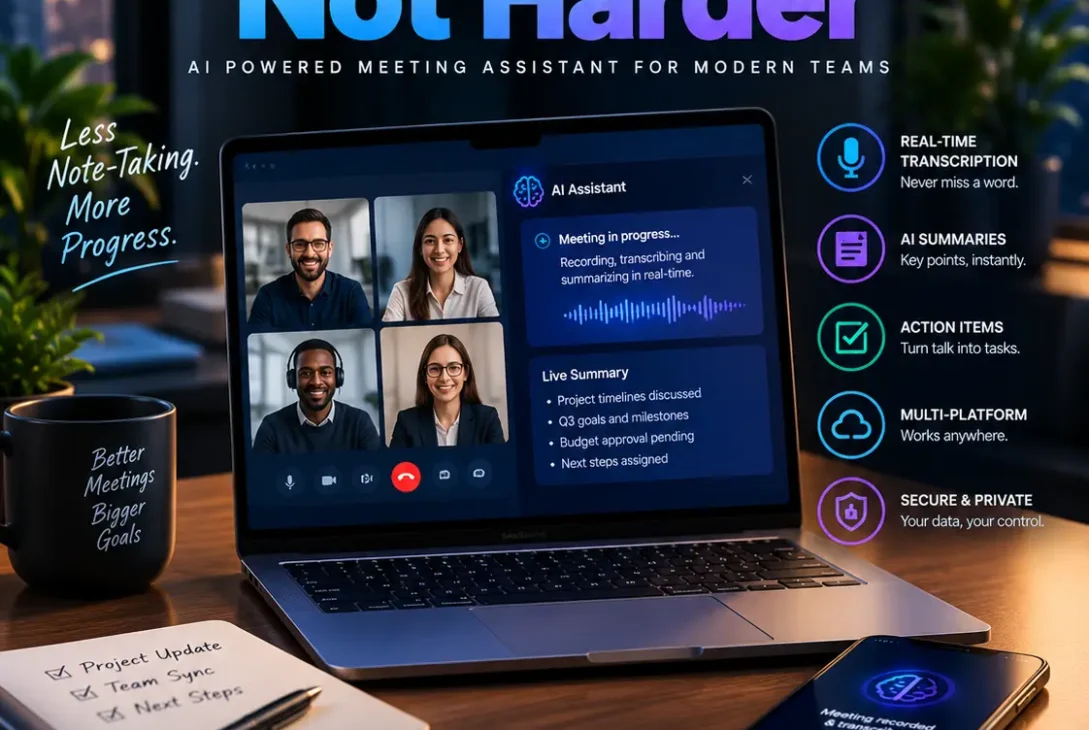
An AI meeting assistant can save hours of work by turning online calls and in-person discussions into searchable transcripts, concise summaries, and clear follow-up tasks. Instead of trying to listen carefully while typing every important detail, you can focus on the conversation and review structured notes afterward.
These tools are useful for remote teams, freelancers, students, sales representatives, recruiters, consultants, and business owners. Some join Zoom, Google Meet, or Microsoft Teams as a visible participant. Others capture audio from your computer and create notes without adding a meeting bot. The right choice depends on your meeting platform, privacy requirements, budget, and how you plan to use the notes.
In this guide, we’ll explain how an AI meeting assistant works, compare popular options, discuss pricing and privacy, and help you choose a tool that fits your workflow in 2026. <Cite refs={[“turn950405search0″,”turn950405search3”]}/>
Table of Contents
- What Is an AI Meeting Assistant?
- How Does It Work?
- Best AI Meeting Assistant Tools in 2026
- Features to Look For
- AI Meeting Assistant Pricing
- Accuracy and Reliability
- Privacy, Consent, and Security
- Benefits and Limitations
- How to Choose the Right Tool
- Setup Tips
- Frequently Asked Questions
- Final Verdict
- SEO Details
What Is an AI Meeting Assistant?
An AI meeting assistant is software that helps capture, transcribe, summarize, and organize conversations. Depending on the product, it may also identify speakers, extract decisions, create action items, search previous meetings, and connect notes to a CRM or project-management app.
A typical workflow starts when the tool records or receives a meeting. Speech recognition converts the audio into text, and AI uses the transcript to create a shorter summary. More advanced tools can identify tasks, highlight recurring topics, or answer questions about earlier discussions.
The result is not simply a recording. It is a set of notes that people can search and use after the meeting.
How Does It Work?
Most tools follow four main steps.
1. Capture the Meeting
The assistant may join a video call through a calendar invitation, connect directly to a meeting platform, or record audio from your computer. Some products also support uploading existing audio or video files.
A visible bot can be convenient for automatic recording, but it may be unsuitable for meetings where participants prefer not to add another attendee. Bot-free tools offer a different experience, although their recording methods and supported platforms vary.
2. Transcribe Speech
Automatic speech recognition converts spoken words into a written transcript. Some tools support many languages, speaker labels, timestamps, and searchable text.
Transcription quality depends on microphone quality, background noise, accents, technical vocabulary, and people speaking at the same time.
3. Generate Summaries and Tasks
The AI analyses the transcript and produces a shorter account of the conversation. It may highlight key decisions, questions, risks, deadlines, and action items.
A useful AI meeting assistant should distinguish what was actually agreed from ideas that were merely discussed. Even good tools can misunderstand context, so important notes should be checked.
4. Share and Organize Notes
After the call, notes can be sent to colleagues or stored in a workspace. Some tools integrate with Slack, Notion, Salesforce, HubSpot, and task-management platforms. Available integrations depend on the plan and product.
Best AI Meeting Assistant Tools in 2026
There is no single best option for everyone. These tools differ in how they record meetings, organize information, and charge for advanced features. Confirm current pricing and plan limits on each official website before subscribing because vendors change their offerings frequently. <Cite refs={[“turn950405search0″,”turn950405search5”]}/>
1. Otter.ai — Best for Transcripts and Search
Otter.ai focuses on meeting transcription, summaries, speaker identification, and searchable conversation history. It can be useful for interviews, team meetings, classes, and conversations where finding an exact statement later matters.
Its free plan has usage limits, while paid plans provide higher allowances and additional collaboration features. Check the current limits if you regularly attend long meetings.
Best for: People who want searchable transcripts and meeting notes.
2. Fireflies.ai — Best for Integrations
Fireflies.ai records and transcribes meetings, creates summaries, and offers tools for searching conversations and sharing information with a team. It supports multiple meeting platforms and integrates with various productivity and CRM tools.
The integration options can be especially useful for sales and customer-success teams that need call notes in their existing workflow.
Best for: Teams that want meeting notes connected to business applications.
3. Fathom — Best Free Starting Point
Fathom offers meeting recording, transcription, and AI summaries, with a free option for individual users. It can be appealing to freelancers and small teams that want to try automated notes without immediately paying for another subscription.
Before adopting it across a team, review its current collaboration features, usage limits, and paid-plan differences.
Best for: Individuals who want to start with free meeting summaries.
4. Granola — Best for Human-Guided Notes
Granola takes a different approach from tools that rely on a visible meeting bot. It combines meeting context with notes you type, then helps organize them into a clearer summary.
This style can suit people who want to add their own observations rather than rely entirely on an automatic transcript. Check supported devices and current plan limits before choosing it.
Best for: People who prefer to write a few notes while AI structures the result.
5. Fellow — Best for Team Meeting Workflows
Fellow combines meeting notes with agendas, summaries, action items, and collaboration features. It is designed to help teams connect what was discussed with what needs to happen next.
Its plan options differ in recording limits, integrations, and administrative controls. Teams should compare those details with their meeting volume and security requirements. Fellow currently lists a free tier and paid plans with additional meeting and collaboration features. <Cite refs={[“turn950405search5”]}/>
Best for: Teams that want agendas, notes, and follow-up tasks in one workspace.
6. tl;dv — Best for Reviewing Calls
tl;dv helps teams record and review online meetings, generate summaries, and find important moments without watching an entire call again. This can be useful for product research, interviews, sales conversations, and customer feedback.
Check its supported platforms and current recording and AI allowances before relying on it for high-volume work.
Best for: Teams that frequently revisit meeting highlights.
7. MeetGeek — Best for Organized Meeting History
MeetGeek focuses on recording, transcription, summaries, and organizing meeting information. Its searchable library can help teams revisit decisions and follow up on previous discussions.
It is worth comparing its integrations and free-tier limits with the tools already used by your team.
Best for: Users who want a searchable archive of meetings.
8. Zoom AI Companion — Best for Zoom Users
Zoom offers AI features within eligible Zoom Workplace plans. Depending on the plan and enabled features, these can help users summarize meetings, identify action items, and catch up on discussions.
For teams already paying for Zoom, checking built-in features first may be more economical than buying a separate tool. Availability varies by subscription and administrator settings.
Best for: Organizations that primarily use Zoom.
9. Microsoft Copilot in Teams — Best for Microsoft 365 Workplaces
Microsoft provides AI meeting capabilities through eligible Microsoft Teams and Microsoft 365 Copilot subscriptions. Depending on licensing and configuration, users can recap discussions, ask questions about meeting content, and identify tasks or decisions.
Businesses should review licensing, data-handling terms, administrator controls, and the features included in their current plan.
Best for: Organizations already working in Microsoft Teams and Microsoft 365.
Features to Look For
Before paying for an AI meeting assistant, focus on the capabilities that solve your actual problem instead of choosing the product with the longest feature list.
Accurate Transcription
Look for readable transcripts, timestamps, speaker labels, and support for the languages used by your team. If meetings contain specialist vocabulary, test the tool with a real example before committing.
Useful Summaries
A summary should be concise without losing decisions or essential context. Ideally, it separates decisions, open questions, and follow-up tasks rather than blending everything into one paragraph.
Action Items and Owners
Good task extraction can identify what needs to happen next. However, assigning the wrong person or deadline can create confusion. Review generated tasks before sharing them or moving them into a project-management system.
Search Across Past Meetings
Search is valuable when you need to find a client request, a decision, or a specific topic discussed weeks ago. Check whether search covers full transcripts, summaries, or only selected content.
Integrations and Exports
If your team uses a CRM, document workspace, or task tracker, make sure the tool connects to it. An integration is useful only if it transfers the information you need and respects your organization’s permissions.
Recording Options
Decide whether you prefer a visible bot, an application that captures computer audio, or manual recording. Each method has different compatibility and consent considerations.
AI Meeting Assistant Pricing
Pricing typically depends on transcription limits, storage, AI features, team collaboration, and administrative controls. Free plans can be sufficient for occasional use, but regular users may need a paid subscription.
| Tool | Typical starting option | What to verify |
|---|---|---|
| Otter.ai | Free plan; paid plans available | Minutes, imports, and search limits |
| Fireflies.ai | Free plan; paid plans available | Storage, integrations, and AI features |
| Fathom | Free individual option; paid plans available | Team features and usage limits |
| Granola | Free option; paid plans available | Note limits and supported devices |
| Fellow | Free option; paid plans available | Recording and AI-note allowances |
| tl;dv | Free option; paid plans available | Recording limits and team features |
| MeetGeek | Free option; paid plans available | Storage, integrations, and summaries |
| Zoom AI Companion | Included with eligible plans | Your Zoom subscription and admin settings |
| Microsoft Copilot in Teams | Eligible paid Microsoft plans | Copilot licensing and tenant configuration |
Treat this as a starting comparison, not a fixed price list. Monthly and annual billing can differ, and prices may vary by region. Review the vendor’s current pricing page before making a purchase.
For an individual, a free plan may be enough. For a team, calculate the total cost per user and consider whether the tool saves enough time to justify the subscription.
Accuracy and Reliability
An AI meeting assistant can make meetings easier to review, but it should not be treated as an infallible record.
Speech recognition can mishear names, numbers, acronyms, accents, and technical terms. Summaries may omit a caveat or interpret a suggestion as a decision. Speaker identification can also become unreliable when participants interrupt each other or use similar voices.
For important meetings, follow a simple quality-control process:
- Review names, dates, amounts, and deadlines.
- Check decisions against the transcript or recording.
- Confirm action owners with the relevant participants.
- Correct errors before sharing the summary.
- Keep the original recording when retention policies permit and it is genuinely needed.
For legal, medical, financial, or employment-related discussions, follow the relevant professional and organizational rules. Do not rely on a generated summary as the only authoritative record.
Privacy, Consent, and Security
Meeting recordings can contain personal details, customer information, commercial plans, and confidential discussions. Before using an AI meeting assistant, understand where recordings and transcripts are processed, who can access them, and how long they are retained.
Inform Participants
Recording laws vary by jurisdiction and situation. Workplace policies and contractual obligations may also apply. Tell participants when a meeting will be recorded and obtain the consent required by applicable law and policy.
A visible bot may make recording easier to notice, but its presence does not automatically satisfy every legal or organizational requirement.
Review Data Policies
Read the provider’s current privacy policy and security documentation. Look for details about encryption, data retention, deletion, data residency, access controls, and whether customer data is used to train models.
For workplace use, ask whether administrators can control recording, sharing, and retention. Avoid sending confidential information to an unapproved service.
Limit Access
Share notes only with people who need them. A transcript may contain more sensitive detail than a short summary, so use appropriate permissions and retention settings.
Benefits and Limitations
Main Benefits
- Reduces manual note-taking during calls.
- Creates searchable transcripts and summaries.
- Helps teams identify decisions and follow-up tasks.
- Makes it easier to revisit interviews and customer feedback.
- Can connect meeting information to other work applications.
- Helps absent colleagues catch up when sharing is permitted.
Main Limitations
- Transcription and summaries can contain errors.
- Some features require paid subscriptions.
- Recording bots may not suit every meeting.
- Integrations and platform support vary.
- Audio and transcript storage creates privacy responsibilities.
- AI-generated tasks still require human review.
The biggest benefit comes when the tool fits naturally into the team’s workflow. If nobody reads the summaries or follows the action items, automation alone will not improve meetings.
How to Choose the Right Tool
Use these questions to narrow down your options.
Which meeting platform do you use? If your organization already uses Zoom or Teams, check the built-in AI features before adding another subscription.
Do you need a bot-free workflow? If adding a bot is awkward, investigate tools that capture computer audio or combine typed notes with AI processing. Confirm how their recording method works.
How many meetings do you process? Occasional users may be fine with a free plan. People processing hours of audio every week should compare paid limits carefully.
Where must the notes go? If the notes need to reach Salesforce, HubSpot, Slack, Notion, or another app, check that the integration supports the exact workflow you need.
How sensitive is the content? Teams handling confidential discussions should assess security, retention, consent, and administrator controls before rollout.
The best AI meeting assistant is the one that accurately captures the information you need, fits your budget, and meets your privacy requirements.
Setup Tips
Once you choose a tool, start with a small test instead of enabling it for every meeting immediately.
- Check that your meeting platform and calendar are supported.
- Review microphone, recording, and sharing permissions.
- Inform participants and obtain required consent.
- Record a short, low-risk test meeting.
- Compare the summary with the actual discussion.
- Check whether tasks and deadlines were captured correctly.
- Adjust templates, integrations, and retention settings.
- Train team members to review and correct AI-generated notes.
A short pilot helps reveal problems with accents, meeting formats, integrations, or privacy settings before the tool becomes part of everyday work.
https://zapier.com/blog/best-ai-meeting-assistant/
Frequently Asked Questions
What does an AI meeting assistant do?
It can record or process meetings, transcribe speech, generate summaries, identify action items, and organize notes for later review. The exact features vary by product.
What is the best AI meeting assistant in 2026?
There is no universal winner. Otter.ai is worth considering for transcripts, Fireflies for integrations, Fathom for a free starting point, Granola for human-guided notes, and built-in Zoom or Microsoft tools for organizations already using those platforms.
Are AI meeting assistants free?
Several services offer free plans, but they may limit recording time, storage, AI summaries, or collaboration. Check current plan details before choosing one.
Can these tools work with Zoom, Google Meet, and Teams?
Many dedicated services support multiple meeting platforms, while native tools are designed for their own ecosystems. Verify support for your specific account and subscription.
Are AI meeting summaries accurate?
They can be helpful, but errors are possible. Review important names, figures, decisions, and deadlines against the transcript or recording.
Do participants need to know a meeting is being recorded?
You should inform participants and obtain any consent required by local law, workplace policy, or contract. Requirements vary by location and situation.
Can an AI assistant create tasks automatically?
Some tools identify action items and integrate with task-management applications. Check the proposed owner and deadline before treating an AI-generated task as final.
Is a separate tool necessary if I use Zoom or Teams?
Not always. First check the AI features included in your existing subscription. A dedicated product may still be worthwhile if you need cross-platform support, better search, or specialized integrations.
Final Verdict
An AI meeting assistant can turn conversations into practical records instead of leaving important details buried in memory or long recordings. Transcription, summaries, searchable archives, and action-item extraction can save time for individuals and teams, especially when meetings are frequent.
The best choice depends on your workflow. Otter.ai, Fireflies.ai, Fathom, Granola, Fellow, tl;dv, and MeetGeek are worth comparing, while Zoom AI Companion and Microsoft Copilot in Teams may be sufficient for people already using those platforms.
Before subscribing, test transcription quality, check integrations and usage limits, and review privacy and consent requirements. Most importantly, make sure people actually review the summaries and complete the follow-up tasks. The technology is useful when it improves the work that happens after the meeting—not merely when it produces more notes.