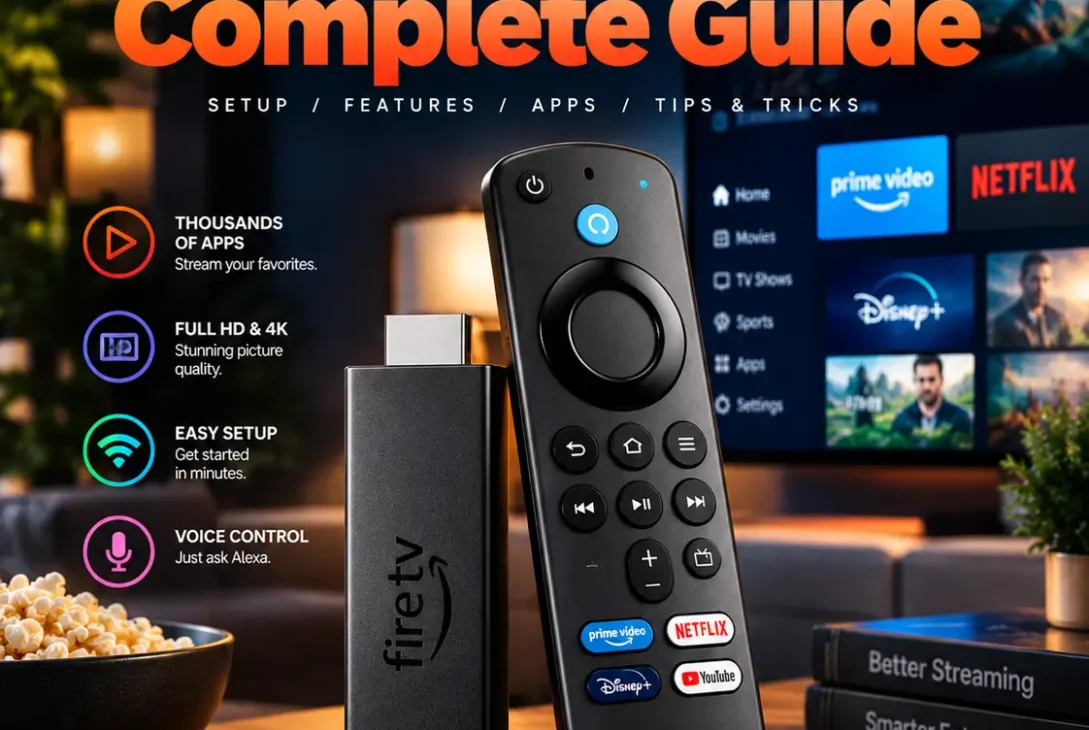
The Fire TV Stick is a simple way to stream movies, TV shows, and other online entertainment on a compatible television. It connects through HDMI and gives you access to supported streaming apps, voice search, and Amazon’s Fire TV interface without needing to replace your existing TV.
However, choosing the right model can be confusing. Some versions focus on affordable HD streaming, while others support 4K resolution, advanced HDR formats, and improved wireless connectivity. You may also run into common problems such as buffering, remote-control issues, Wi-Fi disconnections, or a device that refuses to start.
This guide explains how the Fire TV Stick works, how to set it up, which features matter, how to troubleshoot common issues, and what to consider before buying one.
Table of Contents
- What Is a Fire TV Stick?
- How to Set Up a Fire TV Stick
- Which Fire TV Stick Model Should You Choose?
- Important Features to Know
- How to Fix Fire TV Stick Buffering
- What to Do When the Remote Stops Working
- Fix Wi-Fi and Connection Problems
- Solve Black Screens and Restarting Issues
- Manage Storage and Apps
- Do You Need Amazon Prime?
- Is a Fire TV Stick Worth Buying?
- Frequently Asked Questions
- Final Verdict
- SEO Details
What Is a Fire TV Stick?
A Fire TV Stick is a compact streaming device that connects to your television’s HDMI port. Once connected to a display, power, and Wi-Fi, it lets you install and use supported streaming applications.
Depending on the model, you can stream in HD or 4K and access compatible HDR and audio technologies. The included remote usually supports navigation and Alexa voice commands, although features vary between models and regions.
A streaming stick is useful if your television has an HDMI port but lacks the smart-TV apps you want. It can also provide a different interface on an older smart TV whose software is slow or no longer supports certain applications.
Keep in mind that streaming quality depends on several factors, including your internet connection, television, chosen model, app, and subscription. Buying a 4K device does not automatically make HD content play in 4K.
How to Set Up a Fire TV Stick
Setting up the device is usually straightforward. Amazon’s official setup instructions guide users through connecting the hardware, selecting a language, joining Wi-Fi, and signing in to an Amazon account. <Cite refs={[“turn759450search1”]}/>
Follow these steps:
- Connect the device to an available HDMI port on your TV.
- Connect its power cable and use the recommended power source.
- Turn on your TV and select the correct HDMI input.
- Insert batteries into the remote if required.
- Follow the on-screen instructions to select your language.
- Connect to your Wi-Fi network.
- Sign in to your Amazon account and complete setup.
- Install or open the streaming apps you want to use.
Should You Use the TV’s USB Port for Power?
Some newer models support direct power through a compatible TV USB port. However, this depends on the model and whether the port supplies sufficient power. If you see a low-power warning, experience random restarts, or the screen goes blank, use the power adapter and cable recommended for your device.
For a reliable setup, keep the streaming device well ventilated and avoid placing it where heat can build up behind the television.
Which Fire TV Stick Model Should You Choose?
Amazon’s lineup includes HD and 4K options, and model names can change over time. Amazon’s device specifications currently list the Fire TV Stick HD (2026), Fire TV Stick 4K Plus (2025), Fire TV Stick 4K Select (2025), and Fire TV Stick 4K (3rd Gen, 2026), alongside older models. <Cite refs={[“turn759450search0″,”turn759450search3”]}/>
Fire TV Stick HD
The HD model is aimed at people who watch on a 1080p television or do not need 4K streaming. It can be a sensible choice for a bedroom TV, a secondary screen, or an older television that does not support 4K.
Before buying, check the exact model and operating system because newer devices may differ from older versions in app compatibility and features.
Fire TV Stick 4K
A 4K model is worth considering if your television supports 4K Ultra HD. Depending on the version, you may also get support for technologies such as Dolby Vision, HDR10+, Dolby Atmos, and newer Wi-Fi standards.
To benefit from these features, your TV, audio equipment, content, and streaming subscription must support the relevant format.
Fire TV Stick 4K Plus and 4K Max
These higher-tier models are designed for users who want a more capable streaming experience. Depending on the generation, they may offer improved wireless connectivity, more storage, enhanced picture formats, or faster navigation.
Do not choose based on the name alone. Compare the precise model number, supported formats, operating system, storage, and availability of your preferred apps before paying extra.
Important Features to Know
The appeal of a Fire TV Stick is that it combines a small physical device with a software interface for discovering and playing online entertainment.
Streaming Apps
You can install supported services through the device’s app store. Availability varies by country, model, operating system, and service provider. Check that the apps you actually use are available for your particular device before purchasing.
Alexa Voice Control
Compatible remotes include an Alexa button that lets you search for content or use supported voice commands. The range of available commands depends on your device, account settings, region, and connected services.
HD and 4K Video
Different models support different resolutions and picture formats. A standard HD model is usually sufficient for a 1080p television, while a 4K model is more appropriate for a compatible 4K screen.
Wi-Fi Connectivity
Wireless performance depends on the device’s supported Wi-Fi standard, router, distance, interference, and internet service. A newer Wi-Fi feature will not solve every buffering issue if your broadband connection is unstable.
A Compact Design
Because the device connects directly to HDMI, it takes up little visible space. An HDMI extender can help if the TV’s design makes the port difficult to reach or leaves insufficient room for the device.
How to Fix Fire TV Stick Buffering
Buffering happens when a video cannot load quickly enough to play continuously. It can be caused by weak Wi-Fi, network congestion, a streaming-service outage, an overloaded device, or an internet connection that is too slow for the selected quality.
If your Fire TV Stick keeps buffering, try these fixes in order:
- Restart your router and streaming device.
- Move the router closer or reduce obstacles between it and the TV.
- Disconnect devices that are heavily using your internet connection.
- Pause other downloads or high-bandwidth activities.
- Test another streaming app to see whether the issue is service-specific.
- Check whether your internet connection is stable on another device.
- Install available software updates.
If your router supports both 2.4 GHz and 5 GHz Wi-Fi, test the network that works best at your location. A 5 GHz connection may offer higher speeds at shorter distances, while 2.4 GHz can sometimes reach farther through obstacles.
If only one app buffers while other apps work normally, check that service’s status and update the app rather than immediately resetting the entire device.
What to Do When the Remote Stops Working
A remote that does not respond can make it appear that the streaming device has frozen. Before replacing it, check the batteries and pairing.
Try the following:
- Replace the batteries with fresh ones of the correct type.
- Make sure the battery contacts are clean.
- Restart the streaming device.
- Move the remote closer to the device during troubleshooting.
- Follow Amazon’s model-specific instructions to pair the remote again.
The exact pairing procedure varies by remote model, so use the instructions for your particular device. Some remotes also support TV power and volume controls, which may require separate equipment-control setup.
If the remote works intermittently, check for obstructions and nearby wireless interference. If only the TV’s power or volume buttons fail, the issue may be with equipment-control settings rather than the streaming connection.
Fix Wi-Fi and Connection Problems
A Fire TV Stick that repeatedly disconnects from Wi-Fi may have a weak signal, incorrect network credentials, router compatibility issues, or temporary software problems.
Start by opening the device’s network settings and checking whether it is connected to the correct Wi-Fi network. Confirm that the password is correct and that the router has internet access.
Then try these steps:
- Restart the router and streaming device.
- Forget the Wi-Fi network and connect again.
- Test the device on another reliable network, if possible.
- Reduce the distance between the router and television.
- Check for router firmware updates.
- Look for local internet-service outages.
If your Wi-Fi works on phones and laptops but not on the streaming device, testing another network can help isolate the problem. If the device connects but apps still cannot stream, check the internet connection and service availability.
Solve Black Screens and Restarting Issues
A blank screen, a “No Signal” message, or repeated restarts may be caused by the wrong HDMI input, insufficient power, a loose connection, or an incompatible display setting.
First, make sure your TV is set to the HDMI input where the device is connected. Disconnect and reconnect the HDMI connection, then restart the TV and streaming device.
If the screen remains blank:
- Try another HDMI port.
- Use a compatible HDMI extender if space is limited.
- Connect the recommended power adapter.
- Let the device cool if it feels unusually hot.
- Test the device on another compatible television, if available.
If a low-power warning appears, do not ignore it. Follow Amazon’s guidance for the exact model and use a suitable power source. Randomly unplugging the device during updates should be avoided because it may interrupt software installation.
Manage Storage and Apps
Streaming devices have limited internal storage, and a large number of installed apps can leave less room for updates and temporary files.
If the interface becomes slow or an app repeatedly crashes, open the settings and review installed applications. Uninstall apps you no longer use, and clear an app’s cache when the option is available.
Be careful when selecting Clear Data: it can remove local app settings and sign you out. It is different from clearing the cache.
Also check for available system updates. If a specific app keeps failing, update it or reinstall it through the supported app store. Avoid unofficial downloads from untrusted sources, which can create security and stability risks.
A factory reset should be a last resort because it removes your settings and requires you to complete setup again. Before resetting, confirm your account details and passwords are available.
https://developer.amazon.com/docs/fire-tv/device-specifications-fire-tv-streaming-media-player.html
Do You Need Amazon Prime?
No. Owning a Fire TV Stick does not automatically require an Amazon Prime membership for every use. You need an Amazon account for setup, while Prime is required only for content and benefits that specifically belong to the Prime subscription.
Some streaming apps require their own paid subscriptions, and others offer free, ad-supported content. Availability and subscription requirements depend on the service and your country.
Before buying, list the services you want to watch and confirm their availability on your exact device. This is particularly important for newer models that may use a different operating system from older Fire TV hardware.
Is a Fire TV Stick Worth Buying?
For many people, a Fire TV Stick is a convenient way to add streaming apps to a compatible TV without buying a new television. It is compact, relatively simple to set up, and available in different versions for HD and 4K viewing.
It may not be the right choice for everyone. Consider another streaming platform if it better supports the apps you use, works more smoothly with your existing devices, or offers the interface you prefer.
Before making a decision, compare the device price, streaming subscriptions, supported video formats, Wi-Fi features, storage, remote functions, and software compatibility. Also confirm that the exact model is available in your region and supports your preferred services.
Frequently Asked Questions
What does a Fire TV Stick do?
It connects to a compatible TV through HDMI and provides access to supported streaming apps, online video, and other entertainment features over Wi-Fi.
Does a Fire TV Stick work on any TV?
It works with TVs that have a compatible HDMI input and can display the device’s supported video formats. You also need a suitable power source and internet access for online streaming.
Do I need Wi-Fi to use a Fire TV Stick?
Wi-Fi is generally required for streaming online content, downloading apps, and completing setup. Some limited functions may work without an internet connection, but the main streaming experience depends on network access.
Why is my Fire TV Stick so slow?
Possible causes include weak Wi-Fi, limited free storage, app problems, overheating, or outdated software. Restart the device, check the network, remove unused apps, and install available updates.
Why does my Fire TV Stick keep restarting?
Repeated restarts can be caused by insufficient power, overheating, a faulty cable, or a software issue. Use a suitable power source, check the connections, allow the device to cool, and update the software if possible.
Can I use a Fire TV Stick without Amazon Prime?
Yes. Prime membership is not required for every app or feature. However, individual streaming services may require separate subscriptions or accounts.
Is a 4K Fire TV Stick worth it?
It can be worthwhile if you own a 4K television and want compatible high-resolution content. If your TV is limited to 1080p, an HD model may be better value.
How do I reset a Fire TV Stick?
Open the device settings and look for the reset option, or follow Amazon’s official instructions for your model. A factory reset removes personal settings, so try restarting the device and checking for updates first.
Why is my Fire TV Stick remote not working?
Check the batteries, restart the device, and follow the model-specific pairing instructions. If the remote still fails, check Amazon’s support guidance for compatible replacements and troubleshooting.
Final Verdict
A Fire TV Stick can make streaming more convenient by bringing supported apps and online entertainment to a compatible television. The best model depends on whether you need HD or 4K, which picture and audio formats your equipment supports, and which streaming services are available in your region.
For the smoothest experience, follow the official setup steps, use reliable power, maintain a stable Wi-Fi connection, and keep your apps and device software updated. If buffering, remote problems, or black screens occur, test the simplest fixes before performing a factory reset.
Check the exact model specifications before buying, especially when comparing newer devices with older Fire TV versions. That small step can help you avoid compatibility surprises and choose a streaming device that suits your TV and viewing habits.