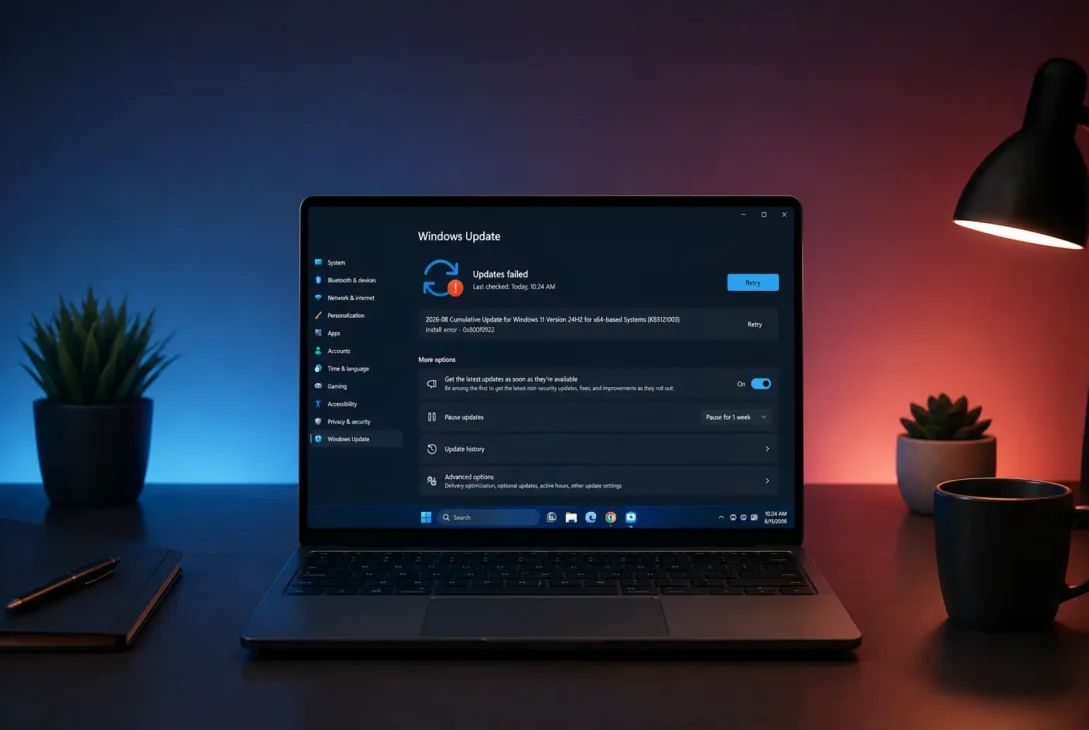
If you’re dealing with latest Windows 11 update problems, you’re not necessarily looking at a widespread Microsoft bug. As of August 15, 2026, Microsoft’s latest August security updates are KB5121003 for Windows 11 24H2/25H2, KB5121000 for 26H1, and KB5120240 for 23H2. Microsoft currently lists no known consumer-facing issues for these releases.
However, Windows updates can still cause problems on individual PCs because of incompatible drivers, third-party software, hardware configurations, failed installations, or existing system issues.
This guide covers the most common problems you may notice after a Windows 11 update and the practical steps you can take to fix them.
Table of Contents
- Windows 11 Update Fails to Install
- Windows 11 Becomes Slow After an Update
- Wi-Fi Stops Working
- Apps Crash After Updating Windows
- Graphics and Display Problems
- Bluetooth or Audio Problems
- Windows Update Gets Stuck
- How to Fix Windows 11 Update Problems
- When to Uninstall a Windows Update
- Frequently Asked Questions
- Final Verdict
Latest Windows 11 Update Status
Microsoft releases monthly Windows 11 updates for different versions of the operating system.
For August 2026, the main updates are:
| Windows 11 Version | August 2026 Update |
|---|---|
| 24H2 / 25H2 | KB5121003 |
| 26H1 | KB5121000 |
| 23H2 | KB5120240 |
Microsoft says KB5121003 includes security fixes and quality improvements for Windows 11 24H2 and 25H2. Its current support documentation does not list a known issue affecting ordinary users.
Windows 11 26H1 has its own August update, KB5121000. Microsoft describes it as a cumulative update containing security fixes and improvements.
For Windows 11 23H2, Microsoft released KB5120240 on August 11, 2026.
So if your computer developed a problem after updating, it’s important to identify which Windows version and KB update you actually installed before assuming that Microsoft has confirmed the problem.
1. Windows 11 Update Fails to Install
One of the most common Windows Update complaints is an update that repeatedly downloads but won’t install.
You might see:
- Windows Update stuck at a percentage
- An installation error
- An update that keeps appearing after every restart
- Windows reverting the update
- A failed installation followed by another download
Check Your Internet Connection
A weak or unstable connection can interrupt the download.
Try restarting your router and connecting to a reliable network before attempting the update again.
https://support.microsoft.com/en-us/servicing/os/windows-11/2026/08/
Make Sure You Have Enough Storage
Windows needs free space to download, unpack and install updates.
Go to:
Settings → System → Storage
Check how much free space is available on your Windows drive.
You can use Temporary files and Storage Sense to remove unnecessary data.
Restart Before Trying Again
If Windows Update has failed once, restart the PC before repeatedly clicking Try again.
After restarting:
Settings → Windows Update → Check for updates
Then try the installation again.
2. Windows 11 Becomes Slow After an Update
A PC that suddenly feels slower after an update can be frustrating, but it doesn’t necessarily mean the update damaged Windows.
Immediately after an update, Windows may perform background tasks such as indexing, maintenance and system optimization.
Give the PC some time and restart it once more.
Then check Task Manager.
Press:
Ctrl + Shift + Esc
Look at:
- CPU usage
- Memory usage
- Disk usage
- Startup applications
If one application is consuming unusually high resources, that program may be responsible for the slowdown.
Check Startup Apps
Go to:
Task Manager → Startup apps
Disable applications you don’t need launching automatically.
Don’t disable Windows system components simply because they appear unfamiliar.
Check for Driver Updates
A driver problem can also appear after a Windows update.
Check:
Settings → Windows Update → Advanced options → Optional updates
If Windows offers a relevant driver update, install it and restart the computer.
For graphics cards and other important hardware, it’s also worth checking the manufacturer’s official support page.
3. Wi-Fi Stops Working After a Windows 11 Update
One of the most annoying latest Windows 11 update problems is losing Wi-Fi or experiencing an unstable connection after restarting.
Possible symptoms include:
- Wi-Fi networks disappearing
- Random disconnections
- Slow wireless speeds
- “No internet” despite being connected
- Ethernet working while Wi-Fi doesn’t
- Network adapter disappearing
Before assuming the latest update caused the issue, test the same Wi-Fi network with another device.
If your phone works normally on the same network, the problem is more likely to be on the Windows PC.
Restart the Network Adapter
Open:
Settings → Network & internet → Advanced network settings
Find your Wi-Fi adapter and temporarily disable it.
Wait a few seconds, then enable it again.
Update the Wi-Fi Driver
Open Device Manager and expand:
Network adapters
Find your wireless adapter and check whether a newer driver is available.
For laptops, using the manufacturer’s official driver is often preferable to downloading random drivers from third-party websites.
Reset Network Settings
If the problem continues, you can use:
Settings → Network & internet → Advanced network settings → Network reset
Remember that a network reset can remove saved network configurations, so you’ll need to reconnect to Wi-Fi afterward.
4. Apps Crash After Updating Windows
Sometimes Windows itself appears to update normally, but one or more applications suddenly stop working.
You might notice:
- Apps crashing immediately
- Programs refusing to open
- Unexpected error messages
- Missing features
- Login problems
- Programs behaving differently after restarting
This can happen because of application compatibility, drivers or other dependencies.
Microsoft has documented Windows update-related compatibility problems in the past, including issues affecting some third-party applications. Some of those problems have subsequently been resolved through later updates.
Try These Steps
First, restart Windows.
Then:
- Update the affected application.
- Check the developer’s support page.
- Reinstall the application if necessary.
- Check Windows Update for additional updates.
- Check whether the application works in another Windows account.
If only one application is affected, there’s usually no reason to immediately uninstall the entire Windows update.
5. Graphics and Display Problems
Another potential issue after Windows updates is unusual display behavior.
You may experience:
- Screen flickering
- Black screen
- External monitor problems
- Incorrect resolution
- Graphics driver crashes
- Poor gaming performance
- HDR problems
Check Your Graphics Driver
Open:
Device Manager → Display adapters
Your graphics card should appear there.
For NVIDIA, AMD or Intel graphics, check the manufacturer’s official driver releases for your hardware.
Laptop owners should also check their laptop manufacturer’s support page because some systems use customized graphics drivers.
Check Display Settings
Go to:
Settings → System → Display
Confirm that Windows is using the correct:
- Resolution
- Refresh rate
- Display arrangement
- HDR settings
If you’re using an external monitor, disconnect and reconnect the display after restarting the PC.
6. Bluetooth or Audio Stops Working
Windows updates can sometimes expose driver or configuration problems with Bluetooth and audio devices.
You may notice:
- Bluetooth headphones won’t connect
- Speakers disappear
- Microphone stops working
- Audio becomes distorted
- Bluetooth devices repeatedly disconnect
Check the Output Device
Go to:
Settings → System → Sound
Make sure Windows has selected the correct output device.
If your headphones are connected but no sound comes from them, manually select them as the output device.
Restart Bluetooth
Go to:
Settings → Bluetooth & devices
Turn Bluetooth off, wait a few seconds, and turn it back on.
If that doesn’t help, remove the device and pair it again.
Check Audio Drivers
Open Device Manager and check:
Sound, video and game controllers
Update the relevant driver if an appropriate update is available.
For laptops, use the manufacturer’s support site when possible.
7. Windows Update Gets Stuck
Sometimes Windows Update appears to stop progressing.
For example, you might see:
Downloading — 0%
or:
Installing — 35%
for an unusually long period.
Don’t immediately force the computer off.
Large updates can take time depending on the system’s storage, processor, available space and update size.
If Windows Update Repeatedly Gets Stuck
Try this sequence:
Step 1: Restart the PC.
Step 2: Check your internet connection.
Step 3: Make sure you have sufficient free storage.
Step 4: Run Windows Update again.
Step 5: Use Microsoft’s Windows Update troubleshooting options if the problem continues.
Avoid repeatedly holding down the power button while Windows is actively installing an update.
A forced shutdown at the wrong moment can create additional system problems.
8. How to Fix Windows 11 Update Problems
If you’re experiencing several problems after an update, don’t randomly change dozens of Windows settings.
Use a structured approach.
Step 1: Identify Your Windows Version
Press:
Windows + R
Type:
winver
Press Enter.
You’ll see your Windows version and build information.
Step 2: Check Update History
Go to:
Settings → Windows Update → Update history
Look for the most recent cumulative update.
Write down its KB number.
This is important because “Windows 11 update” isn’t specific enough to determine which update caused an issue.
Step 3: Check Microsoft’s Release Information
Search Microsoft’s official Windows release information using your KB number.
This lets you determine whether Microsoft has actually documented your particular problem.
For example, Microsoft previously temporarily blocked a July 2026 update from a limited number of Dell devices because of an incompatibility involving Intel Innovation Platform Framework drivers.
That’s very different from a situation where only one person’s PC experiences a problem.
Step 4: Update Drivers
Check:
- Graphics
- Wi-Fi
- Bluetooth
- Audio
- Chipset
- Storage
Prioritize official manufacturer sources.
Step 5: Restart
After installing driver or application updates, restart Windows before testing again.
9. When Should You Uninstall a Windows Update?
Uninstalling an update should generally be a last resort, especially when the update contains important security fixes.
Consider it when:
- The PC became unusable immediately after the update
- A critical application stopped working
- A hardware component stopped functioning
- You’ve already tried driver and software fixes
- Microsoft has confirmed a relevant problem
- A newer update isn’t available to resolve it
You can check:
Settings → Windows Update → Update history → Uninstall updates
Available options depend on the Windows version and update.
Before removing a security update, understand what protection you’re giving up and whether Microsoft has already released a replacement or fix.
Frequently Asked Questions
What are the latest Windows 11 update problems?
As of August 15, 2026, Microsoft does not list a widespread known issue for the August 11 updates KB5121003, KB5121000 and KB5120240. Individual PCs can still experience installation, driver, application, network or performance problems.
Why is Windows 11 slow after an update?
Windows may perform background maintenance after installing an update. High CPU, memory or disk usage from a specific application or driver can also cause slowdowns.
Why did my Wi-Fi stop working after a Windows update?
A network driver or device-specific compatibility problem may be responsible. Updating the Wi-Fi driver or resetting network settings can help.
Should I uninstall the latest Windows 11 update?
Not immediately. First identify the KB number and check Microsoft’s documentation. Try driver, application and Windows troubleshooting first.
How do I find which Windows update I installed?
Go to Settings → Windows Update → Update history. The installed updates and their KB numbers will be listed there.
How do I check my Windows 11 version?
Press Windows + R, type winver, and press Enter.
Can a Windows update cause driver problems?
Yes. Windows updates can sometimes expose compatibility problems with particular drivers or hardware configurations. Microsoft has documented such device-specific compatibility cases, including one involving certain Dell systems and Intel IPF drivers in July 2026.
Final Verdict
The latest Windows 11 update problems aren’t currently a single widespread Microsoft-confirmed bug. As of August 15, 2026, Microsoft’s August security updates do not have a broad known-issue warning for ordinary users.
If your PC started acting strangely after an update, first identify the exact Windows version and KB number. Then check drivers, applications, network settings and system performance before considering an update rollback.
For most users, keeping Windows updated remains important because monthly updates include security fixes. The smarter approach is to troubleshoot a specific problem rather than automatically assuming that every issue is caused by the latest update.