If you use a gaming laptop or desktop with supported Intel Killer networking hardware, you may have noticed an application called Killer Intelligence Center installed on Windows. Many users wonder what it does, whether it improves internet performance, and whether it is necessary.
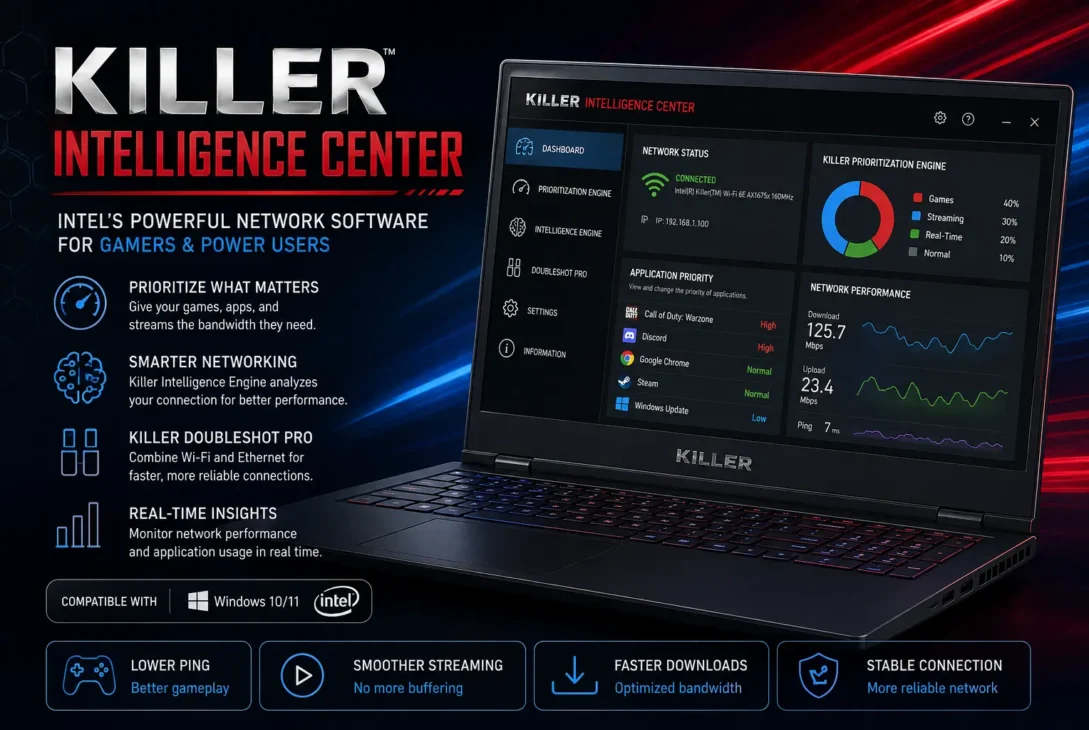
Killer Intelligence Center is part of Intel’s Killer networking software ecosystem. Intel’s current version 4.0 documentation lists features including the Killer Prioritization Engine, Killer Intelligence Engine, Killer DoubleShot Pro, settings, and general information. Intel has also explained that Killer Performance Suite is the newer name for the same networking software family.
What Is Killer Intelligence Center?
Killer Intelligence Center is a Windows interface for managing supported Intel Killer networking features.
Instead of only showing whether your computer is connected to Wi-Fi or Ethernet, it provides additional information and controls related to network traffic and performance.
The software is especially associated with gaming PCs because online games can be sensitive to latency and congestion. However, it can also be useful for people who regularly use video calls, streaming, cloud synchronization, large downloads, or other bandwidth-heavy applications.
In simple terms, Killer Intelligence Center helps manage network traffic when several applications are using the connection at the same time.
How Does Killer Intelligence Center Work?
Killer Intelligence Center works together with supported Killer networking hardware and software.
It does not create additional internet bandwidth. Instead, its features focus on monitoring and managing traffic.
Imagine that you are playing an online game while another program downloads a large file. Both activities need network resources, but they don’t have the same sensitivity to delay.
A download can usually tolerate some variation in speed, while an online game may be much more sensitive to latency and congestion.
The software can use network-management features to give important traffic higher priority in supported configurations.
This is why it is better viewed as a traffic-management tool rather than an internet-speed booster.
https://www.intel.com/content/www/us/en/products/details/wireless.html
Killer Prioritization Engine
The Killer Prioritization Engine is one of the main features associated with the software.
Its purpose is to prioritize network traffic according to application requirements and configured preferences.
This can help when several programs compete for the same connection.
For example, your PC might have a game running while a browser is open, cloud storage is synchronizing, and another application is downloading data.
Prioritization can help important traffic receive preferential treatment.
The result depends on your hardware and network conditions, so it should not be considered a guaranteed way to reduce ping.
Killer Intelligence Engine
The Killer Intelligence Engine is another component listed in Intel’s current documentation.
It provides network-related information that can help users understand possible performance issues.
Slow or unstable internet can have many causes, including Wi-Fi interference, network congestion, router problems, ISP routing, remote-server limitations, or another application consuming bandwidth.
Having additional information in one interface can make troubleshooting easier.
For advanced users, this can be more useful than relying only on the standard Windows network indicator.
Killer DoubleShot Pro
Killer DoubleShot Pro is another feature included in Intel’s current guide.
It is designed for supported systems with compatible Killer networking connections and can help manage traffic across available network connections.
The exact functionality depends on the hardware and software configuration.
Not every Intel wireless or Ethernet adapter supports every Killer feature, so checking your specific hardware is important before expecting a particular option to appear.
Does Killer Intelligence Center Increase Internet Speed?
A common misconception is that Killer Intelligence Center can increase the maximum speed provided by your internet connection.
It cannot turn a 100 Mbps internet plan into a 500 Mbps connection.
Your actual speed depends on factors such as your ISP plan, router, Wi-Fi signal, network conditions, remote-server capacity, and connection technology.
What the software can potentially improve is how available bandwidth is managed.
If a background process consumes most of your connection while you’re gaming or attending a video meeting, traffic prioritization may help the important activity receive better treatment.
The benefit is therefore about managing competition between applications, not creating extra bandwidth.
Can Killer Intelligence Center Reduce Gaming Lag?
Killer Intelligence Center can be useful for gaming when local network traffic contributes to congestion.
For example, if another application is downloading a large file while you are playing an online game, prioritizing game traffic may help prevent the download from consuming resources needed by the game.
However, it cannot fix every type of latency.
Gaming performance can also be affected by:
- Distance to the game server
- ISP routing
- Server load
- Wi-Fi interference
- Router performance
- Network congestion
- Signal quality
If the game server is far away or your ISP has poor routing, traffic prioritization cannot completely remove that latency.
Who Should Use Killer Intelligence Center?
The software is most useful for people with supported Killer hardware who want additional network controls.
Gamers may appreciate traffic prioritization, while power users may value application-level network information.
People who frequently download large files while performing other online tasks may also benefit.
A casual user who mainly browses websites and watches videos may not notice a significant difference.
Is Killer Intelligence Center Required?
Whether Killer Intelligence Center is necessary depends on your hardware and how you use your computer.
Removing the management application can mean losing access to Killer-specific controls even if the underlying network adapter continues to work with its appropriate driver.
Before uninstalling anything, identify the exact Killer software and drivers installed on your PC.
Intel currently maintains dedicated support documentation for the software and its supported networking products.
Killer Intelligence Center vs Killer Performance Suite
The naming can be confusing.
Intel previously clarified that Killer Intelligence Center and Killer Performance Suite refer to the same networking software, with Performance Suite being the newer name. Current Intel documentation continues to reference both names.
This explains why an older tutorial may mention Killer Intelligence Center while a newer Intel download page mentions Killer Performance Suite.
Should You Keep It Installed?
If your computer has supported Killer hardware and you use its networking controls, keeping the software installed can make sense.
If you never use those features and your connection works normally, you may decide that the additional interface is unnecessary.
Before removing it, however, make sure you are uninstalling the management software rather than a network driver required by your PC.
For driver updates and troubleshooting, Intel’s current documentation is the safest starting point.
How to Use Killer Intelligence Center
If your system supports the Killer networking platform, the software can provide several controls for managing network activity.
The exact interface can vary depending on the software version and supported hardware, so some options may not appear on every computer.
Check Your Network Status
Start by looking at the network information available in the application.
This can help you understand whether your computer is connected through Wi-Fi, Ethernet, or another supported connection.
If you’re experiencing slow performance, compare the information shown in the application with Windows’ normal network settings.
This can help determine whether the problem is related to the local computer or the wider network.
Review Application Activity
Network-management software becomes more useful when you know which applications are consuming bandwidth.
A background download, cloud-sync application, game launcher, or operating-system update can use significant bandwidth without being obvious.
Identifying these processes can help you decide which applications should receive higher priority.
Configure Priorities Carefully
Prioritization should be used with a purpose.
If everything is treated as equally important, there may be little benefit from prioritization.
For example, during gaming you might prioritize the game and communication application while allowing large downloads to run with lower priority.
The exact options depend on the installed version and hardware.
Common Killer Intelligence Center Problems
Although the software is designed to improve network management, some users encounter problems.
These can range from the application not opening to unusual network behavior after updates.
Application Does Not Open
If the application refuses to start, first restart Windows.
A temporary service or software issue may disappear after a reboot.
If the problem continues, check whether Windows and the Killer software are up to date.
Also make sure the correct networking drivers are installed for your hardware.
Network Becomes Slow
If your internet becomes slower after changing network settings, temporarily return the configuration to its previous state.
This helps determine whether a software setting is contributing to the problem.
You should also compare performance with the application’s network-management features disabled where appropriate.
A speed test can help establish whether the problem is actually affecting throughput.
High Ping
High ping is not always caused by your computer.
The game server, ISP routing, geographic distance, congestion, and Wi-Fi conditions can all affect latency.
If your ping remains high even when the PC has no background traffic, traffic prioritization may not solve the underlying problem.
Wi-Fi Disconnects
Random Wi-Fi disconnections can have many causes.
Potential factors include:
- Outdated drivers
- Router firmware
- Wi-Fi interference
- Weak signal
- Power-management settings
- Windows configuration
- Hardware issues
Don’t immediately assume the management application is responsible.
Test the connection using standard Windows networking tools and, if possible, compare the behavior with another device connected to the same router.
Should You Disable Killer Features?
Disabling features can be a useful troubleshooting step.
If you experience unusual network behavior, temporarily disabling traffic-management functions can help determine whether they are contributing to the issue.
If the problem disappears, you have a useful clue.
If the problem remains, the cause is likely elsewhere.
This is a better troubleshooting method than randomly uninstalling drivers or changing multiple settings at once.
Should You Uninstall Killer Intelligence Center?
There is no universal answer.
If you use the software’s prioritization and monitoring capabilities, keeping it installed can be useful.
If you don’t use those features and prefer a simpler setup, removing the management application may be reasonable.
However, be careful when uninstalling software from a gaming laptop or desktop.
Killer networking components can include both management software and drivers.
The driver is responsible for allowing Windows to communicate with the networking hardware.
Removing a required driver can cause connectivity problems.
Therefore, identify the component you are removing before confirming the uninstall process.
Does It Run in the Background?
Networking software can use background processes and services.
That doesn’t automatically mean it is consuming a significant amount of CPU or memory.
If you’re concerned about system resources, open Windows Task Manager and check the actual usage.
Look at:
- CPU
- Memory
- Network
- Disk
If the software consistently uses unusually high resources, investigate updates and driver compatibility before assuming that the application is inherently inefficient.
Does It Improve FPS?
Killer Intelligence Center is primarily related to networking.
It should not be considered an FPS optimization tool.
Frames per second are influenced by components such as the GPU, CPU, RAM, game settings, drivers, thermals, and game engine.
Network optimization and graphics performance are different things.
The software may potentially help with network responsiveness under certain conditions, but it does not directly increase the rendering performance of your graphics hardware.
Does It Work With Wi-Fi and Ethernet?
Supported Killer systems can use Killer networking capabilities across compatible wireless and wired connections.
However, available features depend on the networking hardware and installed software.
If a particular option isn’t available, check your adapter model and Intel’s compatibility documentation.
Don’t assume that every Killer-branded feature works on every computer.
Is Killer Intelligence Center Safe?
The legitimate Intel Killer software is designed to manage supported networking hardware and features.
As with any Windows application, users should obtain software and drivers from trusted sources.
Avoid downloading modified installers or unofficial packages from random websites.
If you’re unsure whether an installed program is legitimate, check its publisher information and installation source.
For Intel hardware, use Intel’s official support resources whenever possible.
How to Troubleshoot Killer Networking Problems
A structured troubleshooting process is more effective than changing several settings simultaneously.
Step 1: Restart the PC
A simple restart can resolve temporary software and networking problems.
Step 2: Restart the Router
If other devices are experiencing the same problem, the router or internet connection may be responsible.
Step 3: Check Windows Network Settings
Confirm that the correct network adapter is enabled and connected.
Step 4: Update Drivers
Check Intel or your computer manufacturer’s support page for the correct driver.
Step 5: Test Without Background Downloads
Pause cloud synchronization, game downloads, and other bandwidth-heavy activity.
Step 6: Compare With Another Device
If another device on the same network also has problems, the issue may be outside your computer.
Step 7: Review Killer Settings
If the problem appeared after changing a networking option, temporarily restore the previous configuration.
Step 8: Reinstall the Appropriate Software
If the application is damaged or behaving unexpectedly, reinstalling the supported package can sometimes resolve the issue.
Killer Software and Gaming Laptops
Killer networking software is particularly common on gaming laptops.
Manufacturers may include compatible networking hardware because gamers often care about latency and network stability.
However, the software isn’t a substitute for a good internet connection.
A powerful gaming laptop connected to an overloaded Wi-Fi network can still experience lag.
For the best experience, use a stable router, strong signal, updated drivers, and an internet connection suitable for your usage.
How to Get Better Gaming Network Performance
You don’t need to rely on one application to improve gaming performance.
Start with the basics.
Use Ethernet when practical.
If Wi-Fi is necessary, use a strong signal and avoid placing the router behind large obstacles or near sources of interference.
Close unnecessary downloads.
Keep your networking drivers updated.
Choose game servers geographically close to you when the game provides that option.
These steps can often make a larger difference than changing a single software setting.
What Killer Intelligence Center Cannot Fix
It’s important to understand its limitations.
The software cannot:
- Increase your ISP’s maximum bandwidth
- Make a distant game server physically closer
- Repair a faulty router
- Fix damaged network hardware
- Eliminate ISP routing problems
- Guarantee zero latency
- Turn poor Wi-Fi into perfect Wi-Fi
Its purpose is network management, not magic internet acceleration.
When Should You Leave It Alone?
If your PC works correctly and you don’t experience network problems, there may be no reason to change anything.
Many users spend time changing settings that were already working correctly.
If your connection is stable, games perform normally, and you aren’t experiencing bandwidth conflicts, the default configuration may be perfectly adequate.
Final Takeaway
Killer Intelligence Center is best understood as a network-management interface for supported Intel Killer hardware.
Its features can help users monitor and prioritize network activity, particularly when multiple applications compete for bandwidth.
It can be useful for gamers, streamers, remote workers, and other users who regularly perform multiple network-heavy tasks.
But it isn’t an internet-speed booster and cannot solve every source of lag or connectivity problems.
If your computer has compatible Killer hardware and everything works correctly, keeping the software installed is reasonable.
If you don’t need its additional features, you may prefer a simpler Windows setup.
The most important point is to distinguish the management software from the underlying networking driver before uninstalling anything.
For troubleshooting, start with simple checks such as restarting the PC and router, checking drivers, testing other devices, and reviewing recent configuration changes.
That approach can help you identify whether the problem is caused by the software, the computer, the local network, or the internet connection itself.
Frequently Asked Questions
What is Killer Intelligence Center used for?
Killer Intelligence Center is used to manage and monitor supported Intel Killer networking features. It can help users prioritize network traffic, review network activity, and access performance-related controls.
Is Killer Intelligence Center necessary?
It isn’t necessary for every user. If your PC has supported Killer hardware and you use its networking features, keeping it installed can be useful. If you don’t use those features, you may prefer a simpler setup.
Can Killer Intelligence Center increase internet speed?
No. It cannot increase the maximum bandwidth provided by your internet plan. Its purpose is to manage network traffic and potentially improve how bandwidth is allocated between applications.
Does Killer Intelligence Center reduce ping?
It can potentially help when local network congestion contributes to latency. However, it cannot fix latency caused by distant servers, ISP routing, server-side problems, or other external factors.
Can I uninstall Killer Intelligence Center?
You may be able to uninstall the management software, but check what component you are removing first. Don’t accidentally remove a networking driver required by your system.
Does uninstalling it disable Wi-Fi?
Removing the management application and removing a network driver are different things. If you remove a required driver, Wi-Fi or Ethernet functionality can be affected.
Is Killer Intelligence Center safe?
The legitimate Intel software is designed to work with supported Killer networking hardware. Download software and drivers from Intel or your computer manufacturer’s official support resources rather than unofficial sources.
Does it improve FPS?
No. It is a networking application, not a graphics-performance optimizer. It may affect network responsiveness in certain situations, but it doesn’t directly increase your GPU’s frame-rendering performance.
Does it work with Ethernet?
Supported Killer networking configurations can provide features for compatible wired and wireless connections. The available functionality depends on your specific hardware and software version.
Why did Intel rename Killer Intelligence Center?
Intel has transitioned the product naming toward the Killer Performance Suite. Older documentation and installations may still use the Killer Intelligence Center name, which is why both terms can appear in searches and support pages.
Final Verdict
Killer Intelligence Center can be useful if your computer has compatible Intel Killer networking hardware and you want more control over network traffic.
Its main value comes from features designed to identify, prioritize, and manage network activity.
For gamers, this can be helpful when downloads or other applications compete with online games for bandwidth.
For general users, the benefits may be less noticeable.
The software should not be treated as a tool that magically increases internet speed or eliminates every type of lag.
Your router, Wi-Fi signal, ISP, server location, network congestion, and hardware all play important roles in connectivity.
If everything is working correctly, there is little reason to change settings simply for the sake of changing them.
If you’re experiencing problems, use a structured troubleshooting process and determine whether the issue comes from the application, driver, PC, router, or internet connection.
Most importantly, understand the difference between the Killer management software and the actual networking driver before uninstalling anything.
For users who benefit from its network-management features, keeping it installed can be worthwhile. For users who don’t need those features, a simpler setup may be preferable.
Key Takeaways
- Killer Intelligence Center is part of Intel’s Killer networking software ecosystem.
- It provides network-management and monitoring features.
- Supported systems can use traffic-prioritization features.
- It can be useful when multiple applications compete for bandwidth.
- It does not increase the maximum speed of an internet plan.
- It cannot eliminate every cause of gaming latency.
- Available features depend on compatible hardware and software.
- Killer Performance Suite is the newer naming used by Intel.
- Users should be careful when uninstalling networking software.
- Networking drivers should not be removed accidentally.
- A stable router and internet connection remain essential for good performance.