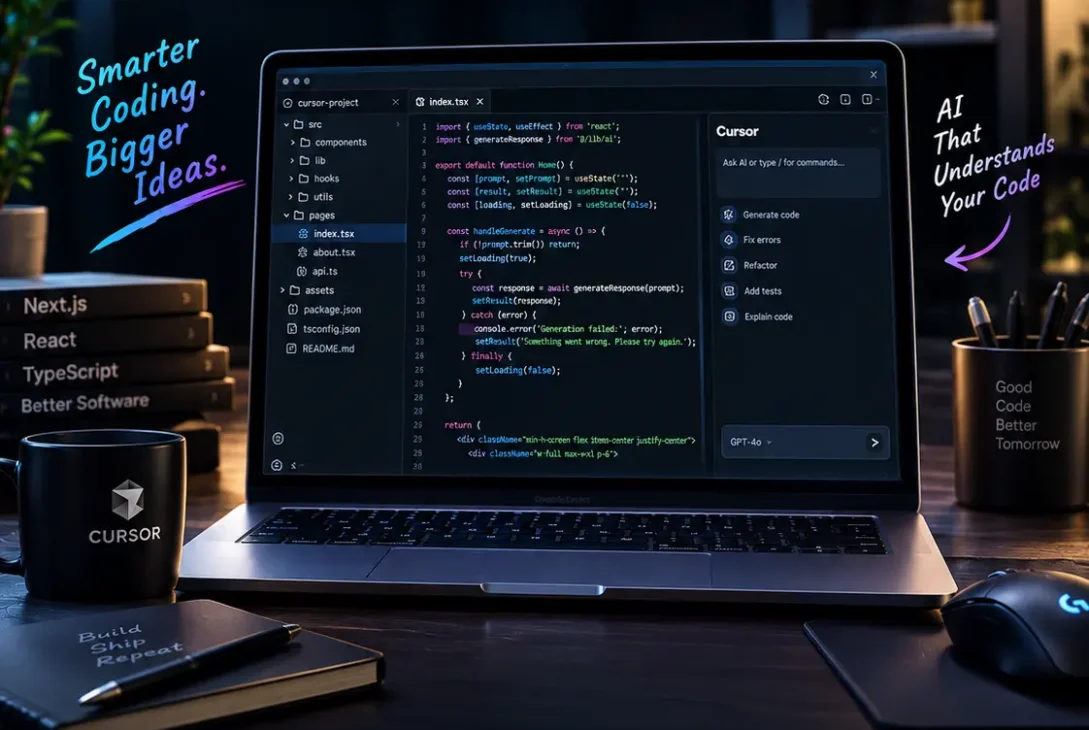
The cursor ai code editor has become one of the most popular AI-powered development environments for programmers who want to write, understand, debug, and modify software with help from artificial intelligence. Instead of using AI only in a separate chat window, Cursor puts AI directly inside the coding workflow.
Cursor is built around an AI-first approach to software development. Its Agent can understand a codebase, search files, edit multiple files, run terminal commands, fix errors, and help developers complete larger tasks from natural-language instructions.
That makes the cursor ai code editor different from a traditional text editor with a simple autocomplete feature. It can work across an entire project instead of only suggesting the next few lines of code.
The latest versions of Cursor also include features such as Agent mode, Plan mode, MCP, skills, hooks, browser tools, cloud agents, code review tools, and integrations with development platforms.
For beginners, Cursor can make programming easier by allowing them to describe what they want in plain English. For experienced developers, it can reduce repetitive work and speed up debugging, refactoring, testing, and feature development.
But AI coding tools also have limitations. Generated code can contain mistakes, agents can misunderstand requirements, and giving an AI access to a development environment introduces security considerations.
So, is Cursor actually worth using?
This guide explains the most important features of the cursor ai code editor, how Agent mode works, pricing, privacy, security, advantages, disadvantages, and who should consider using it.
Table of Contents
- What Is Cursor AI Code Editor?
- How Cursor Works
- Cursor Agent Mode
- Cursor Plan Mode
- AI Code Completion
- Codebase Understanding
- Debugging and Refactoring
- Terminal and Tool Integration
- MCP, Skills and Extensions
- Browser and Cloud Agents
- Cursor for Beginners
- Cursor for Professional Developers
- Cursor Pricing
- Privacy and Security
- Cursor vs VS Code
- Cursor vs GitHub Copilot
- Pros and Cons
- Is Cursor Worth It?
- Frequently Asked Questions
- Final Verdict
- SEO Details
What Is Cursor AI Code Editor?
The cursor ai code editor is an AI-powered development environment designed to help programmers build software faster.
Cursor is based around the familiar experience of a modern code editor, so developers can work with files, folders, terminals, extensions, version control, and programming languages while also having AI tools available inside the editor.
The main difference is the depth of AI integration.
Instead of copying code into an external chatbot, a developer can ask Cursor about the files already inside a project.
For example, you can ask it to:
- Explain an unfamiliar function
- Find where a particular feature is implemented
- Fix an error
- Add a new component
- Refactor several files
- Write tests
- Search the codebase
- Run commands
- Review changes
Cursor’s official documentation describes it as a coding agent for understanding codebases, planning features, fixing bugs, reviewing changes, and working with existing development tools.
This makes the cursor ai code editor especially useful for projects that contain many files and dependencies.
How Cursor Works
The cursor ai code editor combines an editor interface with AI models and development tools.
When you give Cursor a request, the system can determine which parts of the project are relevant before suggesting or making changes.
For example, suppose you tell Cursor:
“Add dark mode to the settings page.”
Instead of simply generating a random CSS snippet, an Agent can inspect the existing project structure, locate the settings page, identify the styling system, find relevant components, make changes, and potentially run tests.
Cursor’s Agent is designed to search the codebase, edit multiple files, execute terminal commands, and verify its work.
The quality of the result depends heavily on the quality of the instruction.
A vague prompt such as “fix my website” gives the agent too much freedom.
A more useful request explains:
- What needs to change
- Which files are relevant
- What behavior is expected
- What must not change
- How the result should be tested
That gives the AI better constraints and usually produces more predictable results.
Cursor Agent Mode
Agent mode is arguably the most important feature of the cursor ai code editor.
Instead of simply answering questions, Agent can perform a sequence of development actions.
According to Cursor’s documentation, Agent can build features, refactor code, fix bugs, write tests, search the project, and run shell commands.
A typical workflow might look like this:
- Describe the task.
- Cursor examines relevant files.
- The Agent creates a plan.
- It edits the necessary files.
- It runs commands or tests.
- It examines the results.
- It fixes problems.
- You review the final changes.
This is much closer to delegating a development task than asking an AI to generate a code snippet.
Agent can also work with larger projects where a single response would not contain enough context.
How to Use Agent
In the desktop application, Cursor provides an Agent panel where you can describe the task in natural language. The documentation currently lists Ctrl+I on Windows/Linux and Cmd+I on Mac for opening Agent.
After the Agent makes changes, developers should review the diff rather than blindly accepting everything.
That is especially important when the task affects authentication, databases, payments, security, or production infrastructure.
Cursor Plan Mode
Planning is another useful feature for larger projects.
Instead of immediately changing files, Plan mode can help the developer think through the implementation first.
This is particularly useful when a request affects multiple components.
For example:
“Migrate this application from one authentication system to another.”
A good plan might identify:
- Authentication files
- Database changes
- API changes
- Frontend components
- Environment variables
- Tests
- Deployment requirements
Cursor’s documentation recommends planning larger changes before implementation so developers can review the approach and guide the agent.
For complicated tasks, this can reduce unnecessary edits.
AI Code Completion
Not every programming task requires Agent mode.
Sometimes you simply need the next few lines of code.
The cursor ai code editor also provides AI-assisted completion and inline editing features.
This can help with:
- Function completion
- Repetitive code
- Boilerplate
- Variable names
- Small refactors
- Documentation
- Code transformations
This type of AI assistance is useful because it keeps the developer inside the editor.
Instead of switching to another application to ask a question, you can continue coding and accept or modify the suggested result.
For experienced developers, small suggestions can save significant time across hundreds of coding tasks.
Codebase Understanding
One of the strongest advantages of the cursor ai code editor is its ability to work with an entire codebase.
Large projects can be difficult to understand, especially when you are joining an existing team.
You may not know:
- Where authentication is handled
- Which API controls a feature
- Where database queries are defined
- Which component renders a particular page
- Where a specific environment variable is used
Cursor can search the project and help identify relevant code.
This can make onboarding faster.
Instead of manually searching hundreds of files, you can ask the Agent to trace how a particular feature works.
That does not mean the AI is always correct.
Developers should still inspect the actual implementation, especially when the project contains complicated architecture or undocumented behavior.
Debugging and Refactoring
Debugging is another area where the cursor ai code editor can save time.
Suppose an application produces an error after a recent change.
You can provide the error message and ask Cursor to investigate.
The Agent can inspect relevant files, trace dependencies, identify potential causes, modify the code, and run tests or commands.
For refactoring, you can request larger transformations such as:
- Convert repeated code into reusable functions
- Rename a component across the project
- Move logic into a service
- Improve TypeScript types
- Update an outdated API
- Simplify a complicated function
The key benefit is that the AI can make coordinated changes across multiple files.
However, refactoring should always be reviewed carefully.
A change that looks correct in one file can accidentally break another part of the application.
Terminal and Tool Integration
The cursor ai code editor is not limited to editing text.
Its Agent can work with terminal commands and development tools.
That allows it to perform workflows such as:
Edit → Run → Inspect → Fix → Run Again
This is particularly useful for projects with automated tests.
For example, you could ask Cursor to fix a failing test.
The Agent can inspect the test, locate related implementation code, make a change, run the test, and use the result to decide what to do next.
Cursor’s current Agent documentation describes terminal execution as one of the tools available to its coding agents.
Developers should still control what commands agents are allowed to execute.
Cursor provides Run Modes and sandboxing controls for this purpose.
MCP, Skills and Extensions
Modern Cursor development is not limited to the built-in editor.
The platform supports tools and extensions that can connect the AI workflow to external services.
Cursor documentation lists MCP, skills, plugins, rules, and hooks as ways to customize how agents work.
MCP can allow an AI agent to interact with additional tools and services.
For example, a development team could connect an agent to tools used for:
- Project management
- Documentation
- Databases
- Internal systems
- Development workflows
However, every additional integration increases the security surface.
External tools should only receive the permissions they actually need.
Browser and Cloud Agents
Cursor has also expanded beyond the local editor.
Its browser tools allow agents to interact with web pages, while Cloud Agents can work on tasks in isolated cloud environments.
This creates a broader workflow where an AI agent can work with a project without requiring every task to happen directly inside the developer’s local machine.
Cloud Agents are particularly interesting for larger development tasks.
Cursor says Cloud Agents run in dedicated environments with isolation between agents and use encryption for data in transit and at rest.
However, cloud-based development agents introduce different security considerations because project code and development environments are processed in cloud infrastructure.
Teams should therefore understand the privacy and access controls before using them with sensitive repositories.
Cursor for Beginners
The cursor ai code editor can be useful for beginners because natural-language instructions can reduce the barrier to getting started.
A beginner might ask:
“Create a simple portfolio website with HTML and CSS.”
Cursor can generate the initial project structure and explain the code.
A beginner can then ask follow-up questions such as:
- “What does this function do?”
- “Make the navigation responsive.”
- “Change the background color.”
- “Explain this error.”
- “Add a contact form.”
This can make learning interactive.
However, beginners should avoid using Cursor as a complete substitute for understanding programming fundamentals.
If you accept every AI-generated change without understanding it, debugging becomes difficult when something eventually breaks.
The best approach is to use AI as a tutor and coding assistant rather than a replacement for learning.
Cursor for Professional Developers
For professional developers, the value of the cursor ai code editor is more about productivity than simply generating code.
Experienced developers already know how to write software.
Their biggest time costs can come from:
- Searching large repositories
- Repetitive edits
- Debugging
- Writing tests
- Documentation
- Refactoring
- Reviewing changes
- Understanding unfamiliar code
AI agents can help reduce these costs.
Cursor is particularly useful when a developer gives the AI a clearly defined objective and then reviews its implementation.
The developer remains responsible for architecture and important decisions, while the AI handles more of the mechanical work.
Cursor Pricing
Cursor currently offers several pricing tiers, including a free Hobby plan and paid Individual plans. Its current pricing page lists Hobby at $0/month and Individual at $20/month, with higher-usage options and team plans also available.
Pricing and included usage can change, so users should check Cursor’s official pricing page before subscribing.
The important difference between plans is not simply the editor itself.
Higher tiers provide more AI usage and access to additional agent-oriented capabilities.
For someone experimenting with AI-assisted coding, the free option can be a reasonable way to understand the workflow.
Developers who use Agent heavily may need a paid plan because AI usage can become substantial during long coding sessions.
Privacy and Security
Security is one of the most important considerations when using the cursor ai code editor with real projects.
Cursor provides a Privacy Mode that prevents code from being used for training by Cursor or its AI model providers.
When AI features are used, prompts and relevant code context can be sent to model providers.
That means developers should understand what information is being shared and configure privacy settings appropriately.
Cursor also provides security controls for agent actions.
By default, sensitive operations can require user approval, while Run Modes allow teams to control how much autonomy agents receive.
For professional projects, good practices include:
- Enable appropriate Privacy Mode settings
- Use version control
- Review AI-generated changes
- Avoid exposing secrets
- Restrict agent permissions
- Use sandboxing where possible
- Review terminal commands
- Keep production credentials protected
Cursor’s security documentation also warns about prompt injection, where malicious instructions inside files or external content could influence an AI agent.
Cursor vs VS Code
VS Code remains one of the most widely used code editors.
The main difference is the AI-first design philosophy.
VS Code provides a highly extensible editor with a huge ecosystem of extensions.
Cursor focuses heavily on integrating AI directly into the development experience.
For developers who already use VS Code, switching to Cursor can feel relatively familiar because the editing environment is designed around a similar workflow.
The deciding factor is often how heavily you want AI integrated into your coding process.
If AI agents are central to your workflow, Cursor can be more convenient.
If you prefer a traditional editor with carefully selected extensions, VS Code may remain the better fit.
https://cursor.com/
Cursor vs GitHub Copilot
GitHub Copilot and Cursor both provide AI coding assistance, but their workflows are not identical.
Copilot is deeply integrated into Microsoft’s and GitHub’s developer ecosystem.
Cursor is built around an AI-native coding environment where agents can work across the codebase.
For developers who want an editor centered around AI agents, Cursor is particularly attractive.
For teams already heavily invested in GitHub and existing development workflows, Copilot can still be a compelling option.
The best choice depends on:
- Preferred editor
- Existing tools
- Team workflow
- AI usage requirements
- Pricing
- Model preferences
- Agent capabilities
Pros and Cons
Pros
- Strong AI-first coding workflow
- Agent can edit multiple files
- Codebase search and understanding
- Terminal integration
- Debugging assistance
- Refactoring support
- Plan mode
- MCP and customization options
- Browser tools
- Cloud Agents
- Familiar editor experience
- Strong productivity potential
Cons
- AI can still make incorrect changes
- Heavy Agent usage can consume usage limits
- Privacy requires careful configuration
- Agent permissions introduce security risks
- Beginners may become overly dependent on AI
- Complex projects still require human architectural decisions
Is Cursor Worth It?
The cursor ai code editor is worth considering if you want AI to become a central part of your programming workflow.
It is particularly useful for developers who regularly work on medium or large projects and spend significant time searching code, debugging, refactoring, writing tests, or implementing repetitive changes.
For beginners, Cursor can also be useful, but it should be combined with genuine programming education.
The free tier is a good way to test the experience before paying.
Professional developers who rely heavily on Agent features may find the paid plans more worthwhile.
The biggest advantage is not that Cursor can generate code.
Many AI tools can already do that.
The real advantage is that Cursor can work with your existing project, understand context, modify multiple files, run development tools, and help move a task toward completion.
That makes it much closer to an AI development partner than a simple autocomplete system.
Frequently Asked Questions
What is Cursor AI Code Editor?
The cursor ai code editor is an AI-powered development environment that helps programmers understand code, generate code, edit files, debug problems, and complete larger development tasks.
Is Cursor better than VS Code?
It depends on your workflow. Cursor focuses heavily on AI agents and codebase-aware development, while VS Code offers a broader traditional editor and extension ecosystem.
Is Cursor free?
Yes. Cursor currently offers a free Hobby plan with limited AI usage. Paid plans provide higher usage and additional capabilities.
How much does Cursor cost?
Cursor’s current pricing lists Individual at $20 per month, while additional plans offer different usage levels and features. Pricing can change, so check the official pricing page before subscribing.
Can Cursor edit multiple files?
Yes. Cursor Agent can search the codebase and make changes across multiple files as part of a development task.
Can Cursor fix bugs?
Yes. You can give Cursor an error or bug description and ask Agent to investigate, modify the relevant code, and run checks.
Can Cursor run terminal commands?
Yes. Agent can run terminal commands, although approval and execution behavior depends on your configured Run Mode.
Is Cursor safe for private code?
Cursor provides Privacy Mode and multiple security controls, but developers should still configure permissions carefully and avoid exposing unnecessary secrets or sensitive files.
Can Cursor replace a programmer?
No. Cursor can automate significant parts of software development, but developers are still needed for architecture, requirements, security, testing, code review, and important technical decisions.
Does Cursor support MCP?
Yes. Cursor supports MCP and other customization mechanisms that can connect agents to additional tools and workflows.
Is Cursor good for beginners?
The cursor ai code editor can be helpful for beginners because they can describe tasks in natural language, but learning programming fundamentals remains important.
Does Cursor work on Mac?
Yes. Cursor provides a desktop application for Mac, alongside Windows and Linux support.
Should I pay for Cursor?
If you use AI coding agents frequently, a paid plan may provide enough additional usage to justify the cost. Casual users can start with the free plan and upgrade if they reach its limits.
Final Verdict
The cursor ai code editor represents where software development is increasingly heading: away from AI that only completes individual lines and toward AI agents that can understand projects and execute larger development tasks.
Its Agent can search codebases, edit files, run commands, fix bugs, write tests, and help implement features.
That makes Cursor particularly useful for developers who want to delegate repetitive engineering work while remaining in control of the final result.
The strongest part of Cursor is therefore not simply its autocomplete.
It is the combination of codebase context, agentic workflows, terminal access, planning, debugging, integrations, and increasingly autonomous development capabilities.
At the same time, developers should remember that AI-generated code is not automatically correct.
A good workflow still includes version control, testing, code review, security checks, and human judgment.
Privacy also deserves attention, especially when working with proprietary repositories. Cursor provides Privacy Mode and several agent security controls, but users should configure these according to the sensitivity of their projects.
Overall, the cursor ai code editor is a strong choice for developers who want to make AI a serious part of their daily workflow.
If you are only looking for basic autocomplete, simpler tools may be enough.
But if you want an AI assistant that can understand a repository, plan changes, modify multiple files, run tests, and help complete larger coding tasks, Cursor is one of the most compelling AI development environments available today.