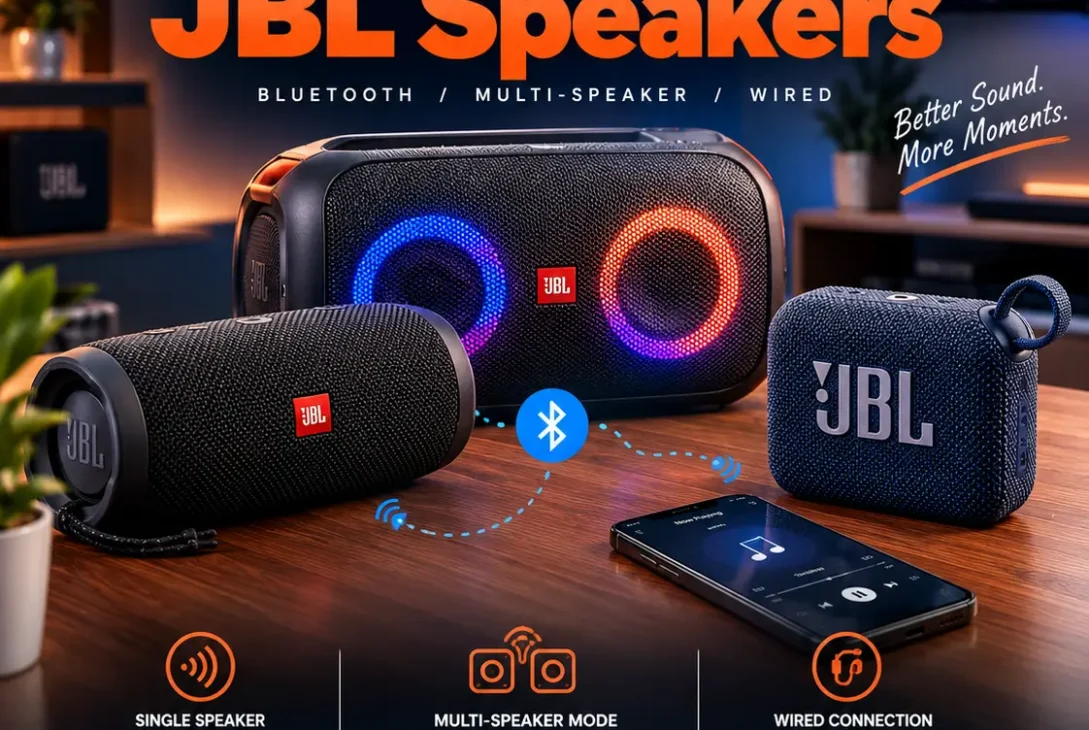
If you’re wondering how to connect JBL speakers, the good news is that most JBL portable speakers can be connected to a phone, tablet, computer, or another compatible JBL speaker in just a few steps. The exact process can vary depending on your JBL model, but Bluetooth is usually the easiest way to get started.
JBL offers a wide range of portable speakers, including the Flip, Charge, Xtreme, Boombox, and other models. While the basic Bluetooth pairing process is similar, features such as PartyBoost, Connect+, and newer speaker technologies can work differently.
Knowing how to connect JBL speakers properly can also help when you want to connect multiple speakers together, use stereo mode, troubleshoot a failed Bluetooth connection, or switch the speaker between different devices.
This guide explains the easiest connection methods, how to pair JBL speakers with phones and computers, how to connect two JBL speakers together, and what to do when your speaker refuses to connect.
Table of Contents
- How to Connect JBL Speakers to a Phone
- How to Connect JBL Speakers to an iPhone
- How to Connect JBL Speakers to Android
- How to Connect JBL Speakers to a Windows PC
- How to Connect JBL Speakers to a Mac
- How to Connect Two JBL Speakers Together
- JBL PartyBoost and Stereo Mode
- JBL Connect and Connect+
- How to Connect JBL Speakers Without Bluetooth
- Why Your JBL Speaker Is Not Connecting
- How to Fix JBL Bluetooth Pairing Problems
- How to Disconnect and Reconnect a JBL Speaker
- Frequently Asked Questions
- Final Verdict
- SEO Details
How to Connect JBL Speakers to a Phone
The simplest answer to how to connect JBL speakers is to use Bluetooth.
Most modern JBL portable speakers are designed to connect wirelessly to smartphones and tablets.
Follow these steps:
- Turn on your JBL speaker.
- Press the Bluetooth button on the speaker.
- Open Bluetooth settings on your phone.
- Make sure Bluetooth is enabled.
- Look for your JBL speaker in the available devices list.
- Tap the speaker’s name.
- Wait for the connection to complete.
- Play music or another audio source to test the connection.
Once paired, your phone should send audio to the JBL speaker.
The exact appearance of the Bluetooth menu depends on whether you’re using an iPhone or Android phone.
Keep the Devices Close Together
When pairing for the first time, keep the phone relatively close to the speaker.
Bluetooth connections generally work best when there are fewer physical obstacles and sources of interference between the devices.
If your phone cannot find the speaker, move closer and make sure the JBL speaker is actually in pairing mode.
Check the Bluetooth Indicator
Many JBL speakers use a Bluetooth indicator to show their connection status.
If the Bluetooth light is flashing, the speaker may be searching for a device.
Once the speaker connects successfully, the indicator behavior may change depending on the model.
If you’re unsure what a particular light means, check the manual for your exact JBL model.
How to Connect JBL Speakers to an iPhone
If you want to learn how to connect JBL speakers to an iPhone, the process is straightforward.
First, turn on the JBL speaker.
Then:
- Press the Bluetooth button on the JBL speaker.
- Open Settings on your iPhone.
- Select Bluetooth.
- Turn Bluetooth on.
- Wait for the JBL speaker to appear under available devices.
- Tap the JBL speaker.
- Wait until the device shows as connected.
After that, open Apple Music, Spotify, YouTube, or another audio application and start playing something.
If sound comes from the iPhone instead of the speaker, open the audio output controls and select the JBL speaker.
If Your JBL Speaker Does Not Appear
If your JBL speaker isn’t listed on the iPhone, try these steps:
- Turn Bluetooth off and on again.
- Turn the JBL speaker off and back on.
- Move the iPhone closer to the speaker.
- Make sure another phone isn’t already connected.
- Put the JBL speaker back into pairing mode.
- Restart the iPhone if necessary.
If the speaker was previously connected to another device, disconnecting that device may also help.
https://support.jbl.com/howto/setting-up-your-partyboost-speakers-in-stereo-mode-us/000017051.html
How to Connect JBL Speakers to Android
The process for Android is similarly simple.
If you’re researching how to connect JBL speakers to an Android phone, start by turning on the speaker and activating Bluetooth pairing.
Then:
- Open Settings.
- Select Connected devices or Bluetooth, depending on your Android version.
- Turn Bluetooth on.
- Select Pair new device if necessary.
- Find the JBL speaker.
- Tap its name.
- Confirm pairing if Android asks you to do so.
Once connected, audio should automatically route through the JBL speaker.
Android menus can differ between Samsung, Google Pixel, OnePlus, Xiaomi, and other manufacturers, but the basic Bluetooth process remains similar.
Use Quick Settings
Many Android phones also provide a Bluetooth shortcut in Quick Settings.
You can swipe down from the top of the screen, activate Bluetooth, and then open the Bluetooth device list.
This can be faster than navigating through the full Settings menu.
How to Connect JBL Speakers to a Windows PC
A JBL speaker can also be used as a wireless audio device with a Windows computer.
If you’re learning how to connect JBL speakers to Windows, first put the speaker into Bluetooth pairing mode.
Then:
- Open Settings in Windows.
- Select Bluetooth & devices.
- Turn Bluetooth on.
- Select Add device.
- Choose Bluetooth.
- Select your JBL speaker.
- Wait for Windows to complete pairing.
Once connected, Windows should recognize the JBL speaker as an available audio output.
If your computer continues playing sound through its built-in speakers, open the Windows sound output controls and select the JBL device.
Check Windows Audio Output
Pairing and audio output are two separate things.
A computer can successfully connect to a Bluetooth speaker while continuing to use another output device.
If you don’t hear anything from the JBL speaker:
- Click the sound icon in Windows.
- Open the available output devices.
- Select your JBL speaker.
- Play audio again.
This simple check solves many situations where users think Bluetooth pairing has failed.
How to Connect JBL Speakers to a Mac
Mac computers can also connect to compatible JBL Bluetooth speakers.
To learn how to connect JBL speakers to a Mac:
- Turn on the JBL speaker.
- Press the Bluetooth button.
- Open System Settings on your Mac.
- Select Bluetooth.
- Find the JBL speaker.
- Click Connect.
After connecting, open the Mac’s sound settings if necessary and select the JBL speaker as the output device.
You can then use the speaker for music, videos, podcasts, meetings, and other audio.
If the Mac Connects but No Sound Plays
Open:
System Settings → Sound → Output
Then select the JBL speaker.
If another output device is selected, the Mac may remain connected to the JBL speaker without actually sending audio to it.
How to Connect Two JBL Speakers Together
One of the most useful JBL features is the ability to connect compatible speakers together.
However, this is where things can become confusing because JBL has used different technologies across different generations.
Depending on your model, you may see:
- JBL Connect
- JBL Connect+
- JBL PartyBoost
- Newer multi-speaker connection features
These technologies are not universally compatible with one another.
For example, JBL states that Connect and Connect+ speakers cannot simply be mixed with PartyBoost speakers.
Therefore, before trying to connect two speakers, check which connection technology your models support.
Basic PartyBoost Connection
For compatible PartyBoost speakers, JBL’s official instructions recommend first connecting one speaker to your phone and playing music.
Then:
- Turn on the second compatible JBL speaker.
- Press the PartyBoost button on the first speaker.
- Press the PartyBoost button on the second speaker.
- Wait a few seconds.
- The speakers should connect and play together.
JBL notes that this process can also be repeated to add more compatible PartyBoost speakers to a group.
JBL PartyBoost and Stereo Mode
If you’re researching how to connect JBL speakers for a true left-and-right stereo setup, compatibility becomes particularly important.
JBL states that Stereo Mode requires two identical compatible speaker models. For example, two compatible Flip 6 speakers can be used together for stereo, while mixing certain different models may only allow Party Mode.
To set up compatible speakers in Stereo Mode:
- Turn on both speakers.
- Connect your phone to one speaker using Bluetooth.
- Start playing music.
- Open the JBL Portable app.
- Allow the app to detect the speaker.
- Press the connection or PartyBoost button on both speakers.
- Allow the app to identify both speakers.
- Select Stereo mode.
JBL’s official instructions recommend playing music on the primary speaker before connecting the second speaker.
Party Mode vs. Stereo Mode
These two modes are designed for different purposes.
Party Mode generally sends the same audio to multiple compatible speakers.
Stereo Mode separates the audio into left and right channels.
Stereo Mode can create a wider soundstage, but compatibility requirements are stricter.
If your speakers are different models, don’t assume they can automatically operate as a stereo pair.
JBL Connect and Connect+
Older JBL speakers may use Connect or Connect+ rather than PartyBoost.
This is important because JBL’s connection technologies are not interchangeable.
The JBL Portable app can provide features such as connection management, Party or Stereo mode, and firmware updates for supported speakers.
If you have an older JBL speaker, check the model’s documentation before attempting to connect it with a newer speaker.
The buttons and pairing process can also differ between generations.
How to Connect JBL Speakers Without Bluetooth
Bluetooth is the easiest method for most modern portable JBL speakers, but some JBL products may offer wired connections or other input methods.
If your particular model has an AUX input, you may be able to connect it to a compatible device using a 3.5mm audio cable.
The basic setup is:
Audio device → AUX cable → JBL speaker
However, not every modern JBL portable speaker includes an AUX input.
Before buying a cable, check the specifications of your exact model.
Why Use a Wired Connection?
A wired connection can be useful when:
- Your source device does not support Bluetooth.
- Bluetooth interference is causing problems.
- You want a simple direct connection.
- You need a low-latency audio connection.
For most phones and modern computers, however, Bluetooth will usually be more convenient.
Why Your JBL Speaker Is Not Connecting
If you’ve followed the basic instructions and the speaker still refuses to connect, don’t assume the hardware is defective.
Several common issues can prevent pairing.
Another Device Is Connected
Your JBL speaker may already be connected to another phone, tablet, computer, or television.
Disconnect the existing device before trying to pair a new one.
Bluetooth Is Turned Off
Check Bluetooth on the source device.
This sounds obvious, but it is one of the easiest things to overlook.
The Speaker Is Not in Pairing Mode
Simply turning the speaker on doesn’t always mean it is ready to pair with a new device.
Press the Bluetooth button and look for the appropriate pairing indicator.
The Devices Are Too Far Apart
Move the phone or computer closer to the speaker.
Bluetooth Pairing Data Is Causing Problems
Old pairing information can sometimes interfere with a new connection.
Remove the JBL speaker from the Bluetooth device list and pair it again.
How to Fix JBL Bluetooth Pairing Problems
If you’re still searching for how to connect JBL speakers because the normal pairing process isn’t working, use this troubleshooting sequence.
Step 1: Restart Bluetooth
Turn Bluetooth off on your phone or computer.
Wait several seconds, then turn it back on.
Step 2: Restart the JBL Speaker
Turn the speaker off.
Wait a few seconds.
Turn it back on and try pairing again.
Step 3: Forget the Speaker
On your phone or computer, remove the JBL speaker from the saved Bluetooth devices.
Then search for it again.
Step 4: Move Closer
Keep the source device close to the speaker during pairing.
Step 5: Disconnect Other Devices
If another device is already connected, disconnect it before attempting a new pairing.
Step 6: Update the JBL Speaker
Supported JBL speakers can receive firmware updates through the JBL Portable app. JBL’s support documentation notes that firmware upgrades can be installed through the app for compatible Connect, Connect+, and PartyBoost speakers.
Step 7: Reset the Speaker
If nothing else works, a factory reset may help.
The exact reset combination depends on the JBL model, so don’t assume the same button combination works for every speaker.
Check JBL’s support documentation for your exact model before performing a reset.
How to Disconnect and Reconnect a JBL Speaker
Once you understand how to connect JBL speakers, switching between devices becomes much easier.
If you want to disconnect your phone, you can usually:
- Open Bluetooth settings.
- Select the JBL speaker.
- Choose Disconnect or Forget.
- Connect another device.
If you’re switching frequently between a phone and computer, remember that Bluetooth behavior can depend on the speaker model and its supported connection features.
If another device automatically reconnects, temporarily disable Bluetooth on that device.
Reconnecting After Previously Pairing
If the JBL speaker and phone have already been paired, you usually don’t need to repeat the entire pairing process.
Turn on Bluetooth and the speaker.
If the saved connection is available, the devices may reconnect automatically.
If they don’t, open the Bluetooth device list and tap the JBL speaker manually.
Frequently Asked Questions
How to connect JBL speakers to a phone?
Turn on the JBL speaker, press the Bluetooth button, open Bluetooth settings on your phone, select the JBL speaker from the available devices, and wait for pairing to complete.
How to connect JBL speakers to an iPhone?
Turn on the speaker, press its Bluetooth button, open Settings → Bluetooth on the iPhone, and select the JBL speaker from the available devices.
How to connect JBL speakers to Android?
Enable Bluetooth on your Android phone, put the JBL speaker into pairing mode, open the Bluetooth device list, and select the speaker.
How to connect JBL speakers to a laptop?
On Windows, open Settings → Bluetooth & devices → Add device → Bluetooth, then select the JBL speaker. On a Mac, open System Settings → Bluetooth and select the speaker.
Can I connect two JBL speakers together?
Yes, if the models support a compatible JBL multi-speaker technology. The exact process depends on whether the speakers use PartyBoost, Connect, Connect+, or another supported system.
Can I connect different JBL speakers together?
Sometimes. Compatibility depends on the connection technology used by each model. JBL notes that certain technologies cannot be mixed, while compatible models can work together in Party Mode.
Can two JBL speakers play in stereo?
Yes, but Stereo Mode generally requires two compatible speakers of the same model. JBL specifically states that identical compatible products are required for Stereo Mode.
Why won’t my JBL speaker connect to Bluetooth?
Possible causes include another device already being connected, the speaker not being in pairing mode, Bluetooth problems on the source device, outdated firmware, or old pairing information.
How do I reset a JBL speaker?
The reset procedure depends on the exact JBL model. Check the official JBL support documentation for your speaker before attempting a factory reset.
Do I need the JBL Portable app?
Not necessarily for basic Bluetooth pairing. However, the app can provide additional features on supported models, including speaker management, Party or Stereo Mode, and firmware updates.
Can I connect a JBL speaker to a PC?
Yes. A compatible JBL Bluetooth speaker can generally be paired with a Windows PC or Mac through the computer’s Bluetooth settings.
Why is my JBL speaker connected but there is no sound?
Your phone or computer may still be using its built-in speakers as the audio output. Check the sound-output settings and manually select the JBL speaker.
Can I connect more than two JBL speakers?
Some compatible JBL speaker systems allow multiple speakers to be connected in Party Mode. The number and compatibility depend on the specific JBL technology and models.
Final Verdict
Learning how to connect JBL speakers is usually straightforward once you understand the difference between basic Bluetooth pairing and JBL’s multi-speaker technologies.
For a single speaker, turn it on, activate Bluetooth pairing, open Bluetooth settings on your phone or computer, and select the JBL speaker. If the speaker has already been paired with another device, disconnect that device before starting a new connection.
If you want multiple speakers working together, check whether your models support PartyBoost, Connect, Connect+, or another compatible technology. Don’t assume that every JBL speaker can connect to every other JBL speaker.
For compatible PartyBoost models, JBL provides both Party and Stereo modes. Stereo Mode requires two identical compatible speaker models, while Party Mode can support compatible groups of speakers.
If pairing fails, start with the basics: restart Bluetooth, restart the speaker, remove old pairing information, move the devices closer together, disconnect other devices, and check for firmware updates.
Once you know how to connect JBL speakers and which connection technology your model uses, most Bluetooth and multi-speaker setup problems can be solved in just a few minutes.